WHT Tutorials
The WHT features are introduced on WHT Setup Steps. QuickEasy BOS calculates WHT but does not tell you what percentage to deduct, because we do not know upfront what services you or your suppliers offer. For Thailand, see the schedule from the Thailand Revenue Department.
💡These tutorials explain how to apply withholding taxes to transactions.
- The WHT Setup Steps must be complete before any of these features work.
- Customer and supplier allocations must be activated (see General Settings).
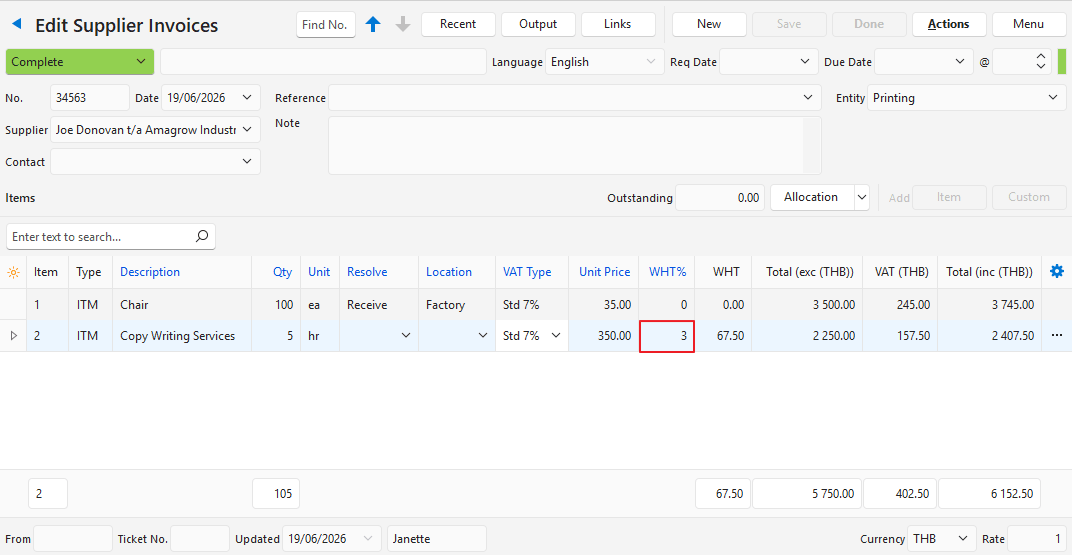
How to Assign WHT on an Invoice
- The WHT Section can be edited on invoice-type transactions only. On payment-type transactions (e.g. customer receipts and supplier payments), it is read-only.
- An item needs both a WHT% and a WHT Section. If one is missing, the warning bar shows “WHT incomplete - WHT% or WHT Section missing”, and Update Withholding Tax on a payment allocated to the invoice shows an error and does not change the payment.
- Create a customer or supplier invoice.
- Complete the header and add the items.
- For each applicable item:
- WHT% = Enter the percentage to deduct.
- WHT Section = Select an option (e.g. Interest & Dividends 40(4)), or select the blank entry at the top of the list to clear it.
- Click Save (button).
- Note: The WHT amounts are calculated automatically.
How to Set or Clear the WHT Section on Multiple Items
These steps also apply to the WHT% option. Both options are available on Transaction Types with the Accounting > Enable Withholding Tax (WHT) setting Invoice.
- Open the customer or supplier invoice.
- Click Actions (button) > Batch Update.
- Check the boxes of the items you want to edit.
- Select WHT Section from the dropdown list next to Update.
- Select an option from the adjacent dropdown list or select the blank entry to clear the WHT Section.
- Click Update (button).
- Confirm the change.
How to Process WHT on Customer Receipts
For this process to work, a WHT percentage must be entered on the Customer Invoice. Nothing is processed on the invoice itself: the amount on the invoice is deducted from the payment and posted to the WHT offset account only when the receipt is captured.
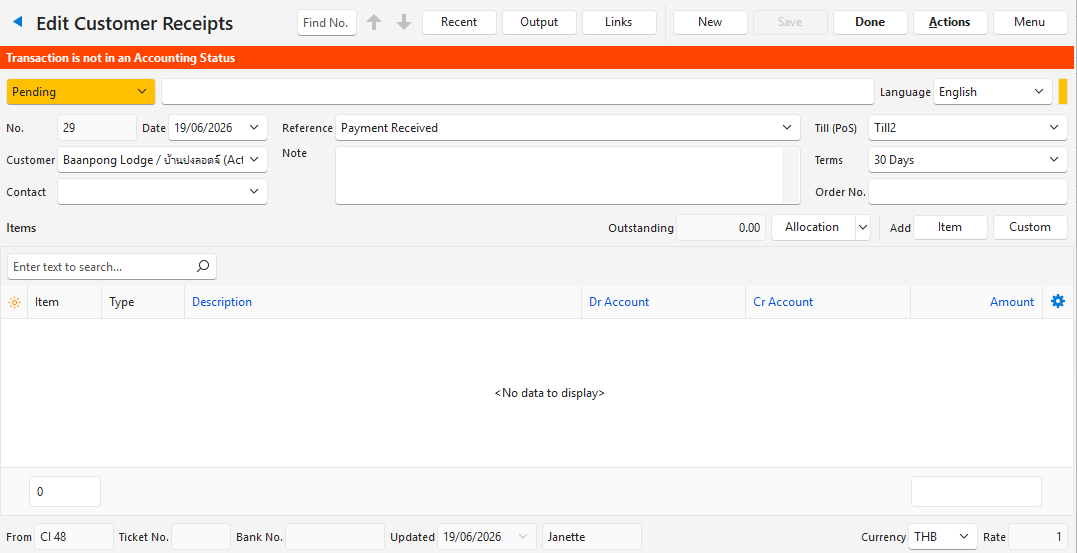
- Create a Customer Receipt.
- Enter the header details (e.g. select a customer, enter a reference).
- Click Save (button).
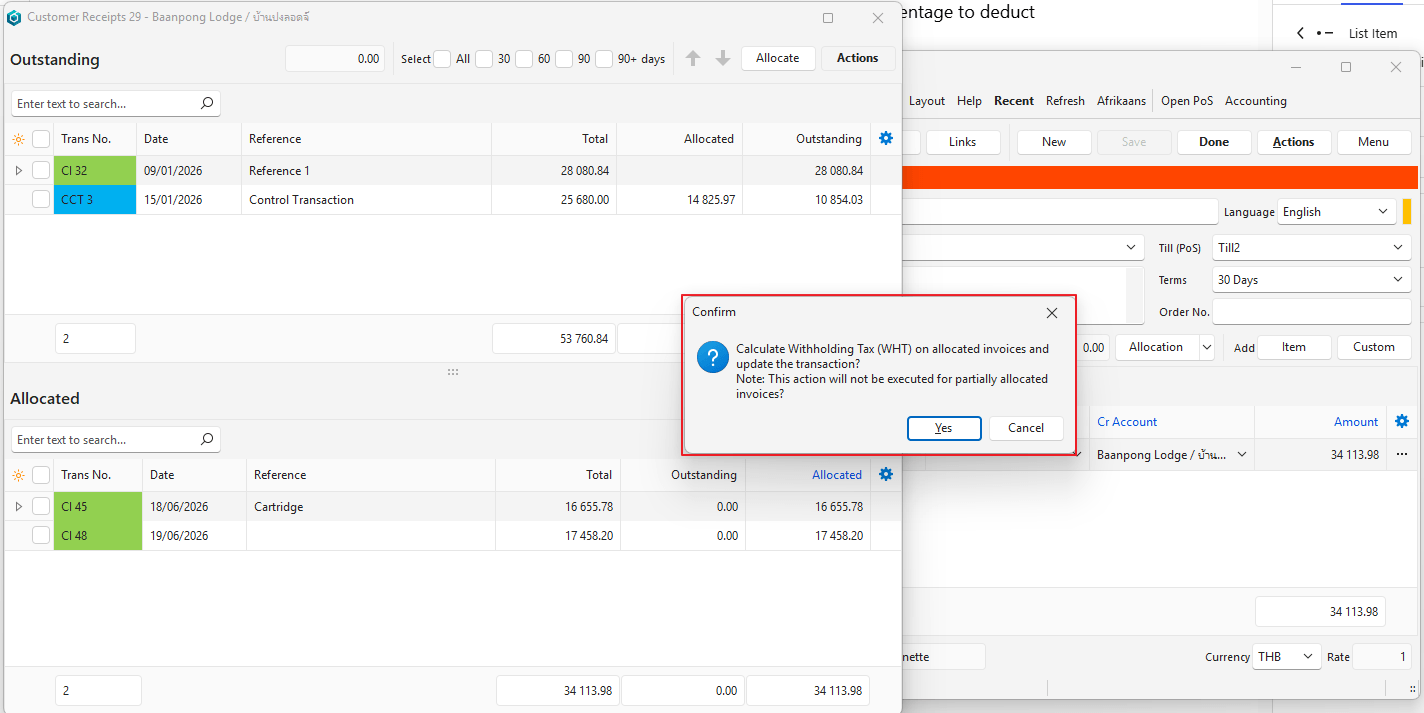
- Click Allocation (button).
- Click the invoices that were paid.
- Click Allocate (button).
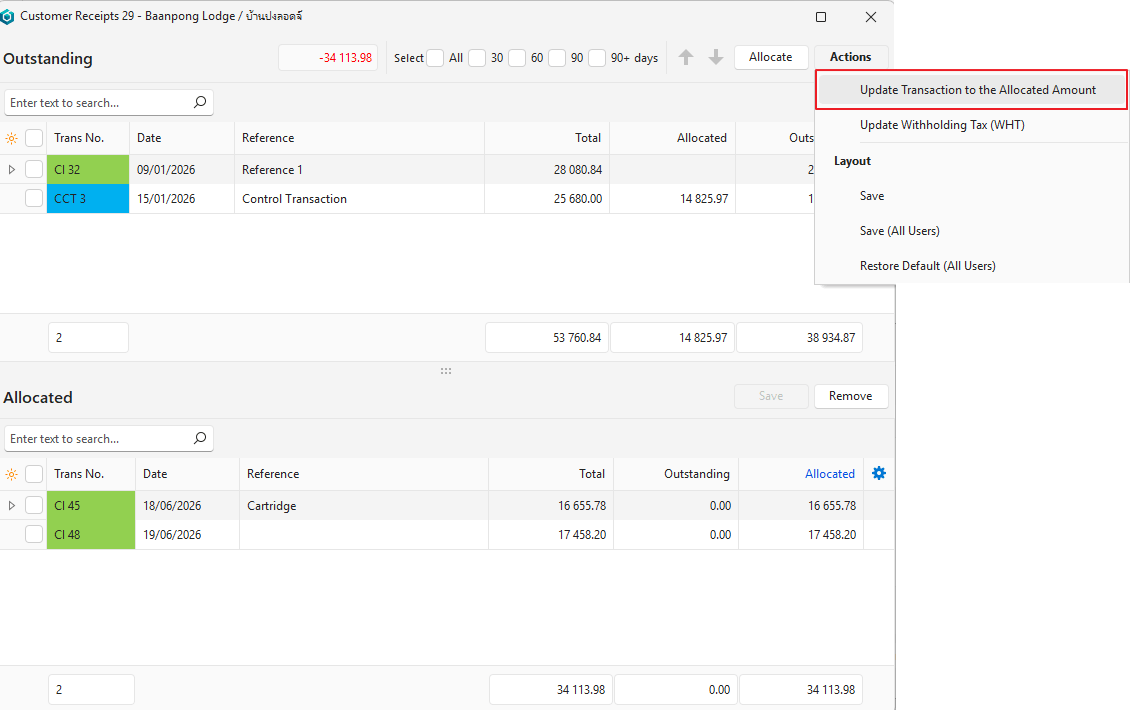
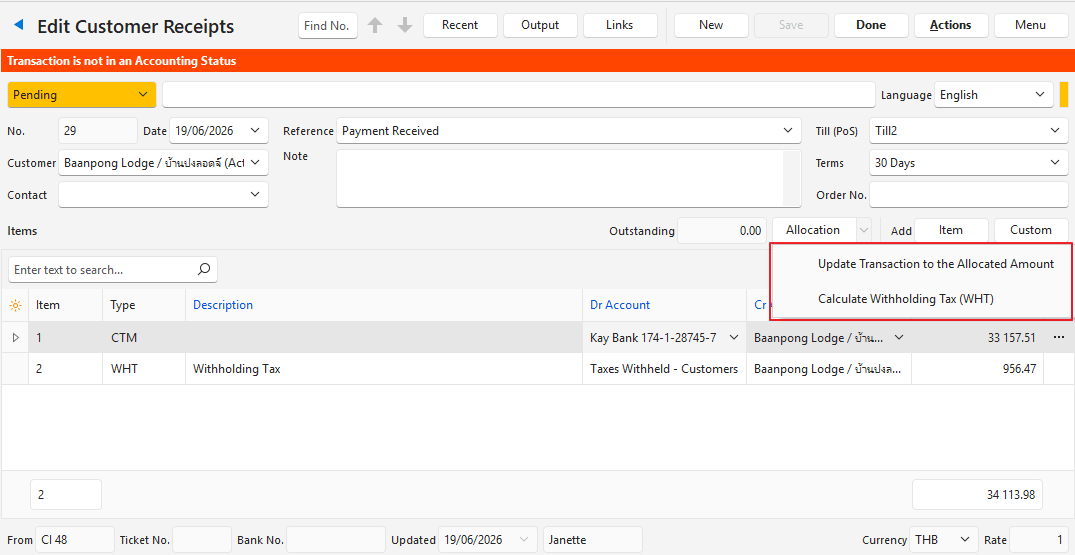
- Click Actions (button) > Update Transaction to the Allocated Amount.
- Confirm the update.
- Click Actions (button) > Update Withholding Tax.
- Confirm the update.
- Close the Allocation popup with the X in the corner.
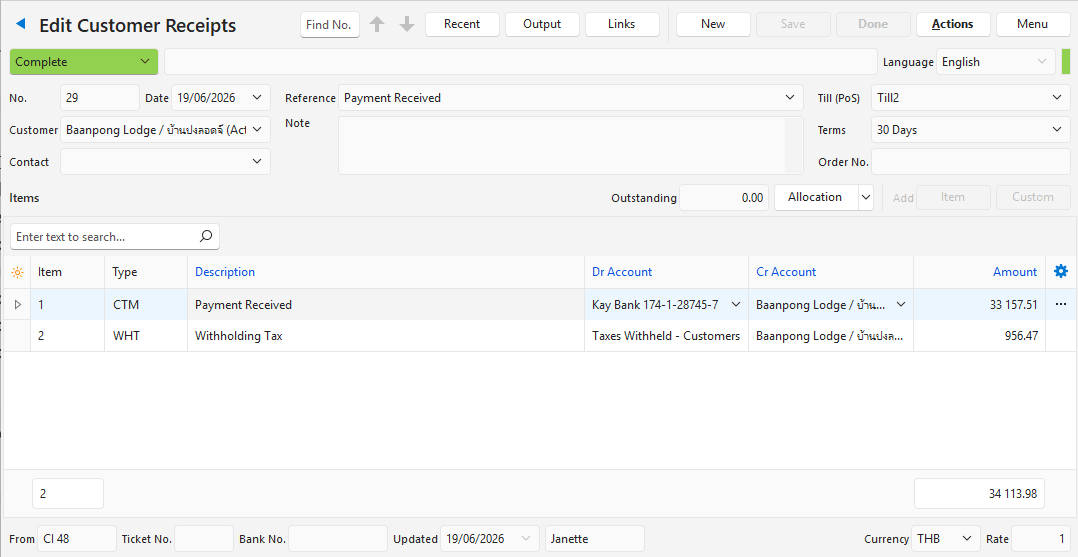
- Complete the receipt by entering a bank account, or any other missing account details.
- Click Done (button) if there is one. Otherwise, change the status to Complete and click Save (button).
How to Process WHT on Supplier Payments
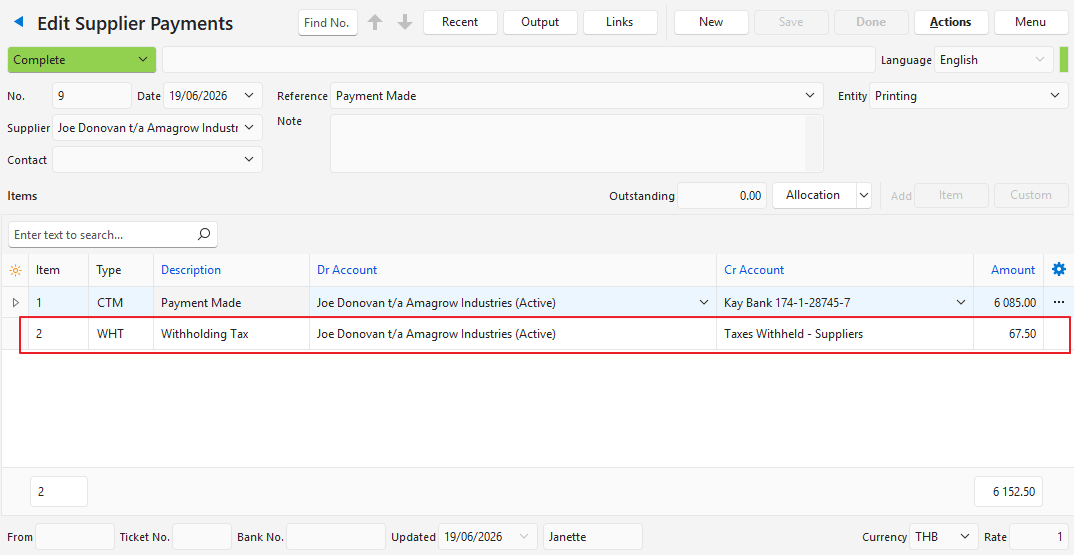
For this process to work, a WHT percentage must be entered on the Supplier Invoice. Nothing is processed on the invoice itself: the amount on the invoice is deducted from the payment and posted to the WHT account only when the payment is captured.
- Create a Supplier Payment.
- Enter the header details (e.g. select a supplier, enter a reference).
- Click Save (button).
- Click Allocation (button).
- Click the invoices that were paid.
- Click Allocate (button).
- Click Actions (button) > Update Transaction to the Allocated Amount.
- Confirm the update.
- Click Actions (button) > Update Withholding Tax.
- Confirm the update.
- Close the Allocation popup with the X in the corner.
- Complete the payment by entering a bank account, or any other missing account details.
- Click Done (button) if there is one. Otherwise, change the status to Complete and click Save (button).
See the screenshots under How to Process WHT on Customer Receipts for step-by-step illustrations. The process for customers and suppliers is the same.