
Item Attributes
Attributes provide:
- A fixed set of features (attributes).
- A fixed set of units with the conversion calculations prefilled.
- A description generator with an option to override it.
The fields in fixed attribute sets cannot be removed or renamed. Only their values can be edited.
Edit Custom Attributes Interface
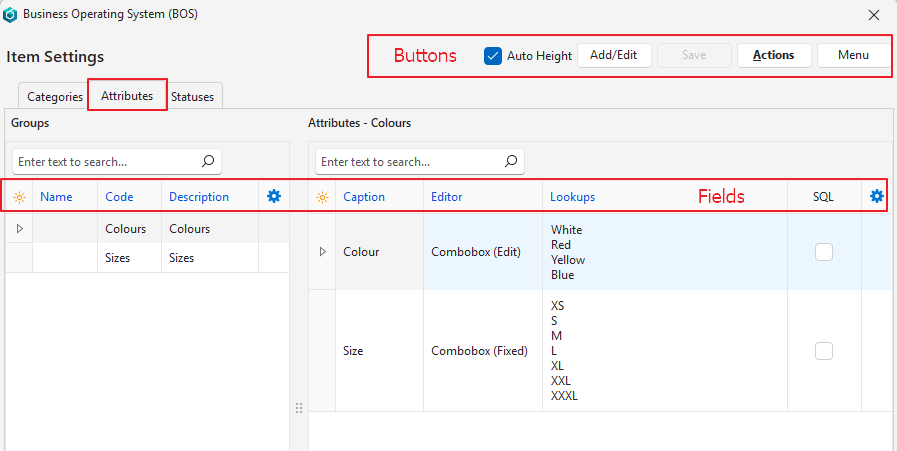
Buttons Explained
| Button | Description |
|---|---|
| Auto Height Checkbox | If checked, it expands the row to include the entire lookup list. If unchecked, it collapses the row to show only the first item on the lookup list. |
| Add/Edit | Lets you edit or add entries. |
| Save | Saves any changes. |
| Menu | Layout |
Fields Explained: Groups
Note
- All the custom attributes for items must be added to a group.
- A group can have as many attributes as needed.
- It is better to create many groups with fewer attributes each than one long group, which can be difficult to manage.
- The group feature was introduced in October 2025, and existing custom attributes are automatically added to a group named Attributes.
| Field | Description |
|---|---|
| Field Chooser (*) | Add or remove columns. |
| ID | The system-generated number for the attribute group. |
| Name | Enter a name for the group. |
| Code | Enter a brief description of the group. |
| Description | Enter the group’s description. |
 | Deletes the group. You must delete all its attributes before you can delete the group. |
Fields Explained: Attributes
Info
Fields marked in blue (✎) can be edited.
| Field | Description |
|---|---|
| Field Chooser (*) | Add or remove columns. |
| ID | The system-generated number for the attribute. |
| Group | The name of the attribute group. |
| OrderID | The system-generated number for the order of the entries. |
| Caption | Enter the caption shown to users. |
| Editor | Select an attribute option from this list:
|
| Lookups | Applies only to the Combobox editors. Enter the lookup list, one entry per line. |
| Created | The date on which the entry was created. |
| Updated | The date on which the entry was updated. |
| Updated By | The user who updated the entry. |
| SQL | A checkbox. Checked if a valid SQL query exists. |
| A menu with the following options (also available when you right-click the entry):
|
Estimating
Info
- The Attributes tab has only one Estimating option to add.
- BOS automatically chooses the estimating option below that matches the item’s Extension Type.
- The Attributes button next to Add also removes attributes.
Estimating (Materials or Assemblies)
| Field | Description |
|---|---|
| Qty Type | The Quantity Type determines how the Quantity field is used in calculating the unit cost. |
| Description | A checkbox. If checked, the Item’s Description appears in the Estimate’s Description. |
| Waste % | Enter a number with up to two decimal places for the percentage that is wasted during production. |
| Round Up | A checkbox. If checked, rounds the price up. |
| Min Qty | Enter a number with up to two decimal places for the minimum quantity that can be ordered. |
| Adj% | Enter a number with up to two decimal places for the percentage the Cost Price must be adjusted by. |
| Unit | Select a unit from the lookup list. A unit is required. |
Estimating (Tasks)
| Field | Description |
|---|---|
| Qty Type | The Quantity Type determines how the Quantity field is used in calculating the unit cost. |
| Qty | Enter a number with up to two decimal places for the quantity that is needed. |
| Description | A checkbox. If checked, the Item’s Description appears on the Estimate’s Description. |
| Setup (Hrs) | Enter a number with up to two decimal places for the time it takes to set up the production. |
| Speed (Qty/Hr) | Enter a number with up to two decimal places for the quantity that can be produced per hour. |
| Adj% | Enter a number with up to two decimal places for the percentage the Cost Price must be adjusted by. |
| Cost Centre | Select a Cost Centre from the lookup list. |
| Fixed Cost | Enter a number with up to two decimal places for the fixed cost. |
| Unit Cost | Enter a number with up to two decimal places for the unit cost. |
| Min Cost | Enter a number with up to two decimal places for the Minimum Cost. |
Estimating (Outwork)
| Field | Description |
|---|---|
| Qty Type | The Quantity Type determines how the Quantity field is used in calculating the unit cost. |
| Qty | Enter a number with up to two decimal places for the quantity that is produced. |
| Description | A checkbox. If checked, the Item’s Description appears on the Estimate’s Description. |
| Adj% | Enter a number with up to two decimal places for the percentage the Cost Price must be adjusted by. |
| Supplier | Select a supplier from the dropdown list. |
| Fixed Cost | Enter a number with up to two decimal places for the fixed cost. |
| Unit Cost | Enter a number with up to two decimal places for the unit cost. |
| Min Cost | Enter a number with up to two decimal places for the Minimum Cost. |
Estimating (Costing)
| Field | Description |
|---|---|
| Description | A checkbox. If checked, the item’s description appears as part of the Estimate’s Description. |
Constraints
| Field | Description |
|---|---|
| Type | Select Sheets or Reels. |
| Max Depth | Enter a number with up to two decimal places for the Maximum Depth. |
| Max Width | Enter a number with up to two decimal places for the Maximum Width. |
| Margin – Top | Enter a number with up to two decimal places for the Top Margin. |
| Margin – Bottom | Enter a number with up to two decimal places for the Bottom Margin. |
| Margin – Side | Enter a number with up to two decimal places for the Side Margin. |
Substrate Waste
| Field | Description |
|---|---|
| Type | Select Sheets or Reels. |
| Setup (units) | Enter a number with up to two decimal places for the number of Setup Units required. |
| Run% | Enter a number with up to two decimal places for the percentage that is wasted during the run. |