Transaction Examples – Customers
Quotations
- Use Quotations to give customers an upfront price.
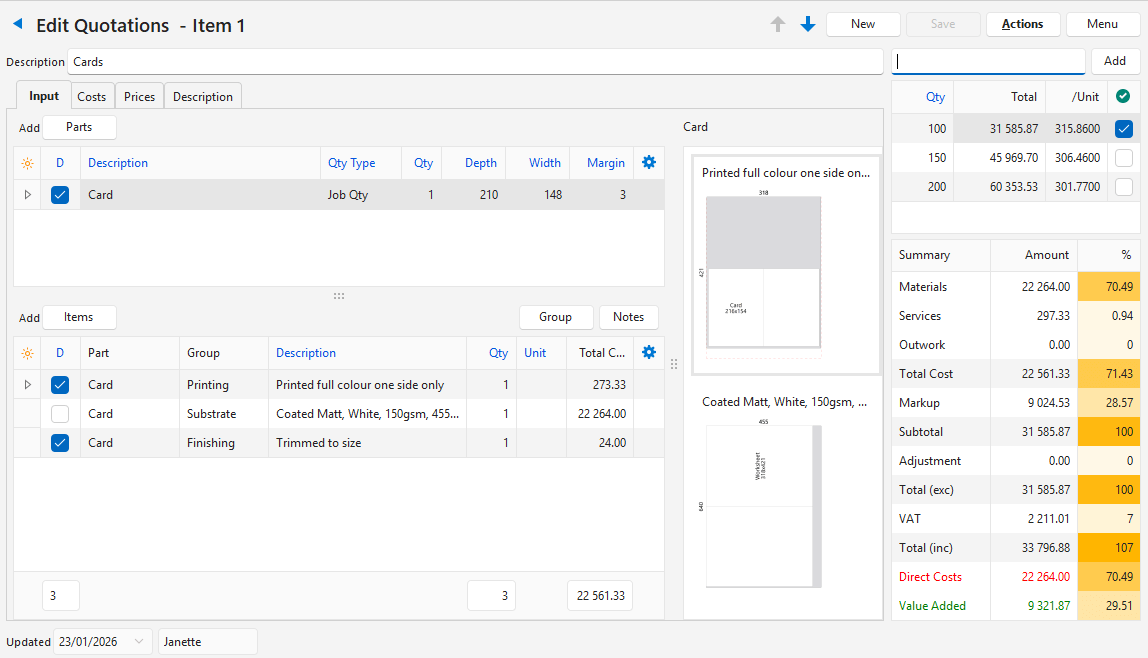
- If enabled, you can create an Estimate for every item on a quotation.
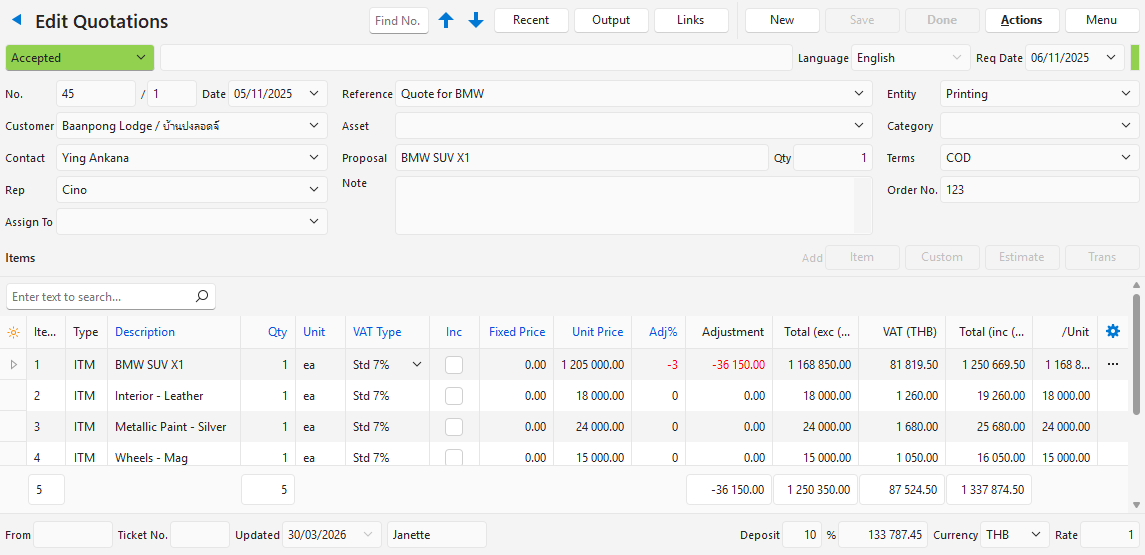
- If enabled, you can also link a Proposal to a quotation, so that your customer can choose between variations of the same product (e.g. a vehicle with a choice of interior, paint colour and wheels).
- A single quotation can combine items, custom items, proposals and estimates, depending on the options enabled for its Transaction Type.
- When your customer accepts a quotation, you can copy it to a work order, either directly or via a sales order.
- If that work order is integrated with production, the items on the quotation’s linked estimates manage production, for example, to order materials and assign tasks.
- You can create versions of a quotation to give your customer more options, such as brochures on different paper or a product with different packaging.
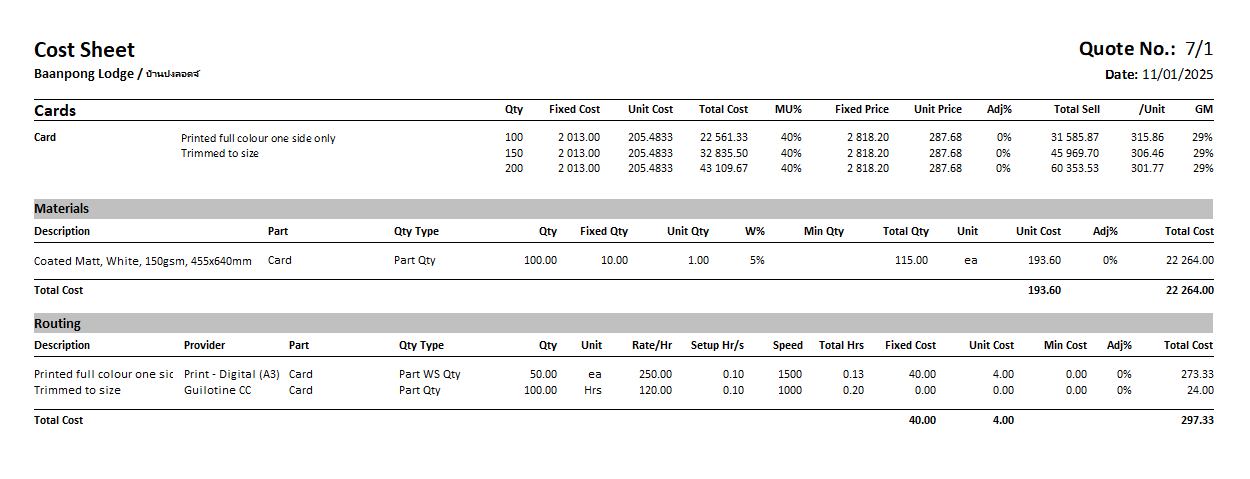
- You can generate a cost sheet for every quotation. It lists every item on the quotation with its costing data.
- You can add optional quantities to a quotation and generate a Price List from them for your customers or reps.
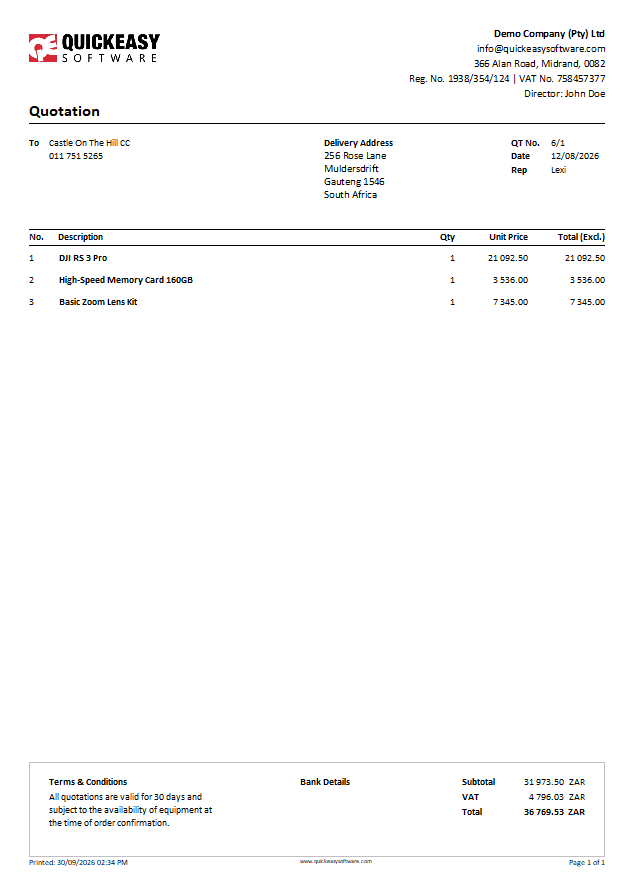
- On the printed quotation, active quantities appear in black and determine the price at the bottom. Inactive quantities appear in grey, so that your customer can see how the price changes with a different quantity.
- On the estimate, you set the quantity intervals with a start quantity, an end quantity and a step size (e.g. 50 to 1 000, every 50).
- If your customer decides on 100 instead of 50, open the linked estimate, change the Active Quantity and output the quotation again. You do not need to change anything else.
Example of a Linked Estimate:
Customer Invoices
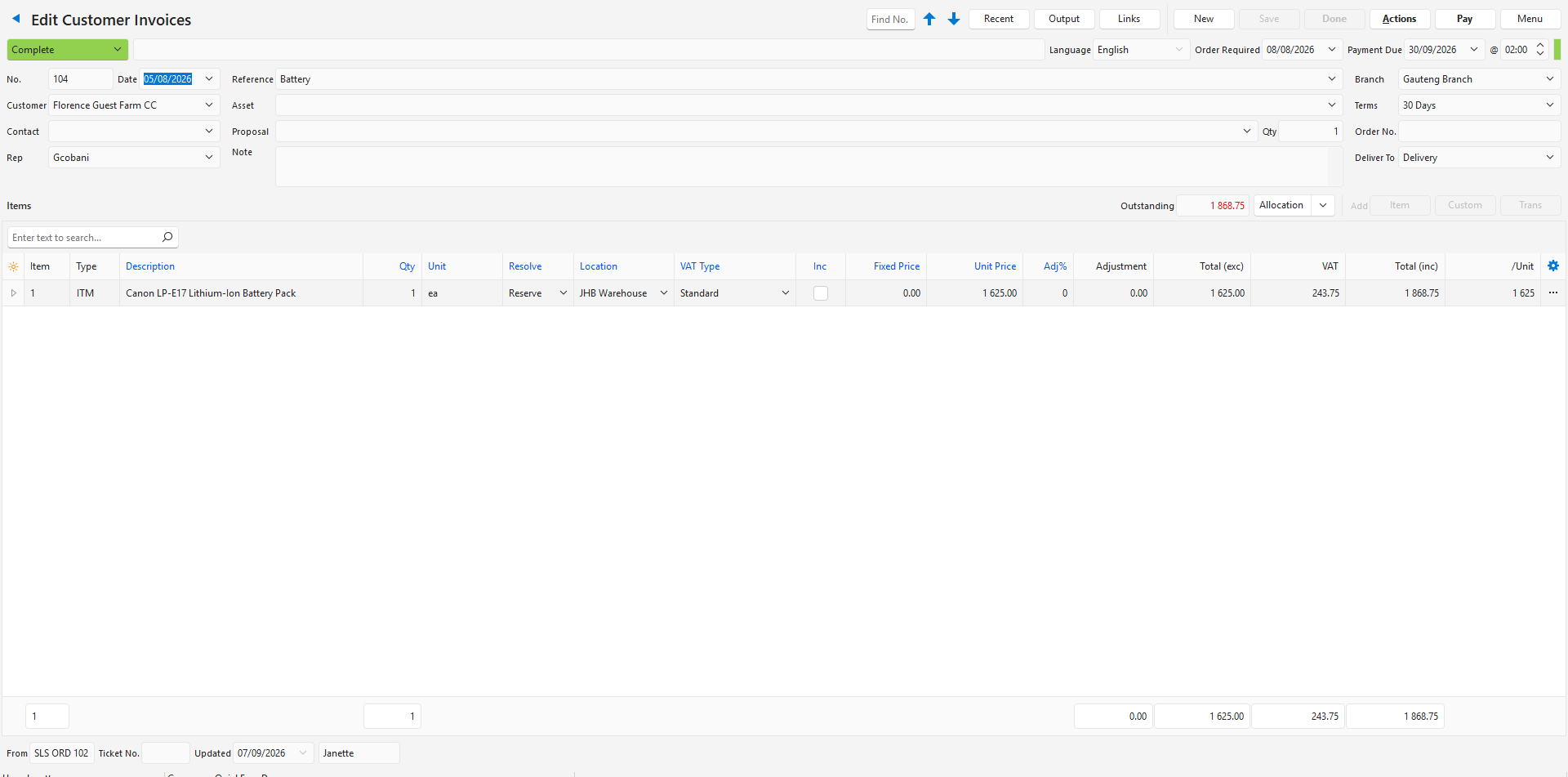
- Use Customer Invoices to invoice customers for goods or services.
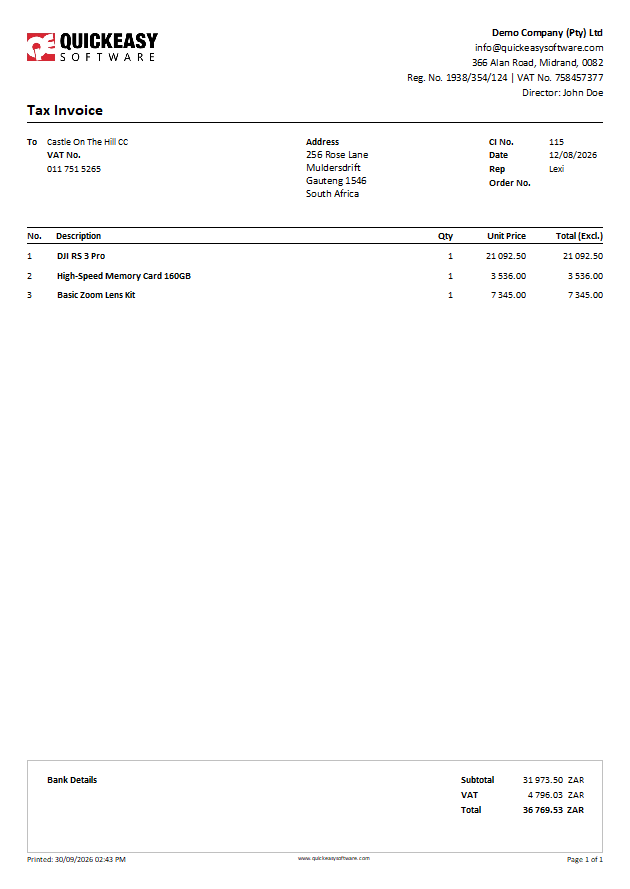
- If your organisation is registered for VAT, a customer invoice is a tax invoice (as in the printed example below).
- You can add pre-created items with selling prices.
- You can also add custom entries. You then enter the description and price yourself when you create the invoice.
- When you create the Transaction Type, you decide whether the ledger account is fixed (e.g. Sales or Services Rendered) or whether bookkeepers select it on each transaction. If bookkeepers select it, add the Cr Account column (the account to be credited) with Field Chooser (*) and save the grid layout. (The customer’s account is debited.)
Customer Credit Notes
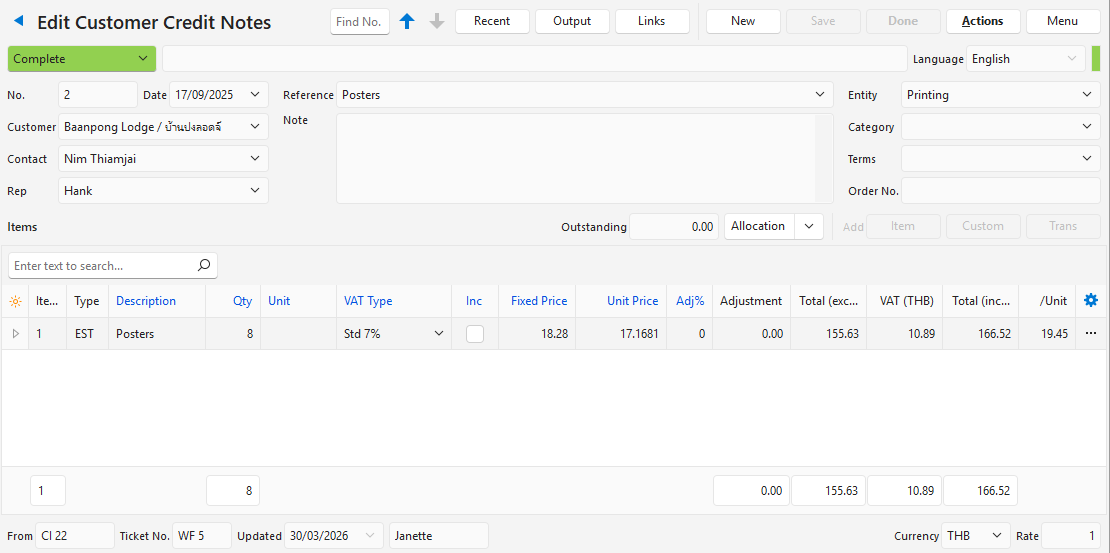
- Use Customer Credit Notes when you give a customer a discount or price reduction after invoicing, or when a customer returns goods.
- You can add pre-created items with selling prices.
- You can also add custom entries. You then enter the description and price yourself when you create the credit note.
- Typically, you copy a credit note from the customer invoice, so that the same accounts are debited and credited.
Customer Delivery Notes
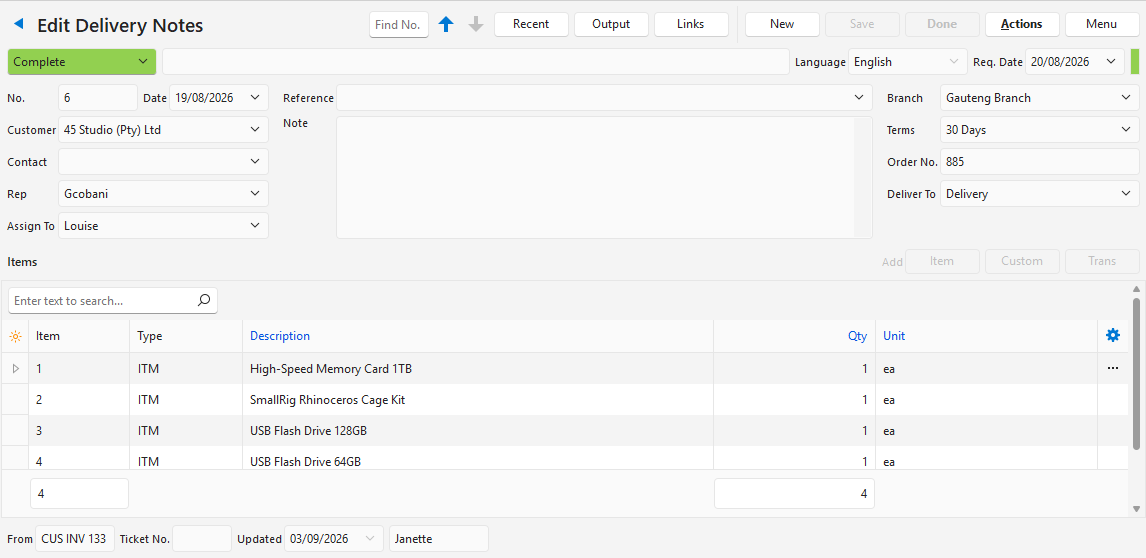
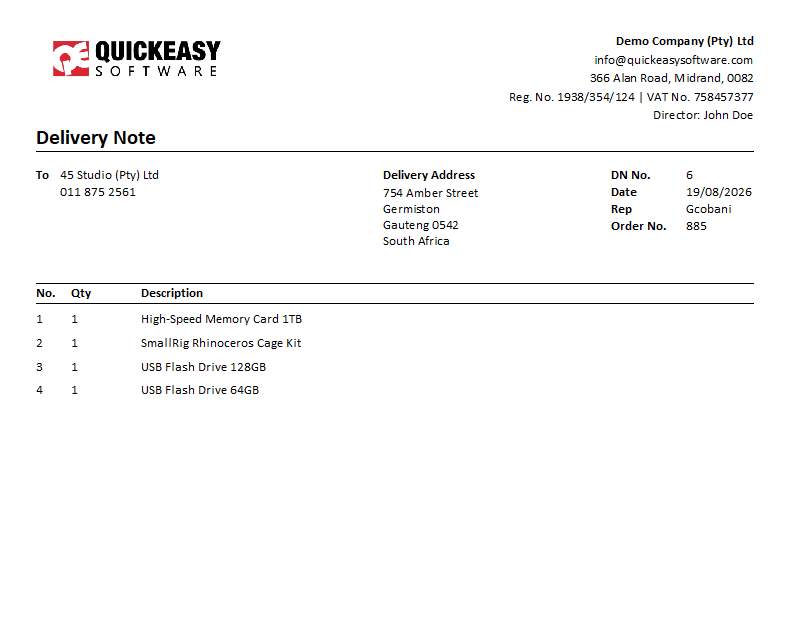
- Use Delivery Notes when you deliver goods to customers. They do not apply if you offer a service.
- Alternatively, you can issue a combined invoice and delivery note by including the delivery address on the invoice. You can also edit the invoice template to show that it is a combined delivery note and tax invoice. You then do not need a Transaction Type for delivery notes.
- The example below is a delivery note without prices.
- Typically, you copy delivery notes from Sales Orders or Customer Invoices.
Customer Receipts
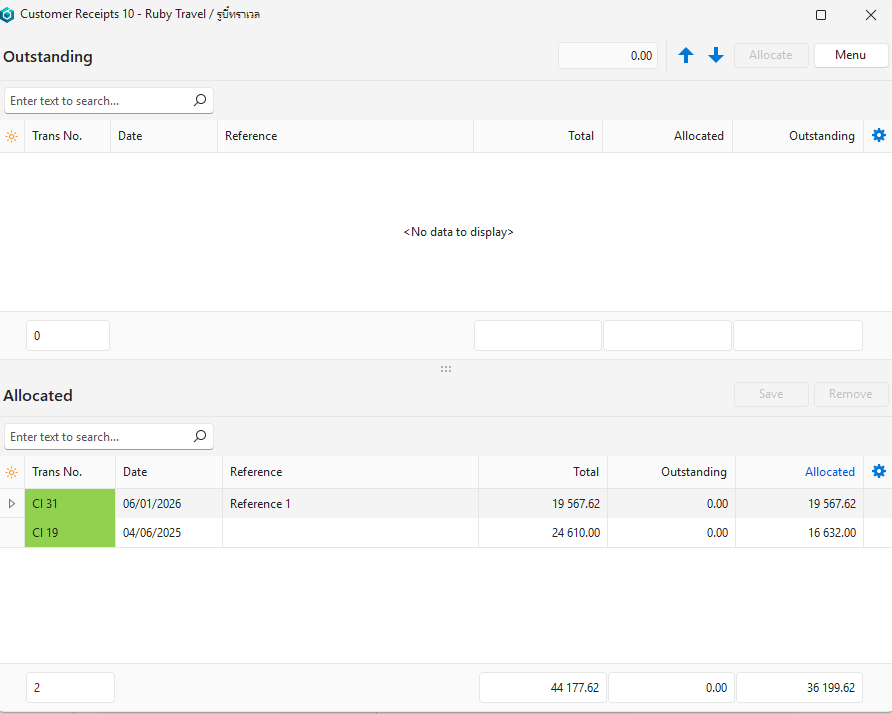
- Use Customer Receipts to record payments from customers.
- If you receive customer payments into bank accounts in different currencies, create a Customer Receipts Transaction Type for each currency.
- To record a payment in a foreign currency that is deposited into your local bank account, follow the example in Ledger Transaction Tutorials.
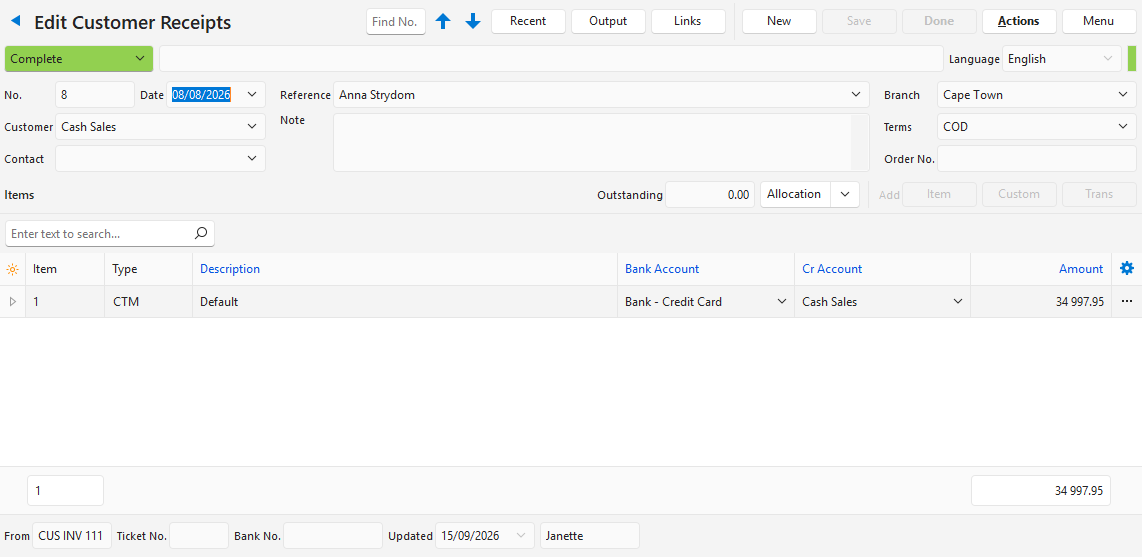
Allocating the receipt to invoices: