
Cost of Sales Interface
The Cost of Sales module shows what each transaction, or each entry on a transaction, has cost so far: the purchases, stock issued and returned, and timekeeping in its transaction flow. It is set up on the Transaction Type whose cost you measure, for example, a Sales Order or a Work Order.
- What is counted is set by the Transaction Type’s Cost of Sales settings (Transactions - Issued, Transactions - Purchases, Transactions - Returned and Transactions - Timekeeping). Only Transaction Types with one of these settings appear in the module.
- An entry counts when it is in the same transaction flow (copied from the measured entry, or from a document copied from it), on one of the selected Transaction Types, and not cancelled or deleted. It counts at the entry’s price, excluding VAT, in local currency. Timekeeping counts when it is booked on an entry in the flow (work plus travel amount).
- The amounts are costs only; invoiced amounts are not shown.
- See Cost of Sales Tutorials for the setup.
- Profit = Total − Cost; GP% = Profit / Total; MU% = Profit / Cost.
- Amounts and quantities of 0 are blank, and negative values are red.
- Not counted yet: entries added to a document manually (not copied, so not in the flow), and timekeeping not booked on an entry or a task.
Buttons Explained
| Button | Description |
|---|---|
| View | Shows the transactions or entries that match the filters. |
| Arrow on View (button) | Sets the filters and the view in one step:
|
| Arrow on View (button) > Reset Data Filter | Resets the filters to their defaults. |
| Back | Returns from the cost entries to the Transactions or Items view. |
| Output |
Not shown on the cost lines. |
| Menu | Views
Settings |
Filters Explained
The Recent menu has Cost of Sales - Transactions and Cost of Sales - Items. Each keeps its own filters and opens that view.
| Filter | Description |
|---|---|
| Transaction Type | Select the Transaction Type whose cost you want to see. Only Transaction Types with a Cost of Sales setting are listed. |
| No. | Enter a transaction number to show only that transaction. The other filters are then ignored. |
| Set, Arrows, Date and To | The transaction date range, on two lines like the other modules. Select a period with Set, or enter the dates; the arrows move to the previous or next period. |
| Pending, Active and Complete | Check the boxes for the Status Groups to show. When no box is checked, all are shown. Cancelled transactions are never listed. |
| Entity | Select an entity, or all. |
Fields Explained
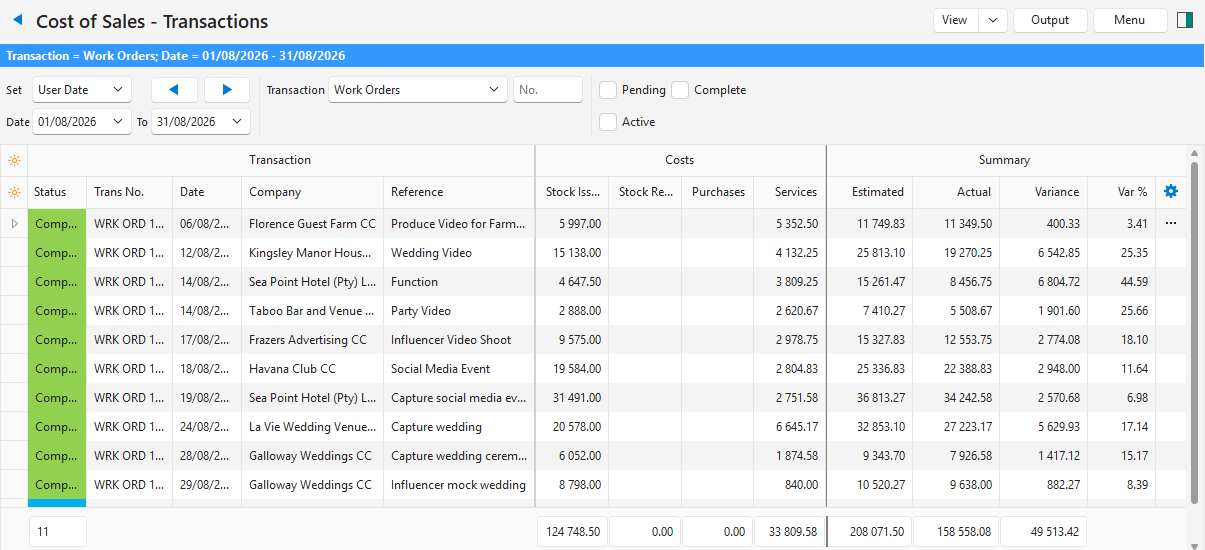
Transactions View
One row per transaction. The columns are in bands: Transaction (fixed on the left), Costs and Summary.
| Field | Description |
|---|---|
| Purchases | The entries of the Transaction Types in Transactions - Purchases (added to the cost). |
| Stock Issued | The entries of the Transaction Types in Transactions - Issued (added to the cost). |
| Stock Returned | The entries of the Transaction Types in Transactions - Returned (subtracted from the cost). |
| Services | The timekeeping on the Transaction Types in Transactions - Timekeeping (added to the cost). |
| Total | The transaction’s total, excluding VAT, in local currency. |
| Cost | Purchases + Stock Issued − Stock Returned + Services. |
| Profit | Total − Cost. |
| GP% | Profit / Total. |
| MU% | Profit / Cost. |
| Menu (…) | Click the three dots (…), or right-click the row, for these options:
|
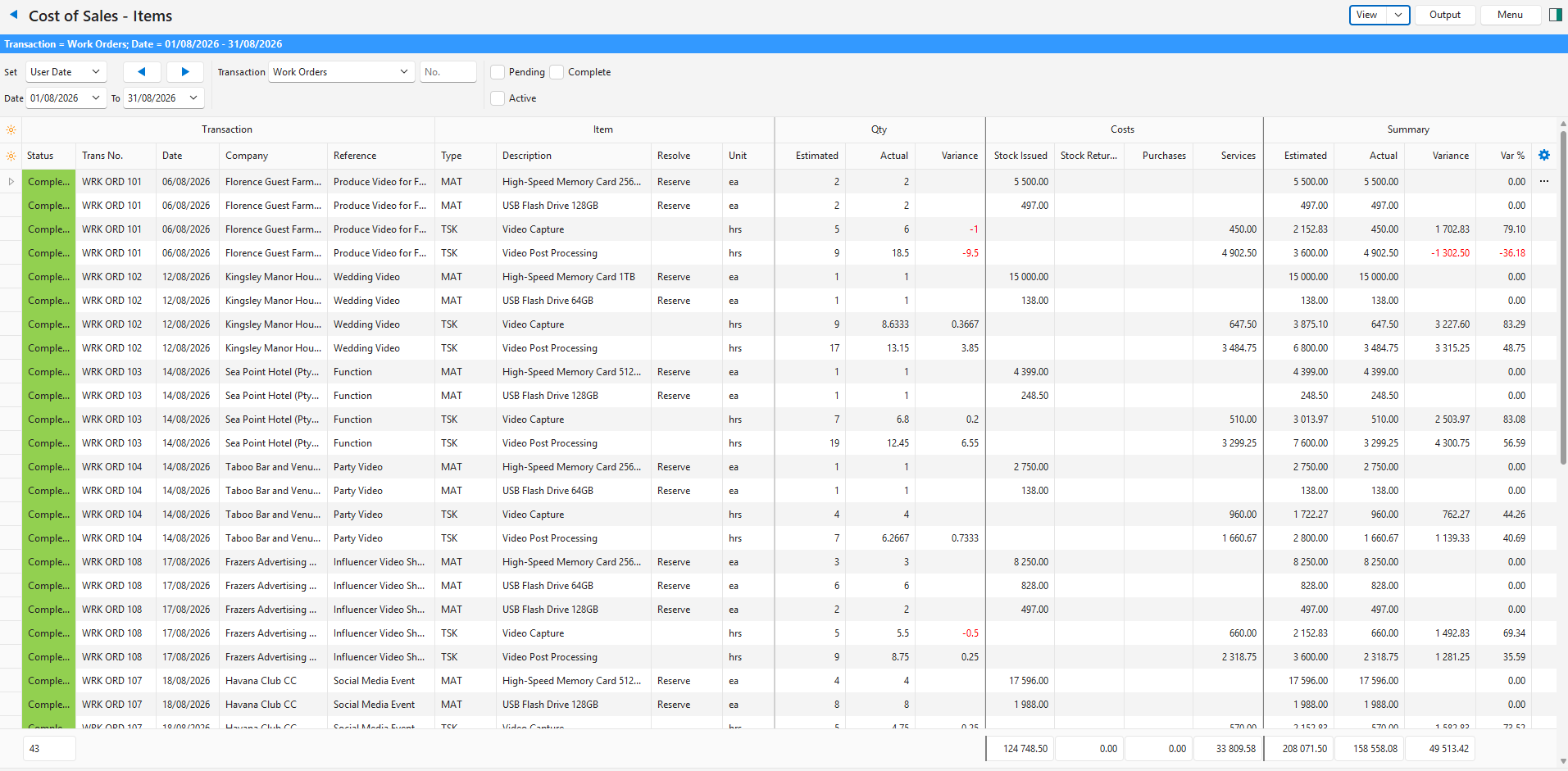
Items View
One row per transaction entry. The columns are in bands: Transaction and Item (fixed on the left), Qty, Costs and Summary. It has the same cost and summary columns as the Transactions view, plus these quantities:
| Field | Description |
|---|---|
| Qty | The quantity of the entry. |
| Actual Qty | Purchases + Issued − Returned. |
| Variance Qty | The difference between the entry’s quantity and the actual quantity. |
| Menu (…) | Click the three dots (…), or right-click the row, for these options:
|
Production Transaction Types
On a Production Transaction Type (for example, a Work Order), each entry with an estimate is listed by its estimate rows instead: materials, tasks and outwork, plus Other for a cost that is not linked to an estimate row. Other entries of the Work Order, and every entry of other Transaction Types (for example, a Sales Order), stay one row per entry, even when the entry has an estimate.
| Field | Description |
|---|---|
| Type | The estimate row’s type, with the same codes as Production (MAT, SHT, REL, ASM, SQM, TSK and OWK). |
| Code | The estimate row’s description. |
| Description | The description of the linked item. For custom tasks and outwork (TSK (CNSTR), TSK (C) and OWK (C)), the estimate row’s description. |
| Status and Resolve | The estimate row’s status and resolve. |
| Estimated | The estimate cost for the entry’s quantity. |
| Actual | The Goods Issued, purchases and outwork copied from the estimate row, and every copy of them (for example, a return or supplier invoice), plus the timekeeping booked on the task (task quantity = hours). |
| Variance | Estimated − Actual. |
| Var % | The variance as a percentage of the estimate. These rows have no MU%. |
Cost Lines
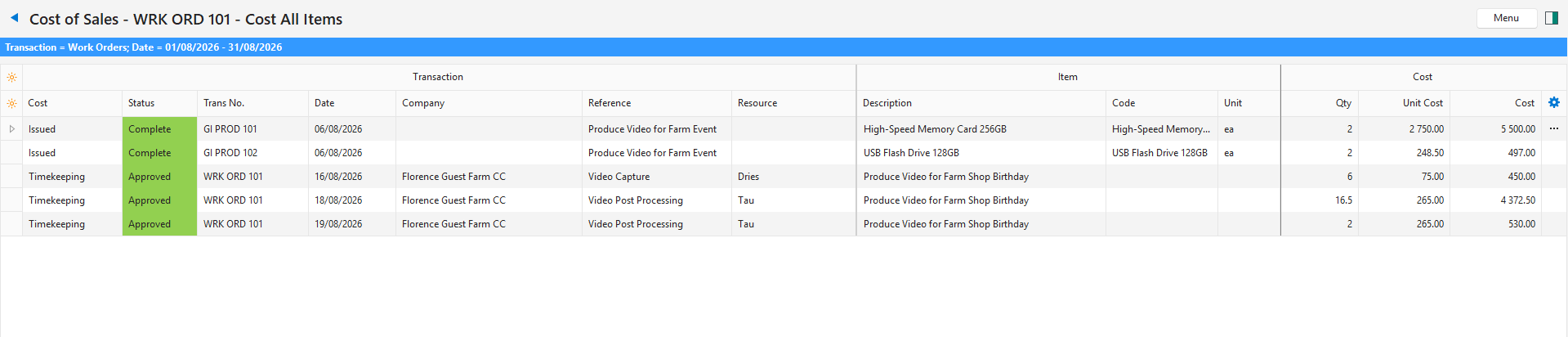
To list the entries and timekeeping counted in a cost, select one of the View Costs options on the row’s Menu (…), or double-click one of these cells when it has a value:
- Purchases
- Stock Issued
- Stock Returned
- Services
Double-click an entry to open its transaction, and click Back (button) to return.
Fields Explained
| Field | Description |
|---|---|
| Transaction, Line, Qty, Unit Cost and Cost | The transaction and entry that were counted, with the quantity, the cost per unit and the cost. |
| Start Date, Resource, Note and Hours | For timekeeping: when it started, who or what it was booked for, its note and its hours. |
| Menu (…) | Click the three dots (…), or right-click the row, for these options:
|