
Mobile App Timekeeping Interface
The Mobile App records two kinds of time: Work and Travel. A timekeeping record can be linked to a transaction, a production task, a project task or a sales ticket, or it can be unlinked. You can have one timekeeping record running at a time.
Before you can start or edit a timekeeping record, the Timekeeping module must have a status with the default Start and one with the default Stop (see Timekeeping Status Tutorials). Otherwise, an error message says that no default Timekeeping status is configured.
Timekeeping Lists
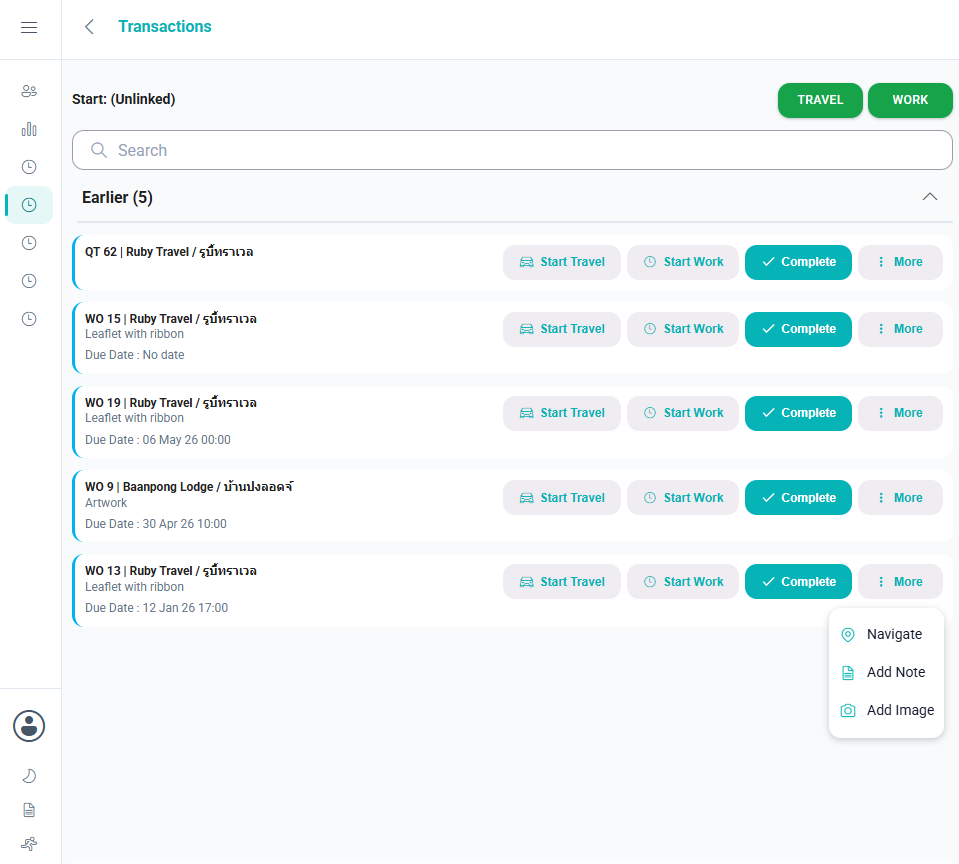
The Transactions and Production Tasks tiles, and the tile for each Service Type with projects or sales, open a list of the items you can record time against.
| Item | Description |
|---|---|
| Start: (Unlinked) | A bar at the top of the list with Travel and Work buttons, which start an unlinked timekeeping record. While a record is running, the bar shows Started with the start time and the time so far, and Edit and Stop buttons. The bar appears when no record is running, when the running record is unlinked, or when it is linked to an item on this list. |
| Search | Enter text to show only the items that match. |
| Groups | The items are grouped by date: Earlier, Today, Tomorrow and Later. Items without a date are in Earlier. Only Today is open when the list appears. Tap a group’s heading to open or close it. While you search, every group is open. |
| Items | Each item has a coloured edge that shows its status. The item being timed shows the start time and the time so far. Tap an item to open its detail page. |
| Three dots (…) / action buttons | On a phone, the three dots (…) on an item open its actions. On a computer, Start Travel, Start Work and Complete appear on the item, and the other actions are under More. |
Actions
| Action | Description |
|---|---|
| Start Travel | Starts a travel timekeeping record linked to the item and opens the timekeeping record screen. Available only when no timekeeping record is running. |
| Start Work | Starts a work timekeeping record linked to the item and opens the timekeeping record screen. Available only when no timekeeping record is running. |
| Navigate | Opens Google Maps with directions from your current location to the address: the transaction’s address for transactions, or the customer’s address for production and project tasks. If there is no address, a message says so. Unavailable for sales tickets. |
| Add Note | Adds a note to the item. For transactions and production tasks, the note has a Reference and a Note. For project tasks and sales tickets, it is a ticket note with a Reference (required), Assign To, Status and an optional Note. |
| Add Image | Takes a photo or chooses an image and attaches it to the item (see Add Image). |
| Complete | Sets the transaction, task or ticket to complete, after you confirm. Unavailable for the item being timed. An item set to complete (in the app or the desktop app) no longer appears on the list. |
What Each List Shows
| List | Requirements | Each item shows |
|---|---|---|
| Transactions | Transactions assigned to you (Assign To). The Transaction Type has timekeeping enabled. The transaction’s status is in the Active Status Group. | The Transaction Type’s code, the transaction number and the customer (e.g. WO 15 | Ruby Travel). The transaction’s description. The due date, with the Transaction Type’s caption for it (or “No date”). |
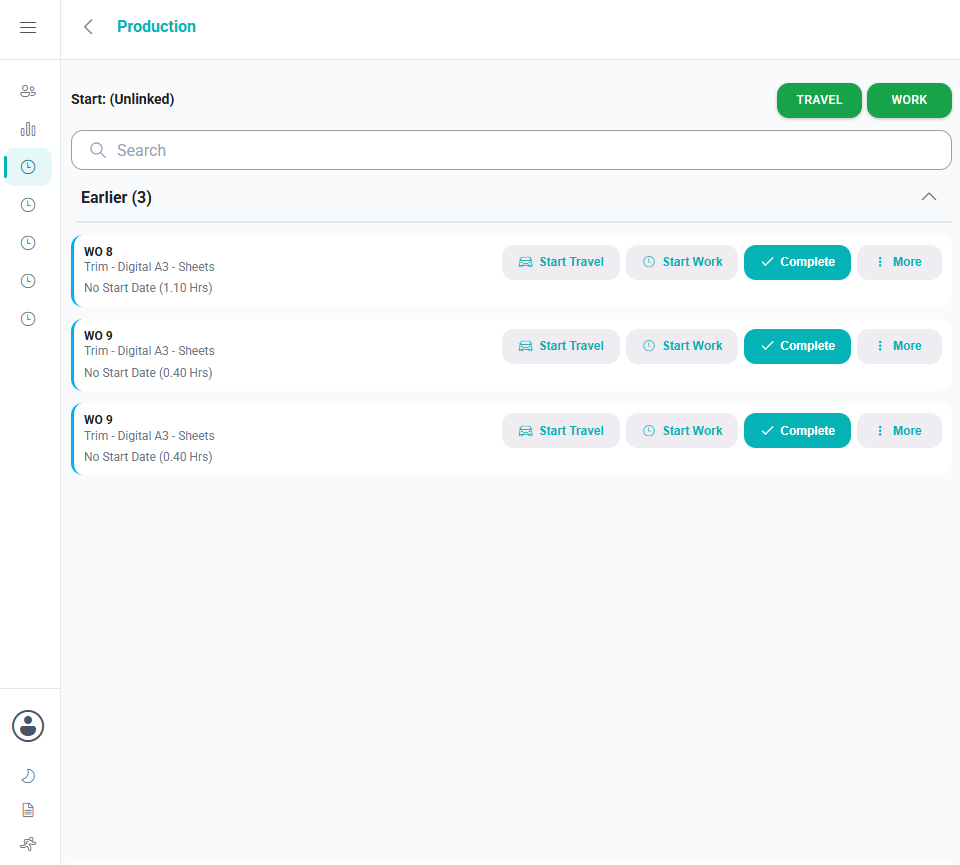
| Production Tasks | Tasks for which you are the Operator (transaction > Production > Tasks). You appear on the Operator dropdown list if you are on the Cost Centre’s Staff tab. The transaction and the task are Active. | The transaction number and the customer. The task’s description (usually the item from the Routing section of an Estimate). The workstation. The start date (or “No Start Date”) and the task’s total hours. |
| Project tiles | Tasks for which you are the Resource. Staff are first added on the Service Type’s Project Resources tab and then selected as a task’s resource on the ticket’s Project tab. The project and the task are Active. | The project number and the milestone. The task group and the task’s description. The start date and the estimated hours. |
| Sales tiles | Tickets of that Service Type that are assigned to you (Assign To). | The Service Type’s code, the ticket number and the customer. The reference. The due date. |
Detail Pages
Tap an item on a list to open its detail page. The page’s title is the item’s number. Dates in the past are shown in red.
| List | Tabs |
|---|---|
| Transactions |
|
| Production Tasks |
|
| Project tiles |
|
| Sales tiles |
|
On the Notes (or Ticket Notes) tab, + adds a note, each note has an Edit button, and a long note can be expanded. On the Attachments tab, + adds an image and tapping an attachment opens it. Both tabs have a Search box.
Timekeeping Record Screen
The timekeeping record screen opens when you start a record, and when you tap Edit or Stop in the bar at the top of a list. Its top bar shows Started with the start time and the time so far.
Buttons Explained
| Button | Description |
|---|---|
| Start | Appears when you start a record. Saves the details you entered and returns to the list. The time is counted from when you selected Start Travel, Start Work, Travel or Work. After you tap Start, you can close the app; the record keeps running. |
| Stop | Appears when you tap Stop on the list. Saves the details and stops the record. |
| Cancel | When starting: deletes the new record, so no time is recorded. When stopping: returns to the list without stopping the record. |
| Save | Appears when you tap Edit on the list. Saves the changes without stopping the record. |
| Delete | Appears when you tap Edit on the list. Deletes the record after you confirm. A deleted timekeeping record cannot be recovered. |
Fields Explained
If someone signed and the pad was then hidden, the message “Please show your Signature” appears when you tap Start or Stop. Tap Show Signature (button) first.
If the Timekeeping setting Mobile > Record Geolocation on Start/Stop is checked, your location is recorded when the record starts and stops. Your browser asks for permission to use your location; if it cannot get it, a message says so.
| Field | Description |
|---|---|
| Linked item | For a linked record, the top of the screen shows the transaction, task or ticket the time is recorded against (e.g. its number, customer and date). |
| Customer lookup | Unlinked records only. Select the customer. |
| Reference lookup | Unlinked records only. Select a reference from the dropdown list (see the Timekeeping setting Timekeeping > Reference Lookup) or enter one. |
| Travel | Travel records only. For a transaction, shows the transaction’s address (or “Address not available”). |
| Odometer Start / Odometer Stop | Travel records only. Enter the vehicle’s odometer readings at the start and end of the trip. |
| Km | Travel records only. The distance, calculated from the two odometer readings. It cannot be edited. |
| Note | Enter an optional note (e.g. the reason for the trip, or a delay). |
| Show Signature / Hide Signature | Work records only; not production tasks. Shows or hides the Sign Here pad, where a customer or supervisor can sign with a finger or stylus. Clear (button) clears the pad. When you tap Start or Stop with a signature, an image of the screen with the signature is saved with the timekeeping record as its start or stop signature. |