
Linking Transactions
- Linking transactions means connecting two or more transactions in a workflow.
- When transactions are copied, they are linked into a transaction flow at both header and item level, unless a new transaction flow is started (see Copy Rules).
- For example, a Quotation can be copied to a Sales Order, and an item can be added to the Sales Order from a different Quotation with the following results:
- The Sales Order header is linked to the Quotation it was copied from.
- The items are linked to the different Quotations they were copied from.
- The Linked Transactions list or transaction flow includes the Sales Order and both Quotations.
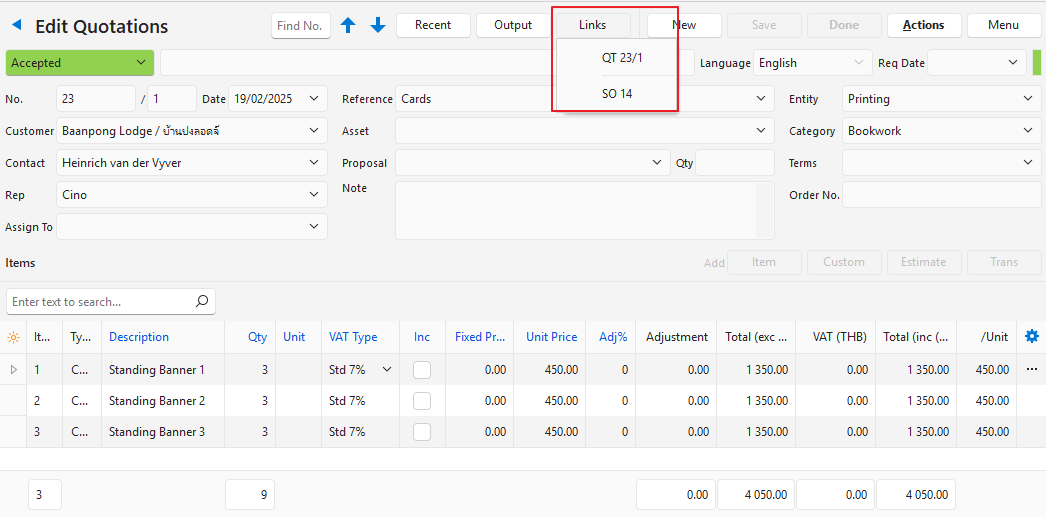
- When editing a transaction, the Links button lists the first 20 linked transactions. Click an entry to open that transaction. More… (always the last entry) opens View Linked Transactions with the full list.
- For example, when viewing a Sales Order, there could be links to a Quotation, Work Order and Delivery Note.
- The current transaction is also included in the list. It might be the only entry if other transactions have not yet been created.
- Cancelled transactions are also included.
- If an asset is selected on the transaction, the asset is listed at the bottom (Asset: followed by its name). Click it to open the asset.
- Next to From, the footer shows the code and number of the transaction that the open transaction was copied from.
- Service tickets are included in the links and transaction flows.
View Linked Transactions
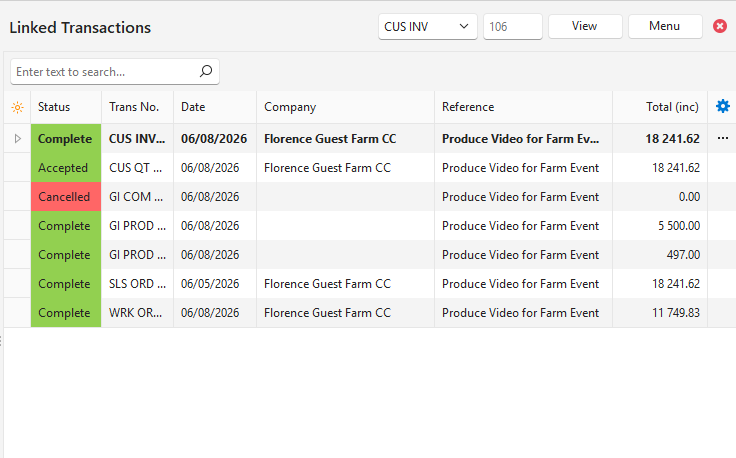
Links (button) > More… opens View Linked Transactions, docked on the right of the screen (like Item Summary). It lists the same transactions as the Links button: the transactions of the same flow and the linked Service Manager jobs. The open transaction is shown in bold.
Fields Explained
| Field or Button | Description |
|---|---|
| Transaction Type and No. | Select another Transaction Type and enter its number, then click View (button) or press Enter to see the links of that transaction. |
| Type | The Transaction Type of the linked transaction or job. |
| Transaction | The code and number of the transaction. |
| Date | The transaction date. |
| Reference | The transaction reference. |
| Company | The customer or supplier. |
| Status | The status, in the status colour. |
| Currency | The transaction currency. |
| Total (exc), VAT and Total (inc) | The totals in the transaction currency and in local currency. The local currency totals are added up in the footer. |
| Menu (button) |
|
Link to From Transaction
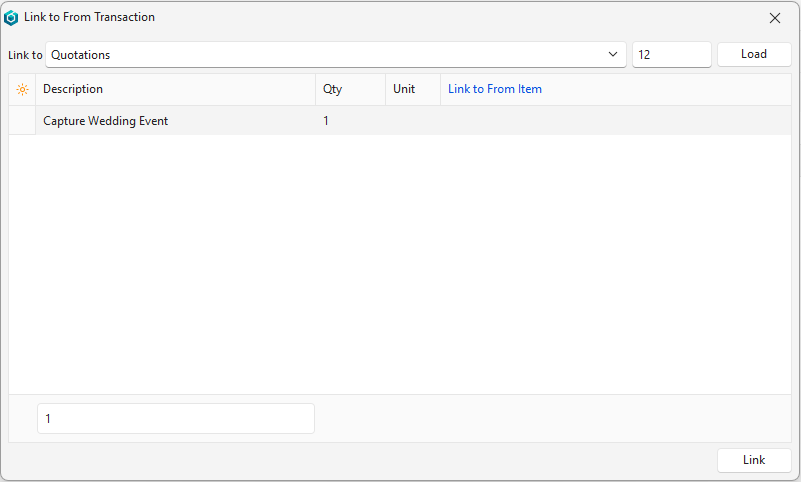
Link to From Transaction links the open transaction to an earlier transaction in the workflow (the From transaction). Use it for a transaction that was created on its own but belongs to another workflow, for example, a Sales Order that was not copied from its Quotation.
| Field or Button | Description |
|---|---|
| Link to | The From Transaction Type. Only Transaction Types with a Copy Rule to the Transaction Type of the open transaction are listed. |
| No. and Load (button) | Enter the number of the From transaction and click Load (button) or press Enter. The From transaction’s type, number, date and description appear. |
| Code, Description, Qty and Unit | The entries of the open transaction. |
| Link to From Item | The From entry that each entry is linked to. The dropdown list shows the Description and Qty of each From entry. Press Delete to clear it and leave the entry unlinked. After Load, a From entry is suggested for each entry: the entry it is already linked to, or else an entry with the same item (the first entry of an item is matched to the first entry of that item on the From transaction, the second to the second, and so on). |
| Link (button) | Links the transaction after a confirmation message that names the From transaction (and says “No items are linked.” if no entry is matched). |
When you link a transaction:
- The transaction and every transaction created from it (e.g. a Delivery Note or an Invoice) join the workflow of the From transaction.
- Their notes, attachments and transaction attributes move with them. If the workflow of the From transaction already has an attribute set, that set is not moved, and a message lists the sets that were not moved.
- Transactions with the same project as the open transaction take the project of the From transaction.
- Each entry you match to an entry on the From transaction is linked to it, so it reduces the outstanding quantity of that From entry.
How to Link a Transaction to a From Transaction
You can only link a transaction if a Copy Rule exists from the From Transaction Type to the Transaction Type of the open transaction, and the From transaction is not cancelled or deleted. The From transaction cannot be the open transaction or a transaction created from it.
- Open the transaction.
- Click Actions (button) and select Link to From Transaction (under Update Transaction, below Link to Service). Any unsaved changes are saved first.
- Link to = Select the From Transaction Type. Only Transaction Types with a Copy Rule to this Transaction Type are listed.
- Enter the number of the From transaction and click Load (button) or press Enter.
- Note: The entries of the open transaction appear, each with a suggested From entry under Link to From Item (see Link to From Transaction).
- Link to From Item = Select a different From entry from the dropdown list if needed. To leave an entry unlinked, press Delete to clear it.
- Click Link (button).
- A confirmation message names the From transaction (and says “No items are linked.” if no entry is matched). Click Yes to link the transaction.
Unlink From Transaction
Unlink From Transaction makes the open transaction, and the transactions created from it, a separate workflow again. Their notes, attachments and transaction attributes move with them. Entries that were linked to entries in the old workflow lose that link.
How to Unlink a Transaction
You can only unlink a transaction that is linked to a From transaction.
- Open the transaction.
- Click Actions (button) and select Unlink From Transaction. Any unsaved changes are saved first.
- The confirmation message asks “Unlink this transaction from its From Transaction?” and lists every transaction created from it that is unlinked too. Click Yes to unlink them.