
Service Types List View Interface
A Service Type is a process that you manage with the Service Manager (e.g. Accounts, Projects, Customer Support, Sales). It defines the interface for its service tickets, and you can create an unlimited number of Service Types.
Once created, the Service Type must be added to a menu so that tickets can be created and shown. User access must be set for each Service Type separately.
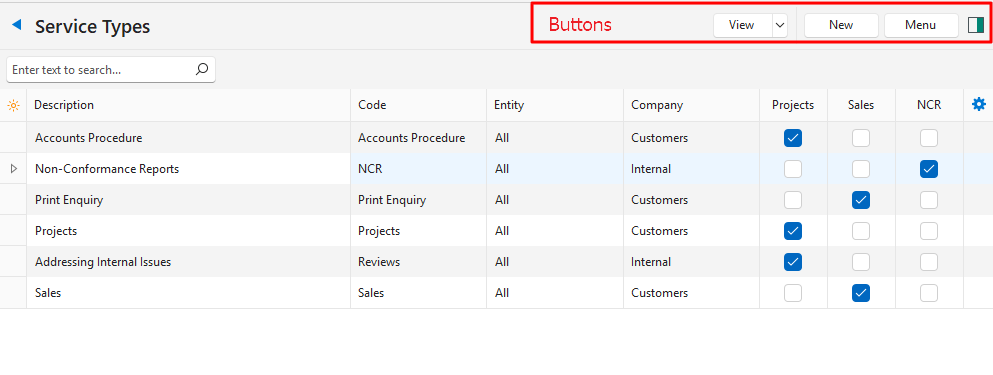
Buttons Explained
| Button | Description |
|---|---|
| View | Displays a list of Service Types. |
| Arrow on View Button | Reset Data Filter: Resets all the data filters. |
| New | Creates a Service Type. |
| Menu |
|
Fields Explained
| Field | Description |
|---|---|
| Field Chooser (*) | Add or remove columns. |
| ID | The system-generated number for the entry. |
| Description | The Service Type’s description. |
| Code | The brief description of the Service Type. |
| Entity | The entity in which the Service Type can be used. |
| Company | Whether the Service Type uses customers, suppliers or neither. |
| Project | A checkbox. If checked, projects are used. |
| Sales | A checkbox. If checked, the Service Type is used to manage sales enquiries. |
| Created | The date on which the Service Type was created. |
| Updated | The date on which the Service Type was last updated. |
| Updated By | The user who last updated the Service Type. |
| NCR | A checkbox. If checked, the Service Type’s NCR > Enable NCR setting is checked. |
 | A submenu (also opened by right-clicking the entry) with these options:
|