
Tax Reconciliation Interface
The Tax Reconciliation module includes both Value Added Tax (VAT) and withholding tax (WHT) reconciliations. If you do not use WHT, the name becomes VAT Reconciliation.
This interface lets you reconcile VAT and WHT to make sure that the correct amounts are paid to or claimed from the revenue services. These reconciliations do not update the transactions. Transactions included in a reconciliation can be edited if they have a status that allows editing.
If you change the status of a transaction that is included in a reconciliation, the warning “This Transaction has been linked to Tax Reconciliation.” appears when you save it. A transaction that is included in a reconciliation cannot be deleted.
The following tax types are supported:
- WHT Payable: Reconciles the amounts you withheld from suppliers. The WHT account is credited with the amounts withheld and debited with the payment made to the tax authorities.
- WHT Offset: Reconciles the amounts deducted from your invoices over the financial year. The WHT account is debited, and you can enter a journal entry to credit the WHT account and debit a WHT expense account.
- VAT: Standard invoice-based model. The VAT Control account is debited and credited by transactions such as customer and supplier invoices and expenses. The VAT payment or refund should result in a zero balance on the VAT Control account (excluding timing differences). For example, the VAT payment made during July should equal the balance of the VAT account at the end of June.
List View
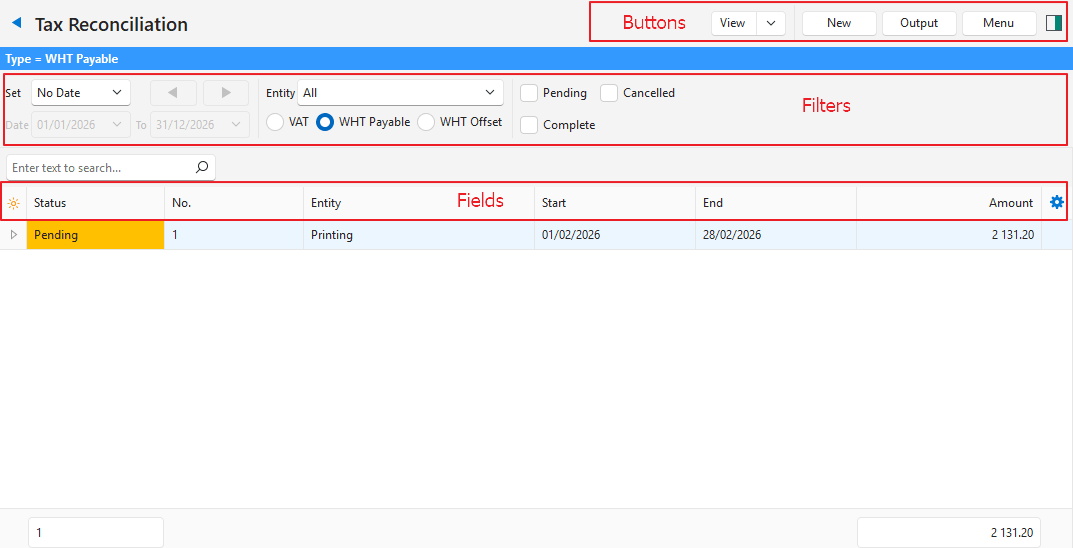
Buttons Explained
| Button | Description |
|---|---|
| View | Shows a list of the reconciliations. |
| Arrow on View button > Reset Data Filter | Resets the selected filters. |
| New | Creates one of these reconciliations as selected from the dropdown list:
Needs reconciliation statuses. If none are set up, the message “Invalid Setting Status. See Menu button > Settings > Edit Statuses.” appears. |
| Output | Export: Exports the list in .xlsx, .htm or .csv format. |
| Menu | Show Notes Settings
|
Filters Explained
| Filter | Description |
|---|---|
| Set | Select a date option (No Date shows all the entries). |
| Dates | Enter custom dates. |
| Arrows | Adjusts the dates in the direction of the arrow. |
| Entity | Select a registered entity. |
| Type | Select one of these types:
The columns change with the type: VAT shows Out of Period, Output, Input and Balance; WHT Payable and WHT Offset show a single Amount column. Appears only if Enable Withholding Tax (WHT) is set to Payment on at least one Transaction Type. |
| Status Groups | Check one or more Status Groups to show only their entries. If none of the boxes are checked, all the entries appear. |
Fields Explained
| Field | Description |
|---|---|
| Status | The status of the reconciliation. |
| No. | The system-generated number allocated to the entry. |
| Tax Type | The tax selected for the reconciliation (e.g. VAT, WHT). |
| Entity | The registered entity for which the reconciliation was completed. |
| Start | The start date of the reconciliation. After the first reconciliation, this date is set automatically to the day after the previous reconciliation ended. |
| End | The end date of the reconciliation. |
| Out of Period | The total amount due from previous periods that were not included in a reconciliation. Amounts appear in red if a refund is due. Applies only to VAT. |
| Output | The total output due for the period, including the Out of Period amount. Applies only to VAT. |
| Input | The total input that may be claimed for the period, including the Out of Period amount. Applies only to VAT. |
| Balance | The total amount payable (positive balance) or refundable (red, negative balance). Applies only to VAT. |
| Amount | The amount that is payable or claimable. Applies only to WHT. |
 | A context menu with the following options:
|
VAT Reconciliations Edit View
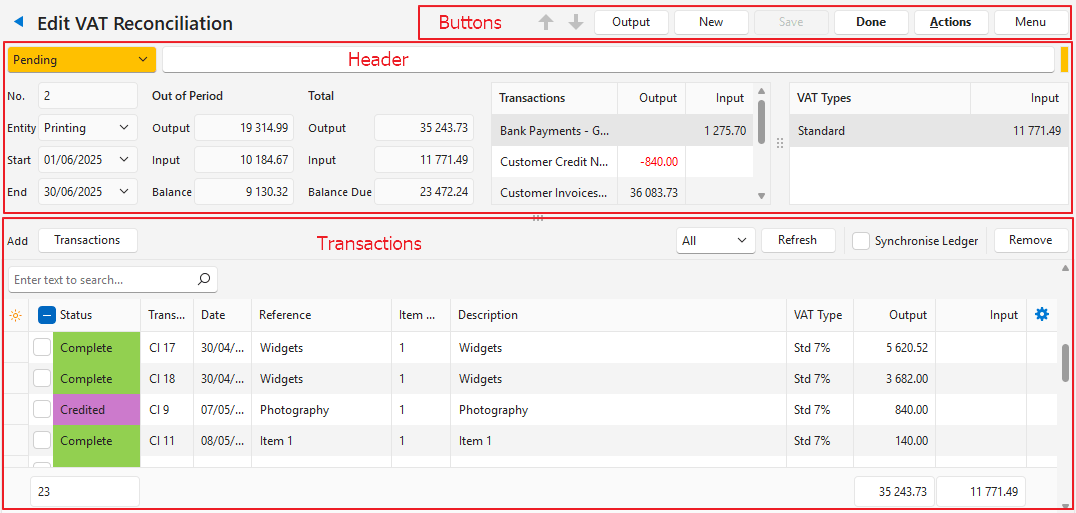
Buttons Explained
| Button | Description |
|---|---|
| Arrows | Go to the previous or next reconciliation. |
| Output | Prints, previews or emails the output if Output Templates are set up for the module. Export: Exports the list in .xlsx, .htm or .csv format. |
| New | Creates one of these reconciliations as selected from the dropdown list:
Needs reconciliation statuses. If none are set up, the message “Invalid Setting Status. See Menu button > Settings > Edit Statuses.” appears. |
| Save | Saves any changes. |
| Done | Changes the reconciliation’s status to Complete. Needs a default Complete status. Otherwise, the message “Default Complete status has not been set. See Menu Button > Settings > Edit Statuses.” appears. |
| Actions | Delete VAT Reconciliation: Deletes the VAT reconciliation. Possible only if its status is editable or cancelled. |
| Menu | Settings
|
Fields Explained: Header
| Field | Description |
|---|---|
| Status | Select a header status from the dropdown list. |
| Status Bar | Enter a note. |
| No. | The system-generated number allocated to the reconciliation. |
| Entity | Select the registered entity. |
| Start | The start date of the reconciliation. |
| End | The end date of the reconciliation. Entity, Start and End cannot be changed once transactions are added to the reconciliation. |
| Out of Period Section | |
| Output | The total output amount from previous periods that are included in this reconciliation. |
| Input | The total input amount from previous periods that are included in this reconciliation. |
| Balance | The balance from previous periods that are included in this reconciliation. |
| Total Section | |
| Output | The total output amount that was on the transactions included in the reconciliation. |
| Input | The total input amount that was on the transactions included in the reconciliation. |
| Balance Due | The amount that is payable or refundable (negative balance). |
| Transaction section | Lists the totals per Transaction Type. |
| VAT Types section | Lists the totals per VAT Type. |
Fields Explained: Transactions
| Fields | Description |
|---|---|
| Transactions (button) | Opens an interface to add transactions for the selected period. Needs a start date, an end date and, if you use entities, an entity. If one is missing, a message such as “Please select Start Date.” appears. |
| Type (filter) | Select:
|
| Refresh | Applies changes made to transactions since they were added to the reconciliation. |
| Synchronise Ledger | Automatically opens the clicked transaction in the right panel. |
| Remove | Removes all the selected entries. |
| Fields | Description |
|---|---|
| ID | The system-generated number for the entry. |
| Status | The item’s status (each transaction is an item on the reconciliation). |
| Trans No. | The original Transaction Type code and number (e.g. CI 45, where CI is the Customer Invoice code and 45 is the invoice number). |
| Trans | The transaction’s code (e.g. CI for Customer Invoice). Also part of Trans No., but listed separately for filtering and grouping. |
| No. | The transaction’s number. Also part of Trans No., but listed separately for filtering and grouping. |
| Date | The date of the transaction. |
| Reference | The reference entered on the transaction. |
| Branch Code | The customer or supplier’s tax branch code. |
| Item No. | The item number of the entry on the transaction (that is, its position on the transaction). |
| Description | The item’s description. |
| Dr Account | The account that was debited. |
| Cr Account | The account that was credited. |
| VAT Type | The VAT Type selected for the transaction. |
| Output | The VAT amount on the transaction where the VAT Category was Output+ (e.g. customer invoices) or Output- (e.g. customer credit notes). |
| Input | The VAT amount on the transaction where the VAT Category was Input+ (e.g. supplier invoices) or Input- (e.g. supplier debit notes). |
| Total (exc) | The total VAT-exclusive amount on the transaction. The total at the bottom of the column sums the values in the column and does not deduct debits from credits or vice versa. |
| VAT | The total VAT on the transaction. The total at the bottom of the column sums the values in the column and ignores whether the transaction debited or credited VAT Control. |
| Total (inc) | The total VAT-inclusive amount on the transaction. The total at the bottom of the column sums the values in the column and does not deduct debits from credits or vice versa. |
| A context menu with the following options:
|
WHT Offset Reconciliations Edit View
WHT Offset refers to the WHT deducted from you by your customers. In Thailand, these offsets may be deducted as an expense on your Statement of Profit or Loss. This reconciliation helps you determine the correct amount.
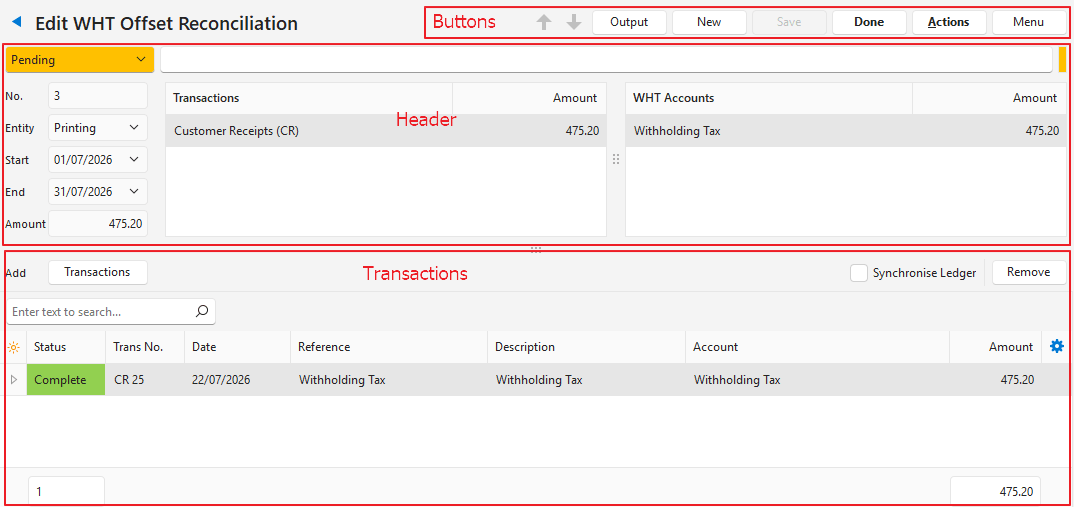
Buttons Explained
| Button | Description |
|---|---|
| Arrows | Go to the previous or next reconciliation. |
| Output | Prints, previews or emails the output if Output Templates are set up for the module. Export: Exports the list in .xlsx, .htm or .csv format. |
| New | Creates one of these reconciliations as selected from the dropdown list:
Needs reconciliation statuses. If none are set up, the message “Invalid Setting Status. See Menu button > Settings > Edit Statuses.” appears. |
| Save | Saves any changes. |
| Done | Changes the reconciliation’s status to Complete. Needs a default Complete status. Otherwise, the message “Default Complete status has not been set. See Menu Button > Settings > Edit Statuses.” appears. |
| Actions | Delete WHT Offset Reconciliation: Deletes the reconciliation. Possible only if its status is editable or cancelled. |
| Menu | Settings
|
Fields Explained: Header
| Field | Description |
|---|---|
| Status | Select a header status from the dropdown list. |
| Status Bar | Enter a note. |
| No. | The system-generated number allocated to the reconciliation. |
| Entity | Select the registered entity. |
| Start | The start date of the reconciliation. |
| End | The end date of the reconciliation. Entity, Start and End cannot be changed once transactions are added to the reconciliation. |
| Amount | The total withholding tax on all the transactions included in the reconciliation. |
| Transaction section | Lists the totals per transaction. |
| WHT Accounts | Lists the totals per ledger account created. |
Fields Explained: Transactions
| Buttons and Checkbox | Description |
|---|---|
| Transactions (button) | Opens an interface to add transactions for the selected period. Needs a start date, an end date and, if you use entities, an entity. If one is missing, a message such as “Please select Start Date.” appears. |
| Synchronise Ledger | Automatically opens the clicked transaction in the right panel. |
| Remove | Removes all the selected entries. |
| Fields | Description |
|---|---|
| ID | The system-generated number for the entry. |
| Status | The item’s status (each transaction is an item on the reconciliation). |
| Trans No. | The Transaction Type code and number (e.g. CI 45, where CI is the Customer Invoice code and 45 is the invoice number). |
| Trans | The transaction’s code (e.g. CI for Customer Invoice). Also part of Trans No., but listed separately for filtering and grouping. |
| No. | The transaction’s number. Also part of Trans No., but listed separately for filtering and grouping. |
| Date | The date of the transaction. |
| Reference | The reference entered on the transaction. |
| Item No. | The item number of the entry on the transaction (that is, its position on the transaction). |
| Branch Code | The customer or supplier’s tax branch code. |
| Description | The item’s description. |
| Dr Account | The account that was debited. |
| Cr Account | The account that was credited. |
| Account | The WHT account that the tax was posted to. |
| Amount | The WHT amount. |
| Total (exc) | The total VAT-exclusive amount on the WHT transaction. |
| VAT | The total VAT on the WHT transaction. |
| Total (inc) | The total VAT-inclusive amount on the WHT transaction. |
| A context menu with the following options:
|
WHT Payable Reconciliations Edit View
WHT Payable refers to the WHT you deducted from your suppliers. In Thailand, these amounts must be paid over to the revenue services by the 7th of the following month. This reconciliation helps you determine the correct amount to pay.
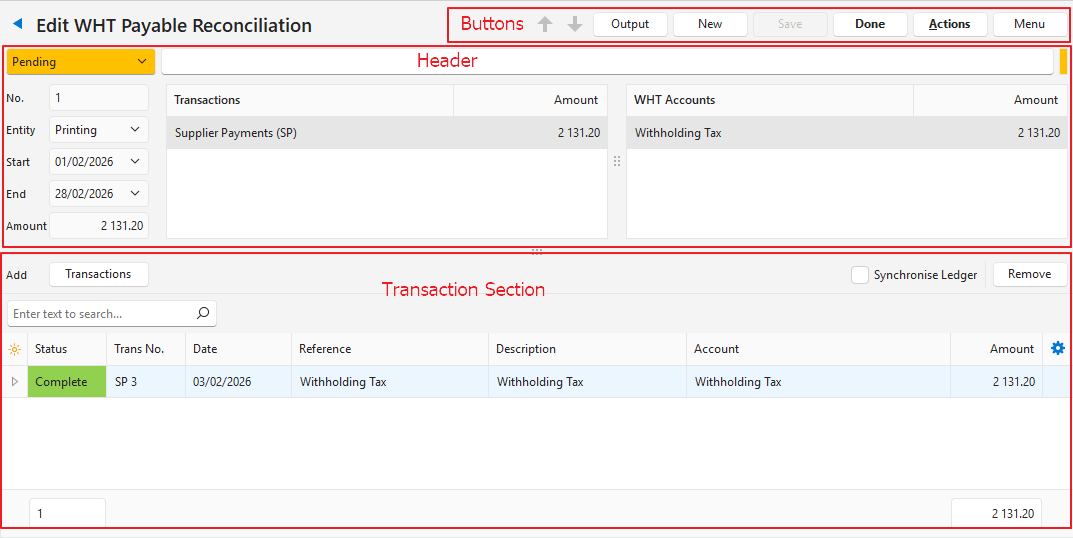
Buttons Explained
| Button | Description |
|---|---|
| Arrows | Go to the previous or next reconciliation. |
| Output | Prints, previews or emails the output if Output Templates are set up for the module. Export: Exports the list in .xlsx, .htm or .csv format. |
| New | Creates one of these reconciliations as selected from the dropdown list:
Needs reconciliation statuses. If none are set up, the message “Invalid Setting Status. See Menu button > Settings > Edit Statuses.” appears. |
| Save | Saves any changes. |
| Done | Changes the reconciliation’s status to Complete. Needs a default Complete status. Otherwise, the message “Default Complete status has not been set. See Menu Button > Settings > Edit Statuses.” appears. |
| Actions | Delete WHT Payable Reconciliation: Deletes the reconciliation. Possible only if its status is editable or cancelled. |
| Menu | Settings
|
Fields Explained: Header
| Field | Description |
|---|---|
| Status | Select a header status from the dropdown list. |
| Status Bar | Enter a note. |
| No. | The system-generated number allocated to the reconciliation. |
| Entity | Select the registered entity. |
| Start | The start date of the reconciliation. |
| End | The end date of the reconciliation. Entity, Start and End cannot be changed once transactions are added to the reconciliation. |
| Amount | The total withholding tax on all the transactions included in the reconciliation. |
| Transactions section | Lists the totals per transaction. |
| WHT Accounts | Lists the totals per ledger account created. |
Fields Explained: Transactions
| Buttons and Checkbox | Description |
|---|---|
| Transactions (button) | Opens an interface to add transactions for the selected period. Needs a start date, an end date and, if you use entities, an entity. If one is missing, a message such as “Please select Start Date.” appears. |
| Synchronise Ledger | Automatically opens the clicked transaction in the right panel. |
| Remove | Removes all the selected entries. |
| Fields | Description |
|---|---|
| ID | The system-generated number for the entry. |
| Status | The item’s status (each transaction is an item on the reconciliation). |
| Trans No. | The Transaction Type code and number (e.g. SP 9, where SP is the Supplier Payment code and 9 is the transaction number). |
| Trans | The transaction’s code. Also part of Trans No., but listed separately for filtering and grouping. |
| No. | The transaction’s number. Also part of Trans No., but listed separately for filtering and grouping. |
| Date | The date of the transaction. |
| Reference | The reference entered on the transaction. |
| Item No. | The item number of the entry on the transaction (that is, its position on the transaction). |
| Branch Code | The customer or supplier’s tax branch code. |
| Description | The item’s description. |
| Dr Account | The account that was debited. |
| Cr Account | The account that was credited. |
| Account | The WHT account that the tax was posted to. |
| Amount | The WHT amount. |
| Total (exc) | The total VAT-exclusive amount on the WHT transaction. |
| VAT | The total VAT on the WHT transaction. |
| Total (inc) | The total VAT-inclusive amount on the WHT transaction. |
| A context menu with the following options:
|