
Production Planning Jobs
The Jobs view lists all the jobs that must still be completed. A Work Order can contain several items that must be produced, and production planning keeps a separate job for each item. This page explains the buttons, filters and fields of the Jobs list view.
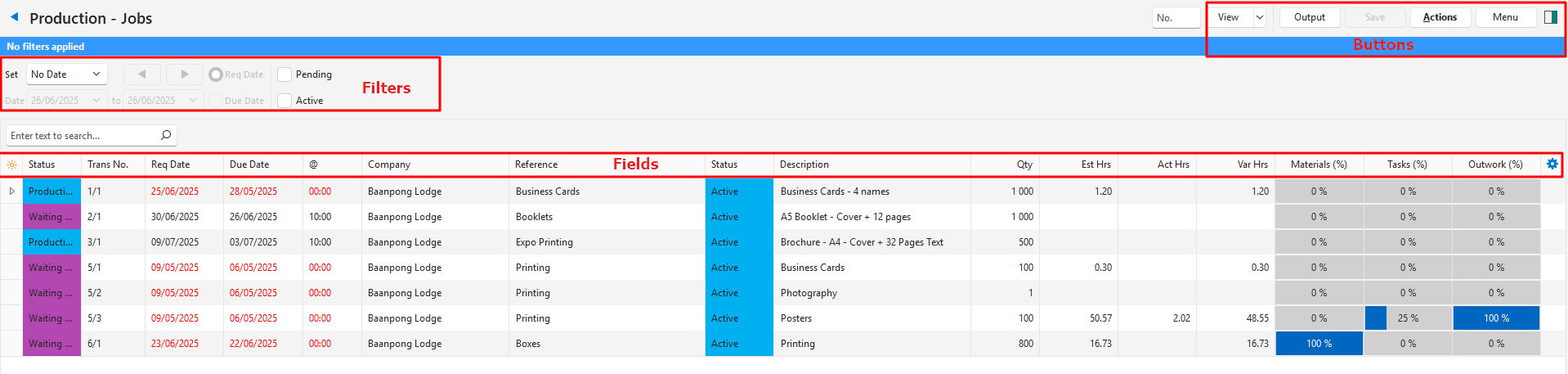
Buttons Explained
| Button | Description |
|---|---|
| View | Lists the entries that match the selected filters. |
| Arrow on View Button | Reset Data Filter: Resets all the data filters. |
| Output | Prints, previews or emails the output if Output Templates are set up for the module. Export: Exports the list in .xlsx, .htm or .csv format. |
| Actions | Lets you change several records at once (select them with Ctrl + left-click). Batch Update: Changes all the selected records when you click Update (button). The options are:
|
| Menu | Settings Views – Transaction Views – Production |
Filters Explained
| Filter | Description |
|---|---|
| Set | Select a date option (e.g. No Date, Today, This Year). |
| Arrows | Adjusts the date in the direction of the arrow. |
| Date … to … | Set your own dates (based on the selection under Set). |
| Due Date (radio button) | Applies the selected date to filter the records by their due dates. |
| Req Date (radio button) | Applies the selected date to filter the records by their required dates. |
| Pending (checkbox) | Shows the Pending jobs, based on the group statuses. |
| Active (checkbox) | Shows the Active jobs, based on the group statuses. |
Fields Explained
| Field | Description |
|---|---|
| ID | The system-generated number for the entry. |
| Trans ID | The system-generated number for the transaction. |
| Status (Trans) | The status of the transaction. |
| Trans No. | The transaction and item number. |
| Ver No. | The transaction’s version number. |
| From | The Code and Number of the document the transaction was copied from. |
| Date Trans | The transaction date. |
| Date Due | The due date.
|
| Date Req | The required date.
|
| Entity | The name of the entity. |
| Company | The name of the customer or supplier. |
| Rep | The name of the customer’s rep. |
| Reference | The reference entered on the transaction. |
| Status (Item) | The status of the item. |
| Description | The item’s description. |
| Est Hrs | The estimated hours the job should take. |
| Act Hrs | The actual hours the job took. |
| Var Hrs | The difference between the estimated and actual hours. |
| Materials (%) | The percentage of materials that are ready, calculated from the material statuses on Views – Production > Materials. |
| Tasks (%) | The percentage of tasks that are complete, calculated from the task statuses on Views – Production > Tasks. |
| Outwork (%) | The percentage of outwork that is complete, calculated from the outwork statuses on Views – Production > Outwork. |
| Created | The date on which the entry was created. |
| Updated | The date on which the entry was updated. |
| Updated By | The user who last updated the entry. |
 | A menu that also opens when you right-click the entry. The options are:
|