Attachments Module
The Attachments module lets you manage all your attachments from a single interface. The module is especially helpful for managing attachments that have expiry dates (e.g. staff visas, work permits, customer credit applications).
This module can be added to any of the menus.
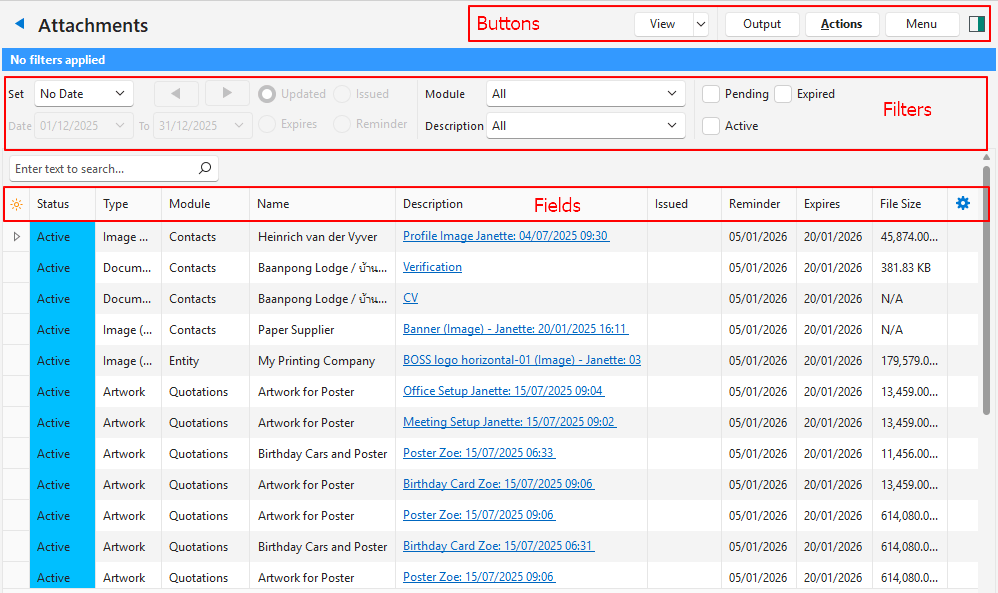
Buttons Explained
| Button | Description |
|---|---|
| View | Lists the entries that match the selected data filters. |
| Arrow on View Button | Reset Data Filter: Resets all the data filters. |
| Actions | Changes multiple records (select them with Ctrl + left-click). The options are: Batch Update: Changes the following fields on the selected records when you click Update (button):
To clear Expires, Issued or Reminder on the selected records, delete the date and click Update (button). The confirmation message then starts with Clear instead of Set. If no records are selected, the record you are on is updated. A batch update sets the Updated date and the Updated By user of each attachment it changes. Delete (button, next to Update): Deletes the checked attachments (the attachment you are on if none is checked) after a confirmation. You need the Delete user access for Attachments. A file stored in the BOS cloud storage is deleted too, as with Delete on the Notes and Attachments Panel. If the file cannot be deleted, the attachment is kept. |
| Menu | Settings
|
Filters Explained
| Filter | Description |
|---|---|
| Date | A dropdown list with date options (e.g. No Date, Today, This Year). |
| Arrows | Adjusts the date in the direction of the arrow. |
| Date … to … | Enter your own dates (based on the selection under Set). |
| Updated (radio button) | If selected, shows attachments updated during the selected period. |
| Expires (radio button) | If selected, shows attachments that expire during the selected period. |
| Issued (radio button) | If selected, shows attachments issued during the selected period. |
| Reminder (radio button) | If selected, shows attachments that have reminders for the selected period. |
| Module | A dropdown list of modules for you to select one (or all). The options are:
|
| Description | If lookup lists are created for the description, they are available for you to select one (or all). |
| Status Checkboxes | Checkboxes for you to select specific status options. The options are:
|
Fields Explained
If you edit an attachment and upload a new file, the URL changes. For example, if you change the logo, the new logo has a new URL. Forms that use the file are not updated automatically: copy the new URL and paste it into each form that uses it.
| Field | Description |
|---|---|
| Attachment ID | The system-generated number for the attachment. |
| Status | The status of the attachment. |
| Trans ID | The system-generated number for the transaction (if applicable). |
| Type | The detailed type of attachment that was uploaded:
|
| Content Type | A description of the uploaded file. |
| Module | The module from which the attachment was uploaded: the record the attachment was added to. For example, a Service Manager job’s attachment shows the job, and a transaction’s attachment that is also linked to an asset shows the transaction. An attachment of a Service Manager project task shows Project Task with the task’s description. |
| ID (Link ID) | A system-generated link number. |
| Name | The name of the attachment. |
| Description | A description of the attachment, which includes the name of the attachment, the user, and the date and time. |
| Issued | The issued date that was set for the attachment. |
| Reminder | The reminder date that was set for the attachment. |
| Expires | The attachment’s expiry date. |
| File Type | The general type of file that was uploaded. |
| File Size | The attachment’s file size. |
| Detail | The attachment’s details. |
| Created | The date on which the attachment was added. |
| Updated | The date on which the entry was updated. Renaming an attachment on a Notes & Attachments tab and a batch update also set this date and the Updated By user. |
| Updated By | The user who last updated the entry. |
 | A submenu, also opened by right-clicking the entry, with this option:
|
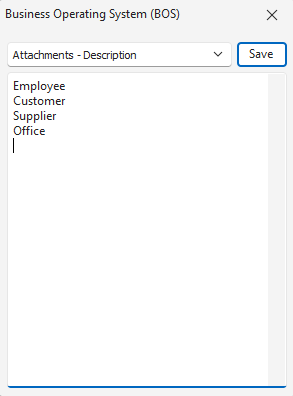
Edit Description Lookup Lists
Opens an interface for you to enter predefined descriptions, one entry per line. Entries are saved when you click Save (button) or close the popup.