
Custom Reports Tutorials
The Custom Reports screen shows the reports created in Edit Reports. It can be added to any Menu Group as a whole, with a dropdown list of only the reports you are authorised to view, or as individual reports.
💡These tutorials explain how to view a custom report, customise its chart and fix common problems.
How to View a Custom Report
- Navigate to Custom Reports.
- Note: The navigation depends on where the module is added in your menu system.
- Select the report you want to view from the dropdown list next to Report.
- Note: If an individual report is added to a Menu Group, there is no dropdown list. The report is automatically selected.
- Click View (button).
How to Customise the Chart
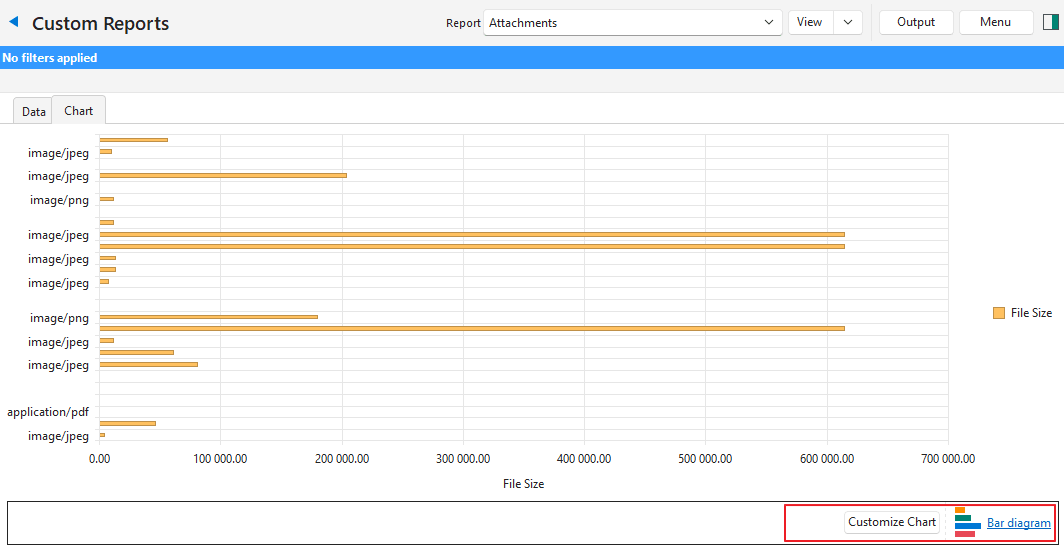
- Navigate to Custom Reports or a specific custom report.
- Select the report you want to view from the dropdown list if applicable.
- Click View (button).
- Click Chart (tab).
- At the bottom, there are two buttons:
- Click Customize Chart:
- On the Series tab, check or uncheck fields to show or hide them.
- Sort by (bottom of the popup): Select a field to sort the chart from the dropdown list.
- Click the name of the chart (e.g. Column diagram):
- Click any of the other diagrams to display the chart in a different format.
- Click Customize Chart:
Troubleshooting: Custom Reports
- “Please select a report” Error:
- Ensure a report is selected from the dropdown list before clicking View (button).
- Empty Grid:
- Check the filter settings (e.g. date range or dynamic filters) to ensure they match the available data.
- “No SQL Statement Provided” Error:
- The selected report lacks a valid SQL query. Edit the report to provide a query.
- “URL has not been linked” Error:
- The row you right-clicked has no URL in the field that the report’s Attachment drilldown uses. Check the record, or the drilldown’s Fieldname in Edit Reports.
- “Access Denied” Error:
- You do not have user access to the custom action you selected, or to Edit Actions. Check with your administrator.
- Amount or Time Worked Showing Zero:
- If a custom report rounds the entries to the nearest integer, amounts or time worked may show as zero.
- To check, export the report in .xlsx format (Output (button)) and open it in Excel. Increase the number of decimal places for the column showing zero values.
- If increasing the number of decimal places solves the problem, edit the report and increase the number of decimal places.
- Custom Report not on Dropdown List:
- If a custom report is not showing on the dropdown list, User Access might not be set for that report.
- If user access is set, you might not have access to view a particular report – check with your administrator.