
Transaction Warnings and Troubleshooting
Warnings
- An orange warning bar appears at the top of the transactions for the issues listed below.
- Some warnings appear in the Transaction Type setup, but not on the transactions.
- Errors appear on transactions and block the Done button from changing the transaction’s status to complete.
- The batch and serial number warnings ignore cancelled and deleted transactions. They do not stop you from saving the transaction, but they block the Done button in the same way.
| Issue | Applicable To | Warning Shows | How to Fix |
|---|---|---|---|
The transaction’s debits and credits do not balance. This usually happens when the Dr Account or Cr Account is blank. | Accounting transactions | Trial Balance Error on Item | Select an account from the dropdown lists for both the Dr Account and Cr Account. If the accounts do not appear, use Field Chooser (*) to add the Dr Account and Cr Account columns. If there are no dropdown lists, edit the Transaction Type setup and include the relevant setting. |
The accounting checkbox was unchecked for the status. The transaction does not show up in any accounting reports (e.g. Ledger, Financial Reports, Age Analyses). | Accounting transactions | Transaction is not in an Accounting Status | Ignore the warning if the transaction is still Pending. Check the Status (tab) of the Transaction Type to see which of its statuses are accounting statuses. |
| The allocations are more than the transaction’s amount, so the outstanding amount is less than zero. | Customer and supplier transactions that post to the ledger, if Accounting > Enable Customer and Supplier Allocations is checked in the general settings | Allocation Error | Click Allocation (button) and reduce or remove the allocations. If the transaction’s amount is wrong, click the arrow on Allocation (button) and select Update Transaction to the Allocated Amount. |
| The transaction number entered already exists. | Transactions where you enter the number (e.g. Supplier Invoices) | Duplicate Trans No. | Check that the transaction has not already been entered. If it has, cancel the current transaction. Check that the transaction number was entered correctly. |
The customer or supplier on the transaction is no longer active. You cannot select a customer or supplier that is not in an Active status. BOS shows “The selected customer is not Active status.” or “The selected supplier is not Active status.” and clears the field. The warning appears when the status of a customer or supplier already on the transaction changes. | Transactions that use customer or supplier accounts, on Transaction Types with General > Enable Company = Customers (Active) or Suppliers (Active) | The selected customer is not Active. The selected supplier is not Active. | The status of the customer or supplier was changed, and they are no longer active (e.g. the customer was suspended for non-payment). Check the customer’s or supplier’s account to see its status and whether you should still complete the transaction. |
| There is a problem with the setup of the Transaction Type. | For example: Error: Debit and Credit types cannot both be assigned to a Customer or Supplier | Edit the Transaction Type settings as necessary. The error also appears on the Transaction Type setup. | |
| This warning appears when you are busy editing a transaction. | Transactions that have Resolve or Inventory enabled | Transaction is not in Inventory Status | In its current status, the transaction does not update stock (for example, while it is still in a Pending status). As the status changes, the warning should disappear. If it does not, check the Transaction Type setup. |
| An item’s quantity differs from the number of serial numbers entered for it. | Transactions with Inventory > Enable Tracking = Serial Numbers | Qty does not match the count of Serial Numbers | Right-click the item and select View/Edit Serial Numbers. Add or delete serial numbers, or click Save (button) and then Yes (button) to update the Qty to the number of serial numbers. |
A serial number of the item is in stock more than once: it was received more times than it was issued. A serial number moved between locations (issued at one location and received at another) is not counted twice. | Transactions with Inventory > Enable Tracking = Serial Numbers | Serial Number received more than once: followed by the serial numbers | Check the serial numbers listed and correct the wrong transaction. To correct an entry, right-click it and select View/Edit Serial Numbers. |
| A serial number of the item was issued more times than it was received, on more than one transaction. | Transactions with Inventory > Enable Tracking = Serial Numbers | Serial Number issued more than once: followed by the serial numbers | Check the serial numbers listed and correct the wrong transaction. To correct an entry, right-click it and select View/Edit Serial Numbers. |
| An issue entry of the transaction issues a serial number at a location where the serial number is not in stock. | Transactions with Inventory > Enable Tracking = Serial Numbers | Serial Number not in stock at the location: followed by the serial numbers | Check the entry’s Location. Select the location where the serial number is in stock, or move the stock to the entry’s location first. Then right-click the item, select View/Edit Serial Numbers, and select the serial numbers from the Available list. |
| The transaction receives a batch at a location where the batch is still in stock from other transactions. | Transactions with Inventory > Enable Tracking = Batches | Batch received more than once: followed by the batch numbers | Check that the Batch No. on the receive entry is correct, and correct it if it is not. |
At the entry’s location, more of the batch is issued than was received there. The quantities are compared in the item’s base unit. | Transactions with Inventory > Enable Tracking = Batches | Batch issued Qty more than received Qty: followed by the batch numbers | Check the Qty and Batch No. on the issue entries. To issue the rest of the quantity from another batch, add an entry for that batch. |
| An issue entry of the transaction issues a batch at a location where the batch was never received. | Transactions with Inventory > Enable Tracking = Batches | Batch not received at the location: followed by the batch numbers | Check the entry’s Location and Batch No. Select the batch from the dropdown list in the Batch No. column, which shows only the batches with stock at the entry’s location. After you change the Location, save the entry first. |
The transaction is dated on or before the Close-off Date of its Transaction Type. The transaction opens read-only and cannot be set to Done or deleted. | All transactions | Closed off up to dd/mm/yyyy | Correct a closed period with a new transaction (for example, a credit note or journal) in an open period. To change the transaction itself, ask an administrator to move the Accounting > Close-off Date back first. |
| An invoice item has a WHT% but no WHT Section, or a WHT section without a WHT%. | Invoices with withholding tax | WHT incomplete - WHT% or WHT Section missing | Complete the WHT% and WHT Section of the item. You can still click Done. A payment allocated to the invoice shows an error on Update WHT until the invoice is complete (see WHT Tutorials). |
| A Stock Adjustment Transaction Type has Enable Tracking set to Serial Numbers or Serial Number (Unchecked). | Stock Adjustments (also in the Transaction Type setup) | Stock Adjustment can not use Serial Number tracking, use Batches or no tracking | Set Inventory > Enable Tracking to Batches or blank on that Transaction Type. |
Troubleshooting
Accounts Not Showing on Dropdown Lists
- The lookup field appears on the account dropdown list when you enter transactions.
- If there are gaps, or an account is not showing, you may have forgotten to create a lookup for that account.
Blank Entries on Menus or Dropdown Lists
- Blank entries appear when lookup lists or captions were not created for the entry. For example:
- If an Account was created but the lookup field is blank, there is a blank entry on the dropdown list of accounts.
- A Copy Rule was created and an Actions option was selected under Execute, but no caption was entered in the Caption (Action) column. In that case, a blank entry appears when you click Actions (button) for that Transaction Type.
- Blank transactions appear when someone clicks New (button) but abandons the transaction. Transactions are saved automatically, even if no fields are completed. Either use the blank transaction the next time you need one (double-click the transaction in List View to edit it) or delete the transaction (if you have the required permission).
- Blank entries appear on the top of some dropdown lists. Select the blank entry to clear the field.
Cannot Change the Item’s Unit
- Transactions use different prices. The prices are selected when you create the Transaction Type.
- For example, if a Transaction Type uses a cost price, then only items with cost prices are available for selection. If you try to change the unit of an item, and the other units do not have cost prices, they do not appear on the dropdown list.
- Solution: Check the price being used by the Transaction Type (e.g. Main Menu > Setup > Transaction Types). Enter a corresponding price for the unit you want to use on the item’s Prices tab.
Changes to Transaction Type Not Showing on Transaction
- Some changes take effect only after a restart (e.g. checking and unchecking the Inventory and Accounting columns in Statuses).
- Some setup changes apply only to new transactions, not to existing ones (e.g. VAT changes).
Clicked View (button) but Nothing Happened
- There might be no data for the selected filter. The blue bar at the top shows the main filters selected. For example:
- There might be no records for the date you selected.
- There might be no records for the Category or Entity you selected.
- There might be no records with the selected Statuses.
- There is text in the Search Block, and no records match that text.
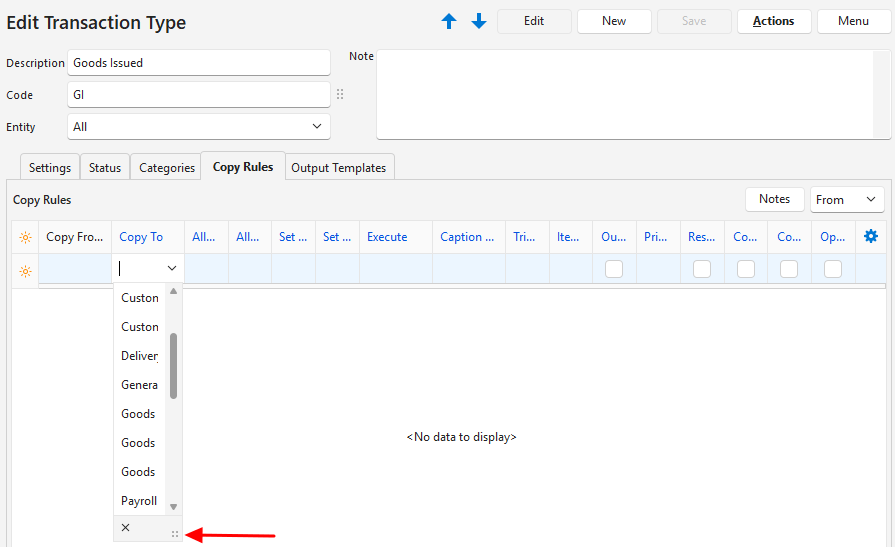
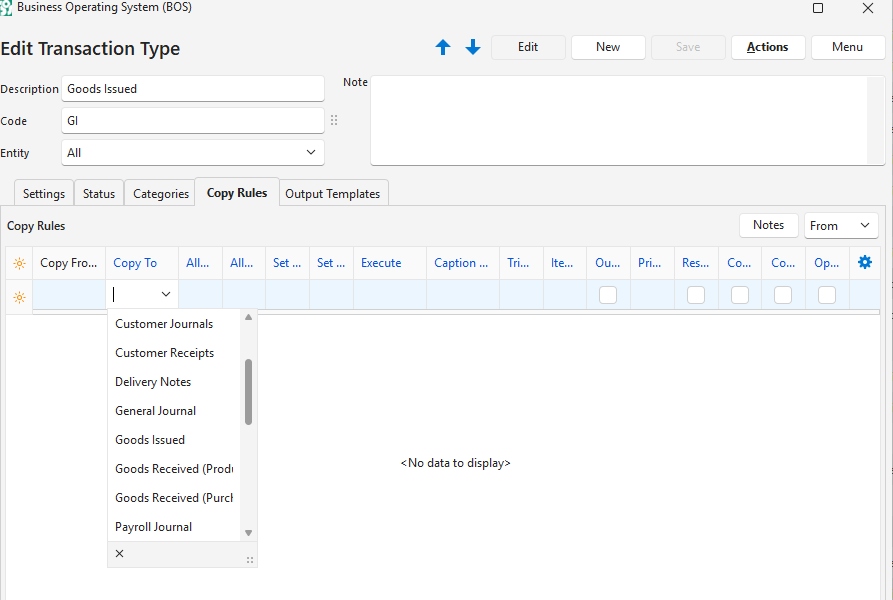
Dropdown List Too Narrow
- Hover your cursor over the four dots in the bottom corner of the dropdown list: your cursor changes into arrows.
- Click and drag the dots to the right.
Feature Is Greyed Out
- Features are greyed out when they are unavailable.
- Features may be unavailable because they apply to some of the entries on the list, but not all of them.
- Editable fields might be greyed out until you click Edit (button).
Missing Features and Functionality
- When an item is opened from a Transaction or Estimate, it is opened with limited functionality.
- Navigate to Main Menu > Setup > Items and reopen the item there to use all its features.
No Location on Transaction Items
- For the location to appear, the following conditions must be met:
Specific Column Is Missing in Transactions
- Certain columns are only available if the related setting was activated.
- If a setting is blank or shows N/A, the related column might not appear on screen or be included in the Field Chooser (*) (e.g. the Resolve column).
- If you change the setting, restart QuickEasy BOS to update the transactions.
Specific Item Is Not on Dropdown List of Items
- Items are filtered for completeness before appearing on dropdown lists. Check the item’s Setup to see if any fields are incomplete.
- The item must have a price type that matches the price type selected for the Transaction Type. For example, only items with Sell Prices can be added to Sales Orders.
- On supplier transactions, the item popup has a checkbox with the supplier’s name, which is checked by default. While it is checked, only items with a price for that supplier are listed. Uncheck it and click View (button) to list all the items.
Specific Item Is Not on Dropdown List of Items to Copy
- Check the Copy Rules:
- The items must be in the specified Status to appear on the list (e.g. if only active items can be copied, and the item is still pending, it does not appear on the list).
- The items must meet the rule in the Items column (Resolve options). For example, if only items with the Produce resolve can be copied to a work order, and the item’s resolve is Purchase, it does not appear on the list.
- The item may already be copied. Click Links (button) on the transaction you are copying from and check the other transactions on the list.
Specific Option Is Not on Actions or Menu Buttons
- Check the settings and tabs for the Transaction Type. If the option chosen (or default option) is blank or shows N/A, the option does not appear on the transaction.
- Examples:
- When you create a Copy Rule, you choose whether it appears on Actions (button) and with which caption.
- If Followers is set to N/A, the menu option View/Edit Followers does not appear.
Transactions Are Not Updating Inventory
When editing a transaction, click Menu (button) > View Inventory. If the report is blank, the transaction is not updating inventory.
- The Transaction Type must have at least one Resolve option selected.
- If no Resolve option is selected, the column does not appear on the transaction.
- The Resolve option determines how inventory is updated.
- The Transaction Type must have at least one Status for which the Inventory column is checked.
- If the transaction is not in that status, inventory is not updated.
- Both the Resolve and Location columns must be filled in on the transaction.
- Note: If everything is set up correctly, the location and resolve columns are highlighted in red to show missing information. If information is missing but the columns are not highlighted, there is a setup problem with either the Transaction Type or the item.
- Verify that the item on the transaction meets these conditions:
- A location must be added on the Item’s Inventory tab.
- The status of the Location selected for the item must be Active.
Transactions Not Updating the Ledger
- When editing a transaction, click Menu (button) > View Accounting. If the report is blank, the transaction is not posted to the ledger.
- If the menu option is not there, check the Transaction Type’s settings (e.g. prices, accounts).
- When setting Statuses, there is a checkbox in the Accounting column. If Accounting is unchecked, the transaction does not appear on any accounting reports (e.g. Customer Age Analysis, Ledger, Financial Reports).
- If the Accounting checkbox is checked for some of the statuses but not all of them, the transaction does not appear until it reaches the required status. For example, transactions with a Pending status usually do not appear on reports until their status changes to Active or Complete.
- If the Transaction Type setup does not have debit or credit accounts or types allocated, the transaction does not appear on any accounting reports.
Unable to Copy a Transaction
When a copy fails, BOS shows one of the messages below and does not create the new transaction. The same checks apply when you copy from the production views.
- Copy Failed. You do not have Access to use the Copy Rule. Open the Transaction Setup and right-click on a Copy Rule to assign User Access.
- You are not one of the users allowed to use the Copy Rule. Ask an administrator to give you access to it.
- The destination transaction does not support the entity used in the source transaction.
- The Copy Rule’s destination is limited to a different entity from the one on the transaction you are copying. Check the entity on the transaction, or use a different Copy Rule.
- Copy Failed. You do not have Edit Access to the destination Transaction.
- You need User Access to view and edit the destination Transaction Type. If your access to it is limited to one entity, the transaction you copy must be in that entity.
- You cannot use the copy function while the transaction is in its current status.
- The Copy Rule only allows copying from certain statuses. Change the transaction’s status to one of them, or check the Copy Rule’s statuses.
- In the production views, “You cannot use the copy function while the estimate is in its current status.” means the same for the estimate’s status.
- Copy Failed: The Company is not in an Active status.
- The destination Transaction Type uses General > Enable Company = Customers (Active) or Suppliers (Active), and the customer or supplier on the transaction is not in an Active status. Change their status first.
- Invalid Setting Till (PoS) on destination Transaction. See Setup Transaction Types > Settings > Enable Entities.
- The transaction belongs to a PoS session and uses Till (PoS), but the destination Transaction Type’s General > Enable Entities is not Till (PoS).
- Please select a Supplier.
- When you copy a customer transaction to a supplier transaction, select a supplier in the Supplier field on the copy popup before you click Copy (button).
Unable to Create a Transaction for the First Time
- Navigate to Transaction Types (Main Menu > Setup > Transaction Types).
- Double-click the applicable Transaction Type and check the following fields:
- Settings (tab):
- Accounting > Price: Is a price selected? If no price is selected, there is no field to enter an amount.
- Status (tab): Have statuses been created?
- Click Actions (button) > Update Transaction Number (Trans No) Sequences: This procedure sets the numbers for the transaction and must be run before transactions can be entered.
- Click Menu (button) > Edit User Access: Check that user access is allocated. (Administrator rights are required for User Access.)
- Settings (tab):
- If New (button) shows one of these messages, BOS does not create the transaction until the setting is fixed:
- Invalid Setting Production Status. See Menu button > Settings > Edit Transaction Type > Menu button > Edit Statuses (Production Materials). The Transaction Type has Estimating > Enable Estimating set to a Production option, but no statuses for production materials. The message ends in (Production Tasks) or (Production Outwork) when those statuses are missing. Create the statuses as the message describes.
- Invalid Setting Currencies. See Menu button > Settings > Edit Accounting. No currencies are set up. Add a currency under Currencies.
Unable to Delete a Transaction
- You need User Access: Delete Rights to delete a transaction.
- If you cannot delete a transaction, change the transaction’s status to Cancelled.
- A transaction dated on or before its Transaction Type’s Close-off Date cannot be deleted (the warning bar shows Closed off up to dd/mm/yyyy).
Unable to Edit a Transaction
- If Edit (button) appears and is not blue, click it to enable editing.
- You need User Access: Edit Rights to edit a transaction.
- The Status of the transaction must allow editing.
- If the status does not allow editing, change the status to a prior status (e.g. Pending).
- If you cannot change the status to a lower status, change the transaction’s Status to Cancelled and enter a new transaction.
- A transaction dated on or before its Transaction Type’s Close-off Date opens read-only. Correct it with a new transaction in an open period.
Unable to Enter an Amount on a Transaction
- Navigate to Transaction Types (Main Menu > Setup > Transaction Types).
- Double-click the applicable Transaction Type.
- Navigate to Settings (tab) and add the following setting: Accounting > Price.
- Select a price in the Value column.
- Note: If None is selected, there is no amount field on the transaction.
Unable to View a Transaction
- You need View Access Rights to view a transaction.
- Viewing customer transactions may be restricted to the rep on the transaction.
- Viewing Transactions may be restricted to the user who the transaction is Assigned to, or who was selected as the resource.
Unable to View Contact Information
- You need View Access Rights to view contact information.
- Access rights are set separately for entities, customers and suppliers.