
Item Categories
- Categories are used for reporting and sorting.
- Several categories can be added to an item.
- Categories can be nested, with any number of subcategories and nesting levels.
- An item can be linked only to the last nested level.
- After an item is linked to a category or subcategory, no further nested levels (subcategories) can be created for that category or subcategory.
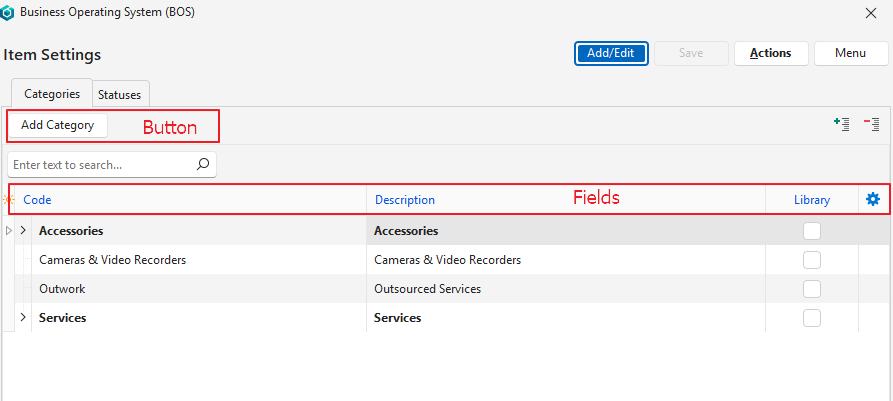
Category Buttons Explained
| Button | Description |
|---|---|
| + – | Collapses or expands the category tree. |
| Add Category | Adds a row at the bottom of the table for a new category. After the category is created, drag it below another category to make it a subcategory. You can also add a subcategory: right-click a category and select Add Subcategory. |
Fields Explained
Info
Fields marked in blue (✎) can be edited.
| Field | Description |
|---|---|
| Field Chooser (*) | Add or remove columns. |
| ID | The system-generated number for the category. |
| ParentID | The system-generated number allocated to the parent category (top-level category). |
| Code | Enter the category’s code (a short description). |
| Description | Enter the category’s long description. |
| Created | The date on which the category was created. |
| Updated | The date on which the category was updated. |
| Updated By | The user who last updated the category. |
| Library | A checkbox. If checked, items in the category can be exported to other databases. See Online Libraries for more information. |