
Ledger List Views
A ledger is a recordkeeping system used to track, organise and summarise financial transactions.
In QuickEasy BOS, the ledger interface lets you view transaction lists and general ledger accounts. (For the customer and supplier ledgers, see Customer Age Analysis and Statements and Supplier Age Analysis and Ledger Tutorials.)
You can also create all the transactions that are posted to the ledger from the New button.
Buttons Explained
| Button | Description |
|---|---|
| View | Shows the entries that match the selected filters. |
| Arrow on View Button | Reset Data Filter: Resets all the selected data filters. |
| New | Creates a new transaction. Select from a dropdown list of all the Transaction Types that post to the ledger, including those that post to the customer and supplier ledgers. The menu is grouped into Customer, Supplier and other. When you create a transaction, the filters change to Date = Today with the Created and Transactions radio buttons selected, so that the new transaction appears when you return to the List View. |
| Output | Prints, previews or emails the output if Output Templates are set up for the module. Export: Exports the list in .xlsx, .htm or .csv format. |
| Menu | Settings
|
Filters Explained
| Filter | Description |
|---|---|
| Set | Select a date option (e.g. No Date, Today, This Year). |
| Arrows | Adjusts the date in the direction of the arrow. |
| Date | Enter or change the dates. |
| Created (radio button for date) | Shows the records created during the selected date range. |
| Updated (radio button for date) | Shows the records updated during the selected date range. |
| Trans (radio button for date) | Shows the records with a transaction date in the selected date range (default selection). |
| Transactions (radio button for type of display) | Shows a list of transactions. |
| Items (radio button for type of display) | Shows the items on transactions. |
| Ledger (radio button for type of display) | Shows a Detailed Ledger (e.g. opening balance, debits, credits). |
| Transaction Type / Ledger Account (dropdown list) |
|
| Entity (dropdown list) | Select a registered entity to show only its records. Unavailable if there is only one registered entity. |
| Local Currency | Checkbox. If checked, shows the local currency only. Applies only to the Ledger (radio button) and Bank accounts. |
| Status Groups (checkboxes) | Check one or more statuses to show only the records with those statuses. If none are checked, the records of all the statuses appear. Applies only to Transactions and Items. |
Fields Explained: Transactions
When the Transactions radio button is selected, only the transaction totals appear. This option also shows transactions without items.
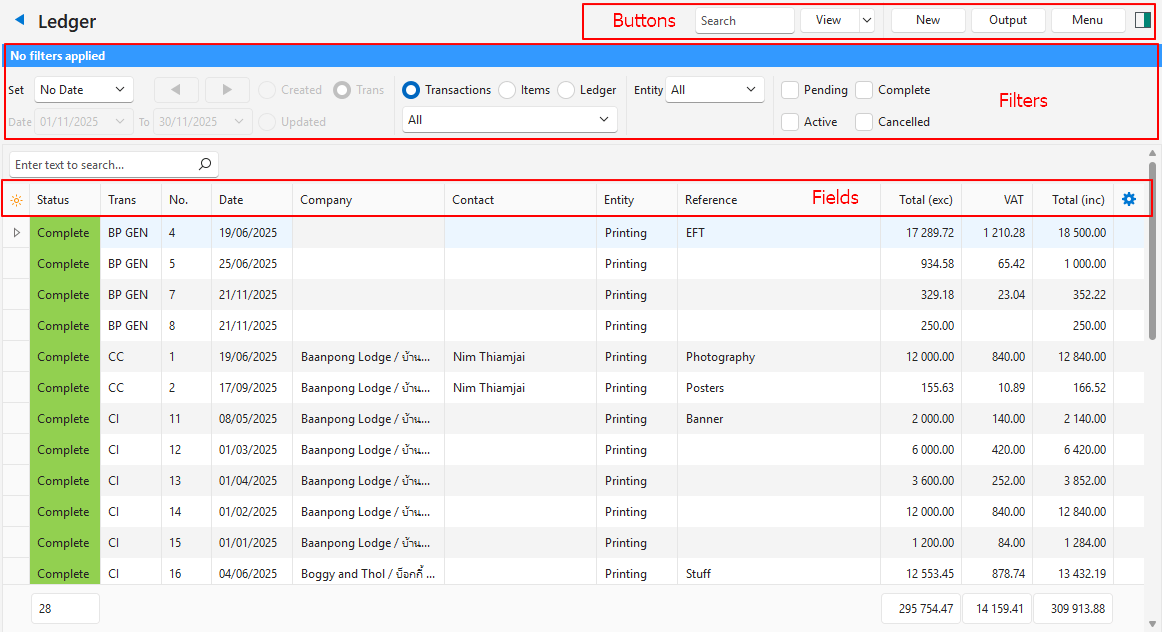
| Field | Description |
|---|---|
| Field Chooser (*) | Add or remove columns. |
| ID | The system-generated number for the entry. |
| Status | The transaction’s status. |
| Trans | The Transaction Type’s code. |
| No. | The transaction number. |
| Date | The transaction date. |
| From | The code and number of the source transaction if a transaction was copied to create this transaction. |
| Company | The name of the Customer or Supplier. |
| Contact | The name of the customer or supplier’s contact person. |
| Entity (Reg) | The registered entity selected for the transaction. |
| Category | The transaction’s category. |
| Entity | The branch or till selected for the transaction. |
| Reference | The reference on the transaction. |
| Currency | The transaction’s currency. |
| Total (exc) | The VAT-exclusive total for the entry in the transaction’s currency. |
| VAT | The VAT claimed or charged on the entry in the transaction’s currency. |
| Total (inc) | The VAT-inclusive total for the entry in the transaction’s currency. |
| Outstanding | The amount outstanding in the transaction currency. Outstanding refers to transactions that are not allocated to other transactions (e.g. customer invoices to which customer receipts are not allocated). |
| Outstanding (cur) | The amount outstanding in the local currency. Outstanding refers to transactions that are not allocated to other transactions (e.g. customer invoices to which customer receipts are not allocated). |
| Total (exc cur) | The VAT-exclusive total for the entry in the local currency. |
| VAT (cur) | The VAT claimed or charged on the entry in the local currency. |
| Total (inc cur) | The VAT-inclusive total for the entry in the local currency. |
| Created | The date on which the transaction was created. |
| Updated | The date on which the transaction was last updated. |
| Updated By | The user who last updated the transaction. |
 | A context menu (also opened by right-clicking the entry) with the following option:
|
Fields Explained: Items
Selecting Items (radio button) shows only transactions with associated items.
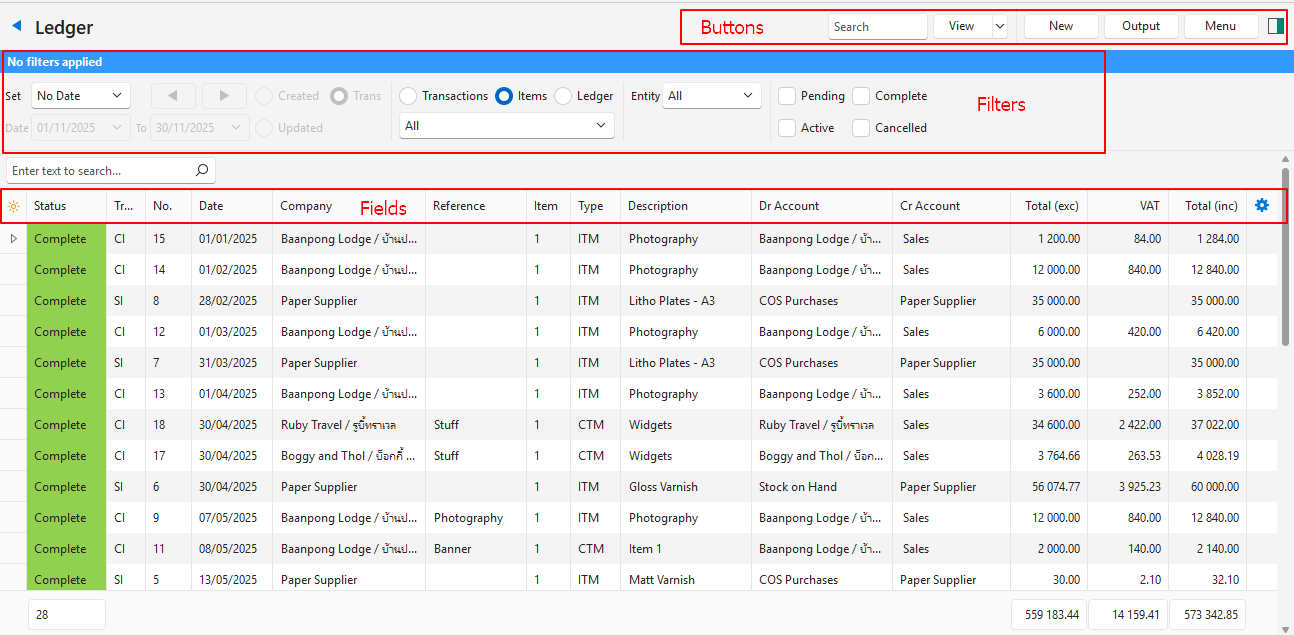
| Field | Description |
|---|---|
| Field Chooser (*) | Add or remove columns. |
| Status (Trans) | The transaction’s status. |
| Trans | The Transaction Type’s code. |
| No. | The transaction number. |
| Ver No. | The transaction’s version number. |
| Date | The transaction date. |
| Company | The name of the Customer or Supplier. |
| Contact | The name of the customer or supplier’s contact person. |
| Rep | The name of the rep selected for the transaction. |
| Reference | The reference entered on the transaction. |
| Entity (Reg) | The registered entity selected for the transaction. |
| Trans Category | The transaction’s category. |
| Trans From | The code and number of the source transaction. |
| Dr Type | The type of account that is debited (e.g. Ledger, Customer or Inventory). Inventory works like Ledger; the account comes from the entry’s location. |
| Cr Type | The type of account that is credited (e.g. Ledger, Supplier or Inventory). Inventory works like Ledger; the account comes from the entry’s location. |
| Date Created | The date on which the transaction was created. |
| Date Updated | The date on which the transaction was last updated. |
| Updated By | The user who last updated the transaction. |
| Status (Item) | The status of the item on the transaction. |
| ID | The system-generated number for the entry. |
| Trans ID | The system-generated number for the transaction. |
| Entity | The branch or till selected for the transaction. |
| Item | The sequence number for the item on the transaction. |
| Group by | The name of the group. |
| Type | The type of item (e.g. EST for Estimate, CTM for Custom). |
| Description | The item’s description. |
| Item Category | The item’s category. |
| Note | The item’s note. The note created with View/Edit Note on the item’s context menu when capturing the transaction. |
| Location | The item’s location if the item is an inventory item. |
| Resolve | The item’s resolve selection (e.g. purchase, receive, issue). |
| Dr Account | The account that is debited. |
| Cr Account | The account that is credited. |
| Qty | The item’s quantity. |
| Total (exc) | The VAT-exclusive total for the entry in the transaction’s currency. |
| VAT | The VAT claimed or charged on the entry in the transaction’s currency. |
| Total (inc) | The VAT-inclusive total for the entry in the transaction’s currency. |
| Total (exc cur) | The VAT-exclusive total for the entry in the local currency. |
| VAT (cur) | The VAT claimed or charged on the entry in the local currency. |
| Total (inc cur) | The VAT-inclusive total for the entry in the local currency. |
| A context menu (also opened by right-clicking the entry) with the following option:
|
Footer Explained
- The totals in the footer include all the displayed or selected transactions.
- If some transactions are selected, the footer shows the total for the selected transactions.
- The totals add up all the amounts, whether they are debits or credits.
Fields Explained: Detailed Ledger
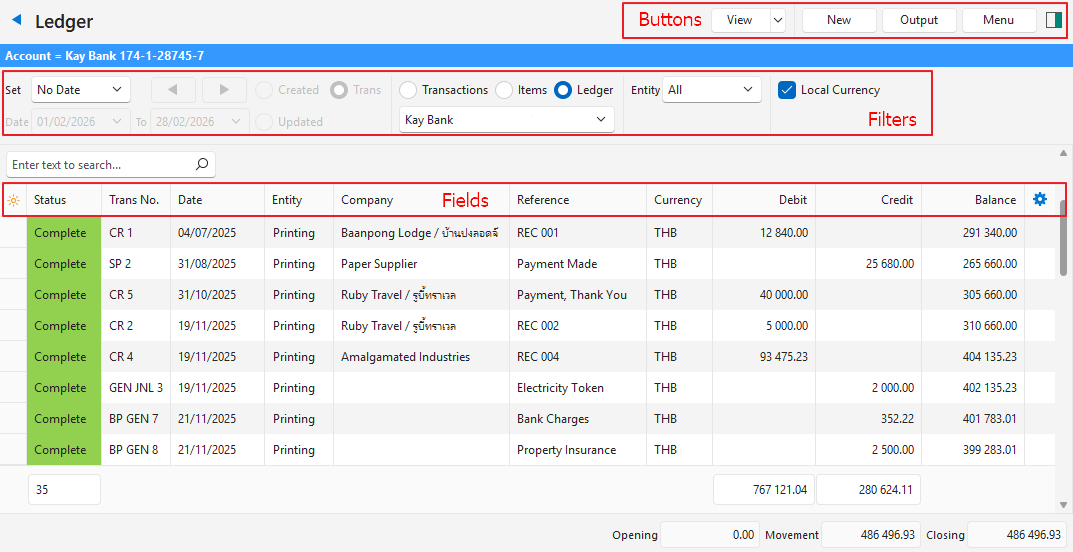
| Field | Description |
|---|---|
| Status | The transaction’s status. |
| Trans No. | The transaction number. |
| Date | The transaction date. |
| Entity (Reg) | The registered entity that the transaction is assigned to. |
| Entity | The transaction’s selected entity, which can be a registered entity, branch or till. |
| Company | The name of the Customer or Supplier. |
| Reference | The reference entered on the transaction. |
| Dr Account | The name of the account that was debited. |
| Cr Account | The name of the account that was credited. |
| Currency | The currency selected for the transaction. |
| Debit | The amount that was debited. |
| Credit | The amount that was credited. |
| Balance | The balance on the account. The balance is calculated as follows:
|
| Trans ID | The system-generated number for the transaction. |
| A context menu (also opened by right-clicking the entry) with the following option:
|
Footer Explained
| Field | Description |
|---|---|
| Column Totals | Totals appear below the Debit and Credit columns. |
| Opening | The Opening Balance for the selected period. |
| Movement | The debits less credits for the selected period. Movements that do not match the expected balance for an account appear in red (e.g. Credit Note entries in Sales). |
| Closing | The Closing Balance for the selected period. Balances that do not match the expected balance for an account appear in red. |