
Edit Views
Info
An edit view is the screen where you capture data, for example, a transaction, service ticket or contact.
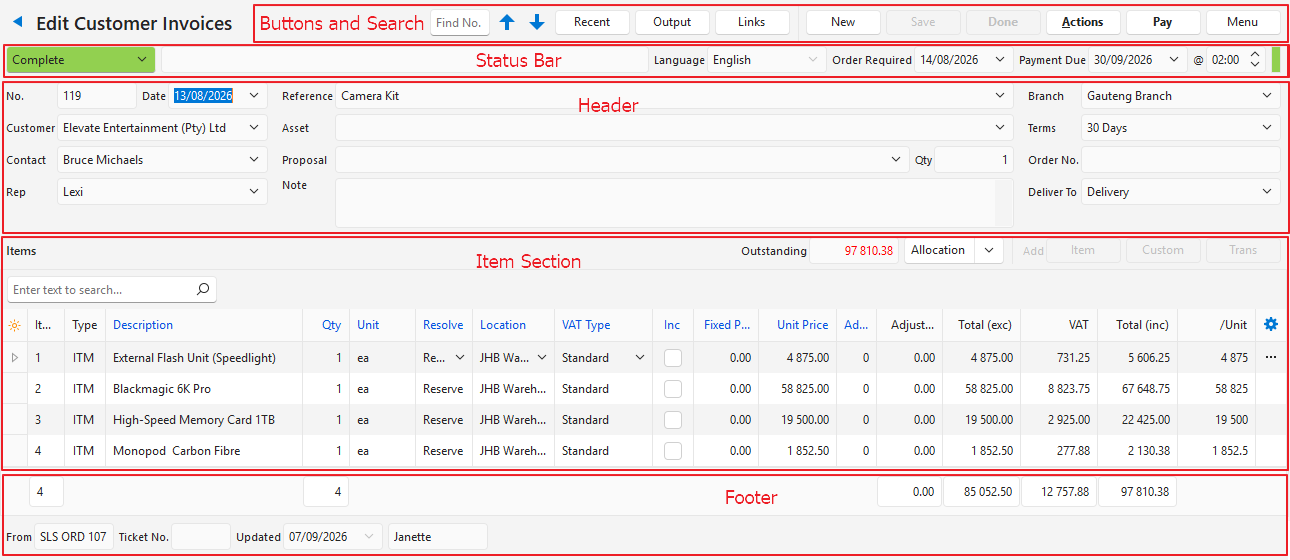
Example: Customer and Supplier Transactions
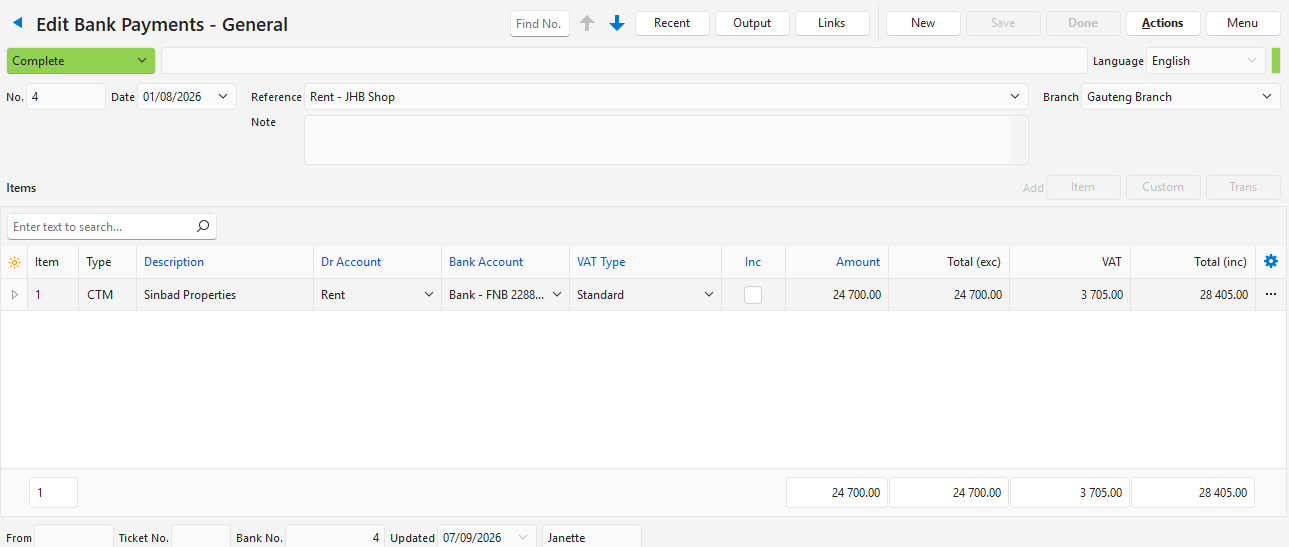
Example: Accounting Transactions
Sections Explained
| Sections | Descriptions |
|---|---|
| Caption | The name of the form (Edit View) at the top with an arrow to navigate back to the List View. |
| Buttons |
|
| Warning | A warning bar (e.g. if something is not filled in correctly). |
| Header | Dropdown lists with information relating to the transaction (e.g. customer or supplier names, categories, order numbers). |
| Columns |
|
| Rows | Most rows include a context menu with shortcuts to various functions. To open the context menu, right-click any field in the row or left-click the last column. |
Buttons Explained
| Button | Description |
|---|---|
| Find No. | Displays the transaction that has the number entered in the Find No. field. |
| Arrows | Navigates between the records or transactions. |
| Recent | Lists the recent transactions. |
| Output | Prints, previews or emails the output if Output Templates are set up for the module. |
| Links | Provides clickable links to any linked documents. A linked document is one that the current transaction was copied from or copied to, or service tickets that are linked to the transaction. |
| Save | Saves any changes and recalculates the totals (all the columns with black captions). |
| Actions | The actions available for that transaction (e.g. copying options or batch updates). |
| Menu | The menu options change depending on what is being edited.
|
Example: Transaction Fields
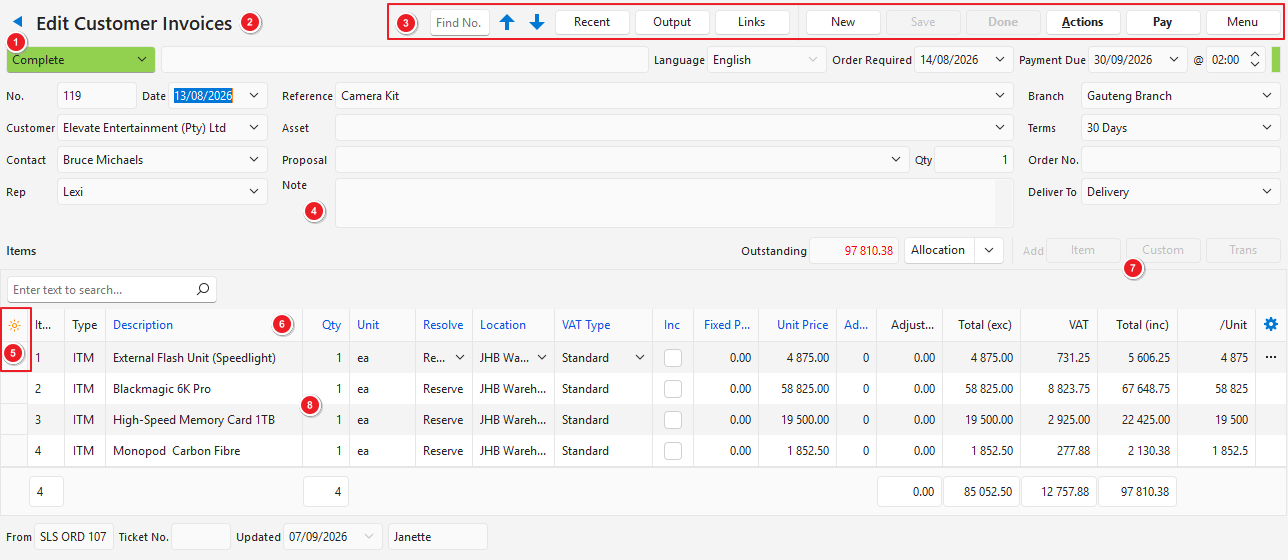
- The Back button returns you to the list from which you opened the transaction.
- The description of the Transaction Type (for information only).
- Main Buttons and Filters for the module.
- Header, including the colour-coded Status bar that must be completed for the transaction.
- Field Chooser (*) column from which columns can be added or removed.
- Captions for the columns. Column headings can be right-clicked to display a context menu for grouping and filtering options. Blue captions indicate that the field is editable.
- Buttons to add Items to the transaction. Transaction entries consist of items which can be custom (you enter the information) or pre-created. Buttons are greyed out when the transaction can no longer be edited (that is, the option selected for the status that the transaction is in does not allow editing).
- Left-click the three dots (…) in the last column, or right-click anywhere on the row, to open the context menu. The entries on the context menu differ per transaction.