
Timekeeping Settings
This page explains the general settings for the Timekeeping module and the user settings that are added for each user.
General Settings
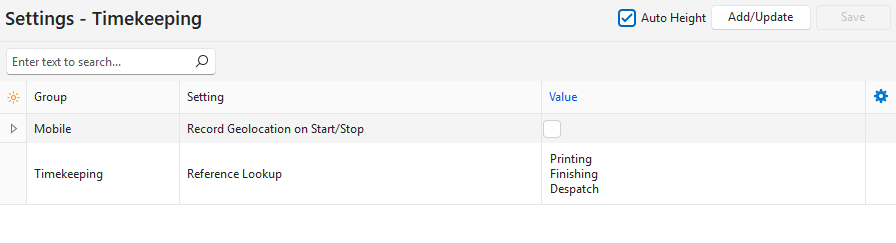
The following settings can be added:
- Mobile > Record Geolocation on Start/Stop: Checkbox. If checked, the user’s location is recorded when the timekeeping is started and stopped. The user must give permission to use this feature on their device. By default, this setting is unchecked because it is resource heavy.
- Timekeeping > Reference Lookup: Lets you create a lookup list so that users can select a reference instead of entering one.
User Settings
Note
The Mobile > Default – Timekeeping Mode setting still exists, but it is inactive in the current version of the Mobile App. The Mobile App’s Home screen shows a tile for every timekeeping list, so the setting has no effect.

You can add the setting below for each user in the Users module. It is a default, so you can change it when you record timekeeping. It applies only to timekeeping records on the Mobile App.
- Mobile > Default – Timekeeping Mode: The options are:
- Transactions: Select a transaction that meets these conditions:
- Timekeeping is enabled for the transaction.
- The transaction is assigned to the applicable user.
- The transaction’s current status is in the Active Status Group.
- Services: Links the timekeeping record to the service ticket selected from the dropdown list.
- Only active service tickets are available on the dropdown list.
- Timekeeping can be started and stopped from within the ticket.
- Project Tasks: Select a task that meets these conditions:
- The applicable user must be the selected resource for the task.
- The project’s current status is in the Active Status Group.
- The task’s current status is in the Active Status Group.
- Production Tasks: Select a task that meets these conditions:
- The Transaction Type has Production enabled for the setting Estimating Enabled.
- The applicable user is the assigned operator for the task.
- The task’s current status is in the Active Status Group.
- Transactions: Select a transaction that meets these conditions: