
Changelogs
Changelogs are records of all the changes made to transactions and other records. Changelogs were introduced in version 1.0.81 (June 2026) and only log changes made after QuickEasy BOS is upgraded to that version or later.
Changelogs are recorded for:
- Contacts (see Contacts Changelog)
- Point of Sale
- Status Setups
- Transaction Type Settings (every change of a Close-off Date, with the old date, the new date, the user and the time)
- Transactions Edit View
- Transactions List View
- User Access Settings
- Users Module
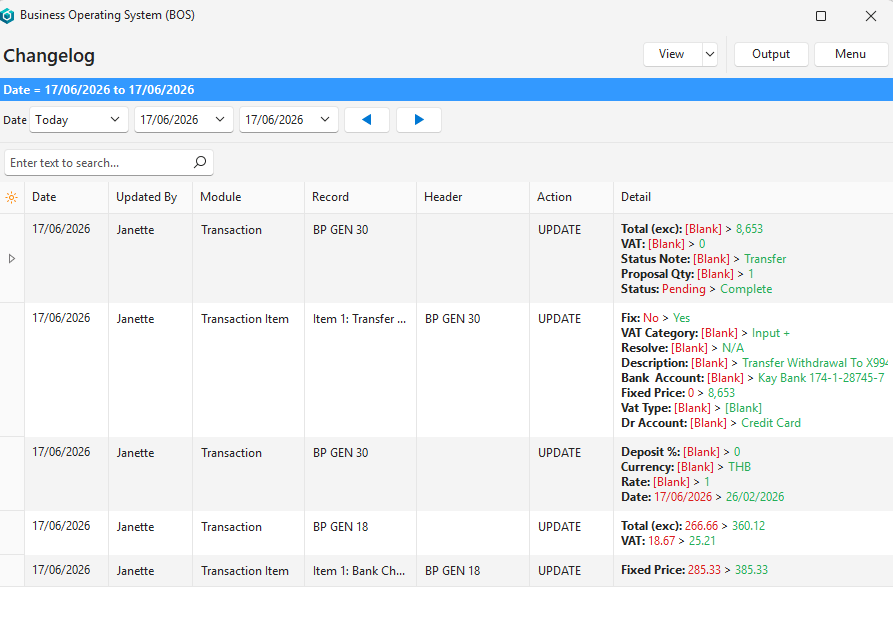
Changelogs can also be viewed from the Help Menu.
QuickEasy BOS keeps changelog entries for three months by default. Older entries are deleted daily, the first time someone logs in to the database. The setting General > Remove Changelog older than X months (0 = retain all logs) on the General Settings page changes the period. Enter 0 to keep all the entries.
Buttons Explained
| Button | Description |
|---|---|
| View | Displays a list of changes. |
| Arrow on View (button) | Resets the selected data filters, clears the list and hides the Find Panel. The Date filter is set back to Today if you opened the changelog from the Help menu, or to No Date if you opened it from a record. |
| Output | Export: Exports the list in .xlsx, .htm or .csv format. |
| Menu | Layout |
Filters Explained
| Filter | Description |
|---|---|
| Date | A dropdown list of date options, including No Date to show all the records. |
| Date Fields | Set custom dates. |
| Arrows | Adjusts the date in the direction of the arrow. |
Fields Explained
| Fields | Description |
|---|---|
| Field Chooser (*) | Add or remove columns. |
| Date | The record’s date. |
| @ | The record’s time. |
| Updated By | The user who updated the record. |
| Module | The name of the module in which the change was recorded. Only appears when the changelog is opened from the Help menu. |
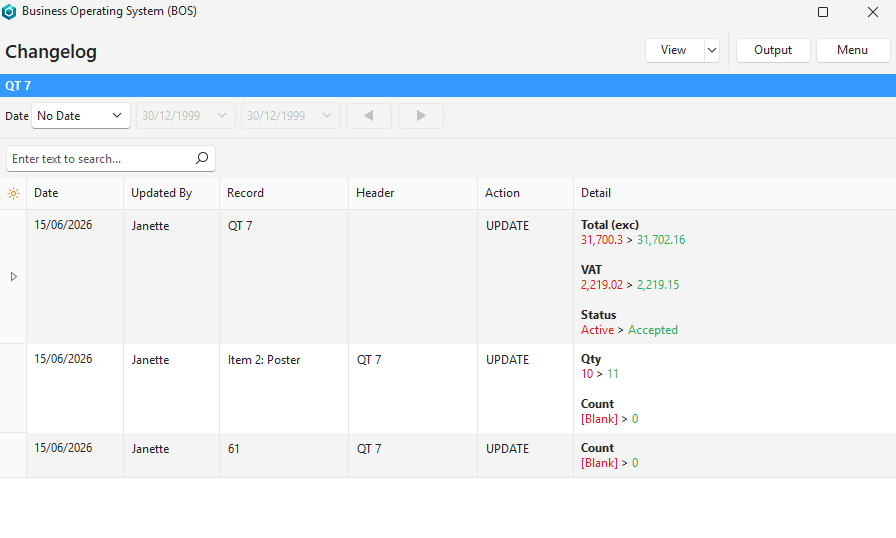
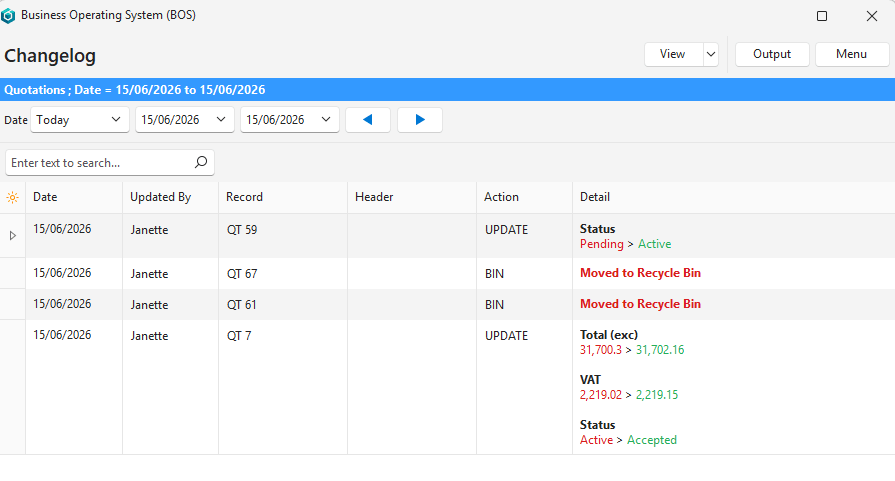
| Record | A description of the record (e.g. QT 59 or Item 2: Poster). |
| Header | The header record that was updated. |
| Action | The action that the user took (e.g. UPDATE, BIN). |
| Detail | Colour-coded details of the changes. |
Contacts Changelog
Click Menu (button) > View Changelog on the Contacts screen to see the changes of all the contacts, or in a person or entity edit view to see the changes of that contact only.
Changes to item, asset, transaction and service attributes are not logged.
- Contact fields: Changes to Type, Title, First Names, Surname, Name, Nickname, Tel, Mobile, Email, Website, ID No., Message No., Categories and Language are logged.
- Recycle Bin: Moving a contact to the Recycle Bin, restoring it and deleting it are logged, with the contact’s name, email and telephone number.
- Attributes: Changes to the contact’s attribute sets (for example, the Customer, Supplier and Staff attributes) are logged. Each value change shows as Set - Caption: old > new, with checkboxes as Yes / No, dates as dd/mm/yyyy, and lookups (for example, Rep, Credit Terms, Currency and Status) by their code. Only the changes made after the attribute was added are logged.
- Attribute sets: Adding or removing an attribute set logs one entry with the set’s name (for example, Attribute Set: Customers). Attribute sets added with a new contact are not logged.
- User: The user shown is the user logged in to QuickEasy BOS who saved the contact, added or removed the attribute set, or deleted the contact. For Generate Code, it is the user who clicked it.
- Merged changes: As in the other changelogs, changes made within one minute are merged, and a value changed back within the minute leaves no entry.
- Deleted contacts: When a contact is deleted, its earlier entries (contact and attributes) are replaced by one Deleted entry.
Transactions Edit View Example
Transactions List View Example
Help Menu Example
How to View a Changelog
- From the Main Menu:
- Click Help (button) > View Changelog.
- Select a date range (default: Today).
- Click View (button).
- Note: A changelog with all the changes for the selected date range appears.
- From other interfaces:
- Click Menu (button) > View Changelog.
- Select a date range (default: No Date to display all the changes).
- Click View (button).
- Note: All the edits (creation and updates) made to that module appear.