
Online Libraries
The online library interface lets you import data. This feature works by copying information from one database to another: from the Library (source) to the Reader (destination). It simplifies setting up a new database (company) by importing features and items from an existing database.
When data is copied, any linked notes and attachments are copied along with the data. For attachments, only the link (URL) is copied, which becomes a shared link (that is, if the attachment is deleted from the source library, it is deleted for everybody).
If the source library has prices in a specific currency, the prices are copied across in that currency. The destination database must enable multi-currency and convert the prices to its local currency manually.
Both databases must be on the same version of QuickEasy BOS to copy information.
Settings
General Settings
- Online Library > Access Key:
- Enter an access key to the online library.
- The library ID is automatically assigned and displayed in the footer of the online library interface.
- The library ID and access key are created in the source library and entered in the destination library. That is, a user who wants to import data must be given the library ID and access key for the database they are importing the data from.
Item Settings
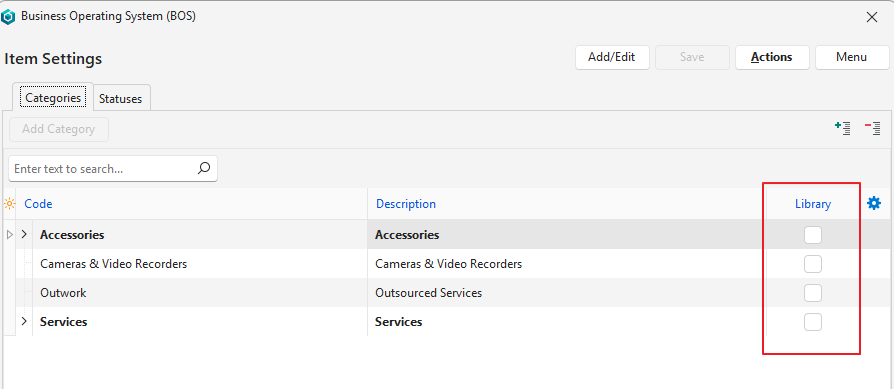
- The Library column determines which items can be exported. If checked, the items are available for export.
- The categories do not have to match or exist in the destination database because they can either be mapped to existing categories or imported.
- The category tree is not imported (e.g. on the screenshot below, Litho is imported as a main category, not a subcategory of Inks and Consumables).
- Translated items can be imported:
- Only the languages that are assigned to the subscriber are imported from the library.
- Only the Base (English) items can be selected in the Library.
Proposal Settings
- Exporting:
- All the items linked to the proposal must be available for export (see Item Settings above).
- If the Library checkbox is checked, the proposal can be exported.
- Only proposals with the status Ready and a Transaction Type are offered for import. Deleted proposals are never offered.
- Importing:
- The items on the proposal must be imported before the proposal is imported.
- Each Transaction Type on the selected proposals is mapped to a local Transaction Type during the import. The import turns on the Enable Proposals setting of each mapped local Transaction Type.
- A proposal that was imported before is updated, not duplicated.
- Output Templates linked to the mapped Transaction Type are also imported, but only the templates in the subscriber’s selected language.
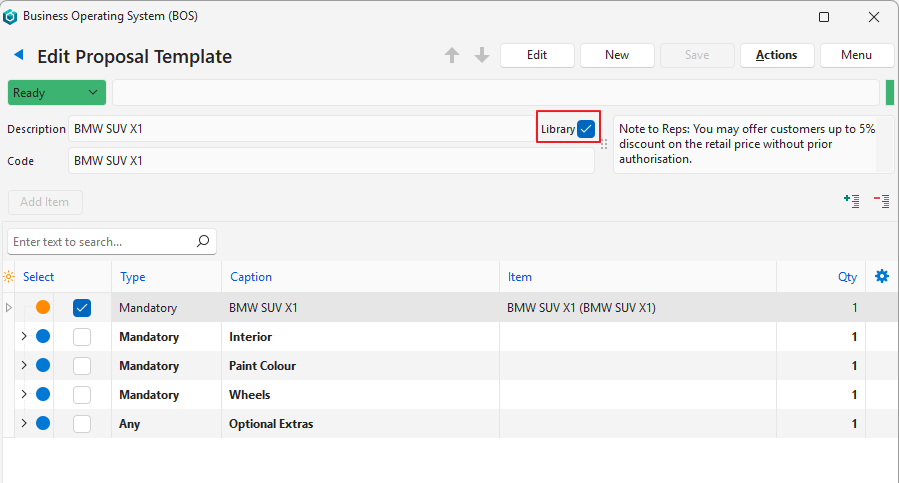
Online Libraries Interface
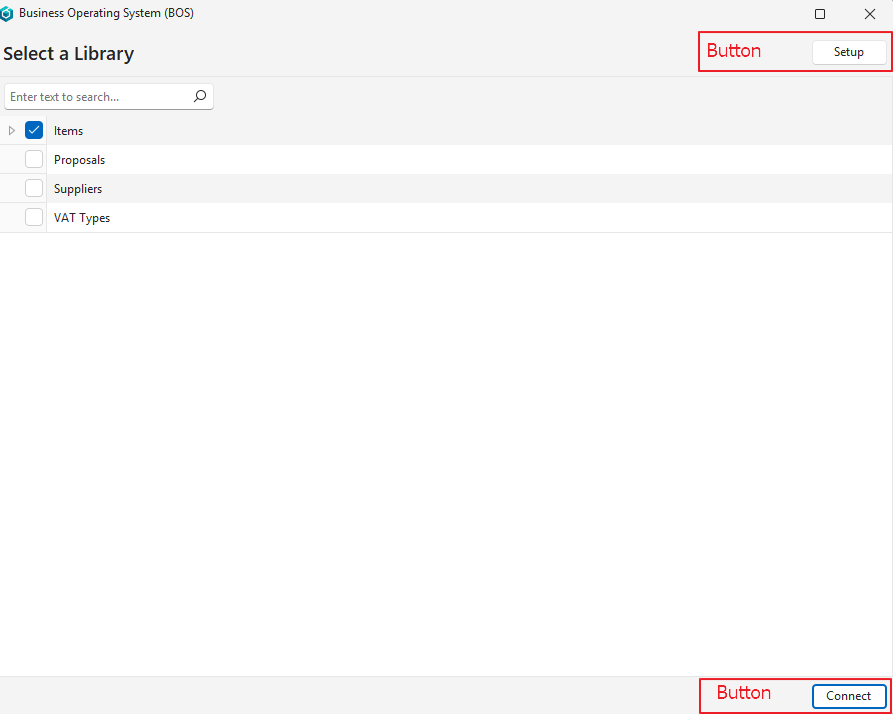
Buttons Explained: List View
| Buttons | Description |
|---|---|
| Setup | Opens the setup interface. |
| Connect | Connects to the online library and opens the Import Type step. If the connection fails, a message appears (see Connection Messages below). |
Fields Explained: List View
| Field | Description |
|---|---|
| Checkbox | If checked, the row is selected. |
| Description | The name of the library. |
Import Type
After you connect, the Select a Import Type step asks what to import from the library:
- Items: Imports items (see How to Import Items From an Online Library). The option is unavailable if the library has no item categories marked for export.
- Proposals: Imports proposal templates (see How to Import Proposals). The option is unavailable if the library has no proposals to export.
Click Next (button) to continue, or Back (button) to return to the list of libraries. If neither option is selected, the message “Import Library Type has not been selected.” appears.
Connection Messages
| Message | What It Means |
|---|---|
| Connection to the Master Server Failed. | BOS cannot reach the QuickEasy master server, which holds the details of every library. Check your internet connection and try again. |
| Library not found. | No library matches the Library ID in the setup. Check the Library ID with the person who sent it. |
| Version Mismatch: Your Database: …; Library Database: …. | Your database and the library are on different versions of QuickEasy BOS. Both databases must be on the same version. |
| Invalid Access Key. | The Access Key in the setup does not match the access key of the library. Check the Access Key with the person who sent it. |
| Error Library Connection | BOS found the library but cannot connect to its database. Try again later, or contact QuickEasy support. |
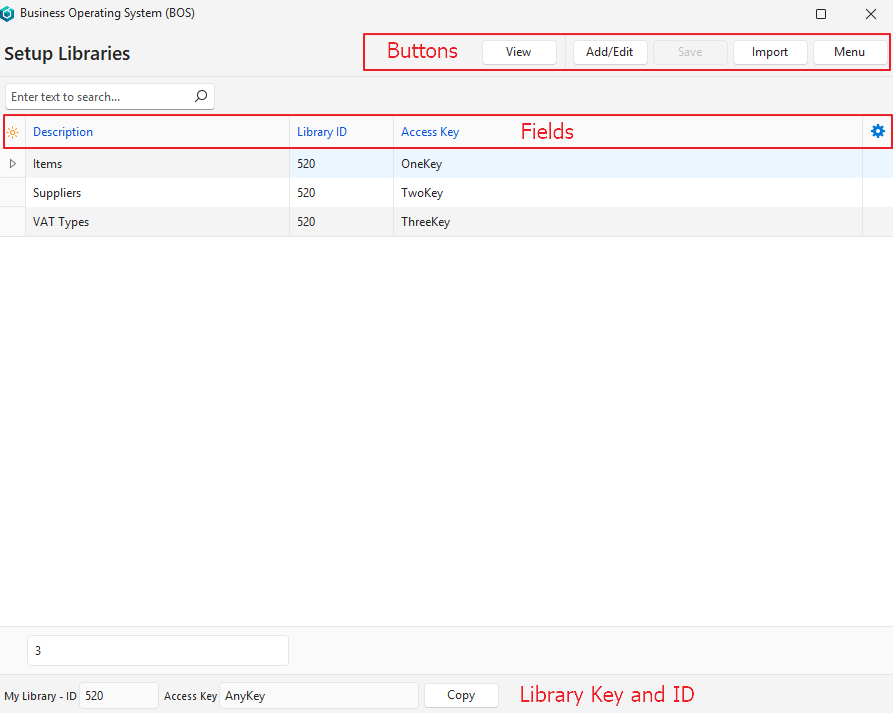
Buttons Explained: Setup View
| Buttons | Description |
|---|---|
| View | Displays the list of libraries. |
| Add/Edit | Edits the information or adds rows. |
| Save | Saves any changes. |
| Copy | In the footer, next to your library ID and access key. Copies your database’s library details (name, library ID and access key) to the clipboard, so that you can send them to the person who wants to import data from your database. |
| Import | Switches to the import interface (list view). Note: Closing the setup popup closes the Online Library interface completely and does not return to the import interface. |
| Menu |
|
Fields Explained: Setup View
Fields marked in blue (✎) can be edited.
| Field | Description |
|---|---|
| ID | The system-generated number allocated to the entry. |
| Description | The name of the library. |
| Library ID | The library ID key. |
| Access Key | The access key for the entry. |
| Created | The date on which the entry was created. |
| Updated | The date on which the entry was last updated. |
| Updated By | The user who last updated the entry. |
 | A submenu (also opened by right-clicking an entry) with these options:
|