
Timekeeping Edit View
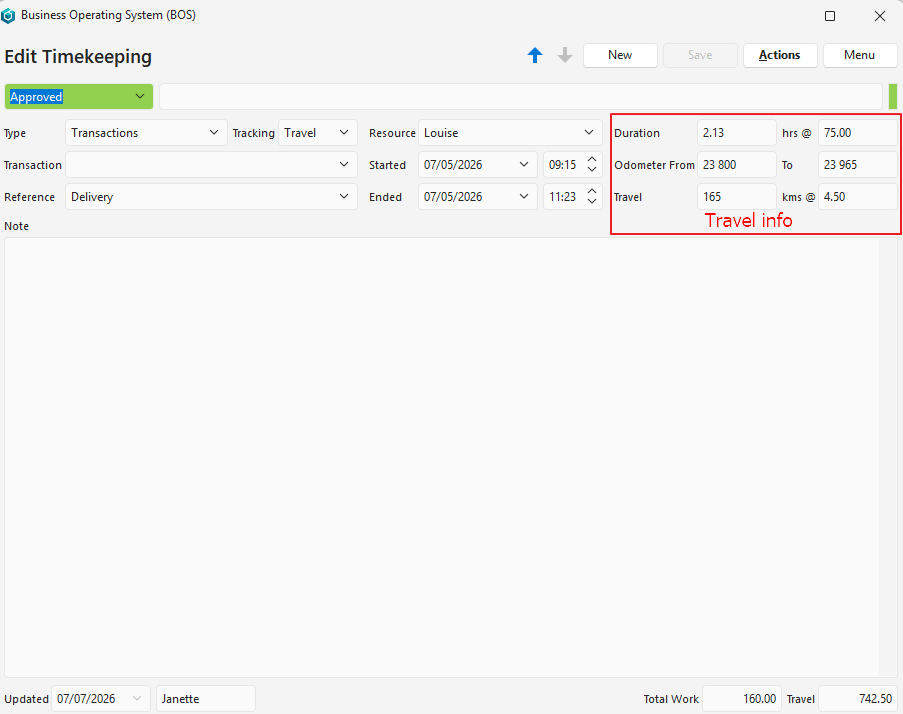
The edit view is the screen where you record timekeeping for work or travel.
When timekeeping records are started or stopped on the desktop app, the following rules apply:
- Projects: If the logged-in user and the project’s resource differ, timekeeping records are linked to the resource, not the user.
- Production: If the logged-in user and the operator differ, timekeeping records are linked to the operator, not the user.
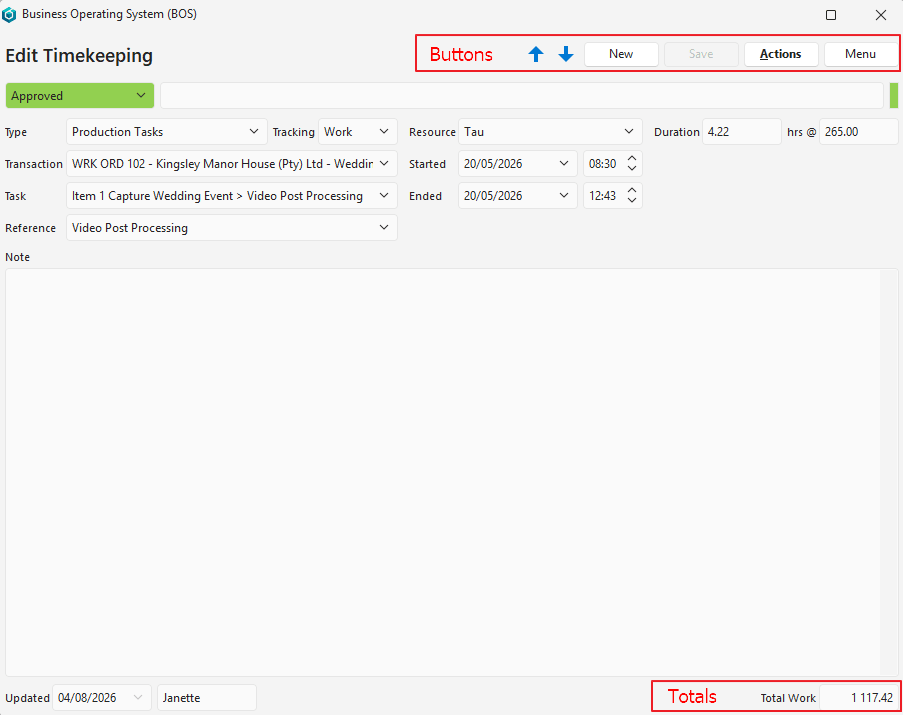
Buttons Explained
| Button | Description |
|---|---|
| Arrows | Navigates between timekeeping records. |
| New | Creates and starts a new timekeeping record. The following is recorded:
|
| Save | Saves any changes. |
| Actions | The options for the open timekeeping record are:
|
| Menu | Settings |
Fields Explained
| Field | Description |
|---|---|
| Status | Select a status from the dropdown list. If an entry’s status can be overridden, only users with Timekeeping Edit user access can change it. |
| Status Note | Enter a status note. |
| Type | Select one of these types:
|
| Tracking | Select Work or Travel. |
| Resource | Select a resource from the dropdown list. Resources are staff members with the Timekeeping Resource attribute checked. |
| Duration | The duration of the timekeeping record if it is stopped. |
| Hrs @ | The person’s hourly rate for the timekeeping record. If an hourly cost is filled in for the person under Staff Attributes, the rate is filled in automatically on the timekeeping record and used in the calculation. |
| Company (where applicable) | Select a customer or supplier from the dropdown list. |
| Transaction (where applicable) | Select a transaction with timekeeping enabled from the dropdown list. |
| Task (where applicable) | Select a task from the dropdown list. |
| Reference | Enter a reference or select one if a lookup list was created. |
| Started | The date and time when the timekeeping record was started. Recorded automatically when you click New (button). The Start date and time must be earlier than the End date and time. If the start date or time is edited to be later than the end date or time, the End date is changed to match the Start date. |
| Ended | The date and time when the timekeeping record was stopped. The End date and time must be later than the Start date and time. If the End date or time is edited to be earlier than the Start date or time, the Start date is changed to match the End date. |
| Odometer From | Enter the start odometer reading. Applies only if Travel is selected as the Tracking option. |
| Odometer To | Enter the closing odometer reading (calculated automatically if the kilometres are filled in next to Travel). Applies only if Travel is selected as the Tracking option. |
| Travel | Enter the kilometres travelled (calculated automatically if the closing odometer reading is filled in). Applies only if Travel is selected as the Tracking option. |
| kms@ | Enter the rate per kilometre, which can be the rate the user is paid or the rate the customer is charged. The cost appears in the footer next to Travel. Applies only if Travel is selected as the Tracking option. |
| Note | Enter a note relating to the timekeeping (e.g. what you were doing, or if there were roadworks that delayed you). |