
Item List Views Interface
The Items module has several list views, and each shows specific information about items. This page explains the buttons, filters and fields of each list view.
Buttons Explained
| Button | Description |
|---|---|
| View | Lists the items that match the selected data filters. |
| Arrow on View Button | Reset Data Filter: Resets all the data filters. |
| Recent | A dropdown list of recently viewed records, for quick access. The button is hidden if there are no recent items. |
| New | Creates an item of the type selected from the dropdown list. The available types depend on which item types are activated in General Settings. |
| Output | Prints, previews or emails the output if Output Templates are set up for the module. Export: Exports the list in .xlsx, .htm or .csv format. |
| Edit | Lets you edit the fields marked in blue (✎). Available only in the Pricing View and the Inventory Summary. |
| Actions | The options depend on the view and the price viewed. See each view’s section below. |
| Menu | The views depend on which Item Types are activated and include some or all of these options: Views
Serial Numbers and Batches appear only if Enable Tracking is set to that option on at least one Transaction Type. Settings |
List View: Default
The Default View lists all the items’ header information.
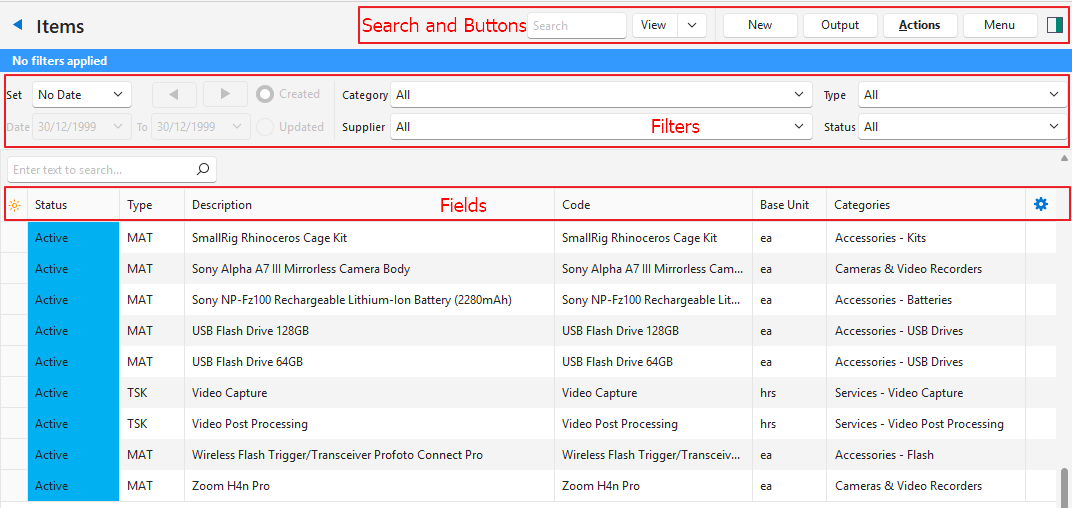
Actions Button Explained
| Available Options |
|---|
|
Filters Explained
| Filter | Description |
|---|---|
| Set | Select a date option from the dropdown list. No Date shows all the records. |
| Arrows | Adjusts the dates in the direction of the arrows. |
| Date | Customise the dates. |
| Created (radio button) | If selected, shows the items created on the selected dates. |
| Updated (radio button) | If selected, shows the items updated on the selected dates. |
| Category | Select a specific category from the dropdown list. |
| Supplier | Select a specific supplier from the dropdown list. |
| Type | Select a specific item type from the dropdown list. |
| Status | Select a specific status from the dropdown list. |
Fields Explained
| Field | Description |
|---|---|
| Field Chooser (*) | Add or remove columns. |
| ID | The system-generated number for the item. |
| Library ID | The item’s number in the online library. |
| Status | The item’s status. |
| Type | The abbreviation of the item’s type. |
| Description | The item’s description. |
| Code | The item’s code. |
| Base Unit | The item’s base unit. |
| Categories | The item’s categories. |
| Inventory | The inventory locations where the item is stored. |
| Override | A checkbox. If checked, the description and code can be edited (in Edit View). |
| Languages | A code indicating the item’s primary language. |
| Created | The date on which the item was created. |
| Updated | The date on which the item was last updated. |
| Updated By | The user who last updated the item. |
 | A menu with the following options:
|
List Views: Estimating
- There are two estimating views: Tasks and Outwork.
- Only items with Estimating Attributes appear.
- The estimating views include columns for Estimating Attributes.
- All estimating services are included whether they are filled in on a Costing tab or created as a task (service item).
Filter Explained
| Filter | Description |
|---|---|
| Category | Select a specific category from the dropdown list. If a main category is selected, all its subcategories are included. If a subcategory is selected, only the items in that subcategory appear. |
Fields Explained: Estimating Tasks and Estimating Outwork
| Field | Description |
|---|---|
| Field Chooser (*) | Add or remove columns. |
| ID | The system-generated number for the item. |
| Status | The item’s status. |
| Type | The abbreviation of the item’s type. |
| Costing | The name of the linked costing. |
| Code | The item’s code. |
| Base Unit | The item’s base unit. |
| Categories | The item’s categories. |
| Qty Type | The item’s Quantity Type. |
| Qty | The quantity of the item included in the task or service. |
| D | A checkbox. If checked, the item’s description is added to the Estimate’s Description. |
| Setup (hrs) | The number of hours it takes to set up the service. Applies only to tasks. |
| Speed | The speed at which the service can be performed. Applies only to tasks. |
| Adj% | The percentage by which the price is adjusted. |
| Cost Centre | The item’s cost centre. Applies only to tasks. |
| Supplier | The supplier performing the outwork. Applies only to outwork. |
| Fixed Cost | The item’s fixed cost. |
| Unit Cost | The item’s unit cost. |
| Min Cost | The item’s minimum cost. |
| Created | The date on which the item was created. |
| Updated | The date on which the item was last updated. |
| Updated By | The user who last updated the item. |
| A menu with the following options:
|
List View: Pricing
- Only items with prices appear in the Pricing View.
- Fields marked in blue (✎) can be edited.
- Prices can also be edited in bulk with Batch Update.
- Double-click an item to open it.
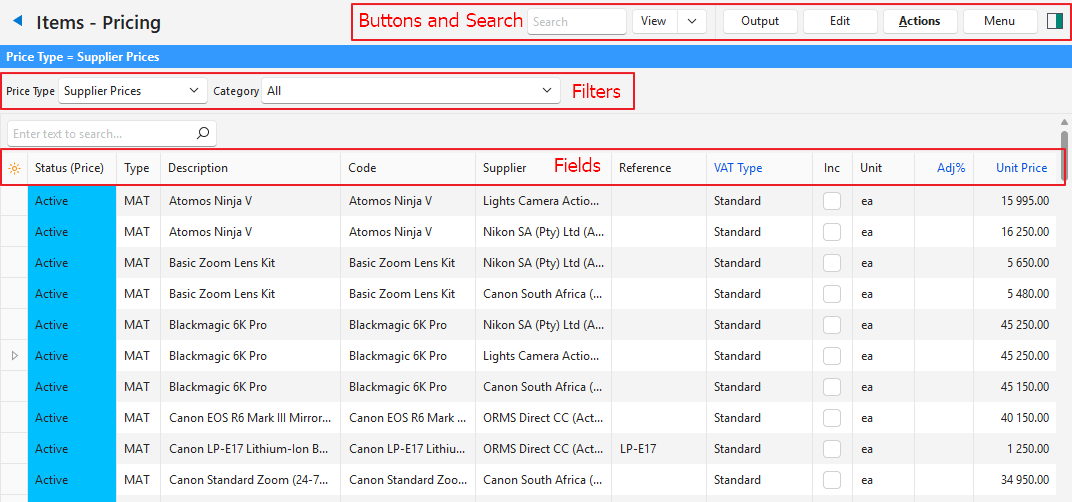
Actions Button Explained
| Selected Price | Available Options |
|---|---|
| Supplier Prices | Batch Update: Updates all the selected records. The options are:
|
| Cost Prices | Batch Update: Updates all the selected records. The options are:
|
Sell Prices (Materials) Sell Prices (Tasks) |
|
| Price Lists |
|
Filters Explained
| Filter | Description |
|---|---|
| Price Type | Select one of these options from the dropdown list:
|
| Category | Select a specific category from the dropdown list. If a main category is selected, all its subcategories are included. If a subcategory is selected, only the items in that subcategory appear. |
| Price List | Select a specific Price List from the dropdown list. Available only when Price Lists is selected under Price Type. |
Fields Explained: Supplier and Cost Prices
Fields marked in blue (✎) can be edited.
| Field | Description |
|---|---|
| Field Chooser (*) | Add or remove columns. |
| ID | The system-generated number allocated to the price. |
| Status (Price) | The price’s status. |
| Item ID | The system-generated number allocated to the item. |
| Status (Item) | The item’s status. |
| Item Type | The abbreviation of the item’s type. |
| Categories | The item’s categories. |
| Description | The item’s description. |
| Code | The item’s code. |
| Price From | Where the price comes from (e.g. Costing or Supplier). Applies only to cost prices. |
| Supplier | The supplier’s name for the supplier price. |
| Reference | The reference next to the supplier price on the Prices tab. |
| Barcode | The item’s barcode. |
| Currency | The price’s currency. |
| VAT Type | The VAT Type selected for the item. |
| Inc | A checkbox. If checked, the price includes VAT. |
| Unit | The price’s unit. |
| Adj% | The percentage by which the price is adjusted. A negative percentage means the price is discounted. |
| Fixed Price | The item’s fixed cost price. |
| Unit Price | The item’s unit cost price. |
| Round | A checkbox. If checked, the price is rounded up. |
| Total (Base Unit) | The item’s cost price in the base unit. |
| Created | The date on which the price was created. |
| Updated | The date on which the price was last updated. |
| Updated By | The user who last updated the price. |
Fields Explained: Sell Prices (Materials and Tasks) and Price Lists
Fields marked in blue (✎) can be edited.
| Field | Description |
|---|---|
| Field Chooser (*) | Add or remove columns. |
| ID | The system-generated number allocated to the price. |
| Item ID | The system-generated number allocated to the item. |
| Status (Item) | The item’s status. |
| Status (Price) | The price’s status. |
| Item Type | The abbreviation of the item’s type. |
| Categories | The item’s categories. |
| Price List | The Price List that the price belongs to. Available only if Price Lists is selected as the Price Type. |
| Description | The item’s description. |
| Code | The item’s code. |
| Price From | Where the price comes from (e.g. Cost Price). If the field is blank, the price was entered manually. |
| Supplier | The supplier’s name for the supplier price. |
| Reference | The reference next to the supplier price on the Prices tab. |
| Barcode | The item’s barcode. |
| Currency | The price’s currency. |
| VAT Type | The VAT Type selected for the item. |
| Inc | A checkbox. If checked, the price includes VAT. |
| Unit | The price’s unit. |
| Fixed Cost | The item’s fixed cost. |
| Unit Cost | The item’s unit cost. |
| Adj% | The percentage by which the price is adjusted. A negative percentage means the price is discounted. |
| Profit | The profit earned at this price. (Fixed Sell Price + Unit Sell Price – Unit Cost Price – Fixed Cost Price) |
| Fixed Price | The item’s fixed sell price. |
| Unit Price | The item’s unit sell price. |
| Round | A checkbox. If checked, the price is rounded up. |
| Total (Base Unit) | The item’s sell price in the base unit. |
| GM% | The gross margin percentage earned on the price. (Profit as a percentage of the price.) |
| Created | The date on which the price was created. |
| Updated | The date on which the price was last updated. |
| Updated By | The user who last updated the price. |
List View: Substrate (Sheets) and Substrate (Reels)
Filter Explained
| Filter | Description |
|---|---|
| Category | Select a specific category from the dropdown list. If a main category is selected, all its subcategories are included. If a subcategory is selected, only the items in that subcategory appear. |
Fields Explained
| Field | Description |
|---|---|
| Field Chooser (*) | Add or remove columns. |
| ID | The system-generated number for the item. |
| Status | The item’s status. |
| Description | The item’s description. |
| Code | The item’s code. |
| Override | Overrides the description. Applies only to items, such as substrates, with an automatically created description. |
| Base Unit | The item’s base unit. |
| Categories | The item’s categories. |
| Name | The name of the substrate. |
| Colour | The substrate’s colour. |
| Grain / Flute | The grain/flute of the substrate if applicable. |
| gsm | The substrate’s grams per square metre. |
| Calliper | The substrate’s calliper (thickness). |
| Depth | The substrate’s depth. |
| Width | The substrate’s width. |
| Allow Rotate | A checkbox. If checked, the substrate can be rotated for printing. |
| Created | The date on which the item was created. |
| Updated | The date on which the item was last updated. |
| Updated By | The user who last updated the item. |
List View: Inventory Summary
- The Inventory Summary lists the inventory items, their locations and quantities.
- Fields marked in blue (✎) can be edited.
- Negative stock quantities count as zero when the value of inventory held is calculated.
- If a stock price is not entered, the item’s cost price is used.
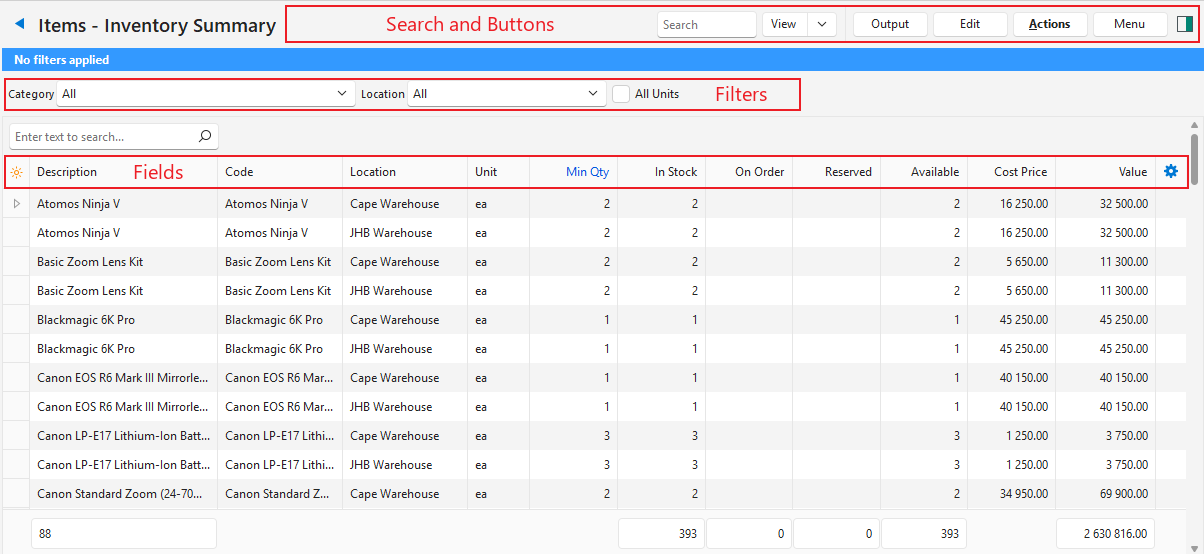
Actions Button Explained
| Available Options |
|---|
Batch Update is unavailable when All Units is checked. |
Filters Explained
| Filter | Description |
|---|---|
| Category | Select a specific category from the dropdown list. If a main category is selected, all its subcategories are included. If a subcategory is selected, only the items in that subcategory appear. |
| Location | Select a specific location from the dropdown list. |
| All Units | A checkbox. If checked, all the item’s units appear. If checked, the fields marked in blue (✎) cannot be edited: the Edit button and Batch Update show the message “Editing not allowed when viewing all Units.”. |
Fields Explained
Fields marked in blue (✎) can be edited.
| Field | Description |
|---|---|
| Field Chooser (*) | Add or remove columns. |
| ID | The system-generated number for the inventory item. |
| Item ID | The system-generated number for the item. |
| Location ID | The system-generated number for the location. |
| Status (Item) | The item’s status. |
| Description | The item’s description. |
| Code | The item’s code. |
| Categories | The item’s categories. |
| Inventory | The inventory locations where the item is stored. |
| Status (Location) | The location’s status. |
| Location | The location’s name. |
| Base Unit | The item’s base unit. |
| Unit | The unit of the entry. |
| Min Qty | The minimum quantity that you want to keep in stock. |
| In Stock | The quantity in stock. |
| On Order | The quantity ordered but not yet received. |
| Reserved | The quantity reserved for orders. |
| Available | The quantity that is currently available. |
| Cost Price | The item’s cost price. When All Units is unchecked (each item in its base unit), an item with cost prices in more than one unit shows its base unit cost price. |
| Stock Price | The item’s stock price at the location. If the General Setting Inventory > Auto Update Stock Price (Weighted Average) is checked, BOS keeps it up to date as a weighted average. A stock price entered here counts as a revaluation from the start of that day (see Item Prices Explained). |
| Value | The value of the stock on hand (quantity x stock price). If no stock price is entered, the value is calculated from the cost price. |
| Created | The date on which the item was created. |
| Updated | The date on which the item was last updated. |
| Updated By | The user who last updated the item. |
| A menu with the following options:
|
List View: Serial Numbers
- The Serial Numbers view lists the serial numbers of each item, with the last transaction that received the serial number, the last transaction that issued it, and its location.
- Only transactions with a status that affects inventory are included. Cancelled and deleted transactions are not included.
- The Received and Issued cells are coloured by the status of the transaction.
- Double-click a row or press Enter to edit the item.
- The Serial Numbers view appears only if Inventory > Enable Tracking is set to Serial Numbers on at least one Transaction Type. Only transactions of those Transaction Types are included. Serial numbers entered on Transaction Types with Enable Tracking = Serial Number (Unchecked) are not listed.
Filters Explained: Serial Numbers
| Filter | Description |
|---|---|
| Set | Select a date option from the dropdown list. No Date shows all the records. |
| Arrows | Adjusts the dates in the direction of the arrows. |
| Date | Customise the dates. |
| Received / Issued | Select Received to filter by the date of the last transaction that received the serial number, or Issued to filter by the date of the last transaction that issued it. Available only when a date option is selected. |
| Category | Select a specific category from the dropdown list. If a main category is selected, all its subcategories are included. |
| Status | Select In Stock (the default) to show the serial numbers that are in stock, or Complete to show the serial numbers that were issued. A serial number is in stock if the last transaction that moved it received it, and complete if the last transaction issued it. |
| Search | Enter a serial number, or part of one, and click View (button) or press Enter. Entering a search clears the date and category filters. The search includes the serial numbers of both statuses (In Stock and Complete). |
Fields Explained: Serial Numbers
| Field | Description |
|---|---|
| Field Chooser (*) | Add or remove columns. |
| Item ID | The system-generated number for the item. |
| Serial No. | The serial number. The footer shows the number of serial numbers listed. |
| Description | The item’s description. |
| Code | The item’s code. |
| Categories | The item’s categories. |
| Location | The location of the serial number. If the serial number is in stock, it is the location where it was last received. If it is complete, it is the location where it was last issued. |
| Trans ID (Received) | The system-generated number for the last transaction that received the serial number. |
| Received | The last transaction that received the serial number (the Transaction Type’s code and the transaction number). The cell is coloured by the status of the transaction. |
| Date Received | The date of the last transaction that received the serial number. |
| Trans ID (Issued) | The system-generated number for the last transaction that issued the serial number. |
| Issued | The last transaction that issued the serial number (the Transaction Type’s code and the transaction number). Blank if the serial number was not issued. The cell is coloured by the status of the transaction. |
| Date Issued | The date of the last transaction that issued the serial number. |
| A menu with these options (also available when you right-click the row):
|
List View: Batches
- The Batches view lists the batches of each item, one row per item, batch and location, with the last transaction that received the batch and the last transaction that issued it. The same batch at two locations shows as two rows.
- Stock Adjustment entries count in the batch balances: a positive adjustment as received and a negative adjustment as issued.
- The quantities are in the item’s base unit. If one entry has more than one batch, its quantity is split evenly between the batches.
- Only transactions with a status that affects inventory are included. Cancelled and deleted transactions are not included.
- The Received and Issued cells are coloured by the status of the transaction.
- Double-click a row or press Enter to edit the item.
- The Batches view appears only if Inventory > Enable Tracking is set to Batches on at least one Transaction Type. Only transactions of those Transaction Types are included.
Filters Explained: Batches
| Filter | Description |
|---|---|
| Set | Select a date option from the dropdown list. No Date shows all the records. |
| Arrows | Adjusts the dates in the direction of the arrows. |
| Date | Customise the dates. |
| Received / Issued | Select Received to filter by the date of the last transaction that received the batch, or Issued to filter by the date of the last transaction that issued it. Available only when a date option is selected. |
| Category | Select a specific category from the dropdown list. If a main category is selected, all its subcategories are included. |
| Status | Select In Stock (the default) to show the batches that have stock left, or Complete to show the batches that were issued in full. A batch is in stock if its Balance is more than zero, and complete if its Balance is zero or less. |
| Search | Enter a batch number, or part of one, and click View (button) or press Enter. Entering a search clears the date and category filters. The search includes the batches of both statuses (In Stock and Complete). |
Fields Explained: Batches
| Field | Description |
|---|---|
| Field Chooser (*) | Add or remove columns. |
| Item ID | The system-generated number for the item. |
| Batch No. | The batch number. The footer shows the number of batches listed. |
| Description | The item’s description. |
| Code | The item’s code. |
| Categories | The item’s categories. |
| Location | The location of the batch. A batch held at more than one location has a row for each location. |
| Trans ID (Received) | The system-generated number for the last transaction that received the batch. |
| Received | The last transaction that received the batch (the Transaction Type’s code and the transaction number). The cell is coloured by the status of the transaction. |
| Date Received | The date of the last transaction that received the batch. |
| Trans ID (Issued) | The system-generated number for the last transaction that issued the batch. |
| Issued | The last transaction that issued the batch (the Transaction Type’s code and the transaction number). Blank if the batch was not issued. The cell is coloured by the status of the transaction. |
| Date Issued | The date of the last transaction that issued the batch. |
| Base Unit | The item’s base unit. |
| Qty Received | The total quantity of the batch received, in the base unit. |
| Qty Issued | The total quantity of the batch issued, in the base unit. |
| Balance | The quantity of the batch left (Qty Received less Qty Issued). A negative balance appears in red. |
| First Received | The date of the first transaction that received the batch. |
| A menu with these options (also available when you right-click the row):
|
List View: Inventory Movement
- The Movement view shows the opening stock, the movements and the closing stock of each item and location for a date range, in the base unit and local currency.
- Description, Code and the current Stock Price stay fixed on the left while the other columns scroll.
- The columns are grouped in bands, with a bold line between them (Opening | Movement | Closing).
- The view is read-only.
- Save Grid keeps the layout of the view. It is restored when the Items screen opens.
- Menu > Layout > Column Auto Width (on this view only): If checked (the default), the columns fit the screen width. If unchecked, the column widths are kept and the bands scroll.
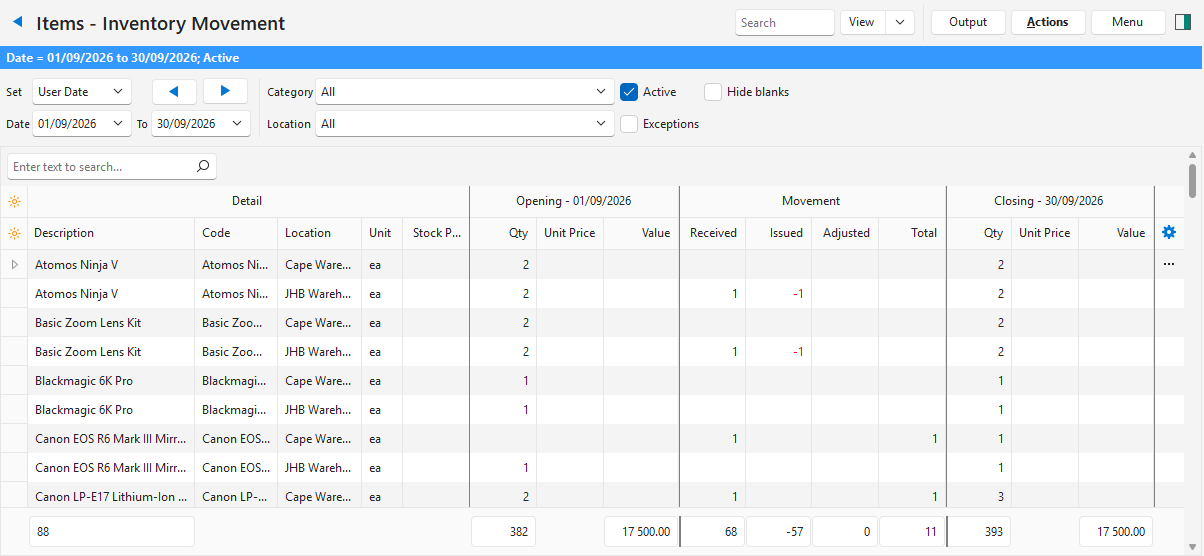
Filters Explained: Movement
| Filter | Description |
|---|---|
| Set | Select a date option from the dropdown list. This month is the default. The view always covers a date range: there is no No Date option. |
| Arrows | Moves the period back or forward (Prev / Next). |
| Date | Customise the dates. |
| Category | Select a specific category from the dropdown list. |
| Location | Select a specific location from the dropdown list. |
| Search | Searches the listed items. |
| Active | A checkbox. If checked, only rows where the item and its location are both active are listed. |
| Exceptions | A checkbox. If checked, only rows with a negative Closing quantity are listed. |
| Hide blanks | A checkbox. If checked, rows without any quantity are left out. |
Fields Explained: Movement
The Unit Price columns are the last Stock Price history row (Item Summary Price History) dated on or before that day. With no history row, the current Stock Price is used.
| Field | Description |
|---|---|
| Field Chooser (*) | Add or remove columns. |
| Description | The item’s description. |
| Code | The item’s code. |
| Stock Price | The current Stock Price of the item at the location. |
| Detail band | Location, Unit, Categories, Min Qty, Status (Item) and Status (Location). |
| Opening: Qty | The quantity in stock before the start date. |
| Opening: Unit Price | The Stock Price before the start date. |
| Opening: Value | The opening value (Qty x Unit Price). |
| Movement: Received | The quantity received from the start date to the end date. |
| Movement: Issued | The quantity issued from the start date to the end date. |
| Movement: Adjusted | The quantity adjusted from the start date to the end date. |
| Movement: Total | The total movement from the start date to the end date. |
| Closing: Qty | The quantity in stock at the end date. Closing = Opening + Received + Issued + Adjusted. |
| Closing: Unit Price | The Stock Price at the end date. |
| Closing: Value | The closing value (Qty x Unit Price). |
| A menu with these options:
|