Understanding the Chart of Accounts
BOS has a fully integrated accounting system. For each Transaction Type, you can select whether the transactions must also be posted to the Ledger (affecting Accounting).
The Chart of Accounts is divided into two sections:
- Statement of Profit or Loss: Includes Income and Expense accounts. This report shows the organisation’s profitability.
- Statement of Financial Position: Includes Assets, Liabilities, Investments and Equity accounts. This report shows the organisation’s financial worth and solvency.
The Accounting Setup menu includes tabs to set up the following:
- The Chart of Accounts
- VAT Types
- Currencies
- Credit Terms
- Bank Profiles (used for bank imports)
Essentially, the Chart of Accounts is an account listing.
The Chart of Accounts (COA) is the foundation of financial tracking in QuickEasy BOS. It is a list of categories that organises your money—where it comes from, where it goes, and what you own or owe. This guide explains how it works in simple terms so you can manage your finances with confidence.
What It Does
The COA groups your financial accounts into a tree-like structure, making it easy to see your business’s money story. It powers two key reports:
- Statement of Profit or Loss: Shows your profit or loss over a period (e.g. revenue and expenses).
- Statement of Financial Position: Shows what you own and owe at a specific moment (e.g. assets and debts).
How It Is Organised
Think of the COA as a filing cabinet with folders inside folders:
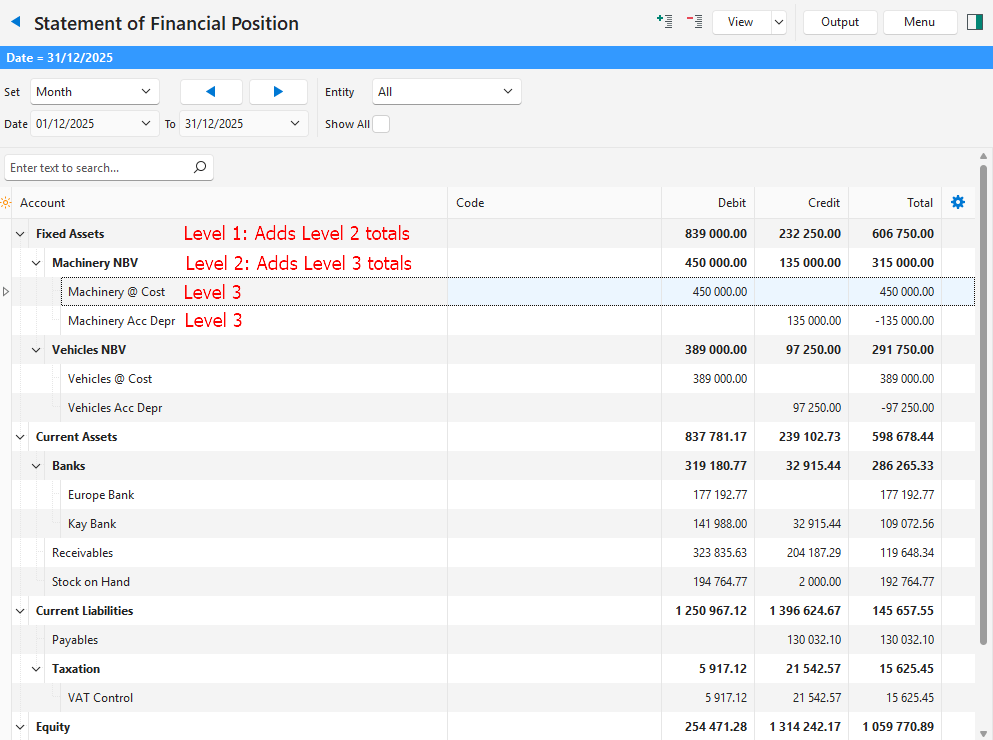
- Level 1: The top folders are the Statement of Profit or Loss and the Statement of Financial Position.
- Level 2: Inside these are sections such as Revenue, Expenses or Assets.
- Level 3 and Beyond: These hold smaller groups (e.g. Sales) and individual accounts (e.g. Cash) where you record transactions.
Each entry has a parent (except the top level), linking it to the folder above it. For example, Cash might sit under Current Assets, which sits under Assets.
Key Parts Explained
See Chart of Accounts Interface for a detailed explanation of all the fields. This section explains only the main fields.
- Status: Active means you can use the account. Archived hides it from lookups, and transactions can no longer be posted to it.
- Account Type: Tells what kind of money it tracks:
- Assets: What you own, such as cash.
- Liabilities: What you owe, such as loans.
- Equity: Your stake in the business.
- Revenue: Money you earn, such as sales.
- Expenses: Money you spend, such as rent.
- Report Type: Defines its role in reports:
- Account: The final level to which transactions are posted (e.g. cash on hand).
- Statement of Profit or Loss: The top folder for profit/loss.
- Statement of Financial Position: The top folder for assets, debts and equity.
- Section: A level that contains groups and accounts (e.g. assets or revenue).
- Group: An account that is subdivided (e.g. Motor Vehicle Expenses).
- Summary: A calculation field (e.g. to calculate the Net Profit or Total Assets).
- Lookup: The name that appears in the dropdown list when you select an account on a transaction.
How It Works
Adding Accounts
You create accounts in the COA to match your business. For example:
- Statement of Profit or Loss (Level 1)
- Revenue (Level 2)
- Sales (Level 3, Account)
- Revenue (Level 2)
Tracking Transactions
- Individual Accounts: You post transactions to these accounts.
- Groups and Sections: Add the balances of the accounts below them (e.g. Office Expenses sums Rent and Utilities).
- Summaries: Special rows such as Net Profit show the final result of the sections above them.
Reports
- Statement of Profit or Loss: Uses a date range (e.g. January to December) to show profit:
- Revenue (e.g. Sales) is added.
- Expenses (e.g. Rent) are subtracted.
- Summaries (e.g. Net Profit) calculate the difference.
- Statement of Financial Position: Shows totals at one date (e.g. 31 December):
- Assets (e.g. Cash) list what you own.
- Liabilities (e.g. Payables) list debts.
- Equity (e.g. Retained Income) shows your share of the profit earned or money invested.
- Summaries (e.g. Total Assets) add up the sections.
Tips for Creating Accounts
- Keep It Simple: Use clear names like Cash or Rent and logical groups.
- Set Order: Move the accounts into the order you want (e.g. Sales before Expenses), and use Order Alphabetically.
- Check Totals: Groups and sections add up the accounts under them automatically, so make sure the accounts are in the right place.
- Summaries: Place them after related sections in the order (e.g. Total Assets after Assets).
Example
Here is an example of a brief Statement of Financial Position setup: