
User Access by User
User Access by User lists the modules one user has access to, with the user’s access rights in each, so you can view and edit them in one place. You open it from the Users module, which only Admin users can open (see Understanding User Access and Settings).
This interface is similar to the one reached by right-clicking a username and selecting View/Edit User Access.
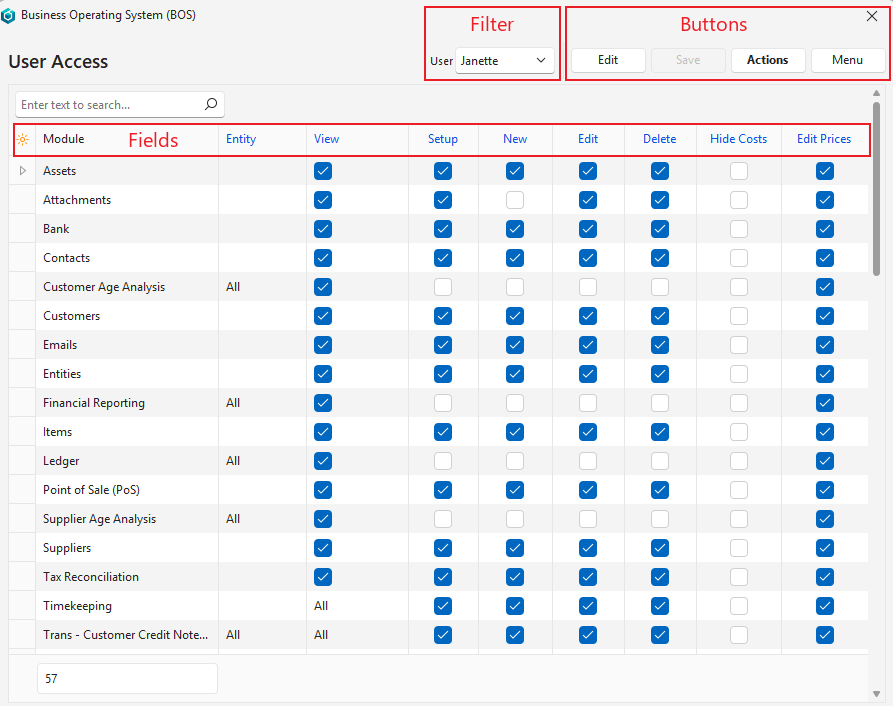
Buttons Explained
| Button | Description |
|---|---|
| Edit | Edits the entry. |
| Save | Saves any changes. |
| Actions | Lets you change multiple records that you can select using Ctrl + left-click. The options are:
|
Filter Explained
| Filter | Description |
|---|---|
| User | Select a user from the dropdown list of available users. |
Fields Explained
Fields marked in blue (✎) can be edited.
| Field | Description |
|---|---|
| Field Chooser (*) | Add or remove columns. |
| ID | A system-generated number for the entry. |
| User ID | The user’s system-generated number. |
| Module | The module’s name. |
| Entity | Links users to all or specific entities. |
| View | Access to view the records. The options are:
|
| Setup | Users have access to the settings. |
| New | Users may create entries. However, Copy Rules supersede this permission. Users with permission to copy a service ticket or transaction may create new entries that way. |
| Edit | Users may edit existing transactions. Users with rights to create transactions must also have edit access. |
| Delete | Users may delete existing transactions. |
| Hide Costs | Transaction Types only: the column is hidden for other modules. If checked, the cost, markup and profit columns are hidden from the user in the transaction list and on the items. Unchecked by default. The hidden columns are:
Applies only to Transaction Types with the Pricing setting Sell Price or Sell Price (Any Currency).
|
| Edit Prices | Transaction Types only: the column is hidden for other modules. If checked (the default), the user can change the prices on the transaction’s items. If unchecked, these item columns are not editable and their headers are no longer blue:
If unchecked, Adj%, MU% and VAT are also removed from the items’ Batch Update. Hide Costs and Edit Prices are copied with the rest of the user access when you copy users or access, and when a Transaction Type is copied. |
| Created | The date on which the entry was created. |
| Updated | The date on which the entry was updated. |
| Updated By | The user who updated the entry. |