
Setup Example – Customer Discounts
- Customer Discounts are journal entries used to write off a settlement discount or a small underpayment to Discount Allowed (e.g. if the amount is small and you do not want to issue a credit note).
- They can also be used to write off bad debts by changing the Default – Debit Account (e.g. to a bad debts account).
- In this example, the customer is credited and the Discount Allowed account is debited (Cr Customer, Dr Discount Allowed).
- VAT depends on whether the original charge included VAT.
💡This page provides an example of a Transaction Type setup for Customer Discounts.
Header
- Description: Customer Discounts
- Code: CUS DIS
- Entities: All
Settings (tab)
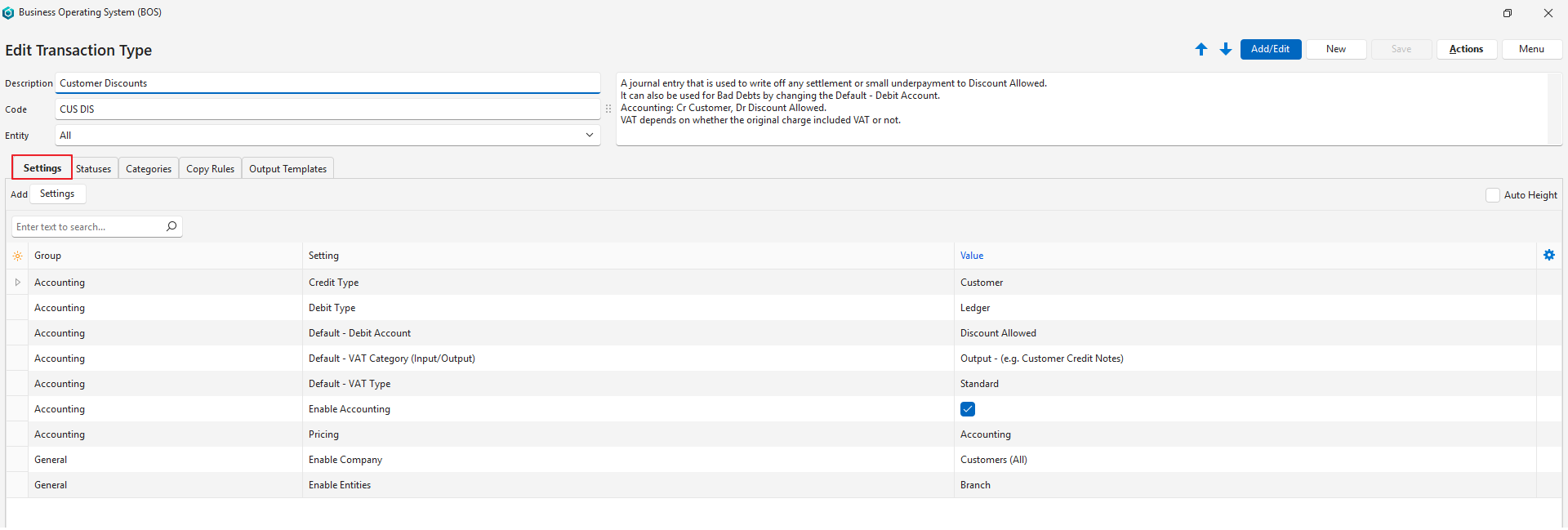
- This section lists the compulsory and optional settings that can be used to customise Customer Discounts.
- Settings with Default as part of the name can be changed when capturing a transaction.
| Setting | Description | Value | When Required |
|---|---|---|---|
| Accounting > Credit Type | Select from a dropdown list of account types. The options are:
| Customer | Always |
| Accounting > Currencies | Select which currencies apply to the Transaction Type. The options are:
| Select an option from the dropdown list (e.g. Company Currency). | If customer invoices are in multiple currencies. |
| Accounting > Debit Type | Select from a dropdown list of account types. The options are:
| Ledger | Always |
| Accounting > Default – Debit Account | Select a default account from the dropdown list. | Discount Allowed | Always Select a bad debts account instead when you write off bad debts. |
| Accounting > Default – VAT Category (Input/Output) | Select a VAT Category from these options:
| Output – (e.g. Customer Credit Notes) | Always if you are registered for VAT. |
| Accounting > Default – VAT Type | Select a default VAT Type for the Transaction Type from a dropdown list of all the created VAT types. | Select the Standard VAT Type. | Always if you are registered for VAT. Change the VAT Type when capturing the transaction if the original charge did not include VAT. |
| Accounting > Enable Accounting | A checkbox. If checked, accounting is enabled. If unchecked, transactions are created in the module and not posted to the ledger. | Check the box. | Always |
| Accounting > Pricing | Select a pricing option from the dropdown list:
| Accounting | Always |
| Defaults > Default – Data Filter | The default filter when you view a list of transactions for the Transaction Type (e.g. This Month, Pending). | Select an option from the dropdown list. | The default value is Pending & Active. Add this setting if you want a different default filter. |
| General > Enable Company | Select what type of company should be in the header:
| Customers (All) | Always |
| General > Enable Entities | Select an option from this list:
| Branch | If you allocate transactions to branches. |
| General > Reference Lookup | Enter Reference lookup lists. | Click the Value column. Enter a reference, one entry per line. Check Auto Height to show the full list. | If you want to create a lookup list for the reference field. |
Statuses (tab)
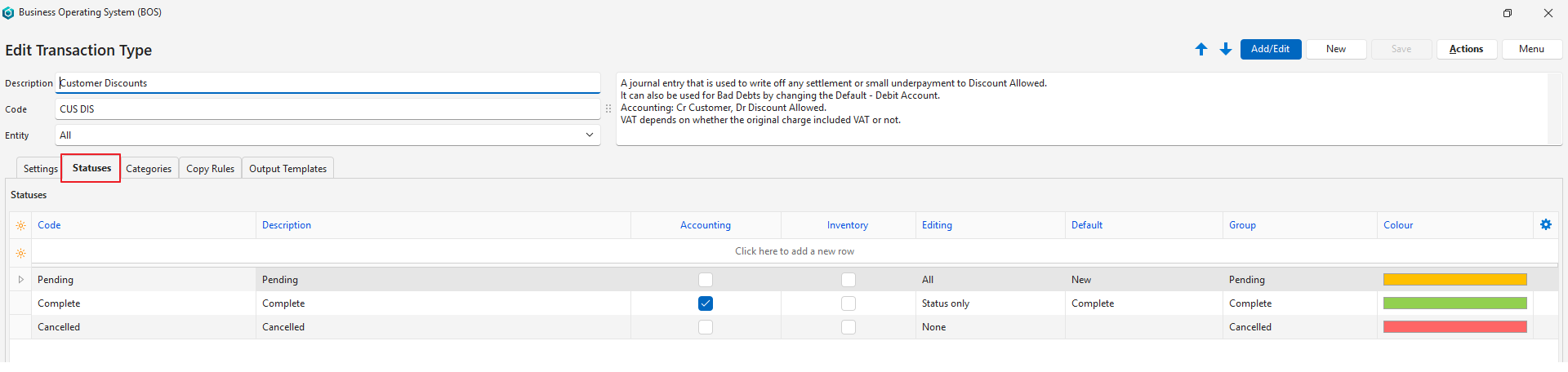
- You may create an unlimited number of statuses.
- However, there are only four Status Groups:
- Pending
- Active
- Complete
- Cancelled
- The first status should allow editing.
- The final status should ideally not allow editing.
- If the setting Accounting > Enable Accounting is checked, at least one status should have the Accounting column checked.
- If inventory is used, at least one status should have the Inventory column checked.
- If editing is allowed when the inventory or accounting columns are checked, any accounting or inventory reports should be considered provisional.
Categories (tab)
- Use categories to sort records.
- The categories you choose should be meaningful to your business.
- Using categories is optional but recommended.
- Categories can be copied from another Transaction Type. The existing categories are replaced by the copied categories.
This example has no categories. If you want to sort your Customer Discounts (e.g. by reason, such as settlement discount, small underpayment or bad debt), create your own categories. See Transaction Categories Tutorials.
Copy Rules (tab)
- Copy Rules determine when transactions may be copied.
- Although the copy involves two transactions, you only need to create one Copy Rule.
- User access must be set for each Copy Rule.
- You can automate copying transactions by selecting a Trigger status.
No Copy Rules.
Output Templates (tab)
- Output Templates are the forms you need to print, preview or email a transaction (e.g. invoices).
- Default templates are included. They automatically show your company name, logo and bank details, as filled in on the Output tab of a registered entity.
- You may edit these templates to include or exclude information.
- You may also create your own forms and templates from scratch.
No default templates. If you want to print or email these transactions, you can create your own templates (see Output Template Tutorials) or contact QuickEasy Support to create templates for you.