Items and General Ledger Transactions
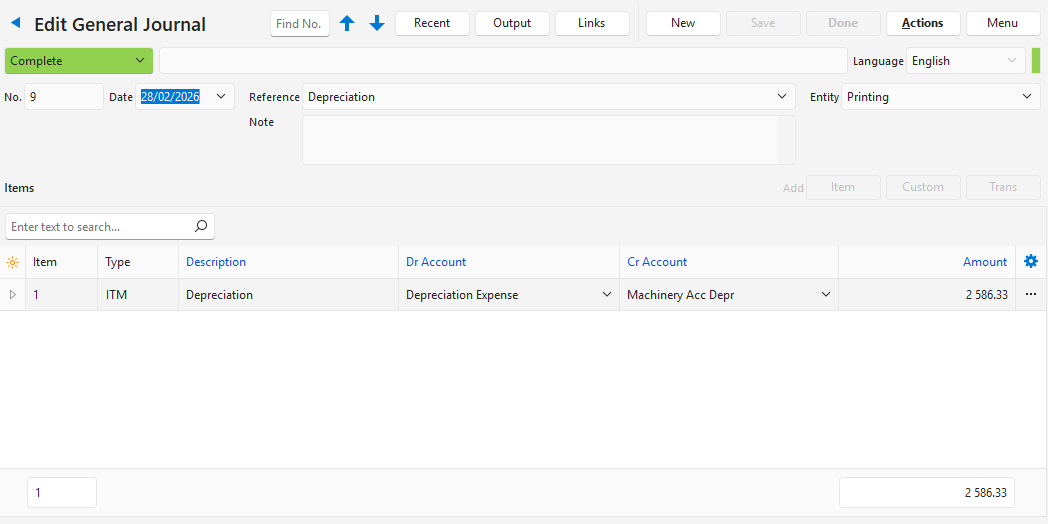
To speed up and control how general ledger transactions are captured, items can be created for ledger entries with default accounts to debit or credit. For transactions that are repetitive (e.g. depreciation), the amounts can be entered as either fixed or unit costs. In this example, the General Journal records depreciation.
💡These tutorials explain how to set up ledger items with default debit and credit accounts and use them in General Journal entries.
How to Set Up Transaction Types to Use Ledger Items
- Navigate to Transaction Types (e.g. Main Menu > Setup > Transaction Types).
- Click New (button) to create a Transaction Type or double-click an existing Transaction Type to edit it.
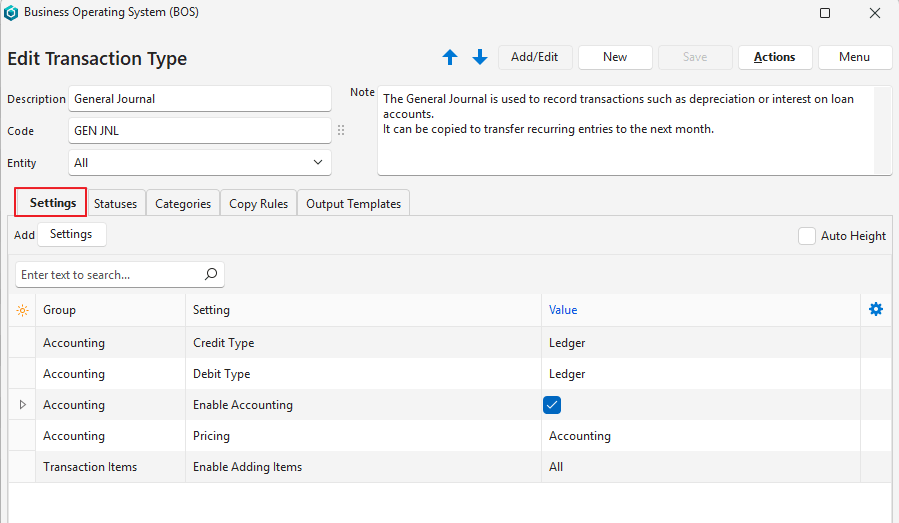
- Click Settings (tab) and complete the settings as per the screenshot below. Add any of the other settings as needed (e.g. Default – Data Filter).
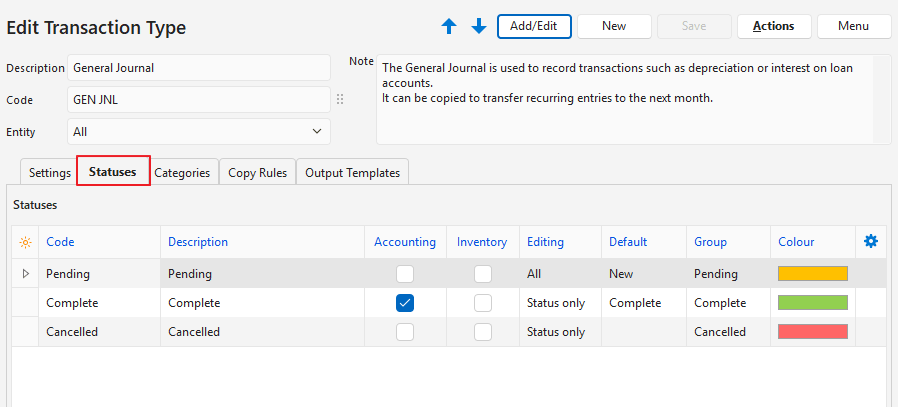
- Click Statuses (tab) and complete the settings as per the screenshot below. You can add more statuses if needed.
- Complete the other tabs as per your preference. See Transaction Types for more information.
How to Create Items for the Transactions
Info
Creating a category makes it easier to find and distinguish these items. It serves no other purpose.
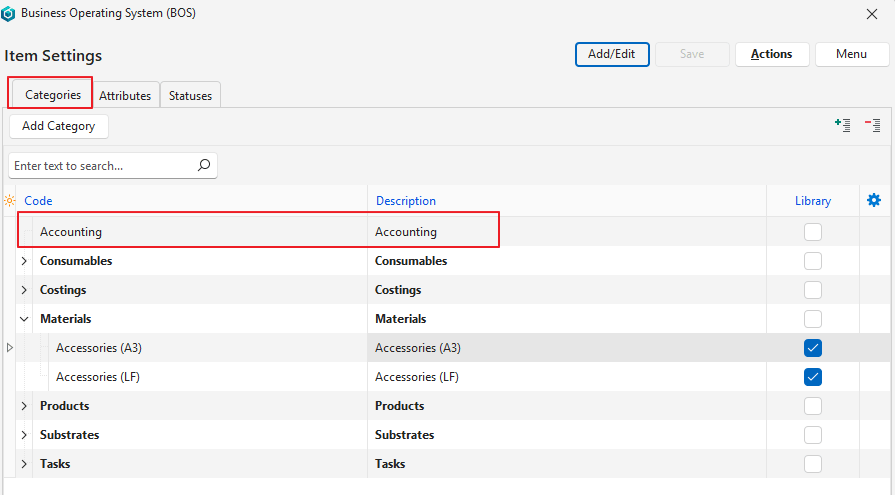
How to Create a Category for the Items
- Navigate to Items (e.g. Main Menu > Setup > Items).
- Click Menu (button) > Edit Categories.
- Click Add/Edit (button).
- Click Add Category (button).
- Complete the new row as follows:
- Code = Accounting.
- Description = Accounting.
- Library = Unchecked.
- Click Save (button).
How to Create the Items
Info
- Accept the defaults for fields not mentioned here.
- Repeat these steps to create as many items as you need, changing the Description and Code.
- Navigate to Items (e.g. Main Menu > Setup > Items).
- Click New (button) > Standard (MAT).
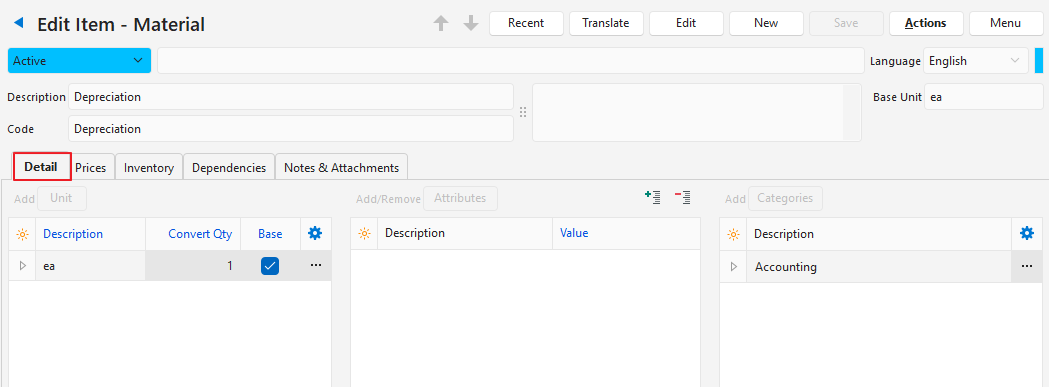
- Complete the header as follows:
- Description = Depreciation.
- Code = Depr.
- Complete the Detail tab as follows:
- Click Categories (button).
- Click Accounting.
- Click Select (button).
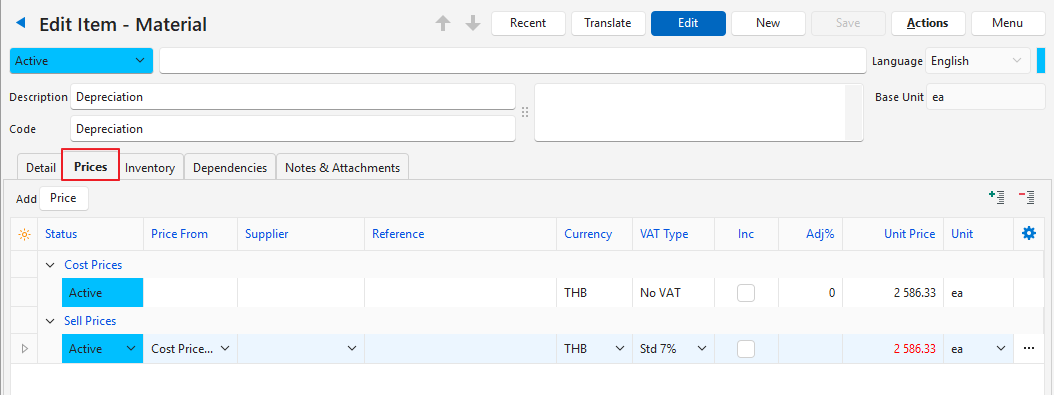
- Click Prices (tab).
- Click Price (button) > Cost.
- In the Unit Price column, enter the amount that must be captured.
- Click Save (button) if it is not greyed out.
- Click Menu (button) > Edit Transaction Defaults.
- Click Add/Edit (button).
- Select General Journal from the dropdown list of Transaction Types.
- Dr Account = Select Depreciation Expense (or similar expense account).
- Cr Account = Select Accumulated Depr (e.g. Machinery Acc Depr or similar non-current / fixed asset account).
- Click Save (button) if it is not greyed out.
How to Record Transactions
Info
You can change the accounts and edit the amount. This example keeps the defaults.
- Navigate to the Ledger.
- Note: The navigation depends on where you added it (often under the Accounting heading).
- Click New (button) > General Journal.
- Complete the transaction as follows:
- Date = Select the applicable date from the dropdown list.
- Reference = Depreciation.
- Click Item (button) next to Add.
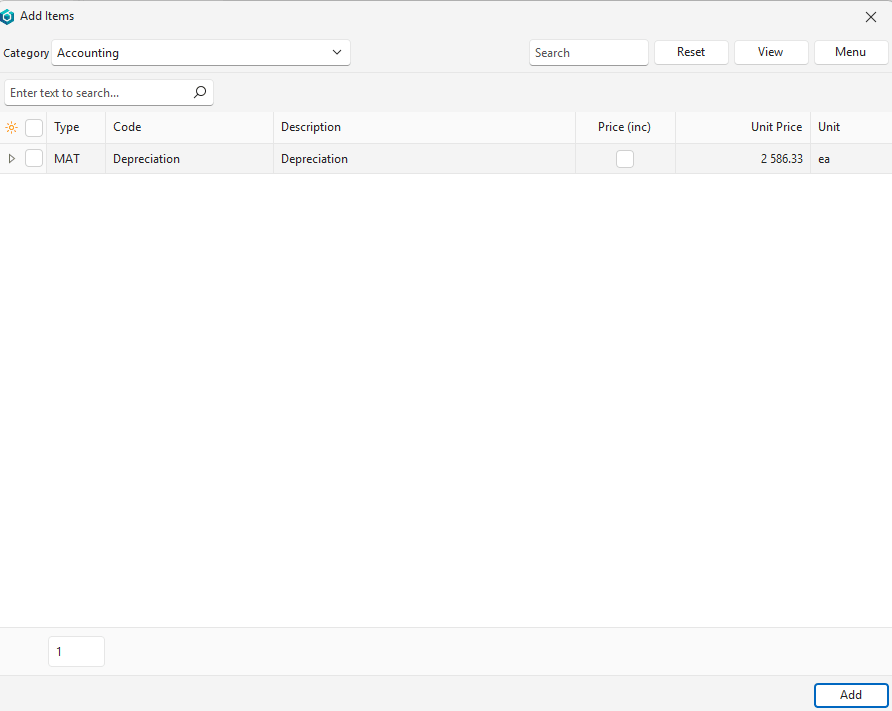
- Click the arrow on the Categories dropdown list and select Accounting.
- Click View (button) to display a list of items.
- Click Depreciation on the list of items.
- Click Add (button).
- Close the popup.
- Click Done (button).