Email Templates
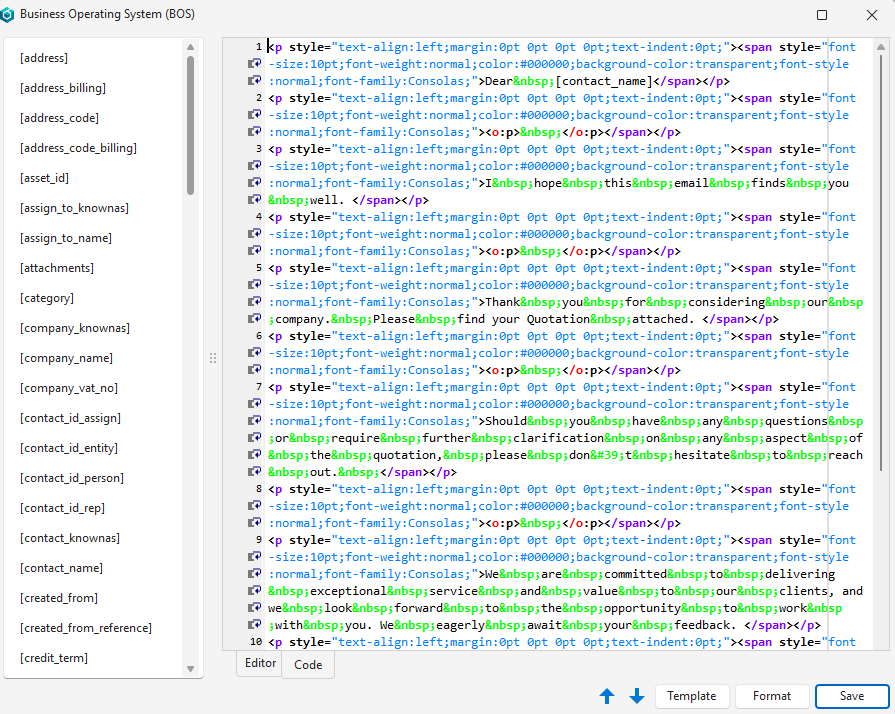
This page describes the email body interface: its buttons, the available data fields and the editor.
- When a form (e.g. a Customer Invoice) is emailed from Output (button), both the email subject line and body can be auto-filled from an email template (see Output Button).
- The email body (Edit Email Body) and the email stationery (the Email Stationery setting in General Settings and User Settings) are edited in the same HTML editor as email messages (see Email Edit View).
Email Body Interface
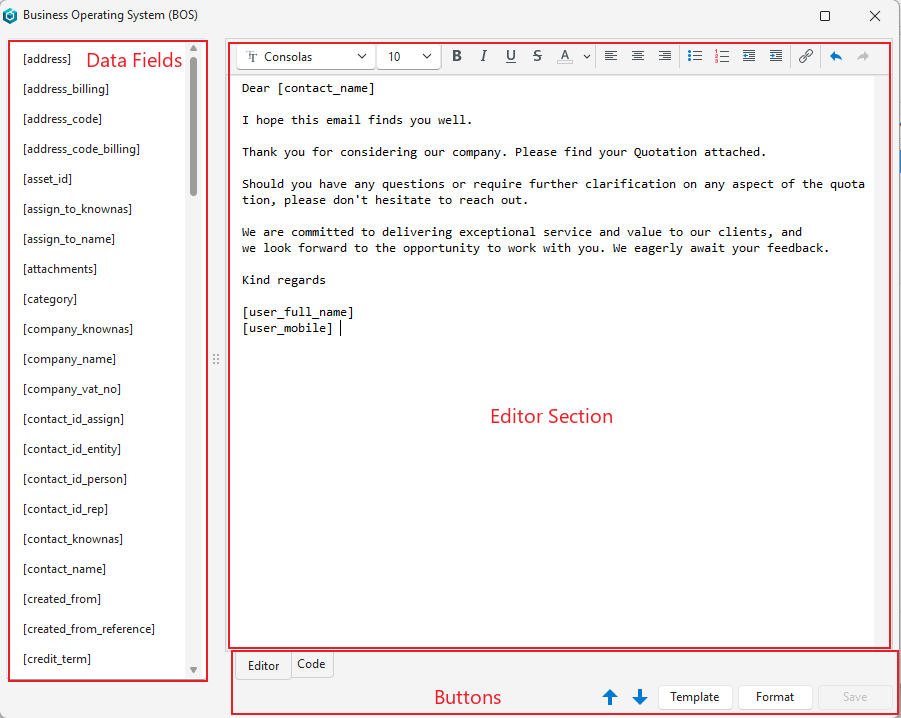
Buttons Explained
| Button | Description |
|---|---|
| Arrows | Navigates to the next or previous email template. |
| Template | Inserts a blank HTML page at the cursor, on the Code tab. |
| Format | Formats the HTML. A dropdown list with these options:
Before Ver 2.6.0, the button was shown only on the HTML interface. |
| Editor (tab) | The WYSIWYG interface: enter and format the email body, using the toolbar (see Editor Section). The editor opens on this tab. |
| Code (tab) | The HTML interface: shows the HTML of the email body. Before Ver 2.6.0, an HTML button toggled between the WYSIWYG and HTML interfaces. |
| Save | Saves any changes. |
| Close | Closes the popup. |
Available Data Fields
| [Fields] | Description |
|---|---|
| address | The delivery (Deliver To) address that is on the transaction. |
| address_billing | The billing (Bill To) address that is on the transaction. |
| address_code | The description of the delivery (Deliver To) address that is on the transaction. |
| address_code_billing | The description of the billing (Bill To) address that is on the transaction. |
| asset_id | The system-generated number for the asset. |
| assign_to_knownas | The familiar name of the user to whom the transaction is assigned. |
| assign_to_name | The full name of the user to whom the transaction is assigned. |
| attachments | Inserts a link to the attachment. |
| category | The customer’s or supplier’s category. |
| company_knownas | The customer’s or supplier’s trading name. |
| company_name | The customer’s or supplier’s full name. |
| company_vat_no | The customer’s or supplier’s VAT number. |
| contact_id_assign | The system-generated number for the user the transaction is assigned to (on the list of contacts). |
| contact_id_entity | The system-generated number for the entity the transaction is assigned to (on the list of contacts). |
| contact_id_person | The system-generated number for the person the transaction is assigned to (on the list of contacts). |
| contact_id_rep | The system-generated number for the rep the transaction is assigned to (on the list of contacts). |
| contact_knownas | The familiar name of the contact person on the transaction. |
| contact_name | The full name of the contact person on the transaction. |
| created_from | The name of the source document if the transaction was copied. |
| credit_term | The credit terms of the customer or supplier. |
| currency | The transaction’s currency. |
| date_due | The due date on the transaction. If the date captions were customised, this field may hold a different date. |
| date_expires | The expiry date on the transaction. If the date captions were customised, this field may hold a different date. |
| date_period | The accounting period in which the transaction falls. |
| date_trans | The date of the transaction. |
| deposit_amt | The deposit amount that must be paid. |
| deposit_percent | The deposit percentage that must be paid. |
| description | The description on the transaction. |
| entity | The brief description of the entity that the transaction belongs to. |
| entity_id | The system-generated number for the entity on the transaction. |
| entity_registered | The registered entity that the transaction is linked to (Entity (Reg)). |
| flow_id | The system-generated number for the transaction flow (the sequence of transactions that were copied from each other). |
| gp_amt | The gross profit amount. |
| gp_percent | The gross profit percentage. |
| lang_name | The transaction’s language. |
| location_from | The Location From on the transaction (e.g. for an inventory transfer). |
| location_to | The Location To on the transaction (e.g. for an inventory transfer). |
| note | The note on the transaction. |
| order_no | The order number. |
| project_id | The system-generated number for the project. |
| rep_knownas | The familiar name of the rep listed on the transaction. |
| rep_name | The full name of the rep listed on the transaction. |
| roe_currency_to_local | The rate of exchange from the transaction currency to the local currency. |
| roe_local_to_currency | The rate of exchange from the local currency to the transaction currency. |
| status | The status of the transaction. |
| status_group_id | The number of the Status Group (Pending, Active, Complete or Cancelled) to which the transaction’s status belongs. |
| status_note | The transaction’s status note. |
| total | The transaction’s total. |
| total_cost | The total cost of the transaction (for internal purposes). |
| total_cur | The VAT-exclusive total in the transaction’s currency in numbers. |
| total_cur_text | The VAT-exclusive total in the transaction’s currency in words. |
| total_fixed_cost | The total fixed cost on the transaction (for internal purposes). |
| total_out | The outstanding amount (the VAT-inclusive total less any allocations) in the local currency. |
| total_out_cur | The outstanding amount (the VAT-inclusive total less any allocations) in the transaction currency. |
| total_text | The transaction’s total in words. |
| total_vat | The VAT-inclusive total in the local currency. |
| total_vat_cur | The VAT-inclusive total in the transaction currency in numbers. |
| total_vat_cur_text | The VAT-inclusive total in the transaction currency in words. |
| total_vat_text | The VAT-inclusive total in the local currency in words. |
| trans_header_id | The system-generated number for the transaction. |
| trans_header_id_from | The system-generated number for the source transaction (if the transaction was copied). |
| trans_no | The transaction number. If the transaction has a text transaction number, it appears instead. |
| trans_no_version | The transaction’s number (or text transaction number) and version number. |
| trans_setup_id | The system-generated number for the Transaction Type. |
| trans_ver_no | The transaction’s version number. |
| user_email | The email address of the user who is sending the email. |
| user_first_names | The first names of the user who is sending the email. |
| user_full_name | The full names of the user who is sending the email. |
| user_mobile | The mobile phone number of the user who is sending the email. |
| user_position | The position of the user who is sending the email. |
| user_stationery | The email stationery (e.g. a signature) of the user who is sending the email: the user’s own Email Stationery user setting, or the Email Stationery general setting if the user has none. Not available when you edit the Email Stationery settings themselves. |
| user_surname | The surname of the user who is sending the email. |
| user_tel | The work phone number of the user who is sending the email. |
| userupdated | The name of the user who last updated the transaction. |
| vat | The VAT amount in the local currency. |
| vat_cur | The VAT amount in the transaction’s currency. |
| wht_total | The transaction’s total withholding tax (WHT) amount. |
| wht_total_1 | The WHT amount for WHT Section Wages 40(1). |
| wht_total_2 | The WHT amount for WHT Section Commissions 40(2). |
| wht_total_3 | The WHT amount for WHT Section Royalties 40(3). |
| wht_total_4 | The WHT amount for WHT Section Interest & Dividends 40(4). |
| wht_total_5 | The WHT amount for WHT Section Rent & Services 40(5). |
| wht_total_6 | The WHT amount for WHT Section Other Services 40(6). |
| wht_total_text | The transaction’s total WHT amount in Thai words. |
Editor Section
- The editor is a text and HTML editor. You can enter any information in it.
- The toolbar has the font, size, bold, italic, underline, strikeout, text colour, alignment, lists, indent, hyperlink, and undo and redo. When the editor opens, it shows the font of the General Settings General > Default - Font name for HTML (Calibri by default) and General > Default - Font size for HTML (9 by default). Saved stationery and email bodies are not changed until they are edited.
- Double-click a field on the side to add it to the text. On the Editor tab, a field (for example, [trans_no]) is inserted at the cursor.
- Opening the editor does not change the HTML. The HTML is saved only after an edit on the Editor tab, which saves the whole body again as inline-styled HTML. Merge fields, the attachment links (shown as [[Links Start]] / [[Links End]]), the <head> and <style> and each picture’s address are kept exactly.
- The editor has no table tools. Tables already in the HTML are kept, and their text can be edited; change the table layout on the Code tab.
- Added fields can be moved using cut and paste (Ctrl + X / Ctrl + V).
- Fields can be deleted with the Backspace key.
Code (tab):