Customer Age Analysis and Statements
The Customer Age Analysis (CAA), also known as Debtors Age Analysis, helps organisations manage collections. Its columns are divided into date ranges: current, 30, 60, 90, 120 and 180+ days. The ranges follow calendar months, not a fixed number of days.
Credit limits appear on the age analysis, and a Transaction Type setting lets you show Work in Progress.
A transaction appears on the age analysis once its header status is an accounting status (a status with the accounting checkbox checked).
The Customer Detailed Ledger can be accessed from the customer age analysis but is a separate module.
Settings
These settings affect which transactions are included in the totals that appear on the Customer Age Analysis.
| Setting | Setting Name | Description |
|---|---|---|
| Transaction Setting > Settings (tab) | Accounting > Enable Accounting | Customer Invoices and Credit Notes must have accounting enabled to appear on the age analysis and ledger. |
| Transaction Setting > Settings (tab) | Accounting > Sum Active Transactions to Work in Progress in Customer Age Analysis | Add the setting to the applicable Transaction Types (e.g. Sales Orders). The checkbox in the Value column must be checked. If a transaction has a status that falls in the Active group, the transaction appears on the Customer Age Analysis as WIP. This feature helps organisations manage their customers’ credit limits. This setting must not be added to transactions that appear on the Customer Age Analysis by default, because the amounts are duplicated. All transactions that post to a customer account and the ledger appear on the age analysis by default. |
| Transaction Setting > Status (tab) | Accounting | Transactions are included in the Customer Age Analysis only when they are in an Accounting status (that is, the checkbox in the Accounting column is checked for the applicable Status). |
Interface Explained
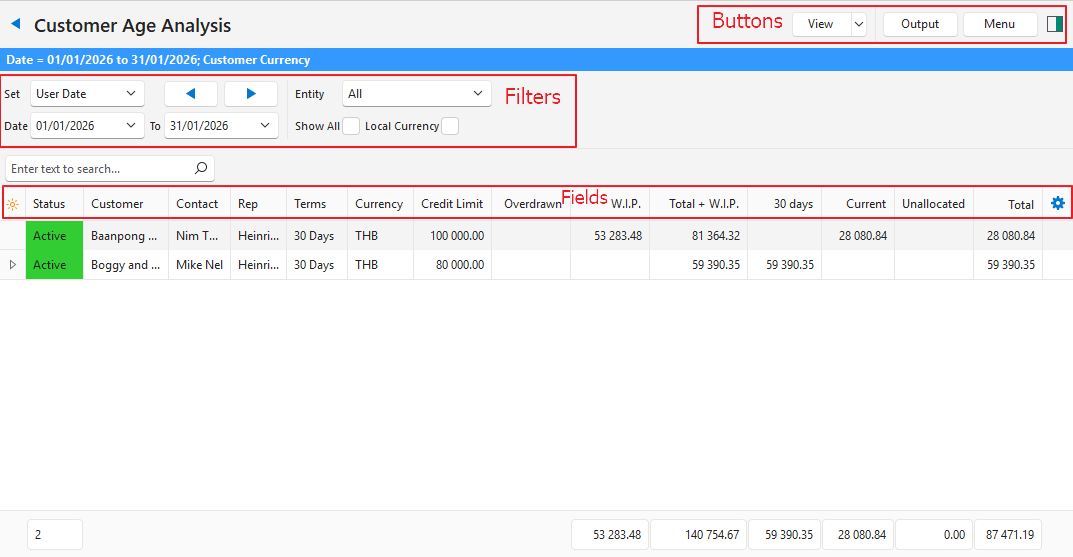
Buttons Explained
| Button | Description |
|---|---|
| View | Shows the entries that match the selected filters. |
| Arrow on View Button | Reset Data Filter: Resets all the data filters. |
| Output | Prints, previews or emails the output if Output Templates are set up for the module. Export: Exports the list in .xlsx, .htm or .csv format. Customer Statements are normally one of the templates and are emailed from the age analysis. To email several customers at once, select their rows (Ctrl + left-click or Shift + left-click), then select Email and a template:
The other views have different output options. |
| Menu | Views Settings |
Filters Explained
- The start date applies to statements, the ledger and transactions. It has no effect on the age analysis.
- The end date is the date for which the age analysis is generated.
- The age analysis dates are transferred to the ledger. However, any changes to the dates on the ledger are not transferred to the age analysis.
| Filter | Description |
|---|---|
| Set | Select a date option from the dropdown list:
|
| Navigational Arrows | Adjusts the date in the direction of the arrow. |
| Date … to … | Set your own dates (depending on the selection under Set). The To date defaults to today. |
| Entity | Select All or a specific entity from the dropdown list. |
| Show All | Checkbox. If checked, shows all the customers, even those with zero balances. |
| Local Currency | Checkbox. If checked, converts all the values to the local currency. |
Fields Explained
| Field | Description |
|---|---|
| ID | The system-generated number for the entry. |
| Status | The customer’s status. |
| Customer | The customer’s name. |
| Code | The customer’s code. |
| Contact | The name of the customer’s Accounts contact person. |
| Rep | The rep assigned to the customer. The rep’s ‘Known as’ name appears. |
| Terms | The customer’s terms. |
| Currency | The customer’s currency. |
| Credit Limit | The customer’s credit limit. |
| Overdrawn | The sum of WIP and Total Amount Outstanding that exceeds the Credit Limit. |
| W.I.P. | The total value of Work in Progress as per the setting. |
| Total + W.I.P. | The total amount outstanding plus the work in progress. |
| 180+ days | The amount outstanding for six months or more from the To date. |
| 150 days | The amount outstanding for five months from the To date. |
| 120 days | The amount outstanding for four months from the To date. |
| 90 days | The amount outstanding for three months from the To date. |
| 60 days | The amount outstanding for two months from the To date. |
| 30 days | The amount outstanding for one month from the To date. |
| Current | The amount that represents transactions in the current month. |
| Unallocated | The amount that has not yet been allocated. |
| Total | The total amount outstanding. |
 | A context menu (also opened by right-clicking the entry) with the following options:
|
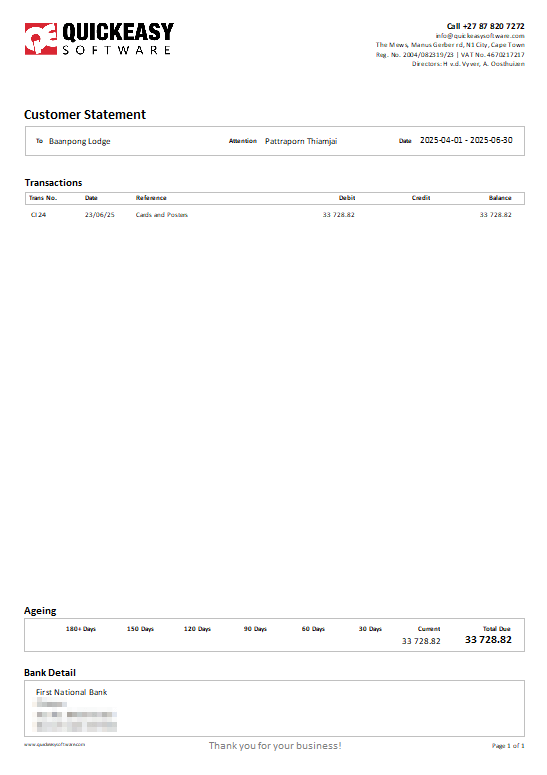
Customer Statements
- Customer Statements are sent from the age analysis.
- Below is an example of an included template, opened with Output (button).
- When generating customer statements, an Entity must be selected because the heading, bank details and logo are picked up from the entity’s records. Applies only if there is more than one registered entity.
- You can email statements to several customers at once: select their rows before you select Output (button) > Email. Before Ver 2.5.0, statements had to be sent one at a time.