
Transaction Type Statuses Interface
- All the master data and transaction modules have Status fields that you can use to manage the data.
- Transactions can have both header and item statuses.
- Item statuses are enabled by checking the box for the setting: General > Enable Item Status.
- You may create as many statuses as you need. However, each status must be allocated to one of a finite list of Status Groups.
- Status settings define conditions within the workflow.
- Statuses for the main Status Groups are automatically created when a new Transaction Type is created. The default New is automatically assigned to the Pending status, and the default Complete is automatically assigned to the Complete status. However, these statuses and settings can be changed.
Statuses (tab)
If item statuses are disabled, the Status Item section does not appear.
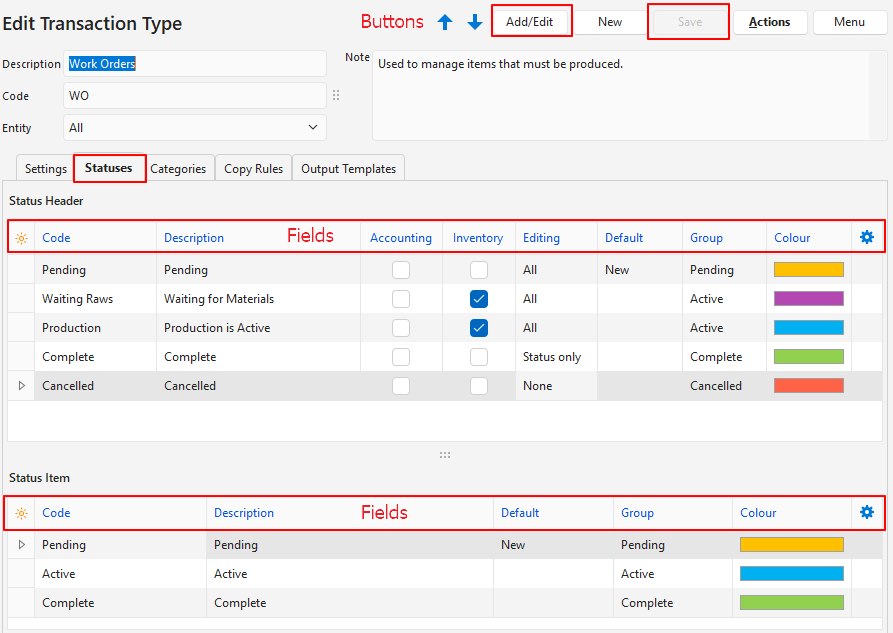
Buttons Explained
The other buttons affect the Transaction Type, not statuses.
| Button | Description |
|---|---|
| Add/Edit | Allows you to add and edit the statuses. |
| Save | Saves any changes. |
Header Section
Fields marked in blue (✎) can be edited.
| Field | Description |
|---|---|
| Field Chooser (*) | Add or remove columns. |
| ID | A system-generated number for the status. |
| Order ID | A system-generated number for the order of the transaction’s statuses. |
| Code | The short description of the status that appears in the transaction view (e.g. Pending). |
| Description | The long description of the status (e.g. Pending – waiting for approval). |
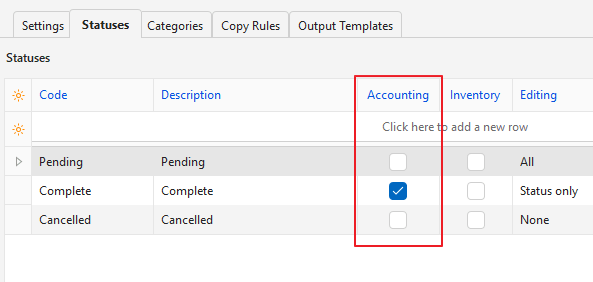
| Accounting | A checkbox. If checked, the transaction is posted to the ledger once it reaches that status. The transaction is removed from the ledger if its status is changed to a non-accounting status. |
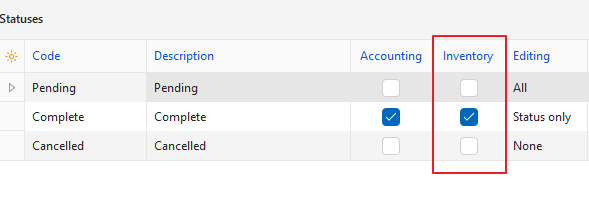
| Inventory | A checkbox. If checked, inventory is updated when the transaction reaches that status. If the status is changed, the inventory transaction is changed or cancelled accordingly. |
| Editing | A dropdown list of editing options:
|
| Default | Select an option from the dropdown list if applicable:
|
| Group | Every status must be allocated to a Status Group. The group options are:
|
| Colour | You can choose a colour for each status by clicking the colour block and selecting a different colour. Apply status colours consistently (e.g. all Pending statuses across the system are yellow). |
 | A submenu, which can also be accessed by right-clicking the entry, with the following functions:
|
Item Section
Fields marked in blue (✎) can be edited.
| Field | Description |
|---|---|
| Field Chooser (*) | Add or remove columns. |
| ID | A system-generated number for the status. |
| Order ID | A system-generated number for the order of the item’s statuses. |
| Code | The short description of the status. |
| Description | The long description of the status. |
| Default | Every transaction must have a default New status for its items (e.g. Pending). The New status is assigned when a new record is created. |
| Group | Every status must be allocated to a group. The group options are:
|
| Colour | You may choose a colour for each status by clicking the colour block and selecting a different colour. Apply status colours consistently (e.g. all Pending statuses are yellow). |
|
|
Status Errors
These errors may appear on an orange band above a transaction or Transaction Type:
| Error Message | How to Solve | Screenshot for Solution |
|---|---|---|
| Inventory Resolve is enabled, but no status is set to trigger an Inventory update |
|  |
| Accounting is enabled, but no status is set to trigger an Accounting update |
|  |
| The editable Status on a Stock Adjustment Transaction may not update Inventory or Accounting | When selecting statuses for a Stock Adjustment Transaction, only the final (e.g. Complete) status should affect inventory or accounting. | 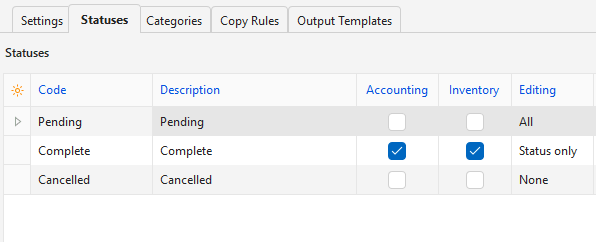 |
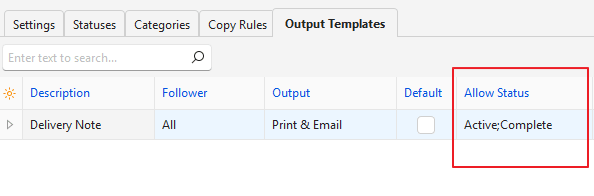
| Invalid Status Group used in Copy Rules, Output |
|  |