
Copying Transactions (Copy Rules)
Copy Rules are set up on the Copy Rules tab of a Transaction Type, one of the steps in setting up a Transaction Type (see Transaction Types Edit View). Each rule sets how transactions are copied to another Transaction Type, and user access is set for each rule. This page explains how copying works and describes the tab.
About Copy Rules
In QuickEasy BOS, you can copy one transaction to the next to speed up your workflow, ensure accuracy, and prevent human error. This process is fully customisable and is named Copy Rules.
| Topic | Explanation |
|---|---|
| Account Groups | When copying transactions, the Transaction Type’s Account Group settings affect what is copied as follows:
|
| Accounting Transactions | If the target Transaction Type has default Debit or Credit Accounts, the default accounts are used. If the source and target Transaction Types have the same Debit and Credit Types (e.g. Customer, Supplier, Ledger), the accounts are copied only if those accounts are allowed based on the Debit or Credit Account Filters. If the source and target Transaction Types have the same Debit and Credit Types, but the other way round, the accounts are copied to the opposite type. An example is a Customer Invoice (Dr Customer, Cr Sales) that is copied to a Customer Credit Note (Dr Sales, Cr Customer). |
| Active vs All Customers / Suppliers | The status of customer and supplier accounts is checked if the target Transaction Type only allows Active customers or suppliers. If the customer or supplier is not in an Active status, the copy fails with the message “Copy Failed: The Company is not in an Active status.” See Unable to Copy a Transaction. |
| Addresses | The Deliver To and Bill To addresses are copied from the source transaction (see General > Enable Address). |
| Assets | If Assets are enabled on both Transaction Types, the assets are also copied across. |
| Attribute Sets |
|
| Creation | Copy Rules are created on the Copy Rules tab of the Transaction Type. |
| Currencies | The transaction copied from and the transaction copied to must have the same currency setting (Local Currency, Company Currency, All Currencies). |
| Custom Date Fields | The Due and Required Date fields are only copied if selected on the Copy Rules. |
| Customer to Supplier Transactions | When a customer transaction is copied to a supplier transaction (for example, a Sales Order to a Purchase Order), the copy popup has a Supplier field. Select the supplier for the new transaction. The field is required. If it is blank, “Please select a Supplier.” appears when you click Copy (button). |
| Price Types |
|
| Trigger | A Copy Rule with Execute set to Trigger creates the destination transaction when the source transaction gets the Trigger Status, but only when the Copy Rule copies at least one item (for example, with Items = Issue, the source needs an Issue entry). Otherwise, nothing is created. A Copy Rule with Items = None (header only) creates the transaction without items. |
| VAT | If a transaction with Items that include VAT is copied to a No VAT transaction, the No VAT setting takes precedence (e.g. copying a Customer Invoice to a Goods Issued). |
| Warnings | Warnings appear in an orange bar if you create Copy Rules that result in the following:
|
Copy Rules (tab)
- Information on Trigger Copying
- The transaction is automatically copied when a certain trigger is reached (e.g. when the source transaction is set to the Trigger Status).
- The trigger status refers to a Status Group (e.g. Pending, Active, Complete).
- If you have a trigger Copy Rule, you cannot also have a manual Copy Rule for the same copy function. The system checks whether a linked transaction exists, and any copy that exists (even a manual copy) is updated.
- Choosing this option disables:
- Allow Status (H)
- Allow Status (I)
- Set Status (H)
- Outstanding (items)
- Confirm
- Open Trans
- If you complete these fields, they are cleared as soon as you click Save (button).
- A trigger copy first checks if a linked transaction exists:
- Transaction exists: Status is updated.
- Transaction does not exist:
- Transaction is created with the default status for new transactions.
- Adds all the items to the new transaction.
- Sets the Item Statuses on the source transaction if applicable.
- Ignores User Access to Copy Rules because this is an automated system that is not linked to a user.
- Changing the Trigger Status of the source transaction to a lower status or to a cancelled status does the following:
- Removes all the items from the new transaction.
- Sets the status of the new transaction to Cancelled.
- Does not reset the Item Statuses on the source transaction (because their previous statuses are not recorded).
- If the transaction has no items (that is, nothing to copy), a transaction is not created.
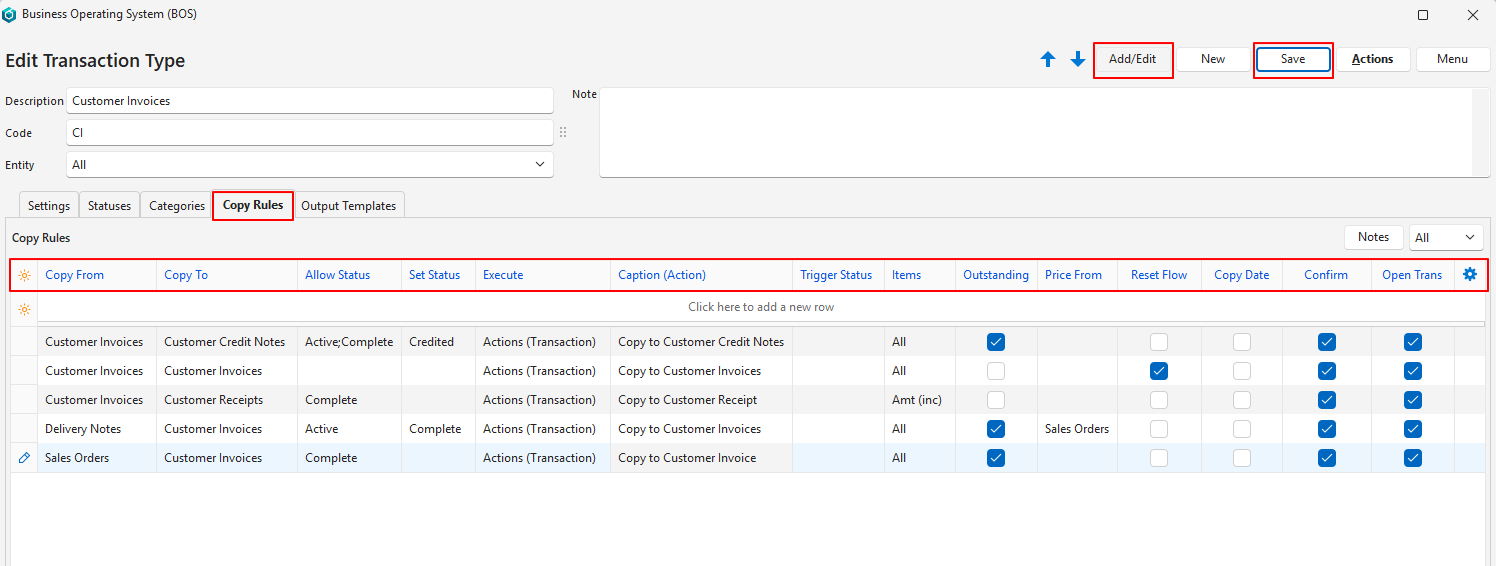
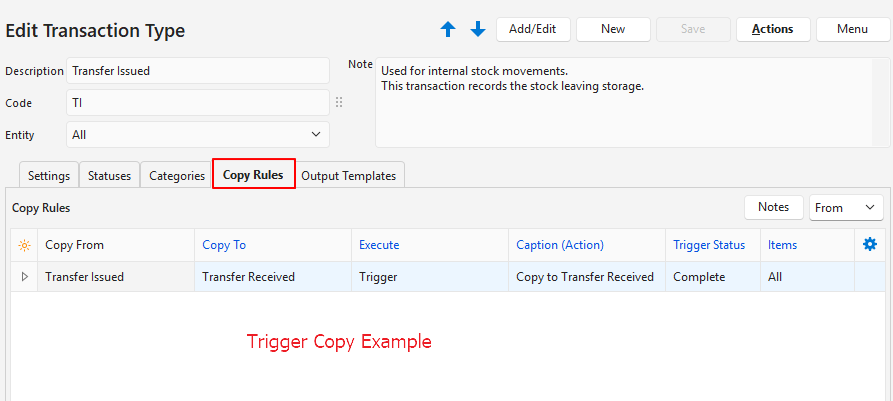
Buttons Explained
| Button | Description |
|---|---|
| Arrows | Does not apply to this process. |
| Add/Edit | Edits the rules. |
| New | Does not apply to this process. (Creates a Transaction Type.) |
| Save | Saves any changes. |
| Actions | Does not apply to this process. |
| Menu | Does not apply to this process. |
| Notes (above the columns) | Shows or hides notes. |
Filter Explained
| Filter | Description |
|---|---|
| From (dropdown list) | Select which Copy Rules to show:
|
Fields Explained
Fields marked in blue (✎) can be edited.
| Field | Description |
|---|---|
| Field Chooser (*) | Add or remove columns. |
| ID | The system-generated number for the rule. |
| Copy From | The source transaction (for example, if copying from a Quotation, the Quotation is the source transaction). Transactions can also be set to copy themselves to duplicate the transaction. |
| Copy To | The target transaction (for example, if copying to a Customer Invoice, the Customer Invoice is the target transaction). |
| Allow Status (H) | The status the header must be in to allow the transaction to be copied (leave blank to allow the copy in any status). |
| Allow Status (I) | The status the items must be in to allow the transaction to be copied (leave blank to allow the copy in any status). This field is suppressed if item statuses are not used. |
| Set Status (H) | The Header Status that is set when the transaction is copied (leave blank to leave the status unchanged). |
| Set Status (I) | The Item Status that is set when the transaction is copied (leave blank to leave the status unchanged). This field is suppressed if item statuses are not used. |
| Execute | Select:
|
| Caption (Action) | Prefilled with the name of the function that appears under Actions (button) and context menus. |
| Trigger Status (H) | The header Status Group that triggers the copy. The transaction is copied when the status is changed to the trigger status. If the transaction is changed to a different status, the items on the newly created transaction are deleted. Deleting them prevents duplications, because they are copied again if the transaction is changed back to the trigger status. The trigger status should be the transaction’s final Status Group. |
| Items | From the dropdown list, select which items must be copied.
|
| Outstanding | If checked, only the outstanding items are copied. Applies to transactions with multiple items that may have different statuses. |
| Price From | Select the Transaction Type the price is copied from. The dropdown list includes all the created Transaction Types. |
| Reset Flow | Checkbox. If checked, the new transaction is not linked to the previous transactions. |
| Actual Cost | Checkbox, unchecked by default. On the rule that copies a Production Work Order (Enable Estimating = a Production option) to the Goods Received of the finished goods (Pricing Cost Price or Stock Price): if checked, a Work Order entry with an estimate is copied at its actual cost per unit instead of the estimate. The actual cost is the Goods Issued of its materials, plus its tasks and outwork at the estimate cost, divided by the Work Order quantity. The Work Order Transaction Type’s Cost of Sales settings decide what else is counted (purchases, returns and timekeeping in the entry’s transaction flow); outwork with a purchase in the flow and tasks with timekeeping are then not taken at the estimate. When nothing is counted yet, the entry is copied at the estimate. The cost is read when the entry is copied: documents saved later do not change a saved Goods Received. |
| Copy Dates | Check the boxes of the dates to copy:
|
| Confirm | Checkbox. If checked, you must confirm that you want to copy the transaction. |
| Open Trans | Checkbox. If checked, the new transaction is opened. |
| User Access | The users who are allowed to copy the transaction. A user with admin rights can add themselves to the list. |
| Updated by | The user who updated the record. |
| Created | The date on which the record was created. |
| Updated | The date on which the record was updated. |
 | A submenu that can also be accessed by right-clicking an entry:
|