
Mobile App Interface
The Mobile App is a browser-based app that works with the desktop version of QuickEasy BOS. You can use it on a phone, a tablet or a computer. It lets you:
- Record your work and travel time against transactions, production tasks, project tasks and sales tickets, or without a link to any of them.
- View and update your customers’ details, addresses, contact people, attributes, notes and images.
- View your dashboard charts.
In the Mobile App pages, “tap” means tap on a touch screen or left-click with a mouse.
Login Screens
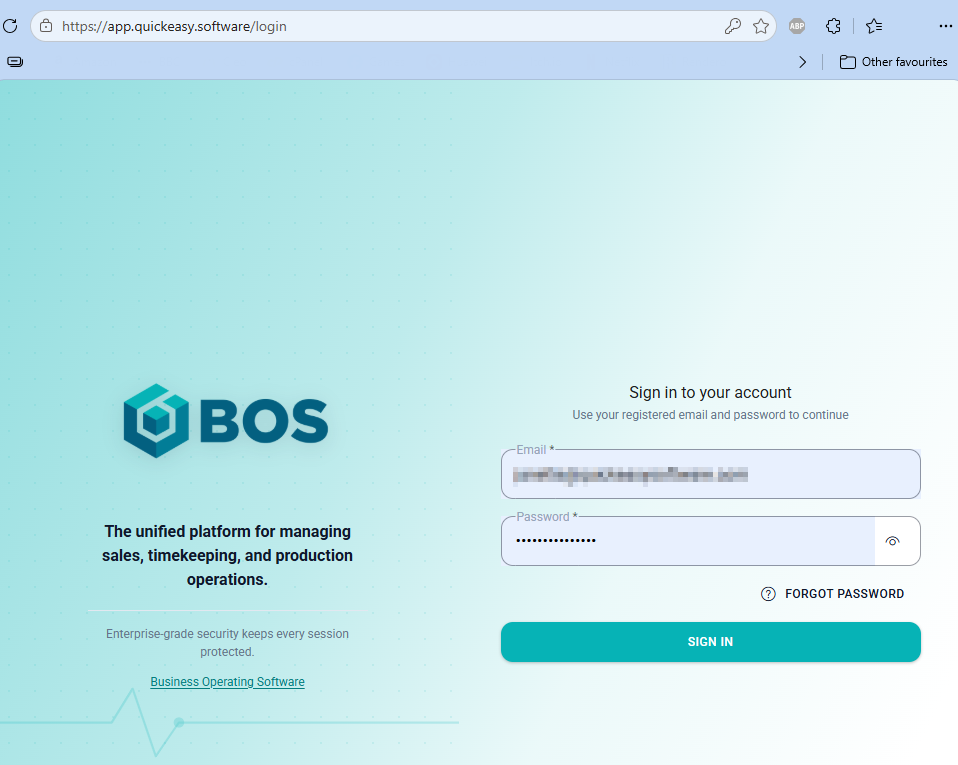
Every database uses the same login screens.
| Field / Button | Description |
|---|---|
| Enter the email address of your QuickEasy BOS user. | |
| Password | Enter your password. Tap the eye icon to show or hide the password. |
| Forgot Password | Opens the Forgot Password screen, where you can ask for a new password. |
| Sign In | Logs you in. You can also press Enter in either field. |
Change Password
The Change Password screen appears after you log in when your password must be changed, for example, the first time you log in with a password that was emailed to you.
| Field / Button | Description |
|---|---|
| New password | Enter a new password. It must contain an uppercase letter, a lowercase letter, a number and one of these characters: ! @ # $ % ^ & * ( ) , . ? " : { } | < > (the list ends with the greater-than sign). Any rule the password does not meet yet is listed under the field. |
| Verify Password | Enter the new password again. |
| Save Password | Saves the new password and logs you in. Available once both fields are filled in, the password meets every rule and the two entries match. |
Forgot Password
| Field / Button | Description |
|---|---|
| Back arrow | Returns to the login screen. |
| Enter the email address of your QuickEasy BOS user. | |
| Send New Password | Emails you a temporary password and returns to the login screen. You must change it the next time you log in. A message confirms the address it was sent to. |
Select Database
You stay logged in until you sign out, for up to seven days. After seven days, or if your session ends for another reason (e.g. you clear your browser’s cookies), a Session Expired message appears. Tap OK (button) and log in again.
If your user has access to more than one database, the Select Database window appears after you log in. If you have only one database, it opens straight away.
| Field / Button | Description |
|---|---|
| Database | Select the database to open. |
| Confirm | Opens the selected database. |
Home Screen
The user setting Mobile > Default – Timekeeping Mode (see Timekeeping Settings) is inactive in the current version of the Mobile App. Every timekeeping list has its own tile, so the setting has no effect.
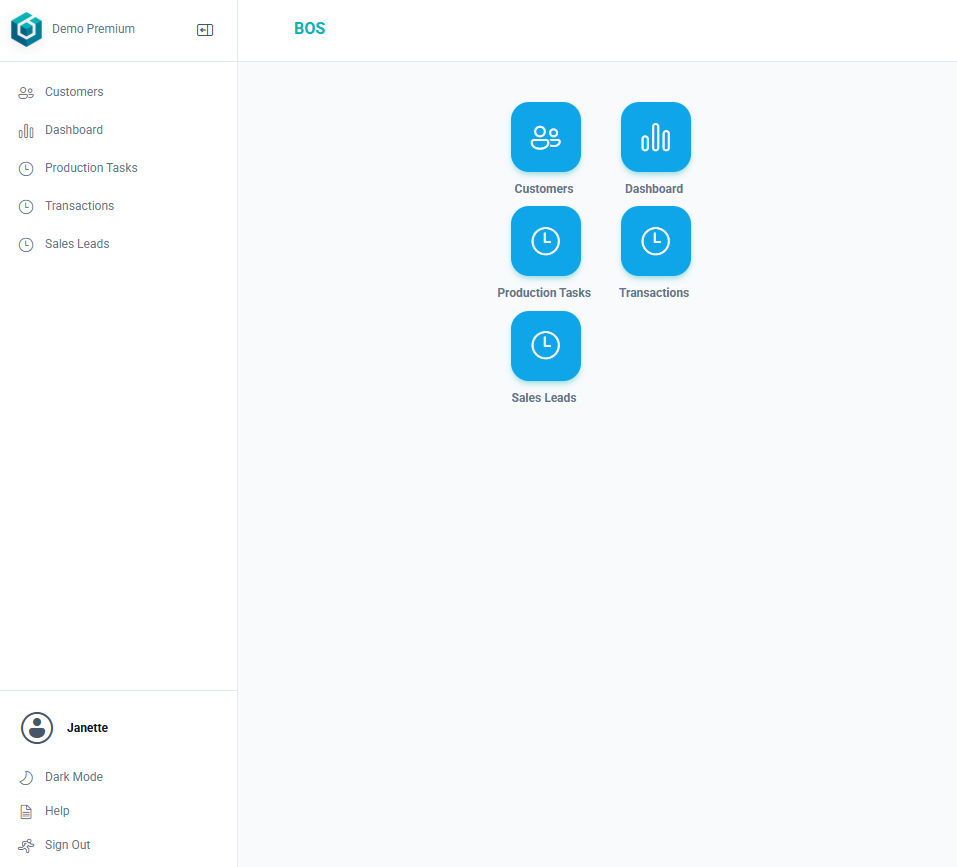
After you log in, the Home screen shows a tile for each part of the app. A red dot next to a tile’s name means a timekeeping record is running for an item on that tile.
| Tile | Description |
|---|---|
| Customers | Opens the list of customers. Only appears if your User Access to the Customers module includes View. |
| Dashboard | Opens your dashboard charts (see Dashboard below). |
| Production Tasks | Lists the production tasks for which you are the operator, to record time against them. |
| Transactions | Lists the transactions assigned to you that have timekeeping enabled, to record time against them. |
| A tile for each Service Type with projects | Named after the Service Type’s code. Lists the project tasks for which you are the resource. Appears for each Service Type with the setting Projects > Enable Projects checked. |
| A tile for each Service Type with sales | Named after the Service Type’s code. Lists the tickets assigned to you. Appears for each Service Type with the setting Sales > Enable Sales (Lead Source, Referrer, Value, Probability) checked and projects not enabled. |
The timekeeping tiles are described in Mobile App Timekeeping Interface.
Customising the Home Screen
The layout is saved in the browser on your device, so each device (and each browser) keeps its own layout. The sidebar shows the same icons as the Home screen.
If you hide every tile, the Home screen shows “Your dashboard is empty” and an Edit Layout button that opens the controls.
Press and hold the Home screen for about half a second to change its layout. These controls then appear:
| Control | Description |
|---|---|
| Items per row | Tap 1, 2 or 3 to set how many tiles appear in a row. The default is 2. |
| Drag a tile | Moves the tile to a different place. |
| × (on a tile) | Hides the tile. Hidden tiles appear under Hidden Menus (Tap + to restore). |
| + (on a hidden tile) | Shows the tile again. |
| Tap a tile | Opens the Customise Menu window, where you can change the tile’s icon (Select Icon), Icon Colour and Background Colour. |
| Reset | Restores the original tiles, order, icons, colours and 2 tiles per row. |
| Done | Saves the layout and closes the controls. |
Menu and Sidebar
On a phone (a screen up to 768 pixels wide), tap your picture or the card icon at the top right of the screen to open the menu. On a computer or a wide tablet, the same options are at the bottom of the sidebar on the left.
| Option | Description |
|---|---|
| Your user name | Shows who is logged in. |
| Dark Mode / Light Mode | Switches between a dark and a light screen. The option shows the mode you can switch to. |
| Help | Opens the online documentation in a new tab. |
| Sign Out | Logs you out of the Mobile App. You must log in again to use it. |
The bar at the top of each page shows the page’s title and, except on the Home screen and the timekeeping record screen, a back arrow that returns to the previous page.
Sidebar
On a computer or a wide tablet, the sidebar on the left lists the same tiles as the Home screen, in the same order, with the same red dot when a timekeeping record is running.
| Item | Description |
|---|---|
| Logo and database name | Returns to the Home screen. |
| Collapse icon | Narrows the sidebar to its icons. The sidebar stays narrow until you expand it again. |
| Menu icon (three lines) | Appears when the sidebar is narrow. Expands it again. |
Dashboard
To create dashboards (the charts for the Mobile App), you must have admin rights to the Users setup page. Dashboards can be copied to or created for other users.
If no charts are set up for you, the Dashboard shows No Charts Available. Ask your system administrator to set them up.
A dashboard chart is a custom report. The Mobile App runs its SQL as it is saved, so the SQL cannot use filters (parameters such as :date_start), and drilldowns are unavailable. The report needs exactly one Chart Category field and at least one Chart Series field. See Report Example – Quotations This Month.
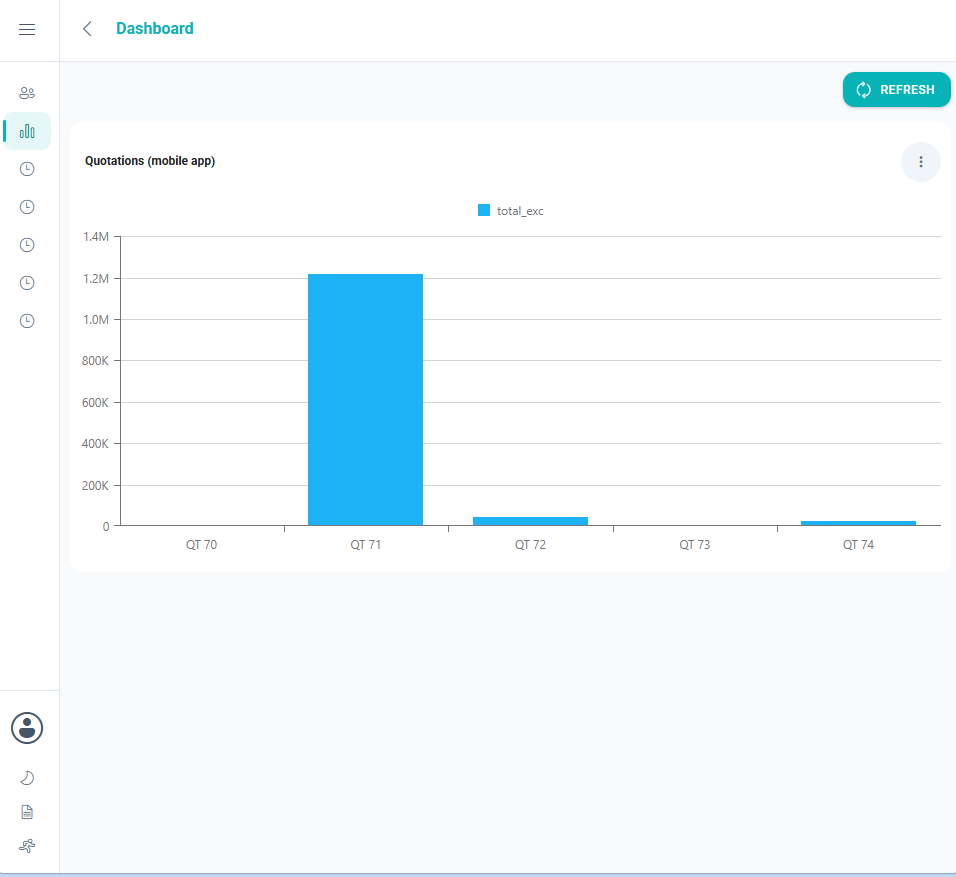
The Dashboard shows the charts that were set up for you in the desktop app under Users. Each chart loads on its own, so one slow or faulty chart does not hold up the others.
| Item | Description |
|---|---|
| Refresh | Reloads every chart. |
| Chart Type (icon on a chart) | Changes how that chart is drawn. The options are:
|