
Currency Tutorials
💡These tutorials explain how to create currencies and edit their conversion rates.
How to Create a Currency
Warning
Before you add a currency, contact QuickEasy to verify that the currency is activated on our side. Otherwise, the exchange rates are not updated.
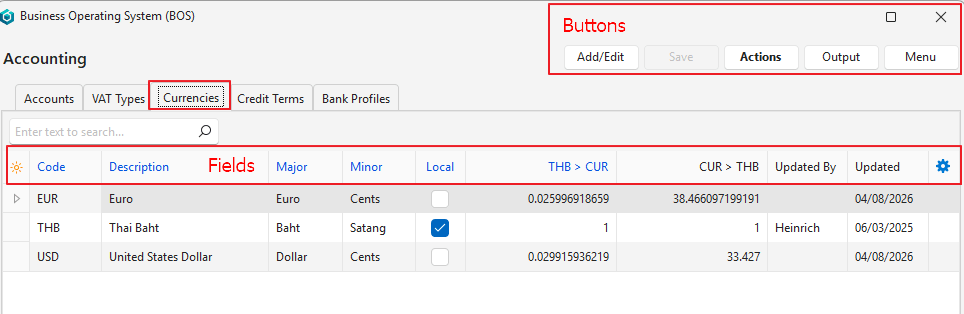
- Navigate to Currencies.
- Click Add/Edit (button).
- Click the top row and fill in the details:
- Code = Enter the recognised international currency code (e.g. ZAR, USD, THB).
- Description = Enter the name of the currency (e.g. South African Rand, Thai Baht).
- Major = Enter the official name of the notes (e.g. Rand, Baht).
- Minor = Enter the official name of the coins (e.g. Cents, Satang).
- Local = Check the box if the currency is the local currency. Only one currency can be the local currency.
- Optionally, fill in the Exchange Rates, or update the currencies as described in Step 5:
- Local Currency > Foreign Currency = Enter the Exchange Rate from the local currency to the foreign currency (e.g. 1 THB = 0.0270 Euro where THB represents the local currency).
- Foreign Currency > Local Currency = Enter the Exchange Rate from the foreign currency to the Local Currency (e.g. 1 Euro = 37.003 THB where THB represents the local currency).
- Click Save (button).
- Click Actions (button) > Update Currencies.
- Note: The Exchange Rates are filled in automatically, overwriting all the entered rates. Currencies are updated only if they are activated by QuickEasy.
How to Edit a Currency
- Navigate to Currencies.
- Click Add/Edit (button).
- Make the changes (see How to Create a Currency).
- Click Save (button).
How to Change the Local Currency
Warning
Existing transactions are not recalculated to reflect the new local currency. Reports and financial data can then show discrepancies and inaccuracies. A disclaimer with this warning appears when you select Change Local Currency.
- Navigate to Currencies.
- Click Actions (button) > Change Local Currency.
- Read the disclaimer and click OK (button).
- Local = Check the box of the new local currency.
- Click Save (button).
- Click Actions (button) > Update Currencies.
How to Change the Exchange Rate on a Transaction
Info
- Changing the rate updates the other rate (Local > Cur and Cur > Local) and recalculates the local totals of the items. This recalculation also applies to Transaction Types without a customer or supplier.
- On foreign currency items, the MU% (with a fixed sell price) and the price calculated from the cost and MU% (with a fixed cost, for example, on estimates) are converted between the local currency and the transaction’s currency.
- Item totals are rounded to the number of decimals set in the General Setting Accounting > Decimals in Currency (2 or 3).
- Transactions saved before Ver 2.5.0 keep their totals until you change the rate or an item.
- Edit a transaction in a foreign currency.
- Rate = Enter the exchange rate (in the footer, next to Currency).
- Note: The rate shown depends on the General Setting Accounting > Currency Conversion Model (local to foreign currency, or foreign to local currency). The rate is read-only on local currency transactions.
- Click Save (button).
How to Update the Currencies
Info
- Updating the currencies sets the Exchange Rates to the current exchange rates. The exchange rate of the local currency is always 1.
- Currencies are updated automatically every day. You need these steps only when you create a currency.
- Navigate to Main Menu > Setup > Items (as an example).
- Click Menu (button) > Edit Currencies.
- Click Actions (button) > Update Currencies.