
Grid View Tutorials
💡These tutorials explain how to use the context-menu grid features.
Info
The context menu commands are in US English because they come from a plugin. Other plugins (e.g. Form Designer) also use US English, whereas QuickEasy BOS uses UK English.
Column Grouping Tutorials
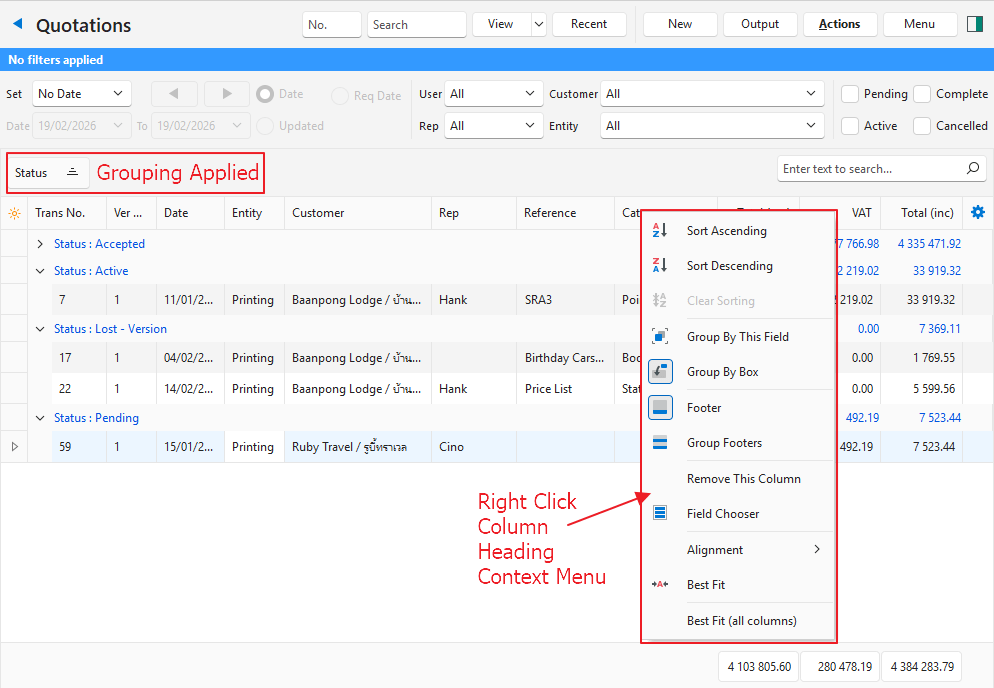
How to Group by Field
Info
- The rows in those columns become headings on the left and appear in blue (except when selected).
- The rest of the information is collapsed beneath the headings. Click the arrows (>) to expand the information. Data rows appear in black.
- The header appears in the block above the table of entries.
- Display a list of entries (e.g. transactions).
- Right-click a column header and select Group By This Field.
How to Remove Field Grouping
- After applying field grouping, right-click the heading in the block above the table and select Remove from grouping.
How to Group by Box
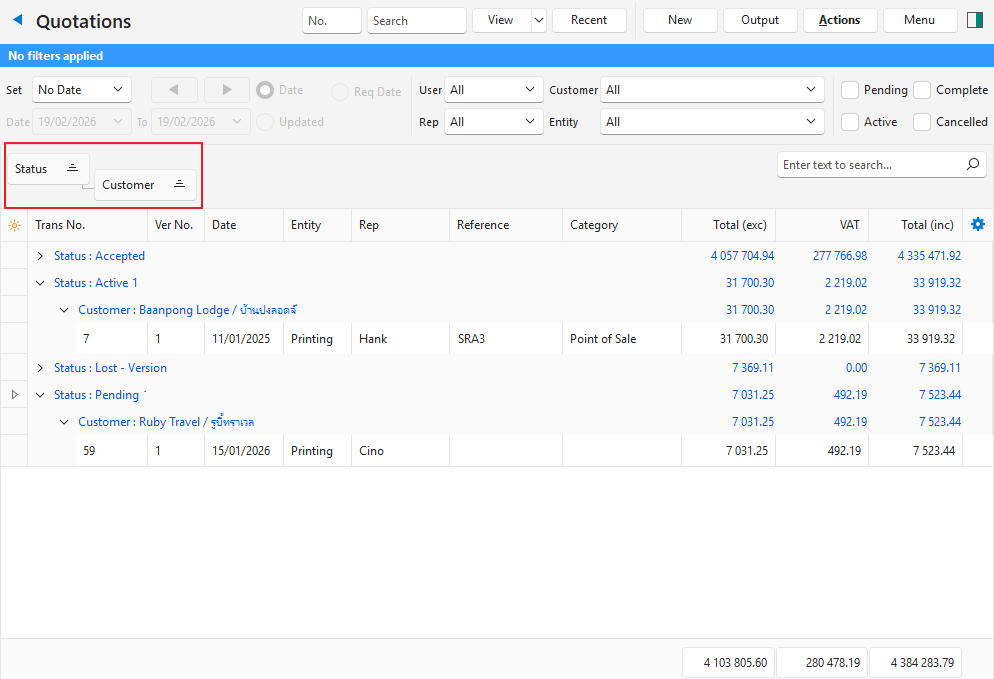
- Display a list of entries (e.g. transactions).
- Right-click a column header and select Group By Box.
- Drag the header of the column to group by onto the faint grey text “Drag a column header here to group by that column”.
- Drag any other column header onto the dragged header to add another layer of grouping.
- Note: Columns can be reordered by dragging them to a new position.
How to Remove a Single Header From Group by Box
- After applying a group-by-box filter, right-click the header you want to remove and select Remove from grouping.
How to Remove Group by Box
- After applying a group-by-box filter:
- Right-click every header in the grouping field and select Remove from grouping.
- Once all the headers are removed, right-click any header and select Group By Box to remove the light-grey text.
- Note: Before you click Group by Box, a blue box is drawn around the text. After you click it, the blue box is removed.
Troubleshooting: Group by Box Removed: Grouping Still Applied
Note
If you first remove Group by Box without removing the headers from grouping, the grouping remains even though the headers are removed.
- Right-click any field and select Group By This Field.
- Note: This action makes the headers reappear.
- Right-click every header that appears and select Remove from grouping.
- Right-click any header and select Group By Box to remove the light-grey text.