
Contacts Addresses View
The Addresses list view shows contacts with their addresses. It is one of the two list views of Contacts, the address book of your staff, customers, suppliers and other contacts (the other is the Contacts Default View).
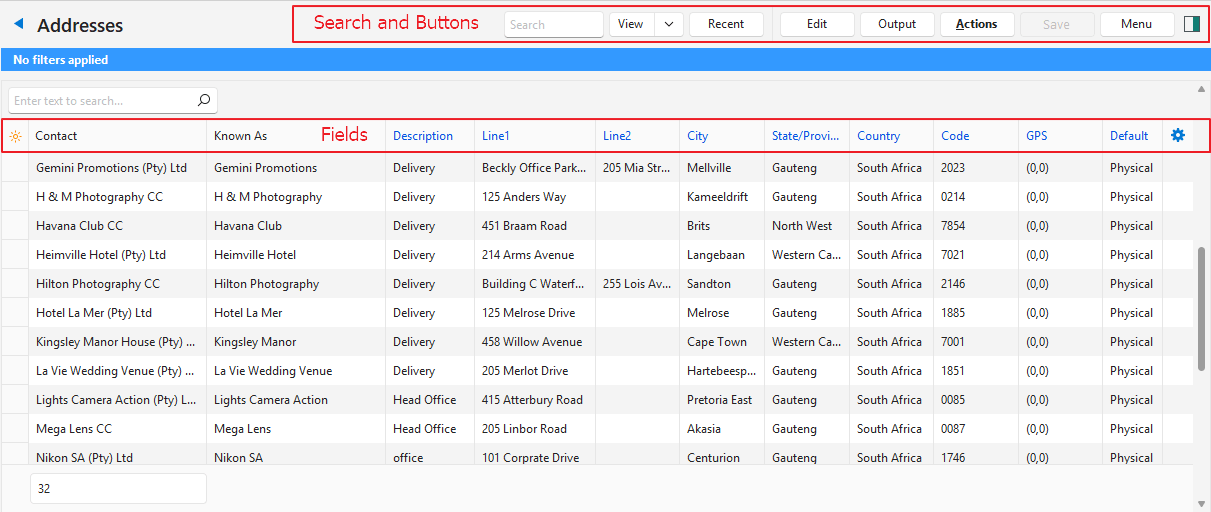
Buttons Explained
| Button | Description |
|---|---|
| View | Generates a list of entries as per the selected data filters. |
| Arrow on View Button | Reset Data Filter: Resets all the data filters. |
| Recent | A dropdown list of recently viewed records for quick access to those records. The button does not appear if there are no recent items. |
| Edit | Edits the entry. |
| Output | Prints, previews or emails the output if Output Templates are set up for the module. Export: Exports the list in .xlsx, .htm or .csv format. |
| Actions | Changes several records at once. Check the boxes of the records to update. The options are:
|
| Save | Saves any changes. |
| Menu | Views
Settings
|
Fields Explained
Info
Fields marked in blue (✎) can be edited.
| Field | Description |
|---|---|
| Field Chooser (*) | Add or remove columns. |
| ID | The system-generated number for the entry. |
| Contact | The name of the contact, which can be a person’s full name or the name of a business. |
| Known As | The person’s Nickname or the organisation’s Trade Name. |
| Description | The address’s Description. |
| Line1 | The first line of the address (e.g. unit number and building name). |
| Line2 | The second line of the address (e.g. street name and number). |
| City | The City in which the address is. |
| State/Province | The State or Province in which the address is. |
| Country | The Country in which the address is. |
| Code | The postal or zip code of the address. |
| GPS | The address’s GPS coordinates. |
| Created | The date on which the entry was created. |
| Updated | The date on which the entry was last updated. |
| Updated By | The user who last updated the entry. |
| Default | Whether the address is a default Physical, Postal or Billing address. |
 | Click the last column to show an X. Click the X to delete the entry (default addresses cannot be deleted). |