Bank Imports
Use Bank Imports to import entries that were exported from a banking app. Currently, the module speeds up the process with an interface from which you capture the entries. Only the dates and amounts are prefilled.
Before importing bank entries for the first time, complete these setup steps:
- Create and link Bank Profiles to the bank accounts.
- Add the Update Bank setting to the applicable Transaction Types (e.g. Bank Payments, Bank Receipts, Customer Receipts, Supplier Payments).
- Add the Bank module to a menu.
- Set User Access for the bank module: … Bank > Menu (button) > Edit User Access > Actions (button) > Add/Remove Users, then set each user’s access.
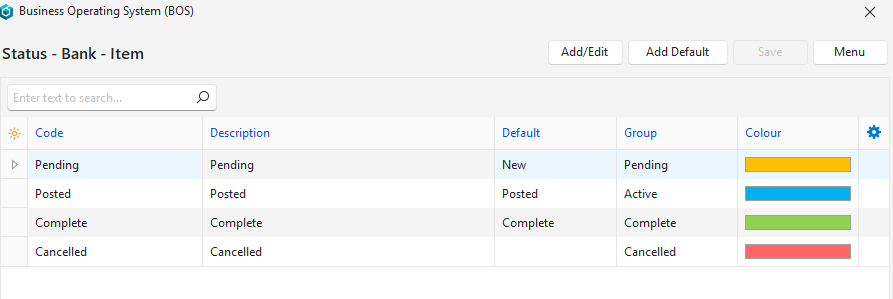
- Create statuses for the bank entries:
- … Bank > Menu (button) > Edit Statuses (Bank Header) > Add Default (button).
- … Bank > Menu (button) > Edit Statuses (Bank Item) > Add Default (button).
Bank Reconciliations and Bank Imports share the same interface, settings and statuses.
In the context of a bank import, the import is treated as a bank transaction. The header has its own status, and the imported transactions are treated as items with their own statuses.
Bank Import List View
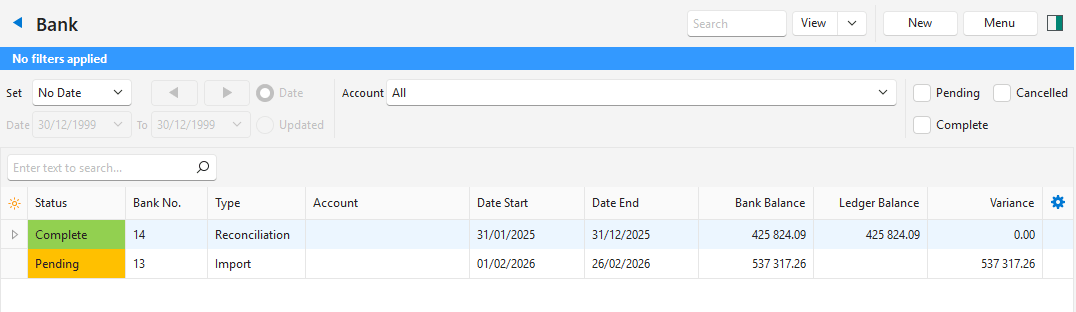
Buttons Explained
| Button | Description |
|---|---|
| View | Shows a list of bank reconciliations and imports. |
| Arrow on View button > Reset Data Filter | Resets the selected data filters. |
| New | Creates a Bank Import or Bank Reconciliation, as selected from the dropdown list. Needs header and item statuses. If either list is empty, the message “Invalid Setting Status. See Menu button > Settings > Edit Statuses (Header).” or “… Edit Statuses (Item).” appears. |
| Menu | Settings
|
Filters Explained
| Filter | Description |
|---|---|
| Set | Select a date option (No Date shows all the entries). |
| Date (radio button) | Works with the date. Shows the entries created on that date (the date on which the reconciliation or import was created). |
| Updated (radio button) | Works with the date. Shows the entries updated on that date (the date on which the reconciliation or import was updated). |
| Date | Enter your own dates. |
| Arrows | Adjusts the dates in the direction of the arrows. |
| Account | Select a bank account. |
| Status Checkboxes | Check one or more statuses to show only the entries with those statuses. If no boxes are checked, all the entries appear. |
Fields Explained
| Field | Description |
|---|---|
| Field Chooser (*) | Add or remove columns. |
| Status | The item’s status. |
| Bank No. | The system-generated number allocated to the entry. |
| Type | Whether the entry is an Import or Reconciliation. |
| Account | The name of the bank account. |
| Date Start | The start date of the reconciliation or import. After the first import, this date is set automatically to the day after the previous import ended. |
| Date End | The end date of the reconciliation or import. |
| Bank Balance | The bank balance at the end of the period. |
| Ledger Balance | The ledger balance at the end of the period. |
| Variance | The difference between the bank and ledger balances. |
| Created | The date on which the reconciliation or import was created. |
| Updated | The date on which the reconciliation or import was last updated. |
| Updated By | The user who last updated the bank reconciliation or import. |
 | A context menu with the following options:
|
Bank Import Edit View
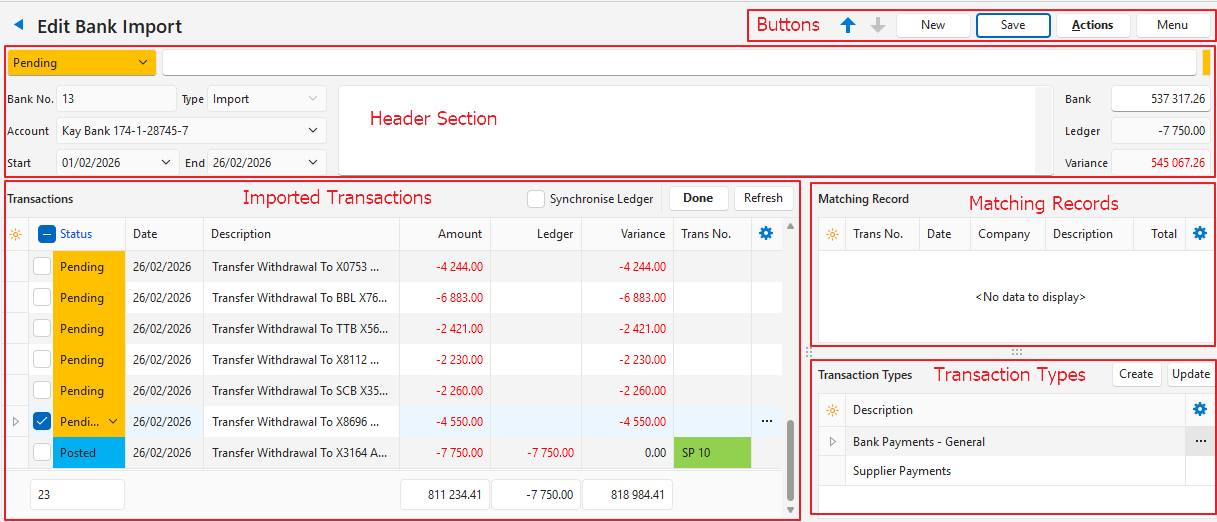
Buttons Explained
| Button | Description |
|---|---|
| Arrows | Go to the previous or next bank reconciliation or import. |
| New | Creates a Bank Import or Bank Reconciliation, as selected from the dropdown list. Needs header and item statuses. If either list is empty, the message “Invalid Setting Status. See Menu button > Settings > Edit Statuses (Header).” or “… Edit Statuses (Item).” appears. |
| Save | Saves any changes. |
| Actions |
|
| Menu | Open Ledger: Opens the transaction in the ledger, or opens the ledger interface if there is no transaction. Settings
|
Fields Explained: Header
| Field | Description |
|---|---|
| Status | Select a header status from the dropdown list. |
| Status Bar | Enter a status note. |
| Bank No. | The system-generated number allocated to the entry. |
| Type | Whether the entry is an Import or Reconciliation. |
| Account | Select a bank account from the dropdown list. Prefilled with the bank account selected when you clicked New (button). Only bank accounts with correctly completed Bank Profiles appear on the list. |
| Start | The start date of the reconciliation or import. |
| End | The end date of the reconciliation or import. |
| Note Field | Enter a note (optional). |
| Bank Balance | The balance on the imported bank statement. This field can be edited. |
| Ledger Balance | The ledger balance at the end of the period. |
| Variance | The difference between the bank and ledger balances. |
Fields Explained: Transaction Buttons
| Button / Checkbox | Description |
|---|---|
| Transactions | |
| Synchronise Ledger (checkbox) | If checked, opens the ledger transaction in the right panel. |
| Done | Changes the status of all the selected entries to Complete. Needs a default Complete item status (Menu (button) > Edit Statuses (Bank Item)). Otherwise, “Bank Items default Complete Status has not been set.” appears. |
| Refresh | Refreshes the display after transactions are created. |
| Transaction Types | |
| Create | Creates a transaction from the selected entry and Transaction Type. Unavailable for a completed entry: “The selected Bank Item has been completed.” appears. |
| Update | Opens the selected transaction if it is still active or pending. Works the same as the Create button if a transaction has not yet been created. Unavailable for a completed entry: “The selected Bank Item has been completed.” appears. |
Fields Explained: Transaction Section
Fields marked in blue (✎) can be edited.
| Field | Description |
|---|---|
| Field Chooser (*) | Add or remove columns. |
| ID | The system-generated number for the entry. |
| Status | The status of the item (bank import transaction). Item statuses are not automatically updated if a transaction is edited or deleted. |
| Bank ID | The ID of the bank import if the bank import file includes it. The field is blank otherwise. |
| Date | The date of the transaction. |
| Description | The transaction’s description. |
| Amount | The transaction amount. |
| Ledger | The ledger amount. |
| Variance | The difference between the ledger and transaction amounts. |
| Trans No. | The Transaction Type code and number. |
| Created | The date on which the entry was created. |
| Updated | The date on which the entry was last updated. |
| Updated By | The user who last updated the entry. |
| A context menu with the following options:
|
Fields Explained: Transaction Types Section
| Field | Description |
|---|---|
| Field Chooser (*) | Add or remove columns. |
| Trans Item ID | The system-generated number for the Transaction Type. |
| Description | The Transaction Type’s description. |
| A context menu with the following options:
|
Fields Explained: Matching Records Section
- Two kinds of matching records are listed for the selected entry:
- Existing transactions to link: Transactions with exactly the same date and amount that are posted to this bank account (the Transaction Type has the Update Bank setting). They are not cancelled or deleted, and are not yet linked to a bank entry.
- Previous transactions to copy: The transactions linked to the earlier bank entry with the description most similar to this entry’s description (money in or out, the same as this entry).
| Field | Description |
|---|---|
| Field Chooser (*) | Add or remove columns. |
| Trans ID | The system-generated number for the matching transaction. |
| Trans No. | The matching transaction’s Transaction Type and number. |
| Date | The date of the matching transaction. |
| Company | The customer or supplier on the matching transaction. |
| Description | The matching transaction’s description. |
| Total | The matching transaction’s total. |
| A context menu with the following options:
|
Bank Import Statuses Explained
These statuses are used for both bank imports and bank reconciliations.
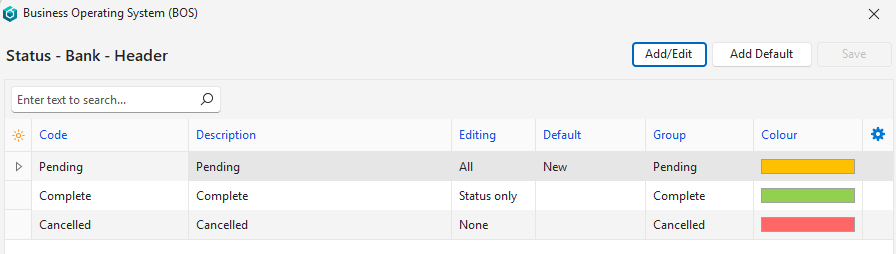
Header Statuses
- The header status controls the entire Bank Import.
- It shows whether the bank import is still being processed (Pending) or is complete (Complete).
- The New default status should be assigned to the first status (usually Pending).
Item Statuses
- The item statuses indicate whether items on the bank import are captured. They are separate from the transaction statuses.
- There are three defaults:
- New: Allocated to new entries (usually Pending).
- Posted: Set automatically when you click Create (button) and a transaction is created. Currently, this status is not reset if the transaction is cancelled: you must change it back manually.
- Complete: Set automatically when you click Done (button). Done does not work without this default. A completed entry cannot get a new or updated transaction.
- You can also change an item status manually: click the dropdown list next to the entry and select a new status.