
Service Tickets List View Interface
A service manager is a tool that manages and streamlines an organisation’s service processes. It helps you automate and track service requests, incidents, queries, changes and problems, with features for ticketing, management and reporting. It improves efficiency, reduces downtime and raises the quality of service by helping you manage, prioritise and resolve issues.
You can also use the Service Manager in QuickEasy BOS to track and follow up on leads and to manage projects.
Before you create service tickets, the Service Type must be created and added to a menu, and user access must be set.
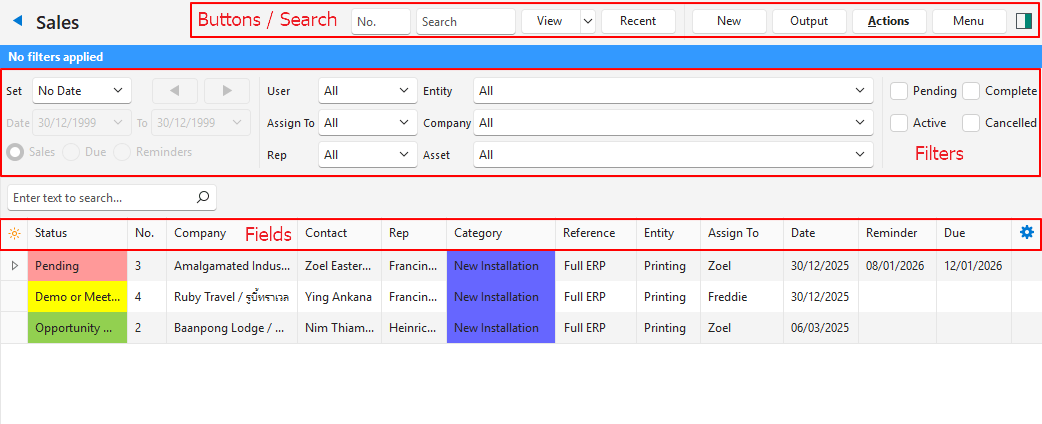
Buttons Explained
| Button | Description |
|---|---|
| View | Generates a list of entries as per the selected data filters. |
| Arrow on View Button | Includes additional view filters and an option to reset the filters:
|
| Recent | Provides links to recently viewed service tickets of the same type. |
| New | Creates a ticket. |
| Output | Prints, previews or emails the output if Output Templates are set up for the module. Export: Exports the list in .xlsx, .htm or .csv format. |
| Actions | Changes several records at once. Click Batch Update first, then check the box of each record you want to change. Batch Update: The changes are made after you click Update (button) and confirm them. The options are:
|
| Menu | Settings
|
Filters Explained
- Active filters appear in a blue bar at the top of the screen.
- The Service Type’s settings determine which filters appear (e.g. if tickets are not assigned to reps, there is no Rep filter).
| Filter | Description |
|---|---|
| Set | Select a date from the dropdown list (e.g. No Date, Today, This year). |
| Navigational Arrows | Adjusts the date in the direction of the arrow. |
| Date … to … | Select or enter your own dates. |
| Date (radio button) | Shows tickets created on the selected date. |
| Reminders (radio button) | Shows tickets with reminders for the selected date. |
| Due Date (radio button) | Shows tickets with due dates on the selected date. |
| User | Select All or a specific user from the dropdown list. |
| Rep | Select All or a specific rep from the dropdown list. |
| Entity | Select All or a specific entity from the dropdown list. |
| Assign To | Select All or a specific user from the dropdown list. |
| Company | Select All or a specific customer or supplier from the dropdown list. |
| No. | Enter a job number and click View (button) to find that job (all versions of the number in the Service Type). As on Transactions:
A job opened from a transaction link shows ID = x. |
| Asset | Select All or a specific asset from the dropdown list. Appears only if assets are enabled for the Service Type. |
| Status options | Checkboxes. Only entries with the checked statuses appear. If no boxes are checked, all the entries appear. |
Fields Explained
The available fields and their order depend on the Service Type.
| Field | Description |
|---|---|
| Field Chooser (*) | Add or remove columns. |
| ID | The system-generated number for the entry. |
| Status | The status of the ticket. |
| No. | The system-generated number allocated to the ticket. |
| From | The source of the ticket. |
| Flow | The system-generated number allocated to the related tickets. |
| Ver | The ticket’s version number. Only appears if the Service Type’s General > Enable Version Numbers setting is checked. |
| Company | The customer or supplier involved in the ticket. |
| Contact | A description of the type of contact (e.g. Customer). |
| Rep | The rep allocated to the customer. |
| Category | The ticket’s category. |
| Reference | The ticket’s reference. |
| Asset | The name of the asset. |
| Reading | The asset’s meter reading. |
| Entity | The ticket’s entity. |
| Assign To | The user to whom the service ticket is assigned. |
| Status Note | The note entered on the status bar. |
| Date Created | The date on which the ticket was created. |
| Time Created (@) | The time at which the ticket was created. |
| Date Updated | The date on which the ticket was last updated. |
| Updated By | The user who last updated the ticket. |
| Date Reminder | The date on which you want to be reminded of the ticket. |
| Time Reminder (@) | The time at which you want to be reminded of the ticket. |
| Date Due | The date on which any action is due. |
| Time Due (@) | The time by which any action is due. |
| Lead Source | The source of the ticket (referral). |
| Referred By | The user who referred the ticket. |
| Once-off | The projected once-off price the potential customer will pay. |
| Annual | The projected annual price the potential customer will pay. |
| Probability % | The probability of a successful outcome, as a percentage. |
| Open (d) | The number of days since the ticket was opened. |
| Last (d) | The number of days since the ticket was last worked on (activities added). |
 | A submenu (also opened by right-clicking the entry) with these options:
|