
Bank Reconciliations
A bank reconciliation makes sure that all the bank entries are captured correctly, by matching bank transactions to bank statement entries.
Before reconciling a bank account for the first time, complete these setup steps:
- Add the Bank module to a menu.
- Set User Access for the bank module: … Bank > Menu (button) > Edit User Access > Actions (button) > Add/Remove Users, then set each user’s access.
- Create statuses for the bank entries:
- … Bank > Menu (button) > Edit Statuses (Bank Header) > Add Default (button).
- … Bank > Menu (button) > Edit Statuses (Bank Item) > Add Default (button).
Bank Reconciliations and Bank Imports share the same interface, settings and statuses.
In a bank reconciliation, the reconciliation is treated as a bank transaction. The header has its own status, and the transactions added to the reconciliation are treated as items with their own statuses.
Transactions appear if:
- One side of their entry is posted to the selected bank account.
- The transaction has an accounting status.
Bank Reconciliations List View
Buttons Explained
| Button | Description |
|---|---|
| View | Shows a list of bank reconciliations and imports. |
| Arrow on View button > Reset Data Filter | Resets the selected data filters. |
| New | Creates a Bank Import or Bank Reconciliation, as selected from the dropdown list. Needs header and item statuses. If either list is empty, the message “Invalid Setting Status. See Menu button > Settings > Edit Statuses (Header).” or “… Edit Statuses (Item).” appears. |
| Menu | Settings
|
Filters Explained
| Filter | Description |
|---|---|
| Set | Select a date option (No Date shows all the entries). |
| Date (radio button) | Works with the date. Shows the entries created on that date (the date on which the reconciliation or import was created). |
| Updated (radio button) | Works with the date. Shows the entries updated on that date (the date on which the reconciliation or import was updated). |
| Date | Enter your own dates. |
| Arrows | Adjusts the dates in the direction of the arrows. |
| Account | Select a bank account. |
| Status Checkboxes | Check one or more statuses to show only the entries with those statuses. If no boxes are checked, all the entries appear. |
Fields Explained
| Field | Description |
|---|---|
| Field Chooser (*) | Add or remove columns. |
| Status | The item’s status. |
| Bank No. | The system-generated number allocated to the entry. |
| Type | Whether the entry is an Import or Reconciliation. |
| Account | The name of the bank account. |
| Date Start | The start date of the reconciliation or import. After the first import, this date is set automatically to the day after the previous import ended. |
| Date End | The end date of the reconciliation or import. |
| Bank Balance | The bank balance at the end of the period. |
| Ledger Balance | The ledger balance at the end of the period. |
| Variance | The difference between the bank and ledger balances. |
| Created | The date on which the reconciliation or import was created. |
| Updated | The date on which the reconciliation or import was last updated. |
| Updated By | The user who last updated the bank reconciliation or import. |
 | A context menu with the following options:
|
Bank Reconciliations Edit View
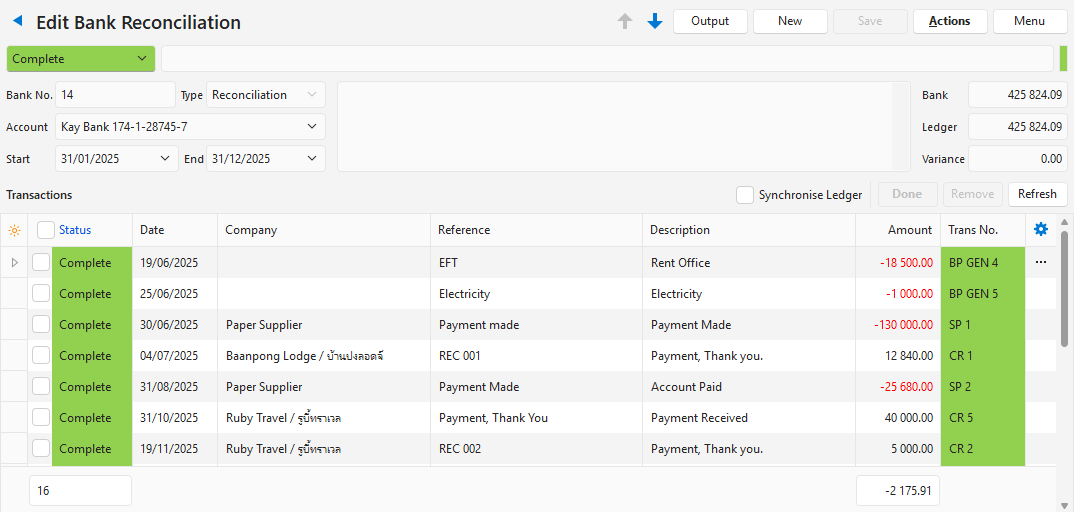
Buttons Explained
| Button | Description |
|---|---|
| Arrows | Go to the previous or next bank reconciliation or import. |
| New | Creates a Bank Import or Bank Reconciliation, as selected from the dropdown list. Needs header and item statuses. If either list is empty, the message “Invalid Setting Status. See Menu button > Settings > Edit Statuses (Header).” or “… Edit Statuses (Item).” appears. |
| Save | Saves any changes. |
| Output | Print, Preview and Email: Output the bank reconciliation with the Output Templates of the module Bank Reconciliation (Settings > Output Templates). Unsaved changes are saved when the Output menu opens. |
| Actions |
|
| Menu | Open Ledger: Opens the transaction in the ledger, or opens the ledger interface if there is no transaction. Settings
|
Fields Explained: Header
| Field | Description |
|---|---|
| Status | Select a header status from the dropdown list. |
| Status Bar | Enter a status note. |
| Bank No. | The system-generated number allocated to the entry. |
| Type | Whether the entry is an Import or Reconciliation. |
| Account | Select a bank account from the dropdown list. Prefilled with the bank account selected when you clicked New (button). Only bank accounts with correctly completed Bank Profiles appear on the list. |
| Start | The start date of the reconciliation or import. |
| End | The end date of the reconciliation or import. |
| Note Field | Enter a note (optional). |
| Bank Balance | The balance on the imported bank statement. This field can be edited. |
| Ledger Balance | The ledger balance at the end of the period. |
| Variance | The difference between the bank and ledger balances. |
Buttons Explained: Transactions
| Button / Checkbox | Description |
|---|---|
| Transactions | |
| Synchronise Ledger (checkbox) | If checked, opens the ledger transaction in the right panel. |
| Done | Changes the status of all the selected entries to Complete. Needs a default Complete item status (Menu (button) > Edit Statuses (Bank Item)). Otherwise, “Bank Items default Complete Status has not been set.” appears. |
| Remove | Removes all the selected entries. You can add these entries again with Actions (button) > Insert/Update Bank Transactions. |
| Refresh | Refreshes the display after transactions are created. |
Fields Explained: Transactions
Fields marked in blue (✎) can be edited.
| Field | Description |
|---|---|
| Field Chooser (*) | Add or remove columns. |
| ID | The system-generated number for the entry. |
| Status | The item’s status (each transaction is an item on the bank reconciliation). Item statuses are not automatically updated if a transaction is edited or deleted. |
| Date | The date of the transaction. |
| Company | The name of the customer or supplier. |
| Reference | The transaction’s reference. |
| Description | The transaction’s description. |
| Amount | The transaction amount. |
| Trans No. | The Transaction Type code and number. |
| Created | The date on which the entry was created. |
| Updated | The date on which the entry was last updated. |
| Updated By | The user who last updated the entry. |
| A context menu with the following options:
|