Production Planning Setup
- Production planning is activated per Transaction Type on the Settings tab.
- Organisations with multiple departments or processes can create multiple Work Order Transaction Types and activate production planning for each one.
- Each Work Order Transaction Type has its own production planning board.
- A single Work Order can contain multiple items that must be produced. The production planning module separates the jobs and tasks for each item that is part of an estimate.
- The expected transaction flow is Quotation > Sales Order > Work Order. However, you can also create Work Orders directly.
- Behind the scenes, planning fields are integrated into the materials and routing sections (tasks and outwork) of estimates.
- Use the production views on the Work Order Menu (button) to manage outwork, materials, services and timekeeping.
These setup steps tell QuickEasy BOS which modules and Transaction Types to use in production. You can include this setup when you set up the Transaction Types.
Organogram
- This organogram shows the transactions that apply to production.
- Transaction Types must be created for every stage (black text).
- Transactions can be copied from one stage to the next. Copy Rules manage the copying.
- The Resolve options (red text) manage inventory items and ensure items are correctly copied from one transaction to the next.
- Organisations may streamline the process and remove the inventory movement transactions if they are not required.
Key:
- Black: Transaction
- Red: Resolve options
- Blue/Green: Explanation
Setting Up Transaction Types for Production
Step 1: Create Transaction Types
These Transaction Types are needed:
- Work Orders
- Purchase Orders
- Goods Received
- Goods Issued
Add these settings to them on the Settings tab:
| Setting | Value | Applicable to which Transaction Type | Explanation |
|---|---|---|---|
| Estimating > Enable Estimating | Production (Tasks, Materials & Outwork) | Work Orders | Selecting a Production option enables the planning board. The four options decide which production views are used:
Jobs and Tasks are always shown; the Materials and Outwork buttons, menus and statuses appear only when the option includes them. If you create more than one Work Order Transaction Type, you can activate production planning for each one. |
| Production > Transaction – Goods Issues | Checked | Goods Issued | Use the production module to create transactions for inventory transfers. This Transaction Type is used when goods are issued to production or customers. This default applies to all Goods Issued transactions created from production planning. |
| Production > Transaction – Purchase Orders | Checked | Purchase Orders | Use the production module to create purchase orders for goods or services provided by third parties. This Transaction Type is used for purchase orders. This default applies to all purchase order transactions created from production planning. If you prefer, you can create a separate purchase order Transaction Type for production planning. |
| Inventory > Enable Resolves | Purchase On Order | Work Orders | Items on Work Orders with the resolve Purchase are copied to Purchase Orders. Finished goods on Work Orders with the resolve On Order are copied to Goods Received. Production planning includes other resolves that are specific to the module and not affected by your selection here. |
| Inventory > Enable Resolves | Issue | Goods Issued | Makes sure the correct items are copied. |
| Inventory > Enable Resolves | Reserve | Purchase Orders | Makes sure the correct items are copied. |
Step 2: Create Copy Rules
The transactions above are created by copying the Work Orders, so create these Copy Rules on the Work Order Transaction Type’s Copy Rules tab:
- Work Orders to Purchase Orders (Materials): Used when items are materials and their Resolve is Purchase.
- Work Orders to Purchase Orders (Outwork): Used when items are outwork and their Resolve is Purchase.
- Work Orders to Goods Received (Produced): Used to receive finished items (production is complete and the items are made) when their Resolve is On Order.
- Work Orders to Goods Returned: Used to return unused raw materials to stock.
Step 3: Create Statuses for Production
These menu options appear only after you select a Production option for the setting Estimating > Enable Estimating and click Save (button).
For each of these, add the default statuses and edit them if needed:
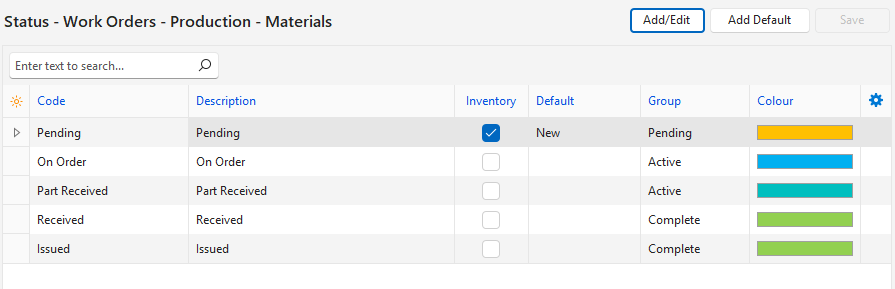
- Main Menu > Setup > Transaction Types > Double-click the Work Order Transaction Type > Menu (button) > Edit Statuses (Production Materials).
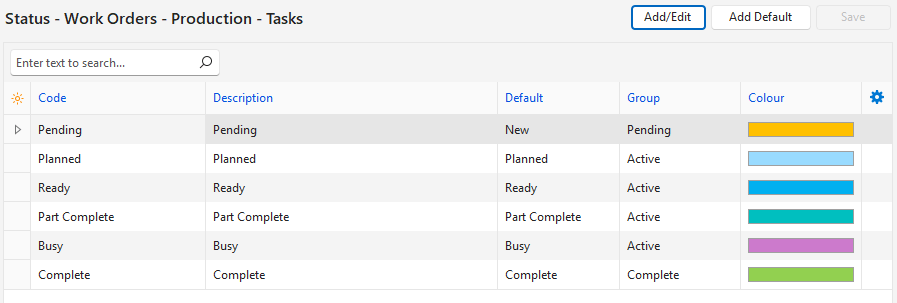
- Main Menu > Setup > Transaction Types > Double-click the Work Order Transaction Type > Menu (button) > Edit Statuses (Production Tasks).
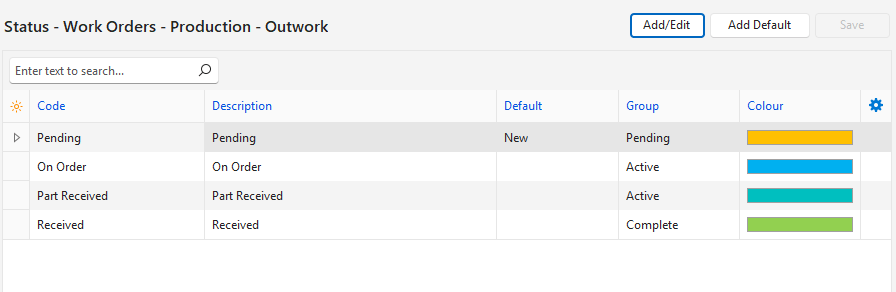
- Main Menu > Setup > Transaction Types > Double-click the Work Order Transaction Type > Menu (button) > Edit Statuses (Production Outwork).