
Item Summary
- An Item Summary shows an item’s stock at each location. The summary applies only to items that were pre-created (not custom items). For the selected location, the View button offers these views:
- Movement
- Reserved
- On Order
- Price History
- Serial Numbers
- Batches
- The summary opens in a separate panel on the right.
- You can view the summary from these modules:
- Items: List and Edit Views.
- Transactions: Edit and Items Views.
- Transactions > Estimate > Costs (tab): Either a Material or Routing entry that is a pre-created item.
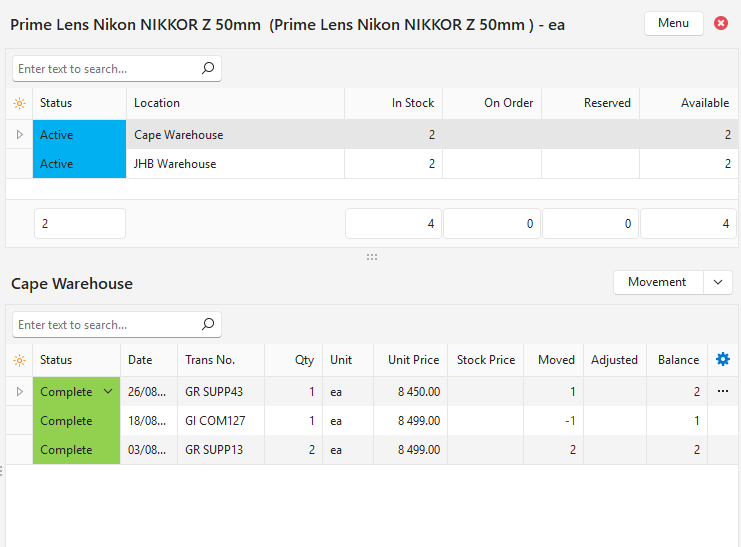
Top Section: Shows the item’s description, its code in brackets and its base unit.
Buttons Explained
| Button | Description |
|---|---|
| Menu |
|
| x | Closes the Item Summary. |
Item Stock Summary: Fields Explained
- The top section shows a summary of the stock on hand and related transactions. There is an entry for every location. If there is no stock on hand, there are no entries.
- Fields marked in blue (✎) can be edited.
- Since Ver 2.5.0, Reserved and On Order follow the transaction flow. After the upgrade to Ver 2.5.0, run Rebuild Inventory Report once (Items module, Actions button), so that the quantities of existing transactions follow the flow too.
| Field | Description |
|---|---|
| ID | The system-generated number for the entry. |
| Status (Location) | The status of the stock location (that is, the entity’s status). |
| Location | The location of the stock. |
| Min Qty | The minimum quantity to keep in stock, as entered on the item’s Inventory tab. |
| In Stock | The quantity currently in stock. |
| On Order | The quantity ordered but not yet received. Goods Received anywhere in the same transaction flow reduce it, for example, when a Purchase Order is copied to Goods Received in several steps. |
| Reserved | The quantity reserved. Issues anywhere in the same transaction flow reduce it, for example, Sales Order (reserve) → Delivery Note → Invoice (issue) clears the reservation. Production material reservations work as before. An item issued in a larger quantity than was reserved does not lower the reserved quantity of other transactions. |
| Available | The quantity available. |
| Cost Price | The item’s Cost Price in local currency per base unit. |
| Stock Price | The Stock Price entered for the location on the item’s Inventory tab. If the General Setting Inventory > Auto Update Stock Price (Weighted Average) is checked, BOS keeps it up to date as a weighted average (see Item Prices Explained). |
| Value | The value of the stock on hand (In Stock x Stock Price, or x Cost Price if no stock price is entered). |
| Created | The date on which the entry was created. |
| Updated | The date on which the entry was updated. |
| Updated By | The user who last updated the entry. |
Location Summary
- The bottom section shows the transactions that affected inventory, and the serial numbers or batches, for the location selected in the top section.
- By default, it shows the first location. Click a location in the top section to switch. The bottom section’s heading shows the selected location.
View (button)
- The View button is on the right of the selected location’s name. It shows the name of the current view (for example, Movement) with an arrow next to it.
- Click the button and select a view from the menu. The menu marks the selected view with a tick.
| Option | Description |
|---|---|
| Movement | Shows all the stock movement transactions (e.g. issued or received stock), newest first. Selected by default. |
| Reserved | Shows all the transactions that reserve the stock item (e.g. Sales Orders). |
| On Order | Shows all the transactions that order the stock item (e.g. Purchase Orders or Work Orders). |
| Price History | Shows all the transactions or entries that affected the Stock Price (e.g. changes to the price on the item’s Inventory tab, or weighted average updates). |
| Serial Numbers | Shows the item’s serial numbers at the selected location. Appears only if Inventory > Enable Tracking is set to Serial Numbers on at least one Transaction Type. |
| Batches | Shows the item’s batches at the selected location. Appears only if Inventory > Enable Tracking is set to Batches on at least one Transaction Type. |
Movement Fields Explained
- The Movement view shows the transactions that changed the quantity in stock, newest first. The Balance is still worked out from the oldest movement.
- The Unit Price of each row is compared with its Stock Price. The Unit Price is red on an issue (negative quantity) when it is not equal to the Stock Price, and on stock received (positive quantity) when it differs by more than 10% from the Stock Price. Rows without a Unit Price or Stock Price (adjustments only, Production Materials) are not checked.
- When any row is red, a warning bar above the grid shows “Issued Unit Price does not match the Stock Price”, “Received Unit Price differs from the Stock Price by more than 10%” or both.
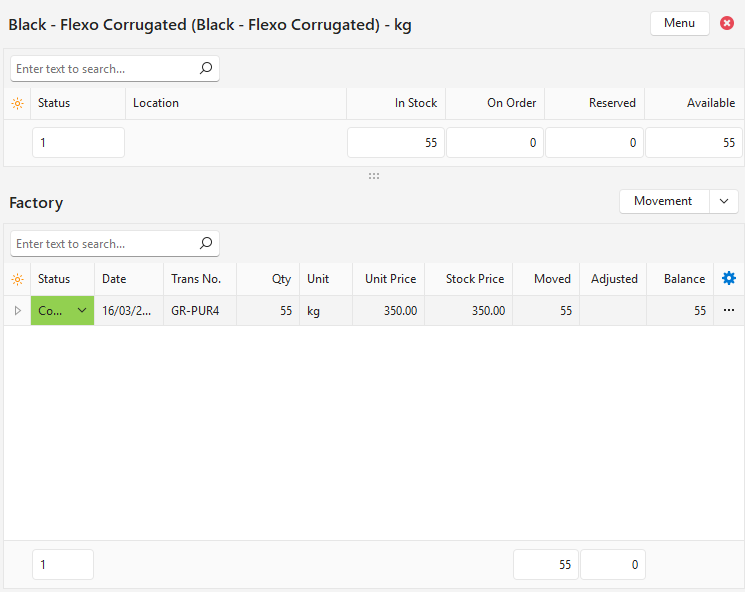
| Field | Description |
|---|---|
| ID | The system-generated number for the entry. |
| Trans Item ID | The system-generated number for the transaction item. |
| Trans ID | The system-generated number for the transaction. |
| Status | The status of the transaction. |
| Date | The date of the transaction. |
| From | The source transaction. |
| Trans No. | The transaction number. |
| Reference | The transaction reference. |
| Description | The transaction description. An entry with a batch number or serial numbers shows them after the description, for example, Item Batch 1 - B001. Several serial numbers are listed on one line, for example, Item - SN1, SN2. |
| Qty | The quantity on the transaction entry, in the entry’s unit. |
| Unit | The unit of the transaction entry. |
| Unit Price | The transaction entry’s price excluding VAT, in local currency, per base unit. Empty on Production Materials entries. |
| Stock Price | The Stock Price of the location after the movement: the last Manual or Weighted Average price on or before the movement date. |
| Moved | The quantity of stock that was moved. |
| Adjusted | The quantity of stock that was adjusted. |
| Balance | The quantity of stock on hand. |
| Created | The date on which the entry was created. |
| Updated | The date on which the entry was updated. |
| Updated By | The user who last updated the entry. |
 | A menu with the following option (also available when you right-click the entry):
|
Reserved Fields Explained
The Reserved view shows the transactions that reserve the stock (e.g. Sales Orders), oldest first.
| Field | Description |
|---|---|
| ID | The system-generated number for the entry. |
| Trans Item ID | The system-generated number for the transaction item. |
| Trans ID | The system-generated number for the transaction. |
| Status | The status of the transaction. |
| Date | The date of the transaction. |
| From | The source transaction. |
| Trans No. | The transaction number. |
| Reference | The transaction reference. |
| Description | The transaction description. |
| Reserved | The quantity of stock that is reserved. |
| Issued | The quantity of stock that was issued. |
| Total | The total stock that is either reserved or issued. |
| Created | The date on which the entry was created. |
| Updated | The date on which the entry was updated. |
| Updated By | The user who last updated the entry. |
| A menu with the following option (also available when you right-click the entry):
|
On Order Fields Explained
The On Order view lists the transactions that order the stock item (e.g. Purchase and Work Orders), oldest first.
| Field | Description |
|---|---|
| ID | The system-generated number for the entry. |
| Trans Item ID | The system-generated number for the transaction item. |
| Trans ID | The system-generated number for the transaction. |
| Status | The status of the transaction. |
| Date | The date of the transaction. |
| From | The source transaction. |
| Trans No. | The transaction number. |
| Reference | The transaction reference. |
| Description | The transaction description. |
| On Order | The quantity ordered. |
| Received | The quantity received. |
| Total | The quantity still outstanding. |
| Created | The date on which the entry was created. |
| Updated | The date on which the entry was updated. |
| Updated By | The user who last updated the entry. |
| A menu with the following option (also available when you right-click the entry):
|
Price History Button Explained
| Button | Description |
|---|---|
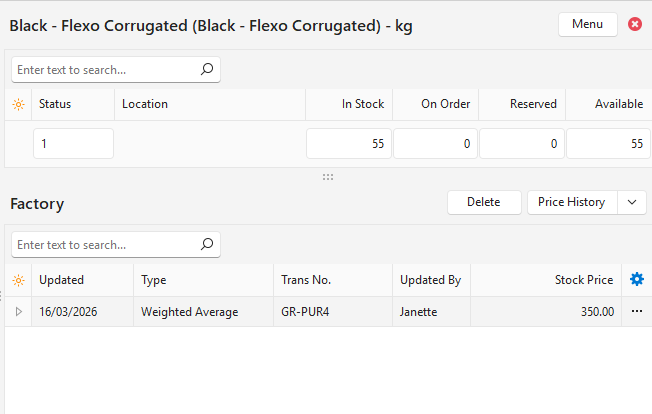
| Delete | Deletes the selected rows (select several rows to delete them together). Only the history rows are deleted; the current Stock Price is not changed. Appears on the left of the View button, in the Price History view only. |
Price History Fields Explained
- The Price History view shows changes to the Stock Price: a stock price entered on the item’s Inventory tab (or with Batch Update), and the weighted average updates when the General Setting Inventory > Auto Update Stock Price (Weighted Average) is checked. It does not show changes to cost, supplier or sell prices.
- For a backdated transaction, BOS works out the weighted average again from the last Manual or Weighted Average row before its date. A Stock Price set without a history row (for example, imported) is not used as the starting price.
| Field | Description |
|---|---|
| ID | The system-generated number for the entry. |
| Item Stock ID | The system-generated number for the stock entry. |
| Updated | The date on which the entry was updated. A Weighted Average row is dated the day of the movement. |
| Type | How the Stock Price was set:
|
| Trans No. | For a Weighted Average row, the transactions of that day that changed the average, several joined by “, ”. These are stock received or positive adjustments with a price (not customer returns), and supplier returns with a price. Blank on Manual rows. |
| Updated By | The user who last updated the entry. |
| Stock Price | The Stock Price after the change. |
| A menu (also available when you right-click the entry) with one Open Transaction entry for each transaction of the row (No Transaction when there is none). Double-clicking the row opens the first transaction. |
Filters Explained: Serial Numbers and Batches
The In Stock and Complete options appear below the View button in the Serial Numbers and Batches views only.
| Filter | Description |
|---|---|
| In Stock | Shows the serial numbers or batches that are in stock at the location. Selected by default. A serial number is in stock if the last transaction that moved it received it. A batch is in stock if its Balance is more than zero. |
| Complete | Shows the serial numbers or batches that were issued at the location. A serial number is complete if the last transaction that moved it issued it. A batch is complete if its Balance is zero or less. |
Serial Numbers Fields Explained
- The Serial Numbers view lists the item’s serial numbers at the selected location, with the last transaction that received each one and the last transaction that issued it.
- Only transactions with a status that affects inventory are included. Cancelled and deleted transactions are not included.
- Double-click a serial number to open the transaction that received it.
| Field | Description |
|---|---|
| Serial No. | The serial number. The footer shows the number of serial numbers listed. |
| Received | The last transaction that received the serial number (the Transaction Type’s code and the transaction number). The cell is coloured by the status of the transaction. |
| Date Received | The date of the last transaction that received the serial number. |
| Issued | The last transaction that issued the serial number. Blank if the serial number was not issued. The cell is coloured by the status of the transaction. |
| Date Issued | The date of the last transaction that issued the serial number. |
| Trans ID (Received) | The system-generated number for the last transaction that received the serial number. |
| Trans ID (Issued) | The system-generated number for the last transaction that issued the serial number. |
| A menu with the following options (also available when you right-click the entry):
|
Batches Fields Explained
- The Batches view lists the item’s batches at the selected location, with the quantities received and issued, and the last transaction that received and issued each one. A batch held at more than one location appears in the Item Summary of each location.
- Stock Adjustment entries count in the batch balances: a positive adjustment as received and a negative adjustment as issued.
- The quantities are in the item’s base unit. If one entry has more than one batch, its quantity is split evenly between the batches.
- Only transactions with a status that affects inventory are included. Cancelled and deleted transactions are not included.
- Double-click a batch to open the transaction that received it.
| Field | Description |
|---|---|
| Batch No. | The batch number. The footer shows the number of batches listed. |
| Base Unit | The item’s base unit. |
| Qty Received | The total quantity of the batch received, in the base unit. |
| Qty Issued | The total quantity of the batch issued, in the base unit. |
| Balance | The quantity of the batch left (Qty Received less Qty Issued). A negative balance appears in red. The footer shows the total. |
| Received | The last transaction that received the batch (the Transaction Type’s code and the transaction number). The cell is coloured by the status of the transaction. |
| Date Received | The date of the last transaction that received the batch. |
| Issued | The last transaction that issued the batch. Blank if the batch was not issued. The cell is coloured by the status of the transaction. |
| Date Issued | The date of the last transaction that issued the batch. |
| First Received | The date of the first transaction that received the batch. |
| Trans ID (Received) | The system-generated number for the last transaction that received the batch. |
| Trans ID (Issued) | The system-generated number for the last transaction that issued the batch. |
| A menu with the following options (also available when you right-click the entry):
|