
Price Lists
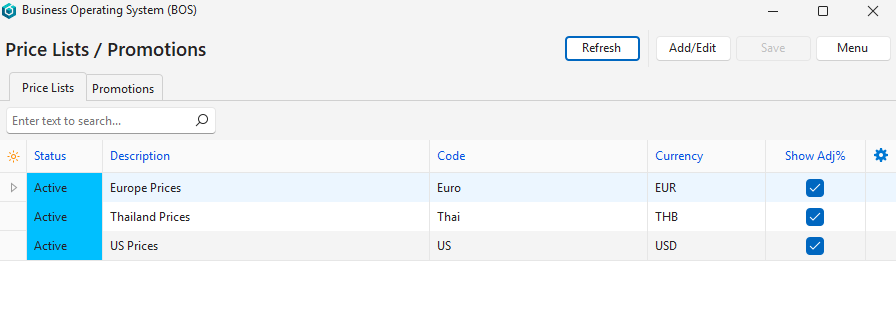
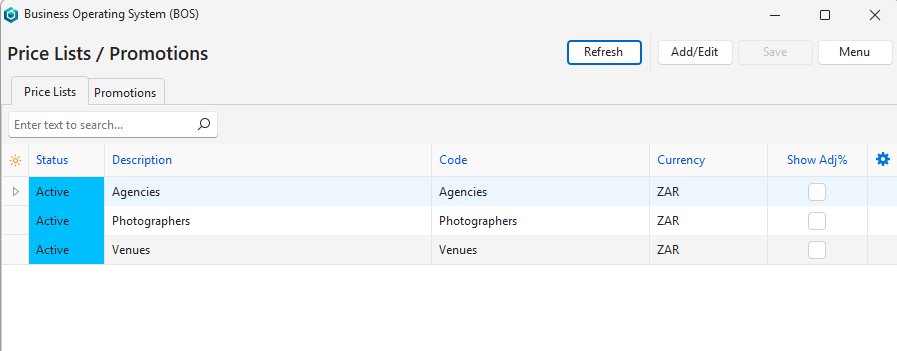
- Price lists let you set different prices for customers based on specific criteria. For example, you can set different prices for retail and wholesale customers. Alternatively, you can use Price Lists to give a class of customers a discount or to implement regional pricing.
- You may create as many Price Lists as you need.
- Price lists affect the sell prices on transactions like quotations and customer invoices. They are set across two modules:
- Customers:
- They are added to customer records as part of the customer’s attributes.
- Customers can be linked to one Price List only.
- The Price List must match the customer currency.
- Items:
- The Price List prices are added to an item in the same way a Supplier, Cost, or Sell Price is added.
- The Price From field only displays selling prices in the same currency and unit.
- The currency field on the Price List items appears read-only.
- The Status is derived from the Price List. Only Active prices may be used.
- Price list prices can be managed in bulk from the Items > Pricing view.
- Customers:
- A Price List that is not Active is ignored, and all items use the Sell Price, also the items added from a Proposal.
- With the Transaction Type Pricing option Sell Price (Any Currency), the customer’s Price List is used too, with prices in any currency (a Price List price in another currency is used before the Sell Price). Items added from a Proposal follow this option as well.
- When the customer has a Price List and the Transaction Type uses the Sell Price, Add Items shows a box named after the Price List code (its description when it has no code), checked when the window opens and on Reset. It works as follows:
- Checked: Only the items with a Price List price are listed.
- Unchecked: Every item is listed. An item with a Price List price shows that price only, and an item without one (or with only an inactive Price List price, or one in another currency) shows its Sell Price.
- The Promotions tab on the same screen adds discounts for a set period (see Promotions (tab)).
Promotions (tab)
- The Promotions tab of the Price Lists / Promotions screen gives customers a discount over a set period, without reloading Price Lists or entering discounts on transactions.
- Each promotion covers the customer categories and the items you select.
- While a promotion is Active and the transaction date is from its start date to its end date, every item added to a transaction priced at the Sell Price (Transaction Type Pricing = Sell Price or Sell Price (Any Currency)) gets the promotion discount (Disc%) when the customer is in one of its categories and the item is one of its items. Other customers, items and Transaction Types are not affected.
- Price Lists/Promotions can also be added to a menu (Setup menu); it opens for users with Admin Setup user access.
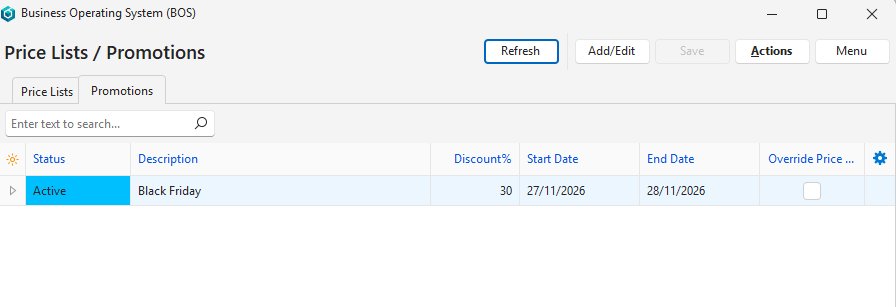
Buttons Explained
| Button | Description |
|---|---|
| Refresh | Updates the list with any changes made. |
| Add/Edit | Lets you add a promotion or edit the promotions. |
| Save | Saves any changes. |
| Actions | Set Expired Promotions: Sets every promotion with an end date before today to Expiry, after a confirmation. |
| Menu | Layout |
Fields Explained
Edit Customer Categories and Edit Items windows: Move the customer categories or items from the Available list to the Selected list. Each list has a Find box, and a selected item stays selected when the search hides it. The Edit Items list also has a Categories column next to the Description (the item categories with their parent category, several separated by commas; blank when the item has none), and its Find box also finds items by category. Both windows have Prev / Next buttons to move to the previous or next promotion without closing the window (changes are saved first), and Save keeps the window open.
| Field | Description |
|---|---|
| Field Chooser (*) | Add or remove columns. |
| ID | The system-generated number for the promotion. |
| Status | Select a status:
|
| Description | Enter a description for the promotion. |
| Discount% | Enter the promotion percentage (for example, 10 for 10%). |
| Start Date | Select the first date of the promotion (the transaction date is compared with it). |
| End Date | Select the last date of the promotion. |
| Override Price List | A checkbox.
|
| Customer Categories | The customer categories the promotion covers. Click the three dots (…) to select them, or right-click the promotion and select Edit Customer Categories. |
| Items | The items the promotion covers. Click the three dots (…) to select them, or right-click the promotion and select Edit Items. |
| Created | The date on which the promotion was created. |
| Updated | The date on which the promotion was last updated. |
| Updated By | The user who last updated the promotion. |
 | A submenu, which can also be opened by right-clicking the promotion, with these options:
|
How Promotions Are Applied
For an item with a Sell Price of R100 and a customer Price List price of R90, with a 10% promotion:
| Case | Item Price |
|---|---|
| Override Price List checked | The Price List is ignored: R100 less 10% = R90. |
| Override Price List unchecked | The promotion is added to the Price List discount: R100 less 20% = R80. |
| A customer without a Price List | R100 less 10% = R90. |
- With a promotion, the entry’s Unit Price is the Sell Price and Disc% shows the whole discount, also for a Price List without Show Adj%.
- When two promotions apply to the same entry, the higher % applies. They are never added up.
- An entry’s discount is never more than 100%.
- Free delivery: A 100% promotion with Override Price List checked on the delivery item brings the delivery entry to R0.
- Transactions already captured are not changed when a promotion starts or ends.
- A copied entry keeps the discount of the entry it was copied from. Changing the unit of an entry applies the promotion again.
- Promotions are listed only on the Promotions tab. The item list views (including the Pricing View) and the customer views have no promotion column, and a transaction entry shows only the discount in Disc%, not the name of the promotion.
- A promotion with a Discount% of 0 is not applied.