
Batch Updates Tutorials
💡These tutorials explain how to change several records at once with a batch update, such as the status of inventory items.
Info
You can change multiple records at once with a function named Batch Updates.
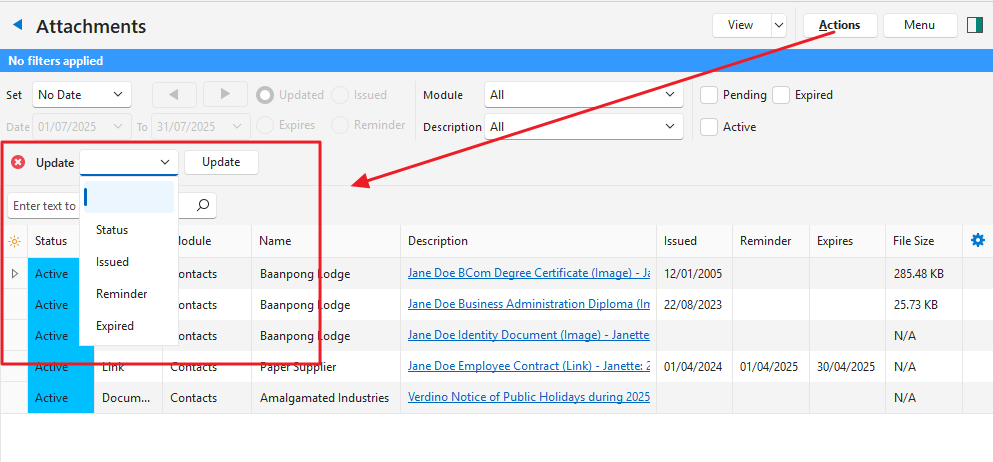
On reports (list views), batch updates are under Actions (button) > Batch Update, which opens a dropdown list on the right.
On service tickets, batch updates appear above the project details.
How to Use Batch Updates
Info
This example uses the Batch Update feature to change the status of inventory items.
- Navigate to Items (Main Menu > Setup > Items).
- Click Actions (button) > Batch Update.
- Select the applicable items.
- Note: Use Ctrl + left-click to select multiple random items or Shift + left-click to select multiple continuous items.
- From the Batch Update dropdown list, select Status.
- From the newly opened Status dropdown list, select a new status (e.g. Pending).
- Click Update (button).
- Confirm the update on the popup.