
Transactions List View Interface
The list view lists the transactions with details such as the status, date, customer or supplier, and the amounts. It has two views: Transactions, which lists only the transaction totals, and Items, which lists every item on the transactions. Transactions are captured in the Edit View.
The available columns and filters depend on the setup of the Transaction Type.
List View: Transactions
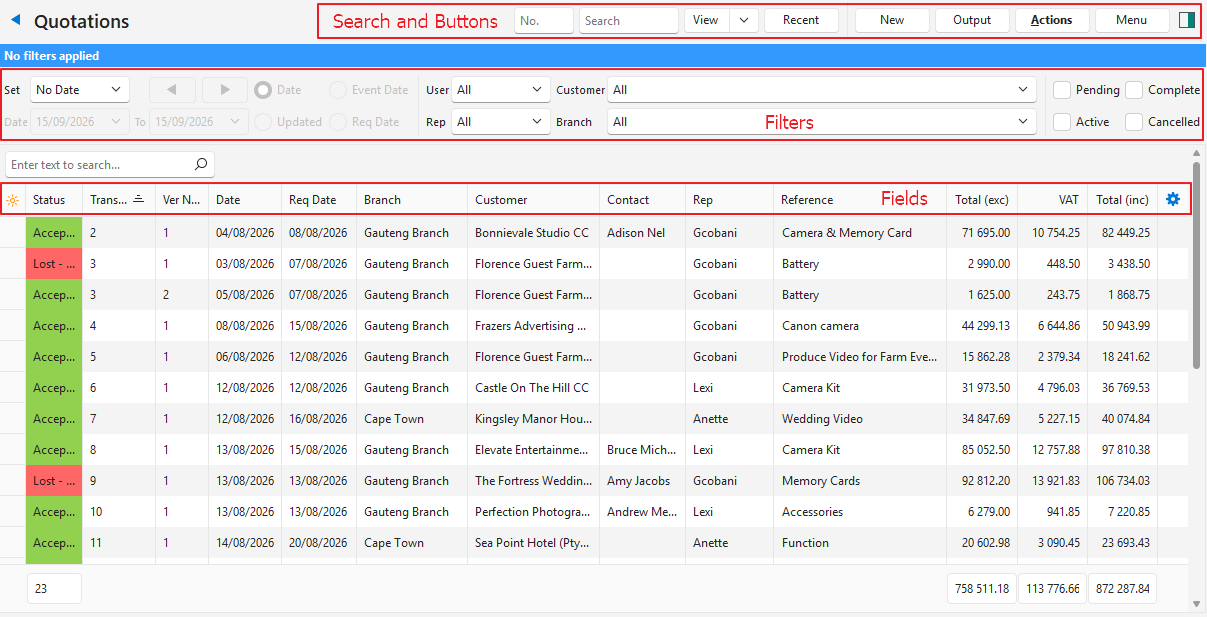
Buttons Explained
| Button | Description |
|---|---|
| View | Lists the entries that match the selected data filters. |
| Arrow on View Button | Includes additional view filters and an option to reset the filters:
|
| Recent | A dropdown list of recently viewed records for quick access to those records. The button does not appear if there are no recent records. |
| New | Creates a transaction. |
| Output | Prints, previews or emails the output if Output Templates are set up for the module. Export: Exports the list in .xlsx, .htm or .csv format. |
| Actions | Updates multiple records and copies transactions.
|
| Menu | Views – Transactions Views – Production (if production is enabled) Settings |
Filters Explained
- The active filters appear in a blue bar at the top of the screen.
- Not all the filters are available for every transaction. For example, Supplier Invoices have a Supplier filter but no Customer filter. Only customer transactions have the Rep filter.
| Filter | Description |
|---|---|
| Search | Enter text and click View (button) to list only the transactions with that text in their Reference or Status Note. In the Items view, each word is searched for separately in the reference, status note, item description and group, and an entry must match every word. |
| Search Trans No | The box with No. in it. Enter a transaction number and click View (button) to list only the transaction with that number. While a number is entered, the other filters and the Search box are ignored. Clear the box to use them again. |
| Set | Select a date from the dropdown list (e.g. No Date, Today, This year). |
| Navigational Arrows | Adjusts the date in the direction of the arrow. |
| Date… To… | Select a date from the dropdown list (e.g. No Date, Today, This year). |
| Date (radio button) | If selected, displays transactions Created on the selected date. |
| Updated (radio button) | If selected, displays transactions Updated on the selected date. |
| Due Date (radio button) | If selected, displays transactions that are due on the selected date. The “Due Date” caption can be renamed, so yours may differ. See Transaction Type Settings. |
| Req Date (radio button) | If selected, displays transactions that are required on the selected date. The “Req Date” caption can be renamed, so yours may differ. See Transaction Type Settings. |
| User | Select All or a specific user from the dropdown list. |
| Rep | Select All or a specific rep from the dropdown list. |
| Customer | Select All or a specific customer from the dropdown list. |
| Supplier | Select All or a specific supplier from the dropdown list. |
| Entity / Till (PoS) | Select All or a specific entity from the dropdown list. If Point of Sale (PoS) is enabled for the transaction, select a till from the dropdown list. The caption is Branch on Transaction Types with General > Enable Entities set to Branch. |
| Asset | Select an asset to show only the transactions linked to it. Appears only on Transaction Types with General > Enable Assets checked. |
| Status options | Checkboxes. Only entries with the checked statuses appear. If no boxes are checked, all the entries appear. |
Fields Explained
If your user access to the Transaction Type has Hide Costs set to Yes and the Transaction Type uses sell prices, the cost and profit columns are hidden: Fixed Cost, Total Cost, Profit and GM%.
| Name of Field | Column Header (if different) | Description |
|---|---|---|
| * | Referred to as the Field Chooser (*). This field cannot be hidden. Add or remove columns. | |
| Asset | The name of the linked asset. | |
| Assign To | The user to whom the transaction is assigned. | |
| Bank No. | The number of the bank import and the imported bank statement line that the transaction is matched to. Only available if Accounting > Update Bank is not None. | |
| Bill To | The Billing Address selected on the transaction. Only available if General > Enable Address includes Billing. | |
| Category | The category selected in the transaction header, for reporting purposes. | |
| Contact | The name of the contact person selected in the transaction. | |
| Created | The date on which the entry was created. | |
| Currency | The transaction’s currency. | |
| Customer | The name of the customer selected on the transaction. | |
| Date Expires | Req Date | The date on which the order is required. The “Req Date” caption can be renamed, so yours may differ. See Transaction Type Settings. |
| Date Trans | Date | The date of the transaction. |
| Deliver To | The customer’s Delivery Address. Only available if General > Enable Address includes Delivery. | |
| Deposit | The deposit amount to be paid (suppliers) or received (customers). | |
| Deposit % | The deposit percentage to be paid (suppliers) or received (customers). | |
| Due Date – Date | Due Date | The date on which the order is due. The “Due Date” caption can be renamed, so yours may differ. See Transaction Type Settings. |
| Due Date – Time | @ | The time by which the order is due. The “Due Date” caption can be renamed, so yours may differ. See Transaction Type Settings. |
| Entity (Reg) | The registered entity that the transaction is linked to. This field does not appear if there is only one registered entity. | |
| Fixed Cost | The transaction’s fixed cost. | |
| Flow | The system-generated number for the transaction flow (e.g. if a Quotation is copied to a Sales Order, they are part of the same transaction flow). | |
| From | The transaction code and number of the source document (e.g. if a quotation is copied to a sales order, the From field shows the quotation number). | |
| GM% | The gross margin percentage earned on the transaction. | |
| ID | The system-generated number for the entry. | |
| Language | The transaction’s language. | |
| Location From | The inventory location the items are transferred from. Only available if Inventory > Enable Transfer Issue or Inventory > Enable Transfer Receive is checked. | |
| Location To | The inventory location the items are transferred to. Only available if Inventory > Enable Transfer Issue or Inventory > Enable Transfer Receive is checked. | |
| NCR No. | The number of a linked NCR Service Type. Only available if NCR is enabled for the transaction. | |
| Order No. | The customer’s order number. Does not appear on transactions that are not customer transactions. | |
| Outstanding | Applies to customer and supplier transactions that are allocated against each other to determine which specific invoices are still outstanding. Displays the amount that is not allocated in the local currency. Available in the Field Chooser (*) only if Accounting > Enable Customer and Supplier Allocations is checked in General Settings, and the Transaction Type has Enable Accounting checked and a Debit Type or Credit Type of Customer or Supplier. | |
| Outstanding (cur) | Applies to customer and supplier transactions that are allocated against each other to determine which specific invoices are still outstanding. Displays the amount that is not allocated in the transaction’s currency. Available in the Field Chooser (*) under the same conditions as Outstanding, and only if the Transaction Type’s Currencies setting is not Local Currency. | |
| PoS No. | The number of the PoS session in which the transaction was created. | |
| Profit | The profit earned on the transaction. Applies if the transaction uses Sell Prices. | |
| Proposal | Displays the proposal’s Code. | |
| Proposal Qty | Displays the proposal’s quantity. | |
| Reference | The transaction’s Reference. | |
| Rep | The name of the rep selected in the transaction. Applies only to customer transactions. | |
| Req Date – Date | Req Date | The date on which the order is required. The “Req Date” caption can be renamed, so yours may differ. See Transaction Type Settings. |
| RoE | The rate of exchange. | |
| Status | The current status of the transaction. | |
| Status Note | The note entered on the status bar. | |
| Supplier | The name of the supplier selected on the transaction. | |
| Terms | The customer’s or supplier’s terms. | |
| Ticket No. | The Service Type’s ticket number. | |
| Till (PoS) | The name of the till if PoS is enabled. | |
| Total (exc (cur)) | Total (exc) | The transaction total excluding VAT in the foreign currency. |
| Total (exc) | The transaction total excluding VAT in the local currency. | |
| Total (inc (cur)) | Total (inc) | The transaction total including VAT in the foreign currency. |
| Total (inc) | The transaction total including VAT in the local currency. | |
| Total Cost | The transaction’s total cost in the local currency. | |
| Trans No. | The system-generated number allocated to the transaction or the number you entered. | |
| Trans Setup | The system-generated number allocated to the Transaction Type. | |
| Updated | The date on which the entry was updated. | |
| Updated By | The user who last updated the entry. | |
| VAT | The VAT amount on the transaction in the local currency. | |
| VAT (cur) | The VAT amount in the foreign currency. | |
| Ver No. | The transaction’s version number if version numbers are enabled. | |
 | A context menu, also opened by right-clicking the transaction. The contents of this menu depend on your access rights and the transaction’s setup. Typically, it has commands to edit, delete or copy the transaction. For example:
|
Attribute Columns
The transaction attributes selected in the Transaction Type setting Attributes to show in List View appear as extra columns in this list view (not in the Items list view), named after the attribute and in the order they were selected.
- The columns are read-only. To edit an attribute in the transaction header, add it to Attributes to show in Edit View.
- You can hide or move the columns, and your saved layout keeps them.
- Numbers, dates and checkboxes sort correctly.
- Transaction attributes are shared across the workflow, so every transaction in a workflow (e.g. the Quotation, Sales Order and Invoice) shows the same values.
List View: Items
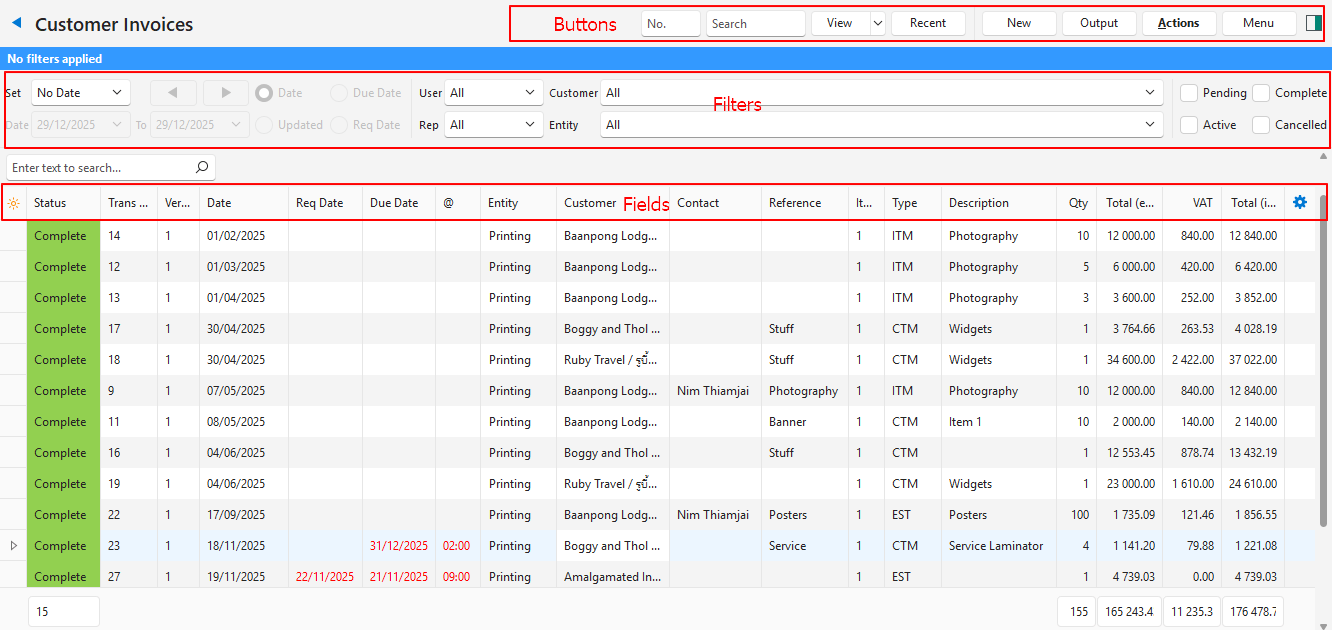
Buttons Explained
| Button | Description |
|---|---|
| View | Lists the entries that match the selected data filters. |
| Arrow on View Button | Includes additional view filters and an option to reset the filters:
|
| Recent | A dropdown list of recently viewed records for quick access to those records. The button does not appear if there are no recent records. |
| New | Creates a transaction. |
| Output | Prints, previews or emails the output if Output Templates are set up for the module. Export: Exports the list in .xlsx, .htm or .csv format. |
| Actions | Batch Update: Updates all the selected records after you enter the new value, click Update (button) and confirm the update. The batch update options, depending on the transaction settings, are:
|
| Menu | Views – Transactions Views – Production (if production is enabled) Settings |
Filters Explained
- The active filters appear in a blue bar at the top of the screen.
- Not all the filters are available for every transaction. For example, Supplier Invoices have a Supplier filter but no Customer filter. Only customer transactions have a Rep filter.
| Filter | Description |
|---|---|
| Set | Select a date from the dropdown list (e.g. No Date, Today, This year). |
| Arrows | Adjusts the date in the direction of the arrow. |
| Date… To… | Select a date from the dropdown list (e.g. No Date, Today, This year). |
| Date (radio button) | If selected, displays transactions Created on the selected date. |
| Updated (radio button) | If selected, displays transactions Updated on the selected date. |
| Due Date (radio button) | If selected, displays transactions that are due on the selected date. The “Due Date” caption can be renamed, so yours may differ. See Transaction Type Settings. |
| Req Date (radio button) | If selected, displays transactions that are required on the selected date. The “Req Date” caption can be renamed, so yours may differ. See Transaction Type Settings. |
| User | Select All or a specific user from the dropdown list. |
| Rep | Select All or a specific rep from the dropdown list. |
| Customer | Select All or a specific customer from the dropdown list. |
| Supplier | Select All or a specific supplier from the dropdown list. |
Entity / Till (PoS) | Select All or a specific entity from the dropdown list. If PoS is enabled for the transaction, select a till from the dropdown list. The caption is Branch on Transaction Types with General > Enable Entities set to Branch. |
| Asset | Select an asset to show only the transactions linked to it. Appears only on Transaction Types with General > Enable Assets checked. |
| Status options | Checkboxes. Only entries with the checked statuses appear. If no boxes are checked, all the entries appear. |
Fields Explained
If your user access to the Transaction Type has Hide Costs set to Yes and the Transaction Type uses sell prices, the markup and profit columns are hidden: MU%, Profit and GM%.
| Name of Field | Column Header (if different) | Description |
|---|---|---|
| * | Referred to as the Field Chooser (*). Add or remove columns. This field cannot be hidden. | |
| Adj% | The percentage adjustment. | |
| Asset | The asset linked to the transaction. | |
| Calendar End – Date | The user-defined caption for the calendar end date. | |
| Calendar End – Time | @ | The user-defined caption for the calendar end time. |
| Calendar Start – Date | The user-defined caption for the calendar start date. | |
| Calendar Start – Time | @ | The user-defined caption for the calendar start time. |
| Calendar Name | The name of the calendar linked to the transaction. This field name is replaced by the actual name of the calendar and alphabetised accordingly on the Field Chooser (*). | |
| Category (Item) | The item’s category (only applies to pre-created items). | |
| Category (Trans Item) | Category | The transaction item’s category. This category is selected from the same list as the transaction’s category. |
| Category (Trans) | Category | The transaction’s category. These categories are created for the Transaction Type. |
| Contact | The contact person selected for the transaction. | |
| Cr Account | The account that was credited. | |
| Currency | The transaction’s currency. | |
| Customer | The name of the customer selected in the transaction header. | |
| Date Trans | Date | The transaction date. |
| Description | The item’s description. | |
| Dr Account | The account that was debited. | |
| Due Date – Date | Due Date | The date selected as the due date. The “Due Date” caption can be renamed, so yours may differ. See Transaction Type Settings. |
| Due Time – Time | @ | The time selected as the due time. The “Due Time” caption can be renamed, so yours may differ. See Transaction Type Settings. |
| Entity (Reg) | The registered entity selected for the transaction. | |
| Fix | Fixes the price. | |
| Flow (Trans Item) | The system-generated number for the item’s transaction flow (all the transactions that were copied from each other). | |
| From (Trans) | From | The code and number of the source document for the transaction (e.g. if a quotation is copied to a sales order, the From field shows the quotation’s code and number). |
| From (Trans Item) | From | The transaction ID of the transaction that the item was copied from. |
| GM% | The gross margin earned on the entry. | |
| Group | The item’s group. Groups are created per transaction. They help to sort items. | |
| ID | The system-generated number for the entry. | |
| Inc | Whether the price is entered VAT inclusive (checked) or exclusive. | |
| Item | The sequential number allocated to the item on the transaction. | |
| Location | The inventory item’s Location Code. | |
| MU% | The markup percentage. | |
| Note | The item’s note. | |
| Profit | The profit earned on the entry. | |
| Qty | The item’s quantity. | |
| Qty (From) | The quantity on the transaction the item was copied from. | |
| Qty (Var) | The difference between the quantity on the transaction the item was copied from and the quantity copied. | |
| Reference | The transaction’s reference. | |
| Req Date | The date selected as the Req Date. The “Req Date” caption can be renamed, so yours may differ. See Transaction Type Settings. | |
| Resolve | The inventory item’s resolve (e.g. issue, receive, order). | |
| Supplier | The name of the supplier selected in the transaction header. | |
| Status (Trans Item) | The item’s status, if enabled. | |
| Status (Trans) | The transaction’s status. | |
| Till (PoS) | The name of the till if PoS is enabled. | |
| Total (exc (cur)) | The transaction total excluding VAT in the transaction’s currency. | |
| Total (exc) | The transaction total excluding VAT in the local currency. | |
| Total (inc (cur)) | The transaction total including VAT in the transaction’s currency. | |
| Total (inc) | The transaction total including VAT in the local currency. | |
| Trans Category | Category | The transaction’s category. |
| Trans From | The number of the source document for the transaction (e.g. if a quotation is copied to a sales order, the From field shows the quotation’s number). | |
| Trans ID | The system-generated number allocated to the transaction entry. | |
| Trans No. | The system-generated or user-defined number for the transaction (e.g. invoice number). | |
| Type | An abbreviation that shows the type of entry that was added. | |
| VAT | The VAT amount on the transaction in the local currency. | |
| VAT (cur) | The VAT amount in the transaction’s currency. | |
| VAT Category | The VAT Category selected for the item (e.g. Input + or Output +). | |
| VAT Type | The VAT Type selected for the transaction. | |
| Ver No. | The transaction’s version number. Shows 1 if version numbers are not used. | |
| WHT | The withholding tax amount. | |
| WHT% | The withholding tax percentage. | |
| WHT Section | The WHT section selected for the item (e.g. Wages 40(1)). | |
| A context menu, also opened by right-clicking an item. This field cannot be hidden. The contents of this menu depend on your access rights and the transaction’s setup. For example:
|