
Edit Reports: Edit SQL
Features: Code Editor
- Syntax Highlighting: Colour-codes SQL keywords, comments, numbers and strings for better readability.
- Line Numbers: Displays line numbers for easy reference.
- Tab Support: Uses a tab width of two for consistent indentation.
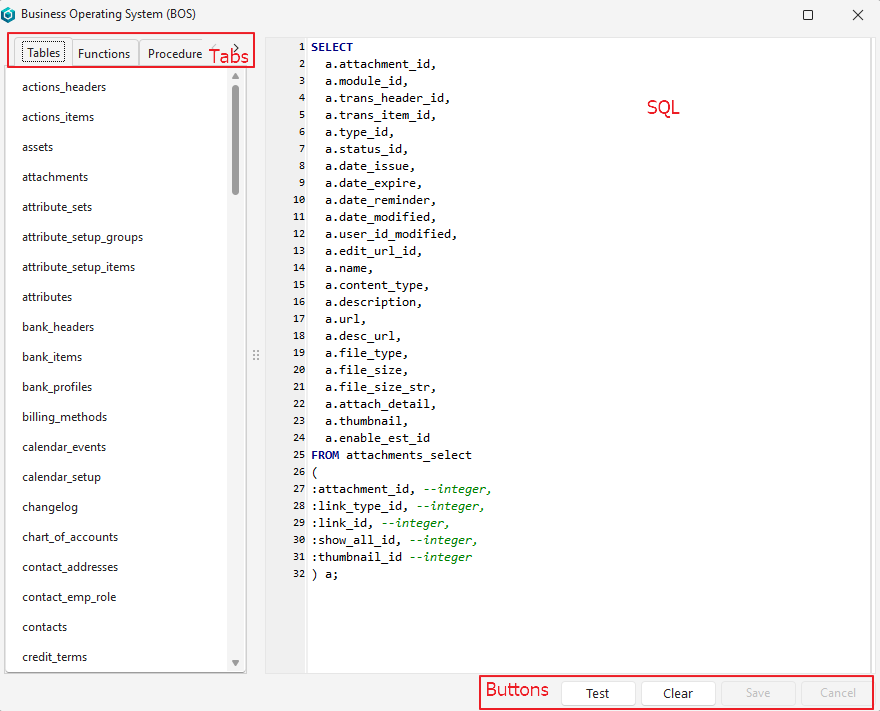
Buttons Explained
| Button | Description |
|---|---|
| Template | Inserts a starting SQL for the field being edited (for example, for a report filter, a query that returns The button appears only where a template exists: when you edit the SQL of a report filter, an attribute or an action. It is hidden when you edit the report’s own SQL. If the editor already contains SQL, the message “SQL Template will replace existing SQL, Continue?” appears first. |
| Test | Tests the entered SQL by running it.
|
| Clear | Clears the field. |
| Save | Saves any changes. |
| Cancel | Discards the changes. |
| X (top corner) | Closes the SQL popup and generates the fields. Warning: Depending on how complex the query is, there may be a few seconds’ delay between closing the popup and the fields being generated. |
Tabs Explained
| Tab | Description |
|---|---|
| Tables | Lists all the tables in the database (excluding system tables). Includes a context menu (right-click) with these options:
|
| Functions | Lists user-defined, selectable PostgreSQL functions. Double-click a function to insert its name. (Functions are queries that return specific values.) Includes a context menu (right-click):
|
| Procedures | Lists the user-defined PostgreSQL procedures. Double-click a procedure to insert its name. Includes a context menu (right-click):
|
| Params | Lists query parameters (e.g. Double-click a parameter to insert it into the query. |
Tips: Creating SQL Queries
- Parameter Handling: Parameters use a colon prefix (e.g.
:param_name). Test queries to confirm parameters are valid. - Performance: A wait cursor appears during database operations to indicate processing.
Limitations: SQL
- The editor is designed for PostgreSQL and may not support other database systems.
- The Test feature may not catch all runtime errors.
- Navigation buttons are hidden if no grid or tree view is linked.
Troubleshooting: SQL
- Error on Test: Check SQL syntax and ensure parameters are valid. The error message provides some details.
- Empty Table/Function List: Confirm the database connection is active and the schema is accessible.
- Save Button Disabled: The query matches the saved version. Edit the query to enable the Save or Cancel buttons.