
Calendar Types Edit View
You can create multiple calendars and customise the settings for each calendar by creating a Calendar Type. The edit view is where you create or edit a Calendar Type, add its settings and set its user access (user access is set for each Calendar Type separately).
Once created, a Calendar Type must be added to a Menu Group (any menu) before it can be used.
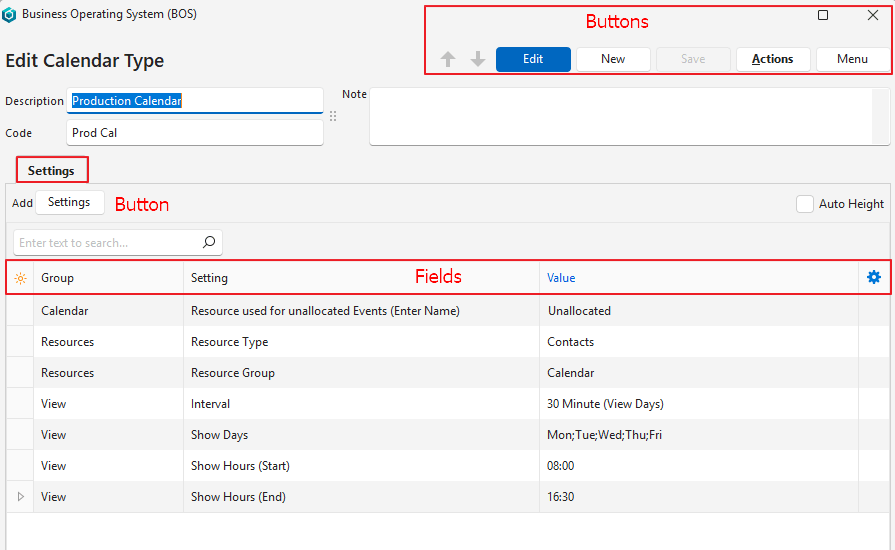
Buttons Explained
| Button | Description |
|---|---|
| Edit | Lets you edit the entry. Blue when Edit mode is active. |
| New | Creates a Calendar Type. |
| Save | Saves any changes. |
| Actions | Delete: Deletes the Calendar Type. |
| Menu |
|
Header Explained
| Field | Description |
|---|---|
| Description | Enter a description for the Calendar Type. |
| Code | Enter a brief description for the Calendar Type. |
| Note | Enter a note about the Calendar Type. |
Settings (tab)
Info
- To add settings, click Settings (button) next to Add.
- The settings are explained under Calendar Types Settings.
- Fields marked in blue (✎) can be edited.
Fields Explained
| Field | Description |
|---|---|
| Editor | The system-generated number of the type of editor (input control) used for the setting’s value. |
| ID | The system-generated number allocated to the setting. |
| Module ID | The system-generated number for the Calendar Type. |
| Group | The name of the group. |
| Setting | The name of the setting. |
| Value | Change the setting’s value. |
| Created | The date on which the setting was added. |
| Updated | The date on which the setting was last updated. |
| Updated By | The user who last updated the setting. |
 | A submenu (also opened by right-clicking the entry) with this option:
|