
Setup Example – Cash Sales
- Cash Sales charge walk-in customers for goods or services when no customer account is created for them (e.g. at Point of Sale (PoS) tills).
- They work like Customer Invoices, but each cash sale is allocated to a PoS till.
- In this example, the cash sales customer is debited and the Cash Sales account is credited (Dr Customer (Cash Sales), Cr Sales).
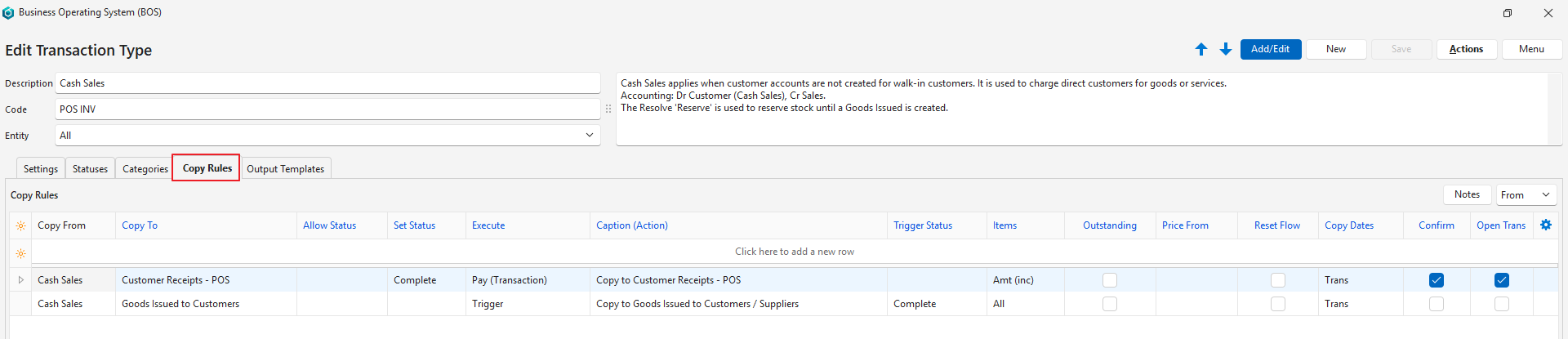
- The Reserve resolve reserves stock until a Goods Issued transaction is created. When the cash sale is Complete, its items are copied to Goods Issued to Customers automatically.
- The payment is recorded by copying the cash sale to Customer Receipts (PoS).
💡This page provides an example of a Transaction Type setup for Cash Sales.
Header
- Description: Cash Sales
- Code: POS INV
- Entities: All
Settings (tab)
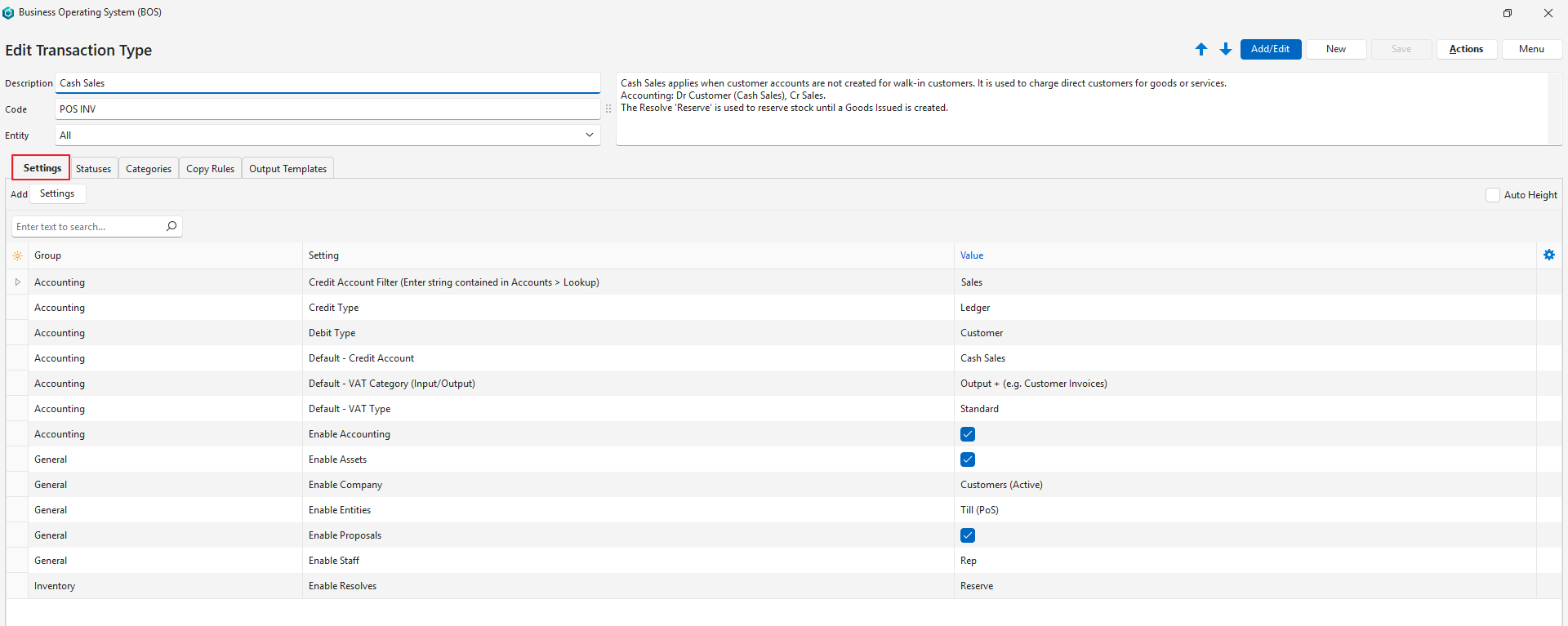
- This section lists the compulsory and optional settings that can be used to customise Cash Sales.
- Settings with Default as part of the name can be changed when capturing a transaction.
| Setting | Description | Value | When Required |
|---|---|---|---|
| Accounting > Credit Account Filter (Enter string contained in Accounts > Lookup) | Limits the accounts that can be selected to those that include the letters entered. The filter is case-insensitive. | Sales | If you want to limit the accounts that can be selected. Requires all your sales accounts to include the word Sales in the lookup field. |
| Accounting > Credit Type | Select from a dropdown list of account types. The options are:
| Ledger | Always |
| Accounting > Debit Type | Select from a dropdown list of account types. The options are:
| Customer | Always |
| Accounting > Default – Credit Account | Select a default account from the dropdown list. | Cash Sales | If you want to specify the sales account to credit. |
| Accounting > Default – VAT Category (Input/Output) | Select a VAT Category from these options:
| Output + (e.g. Customer Invoices) | Always if you are registered for VAT. |
| Accounting > Default – VAT Type | Select a default VAT Type for the Transaction Type from a dropdown list of all the created VAT types. | Select the Standard VAT Type. | Always if you are registered for VAT. |
| Accounting > Enable Accounting | A checkbox. If checked, accounting is enabled. If unchecked, transactions are created in the module and not posted to the ledger. | Check the box. | Always |
| General > Enable Assets | Checkbox. If checked, you can select an asset from a dropdown list. | Check the box. | If assets are used to generate income (e.g. you service or repair assets for customers). |
| General > Enable Company | Select what type of company should be in the header:
| Customers (Active) Prevents cash sales from being created for suspended customers. | Always |
| General > Enable Entities | Select an option from this list:
| Till (PoS) | Always for transactions captured on PoS tills. |
| General > Enable Proposals | Checkbox. If checked, proposals can be created from the transaction. | Check the box. | If you want to use proposals. |
| General > Enable Staff | Select how transactions are assigned:
| Rep | If you want to allocate the cash sale to a rep or staff member. |
| Inventory > Enable Resolves | Specify what must happen to inventory items. The options are:
| Reserve | If you use inventory management. In this example, the stock is reserved until a Goods Issued to Customers transaction is created. |
Statuses (tab)
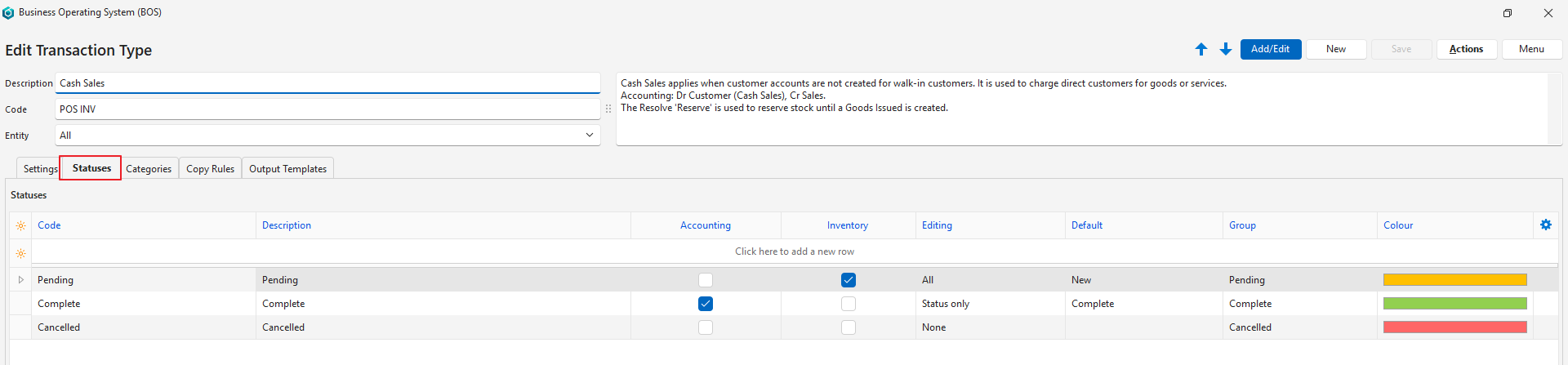
- You may create an unlimited number of statuses.
- However, there are only four Status Groups:
- Pending
- Active
- Complete
- Cancelled
- The first status should allow editing.
- The final status should ideally not allow editing.
- If the setting Accounting > Enable Accounting is checked, at least one status should have the Accounting column checked.
- If inventory is used, at least one status should have the Inventory column checked.
- If editing is allowed when the inventory or accounting columns are checked, any accounting or inventory reports should be considered provisional.
Categories (tab)
- Categories sort records.
- The categories you choose should be meaningful to your business.
- Using categories is optional but recommended.
- Categories can be copied from another Transaction Type. The existing categories are replaced by the copied categories.
This example has no categories. If you want to sort your Cash Sales (e.g. by product line or sales channel), create your own categories. See Transaction Categories Tutorials.
Copy Rules (tab)
- Copy Rules determine when transactions may be copied.
- Although the copy involves two transactions, you only need to create one Copy Rule.
- User access must be set for each Copy Rule.
- You can automate copying transactions by selecting a Trigger status.
Output Templates (tab)
- Output Templates are the forms you need to print, preview or email a transaction (e.g. invoices).
- Default templates are included. They automatically show your company name, logo and bank details, as filled in on the Output tab of a registered entity.
- You may edit these templates to include or exclude information.
- You may also create your own forms and templates from scratch.
