
List Views
Info
A list view is a list of entries, for example, transactions, contacts, items or tickets.
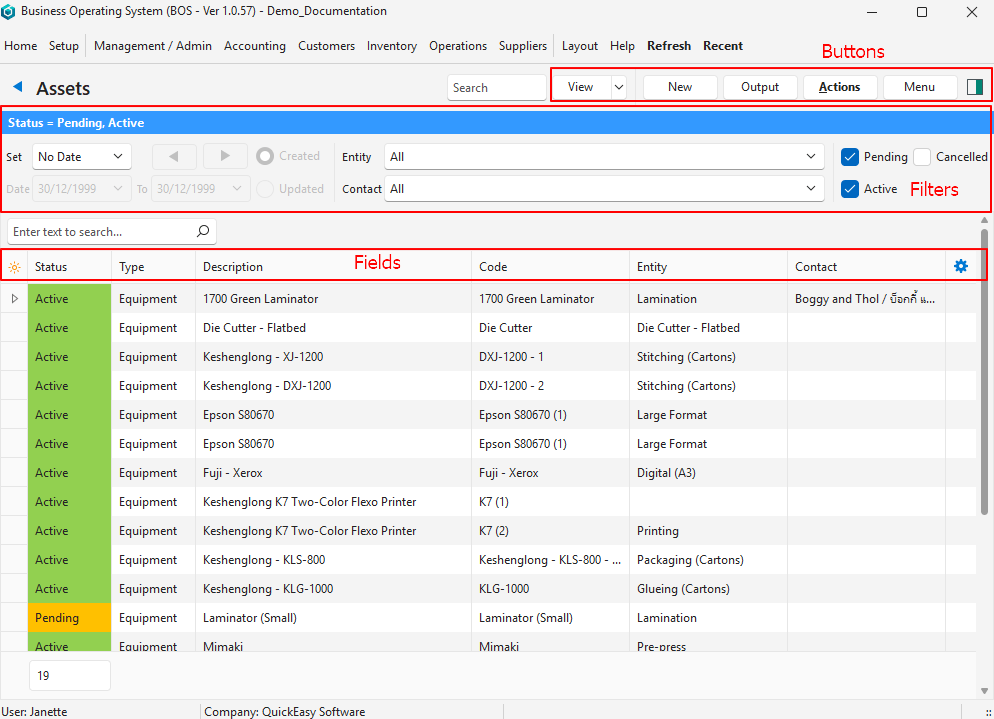
| Sections | Description |
|---|---|
| Caption | The name of the report (List View) at the top with an arrow to navigate back to the Tile Menu. |
| Buttons | Menu buttons with options and actions for the report. |
| Filter Bar | A blue filter bar displays the active filters after View (button) is clicked. |
| Data Filters | Data filters vary per report. They let you include or exclude data (e.g. statuses, dates). |
| Columns |
|
| Rows |
|
Buttons Explained
| Button | Description |
|---|---|
| View | Generates the report based on the selected data filters. |
| Arrow on View | Resets the data filters. |
| New | Creates a record or transaction. |
| Output | Prints, previews or emails the output if Output Templates are set up for the module. Export: Exports the list in .xlsx, .htm or .csv format. |
| Actions | The available actions, which depend on the view (e.g. to copy transactions or change multiple records at once). |
| Menu | Links to all the settings that apply to that view. Additional view-specific options. |
Example: Transaction Lists

- The Main Menu, which is customised and allocated to each user.
- The Back button, which returns you to the Tile Menu.
- The name of the report (list view) you are viewing.
- Main Buttons and Filters for the module.
- Filter bar which displays all the active filters, excluding column-specific filters (that is, filters that are created by right-clicking a column header).
- Module-specific Filters.
- Text Search to find a record with specific text. Only appears if there are entries.
- Field Chooser (*) column from which columns can be added or removed.
- Captions for the columns. Column headings can be right-clicked to display a context menu. Some reports have blue captions to indicate the fields may be edited. In this case, there is also an Edit button on the top row of buttons that toggles editing mode.
- Entries on the list. Left-click the three dots (…) in the last column, or right-click anywhere on the row, to open the context menu. The entries on the context menu differ per report.