
Menus Explained
- Menus are graphical user interface (GUI) elements that let you access various features and functions of an application by clicking a button (menu option).
- You can customise the menus in QuickEasy BOS by creating Menu Groups and linking components (modules) to them.
- Menu Groups and Fixed Menu Items are included in Menu Templates, which are assigned to users.
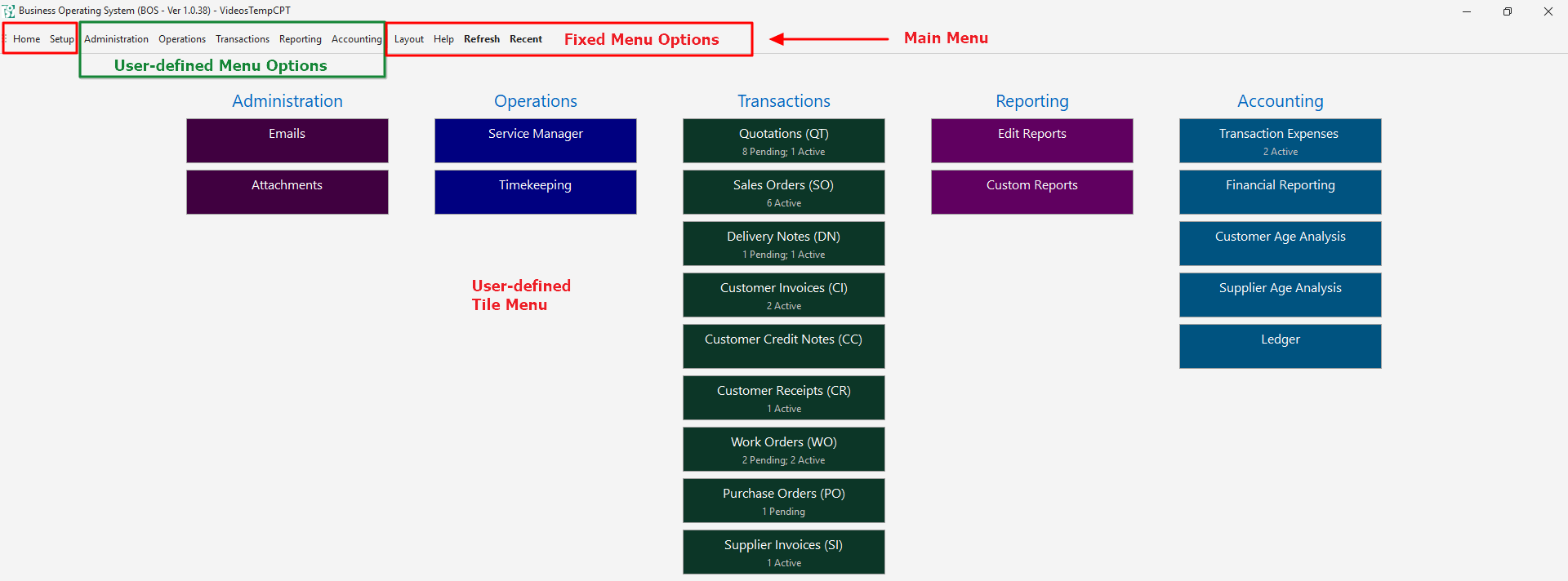
Main Menu
- The main menu of the software consists of a row of text buttons placed at the top of the window.
- This documentation refers to it as the Main Menu.
- The menu can be customised (so your menu may look different from the screenshot).
Tile Menu
- The Tile Menu is the Home menu and provides links to frequently used modules and categories as chosen by users.
- The menu can be customised.
Button Bar
- Modules contain navigational elements, search functions, and menus on the top right.
- The menu options and functions vary between modules.
Actions Button
- Most screens have an Actions button with functions to edit the records (e.g. Batch Updates).
- The Actions options are specific to each module and differ between List View (reports) and Edit View (entering or editing a transaction).
Context Menus
- A context menu is a submenu that opens when you right-click an entry.
- Context menus vary between modules and screens.
Panels
- Reports and actions can open in:
- The left panel
- The right panel
- A popup window
- Popup windows:
- Remain open on top of the workspace until closed. Closing them does not prompt a warning or confirmation, unlike closing a window that closes QuickEasy BOS.
- May be resized using standard Windows tools.
- Cannot be minimised because they suppress the functions on the main window.
Workspace Navigation
- The Back navigational arrow, to the left of a heading, navigates to the previous screen.
- Clicking it from List View (a report) takes you back to the Menu screen.
- Clicking it from Edit View (a transaction) takes you back to List View.
- The Recent menu option shows a list of recently opened modules for quick navigation.
- Where a module has more than one view, the list includes the view.
- The list of recent items resets when QuickEasy BOS is closed.
Setting Up Menus
Menus are set up on the Menus screen (Main Menu > Setup > Menus) in two steps:
- Create Menu Groups: the headings under which the menu items are placed.
- Create Menu Templates from the Menu Groups, the Fixed Menu Groups and the Fixed Menu Items, and assign them to users.