Grid Views
A grid view shows data in a table, with columns (fields) and rows (records). The columns are the fields or attributes of the data, and the rows are the individual records.
To display records in the grid, set a data filter and click View (button) on the button bar at the top of the panel.
Column Layout
| Function | Description |
|---|---|
| Resizing | Columns can be resized by dragging the lines between columns. |
| Best Fit | You can right-click the header and select Best Fit. Adjusts the width of the column to fit its widest content. |
| Reordering Columns | Columns can be reordered by clicking a column header and dragging it to a new location. |
| Reordering Fields | Field records can be sorted in ascending or descending order. Clicking the column header changes the sort order. |
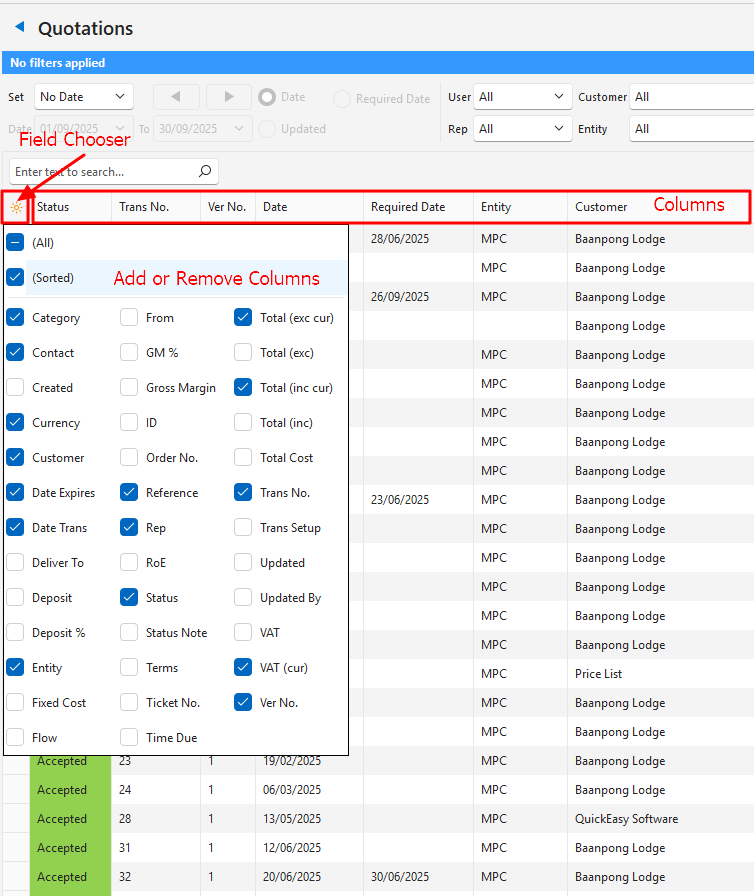
| Removing Columns | A column can be removed with the Field Chooser (*) in the first column. A column can also be removed by right-clicking the column header and selecting Remove This Column. |
| Adding Columns | Columns can be added using the Field Chooser (*) in the first column, which lists all the columns. The Field Chooser (*) is also available from the context menu (right-click any column header). |
| Alignment | To align the data in a column, right-click the column header, select Alignment and select an option:
|
| Reset | The column layout can be reset to the default layout by clicking Menu (button) > Restore Default (All Users). The reset requires QuickEasy BOS to be restarted. |
Grid Search Bar
| Field | Description |
|---|---|
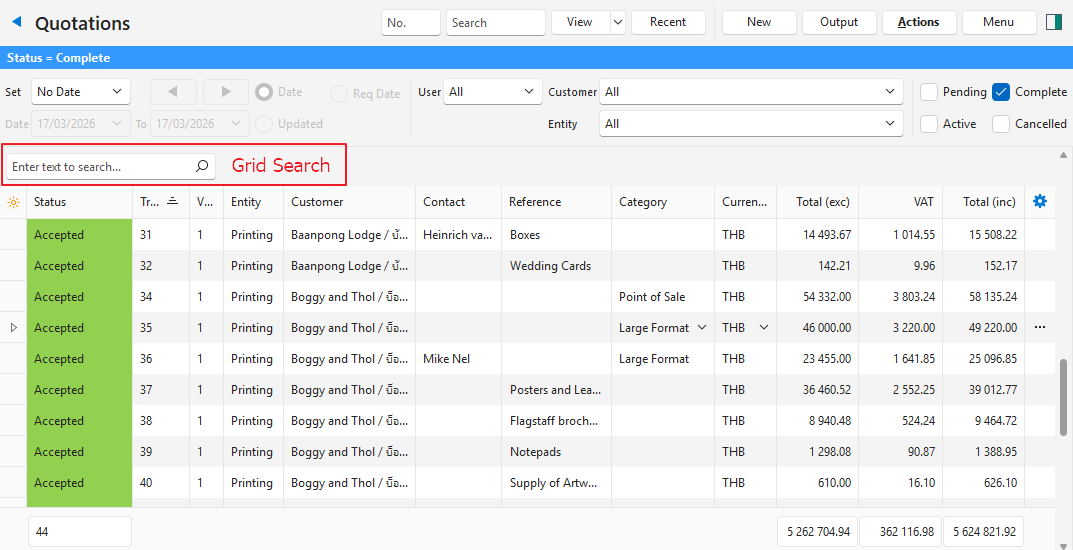
| Position | A Search bar, when available, appears to the left and directly above the grid. It only appears once the list of entries appears (that is, after View (button) is clicked). |
| Search Parameters | You can search using:
|
| Resetting Search | The search text can be cleared by clicking the X next to the search bar (which only appears after a search is performed). |
Grid Filters
| Field | Description |
|---|---|
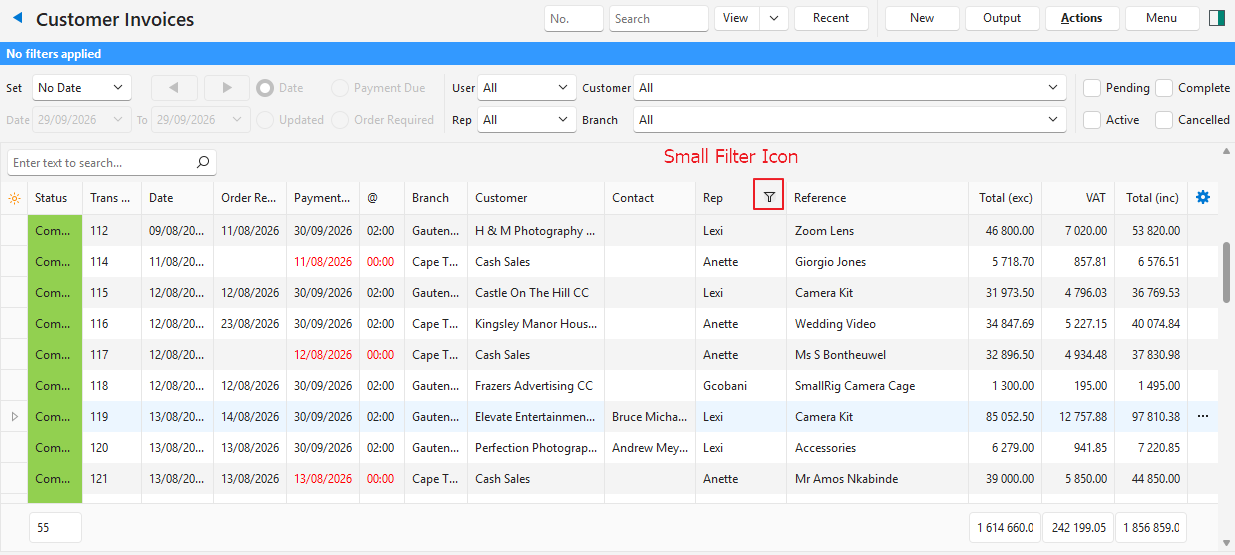
| Accessing the filter | Hover the mouse over the header until the Small Filter Icon (a funnel) appears (see the screenshot above). |
| Using the filter | Click the Small Filter Icon to open a dropdown list from which you can select one or more options. The dropdown list consists of records in the applicable column. Once a filter is selected, the Small Filter Icon turns blue. |
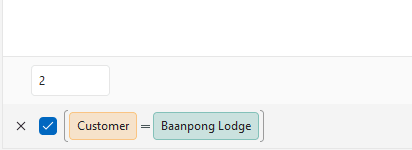
| Filter Information | When a filter is applied, the information appears in the bottom left-hand corner (see the screenshot below). |
| Resetting the filter | The filter is reset by clicking the Small Filter Icon and selecting All from the dropdown list. The filter can also be reset by clicking the X in the bottom left-hand corner next to the filter information. |
Recent Buttons
List View
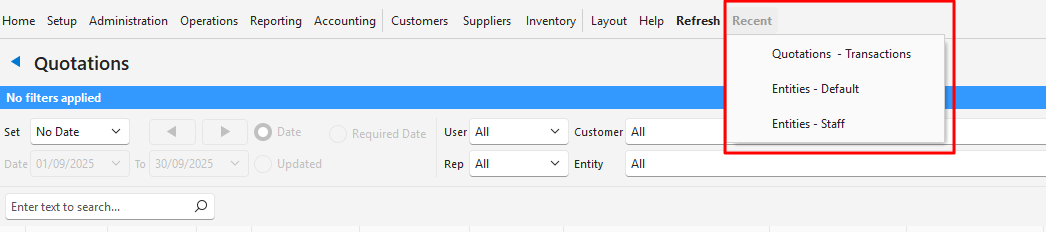
The Recent button, on the main menu, displays the modules (menu options) recently viewed and the view that was active. Click an entry on the recent list to return to it.
Edit View
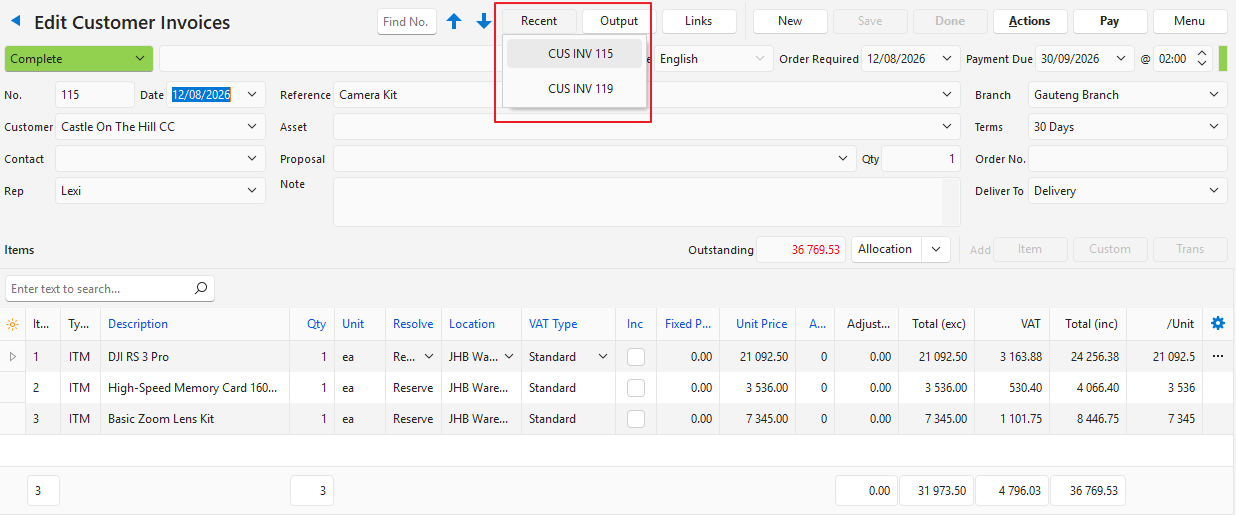
The Recent button, on edit views, displays the transaction numbers that were recently viewed or edited for the same Transaction Type. Click an entry to open that transaction.