
Statuses
- All the Master Data and Transaction modules have Status fields, which can be used to manage the data.
- Transactions can have both Header and Item statuses.
- You may create as many statuses as you need. However, there is a finite list of Status Groups to which each status must be allocated.
- Status settings define conditions within the workflow.
Info
- The interfaces are the same for Assets, Contacts, Customers, Entities, Items and Suppliers. In all cases, the status functions are under Menu (button) > Edit Statuses of the respective modules.
- For Items, Edit Statuses opens the Statuses tab of the Item Settings window, where the button is Add/Edit and the default button is Add Default Statuses.
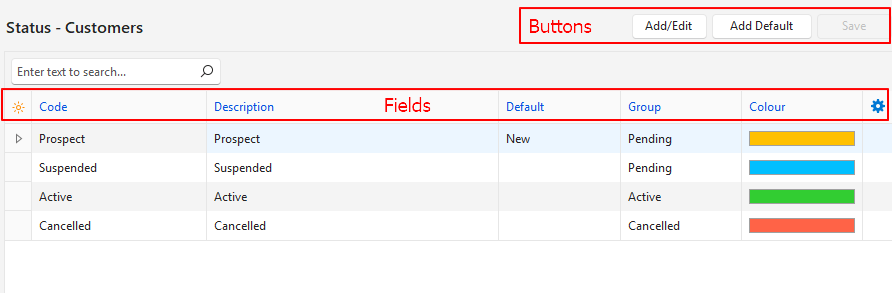
Buttons Explained
| Button | Description |
|---|---|
| Add/Edit | Turns on editing, so you can add and edit statuses. |
| Add Default | Adds default statuses. The function is only available if no statuses exist yet. Default statuses differ per module. |
| Save | Saves any changes. |
Fields Explained
Info
Fields marked in blue (✎) can be edited.
| Field | Description |
|---|---|
| Field Chooser (*) | Add or remove columns. |
| ID | A system-generated number for the status. |
| Order ID | A system-generated number for the order of the statuses. |
| Code | The brief description of the status. |
| Description | The long description of the status. |
| Default | Every module must have a default New status. The New status is assigned when a new record is created. |
| Group | Every status must be allocated to a group. The group options are:
|
| Colour | You can choose a colour for each status by clicking the colour block and selecting a different colour. We recommend using status colours consistently (e.g. all Pending statuses across the system are yellow). |
 |
|
Windows Standard Colours
- Yellow – 65535
- Blue – 16748574
- Purple – 13850042
- Green – 3329330
- Orange – 36095
- Red – 4678655